
As we enter 2026, AI has become a staple for marketers. Whether you're using ChatGPT or Claude, generating a stunning HTML marketing email takes just a few seconds. But the moment you hit "Send Test"—the nightmare begins:
- Outlook Shuts It Down: Your beautiful rounded buttons turn into sharp rectangles, side-by-side images suddenly stack or misalign, and weird white lines appear out of nowhere.
- Gmail Clipping: Before the reader even gets to your offer, Gmail cuts the email in half with a "View entire message" warning. Your unsubscribe link and bottom CTA? Gone.
- The Sea of Blue Links: Apple and Gmail "helpfully" turn every phone number, date, and address into bright blue links, completely clashing with your brand design.
These issues persist in 2026 because email clients (especially Outlook, which still relies on the Word engine) haven't kept pace with AI. If you're still manually digging through 2,000 lines of code for mso-table-lspace or display:none, you're already behind the curve.
Today, I'll show you how to use HtmlDrag's "Email Compatibility Fixer" to quickly improve those AI-generated emails.
Why Does Your Email "Break"?
The root cause is simple: AI generates HTML based on modern browser standards, but email clients are "relics" from a different era.
- Gmail hard-caps HTML file size at 102KB. Exceed it by even a byte, and your email is clipped.
- Outlook (Windows) doesn't support background images, complex padding, or CSS border-radius without specific VML (Vector Markup Language) code.
- iOS/Gmail Data Detection: They automatically identify data and force-override your carefully chosen styles.
Step-by-Step: Solve the Outlook & Gmail Nightmare
Where is the entry?
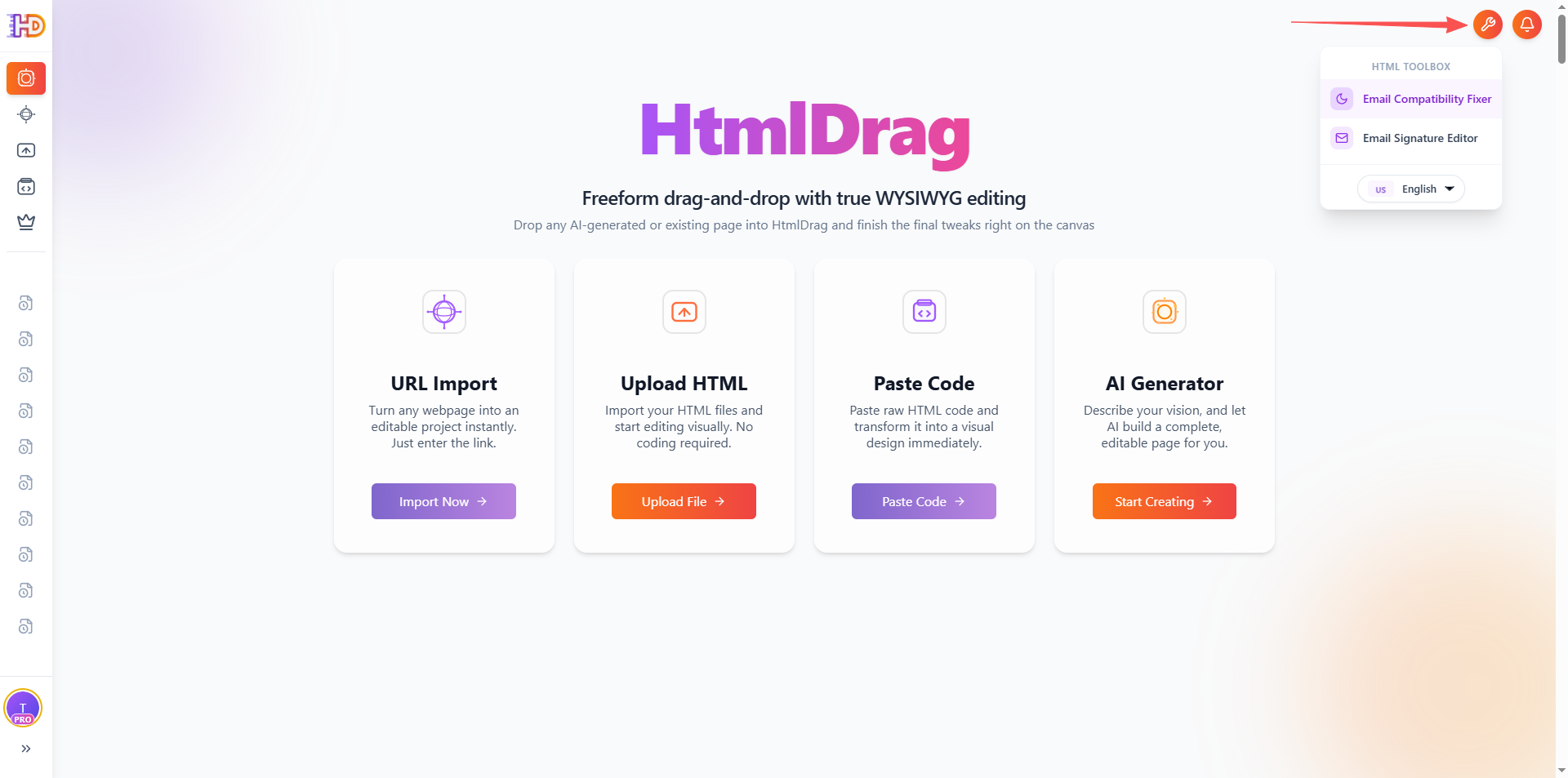
On the homepage, click the HTML Toolbox button in the top-right corner, then choose Email Compatibility Fixer.
Step 1: Upload HTML
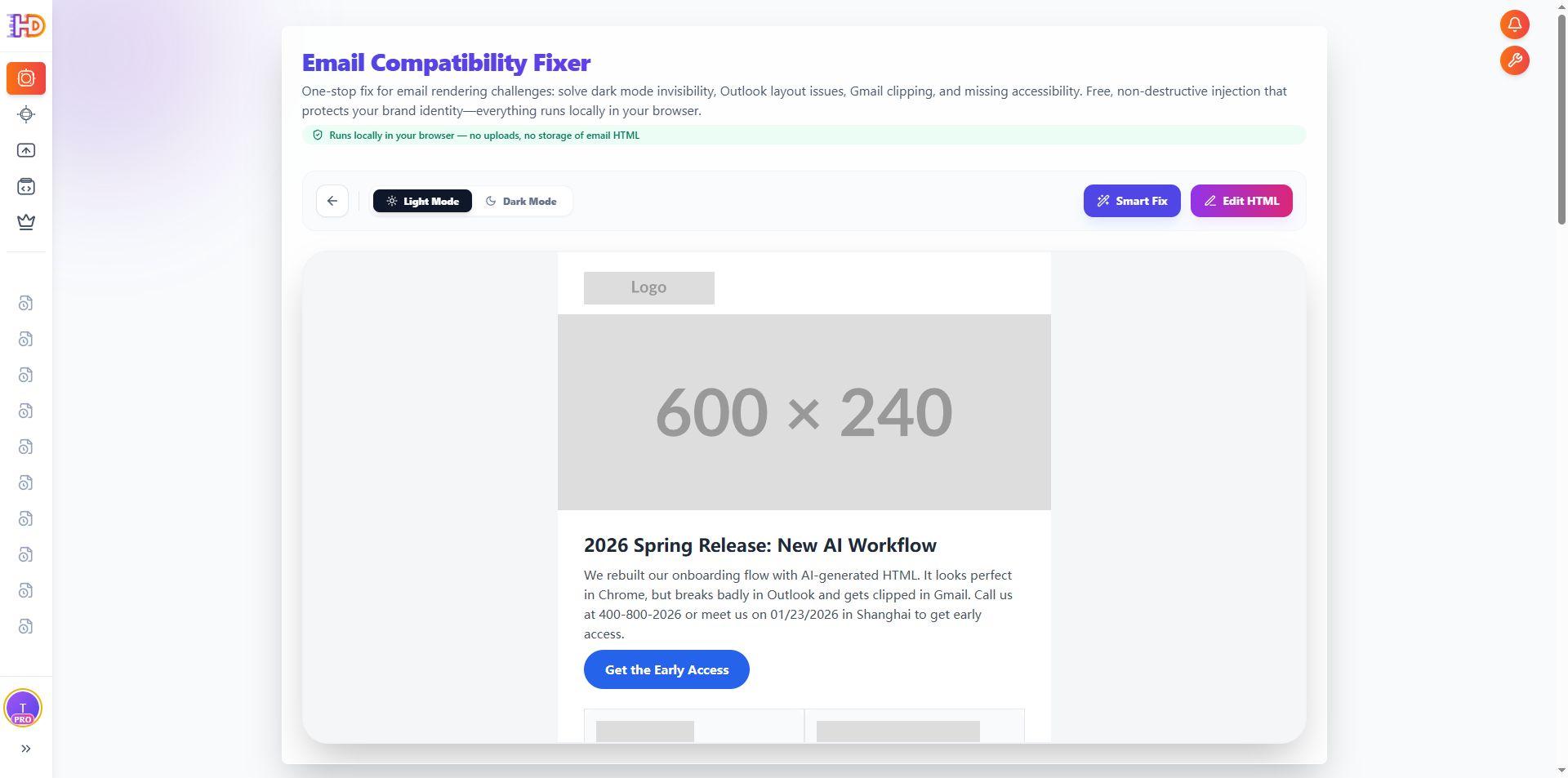
Use the upload button to bring your HTML email into the editor.
Step 2: Smart Scan for "Silent Killers"
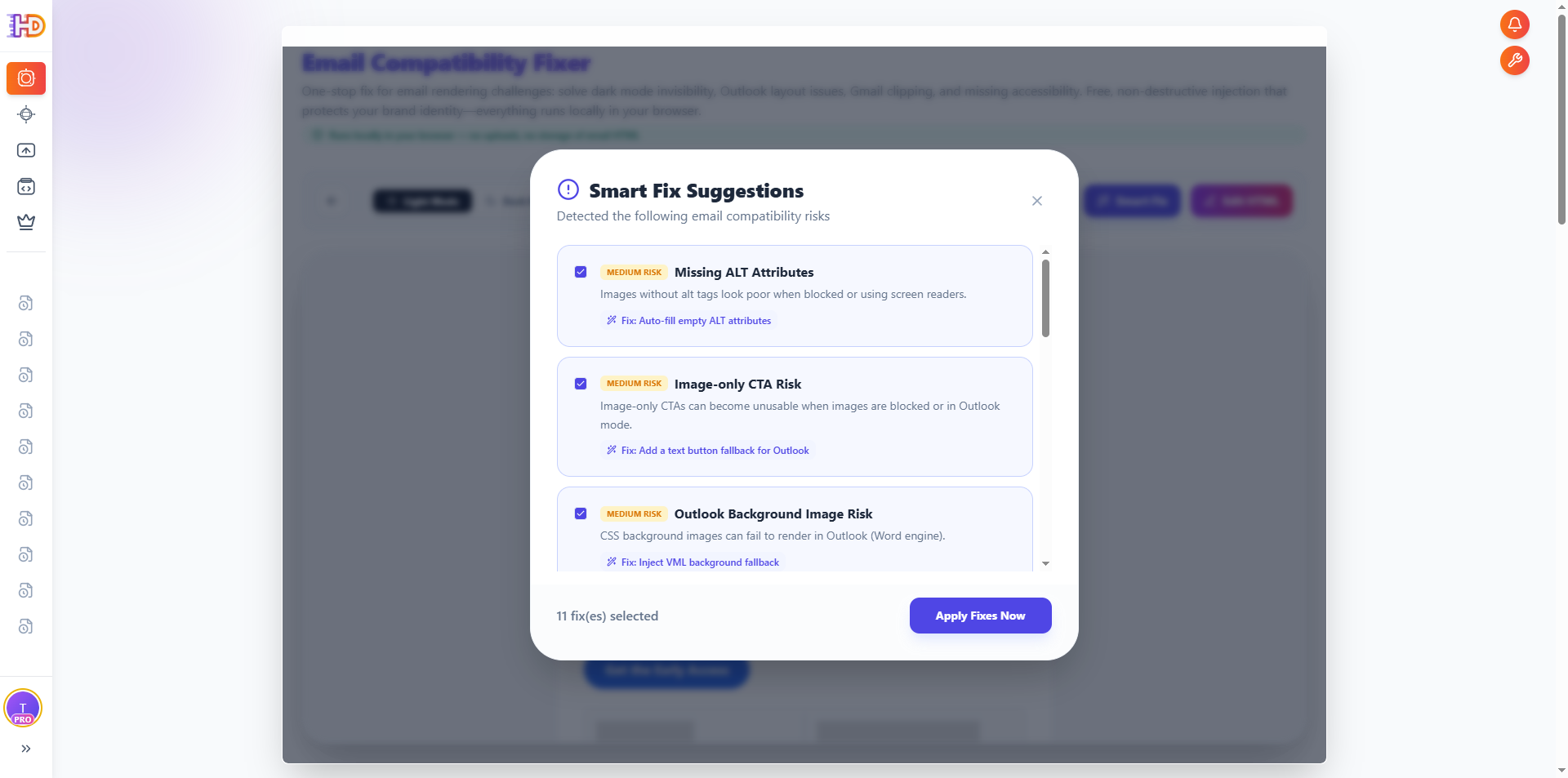
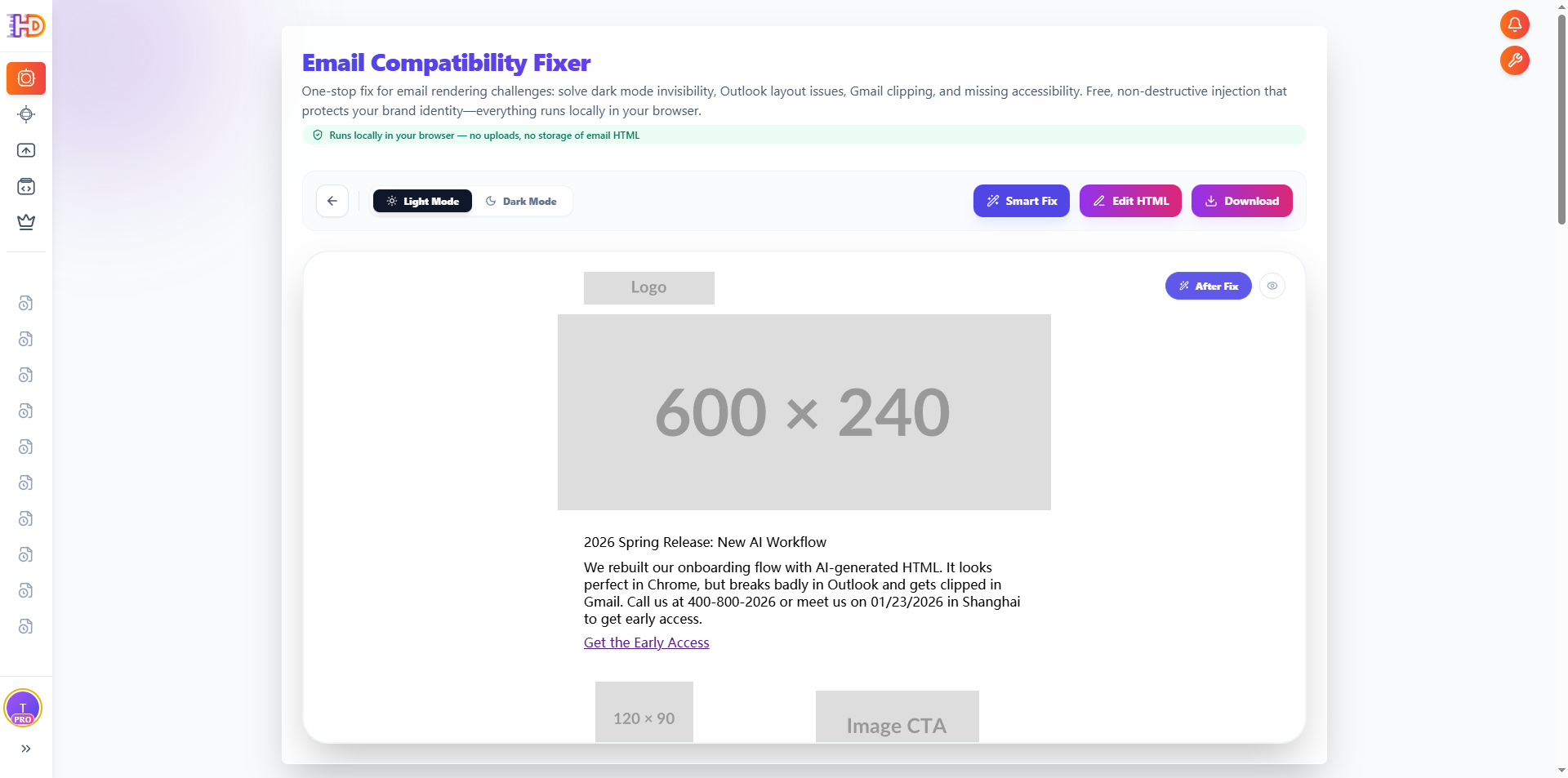
Click "Smart Analyze." The system evaluates HTML weight (to reduce Gmail clipping risk) and flags blocks likely to break in Outlook. These are issues almost impossible to spot with the naked eye.
Step 3: One-Click Patching
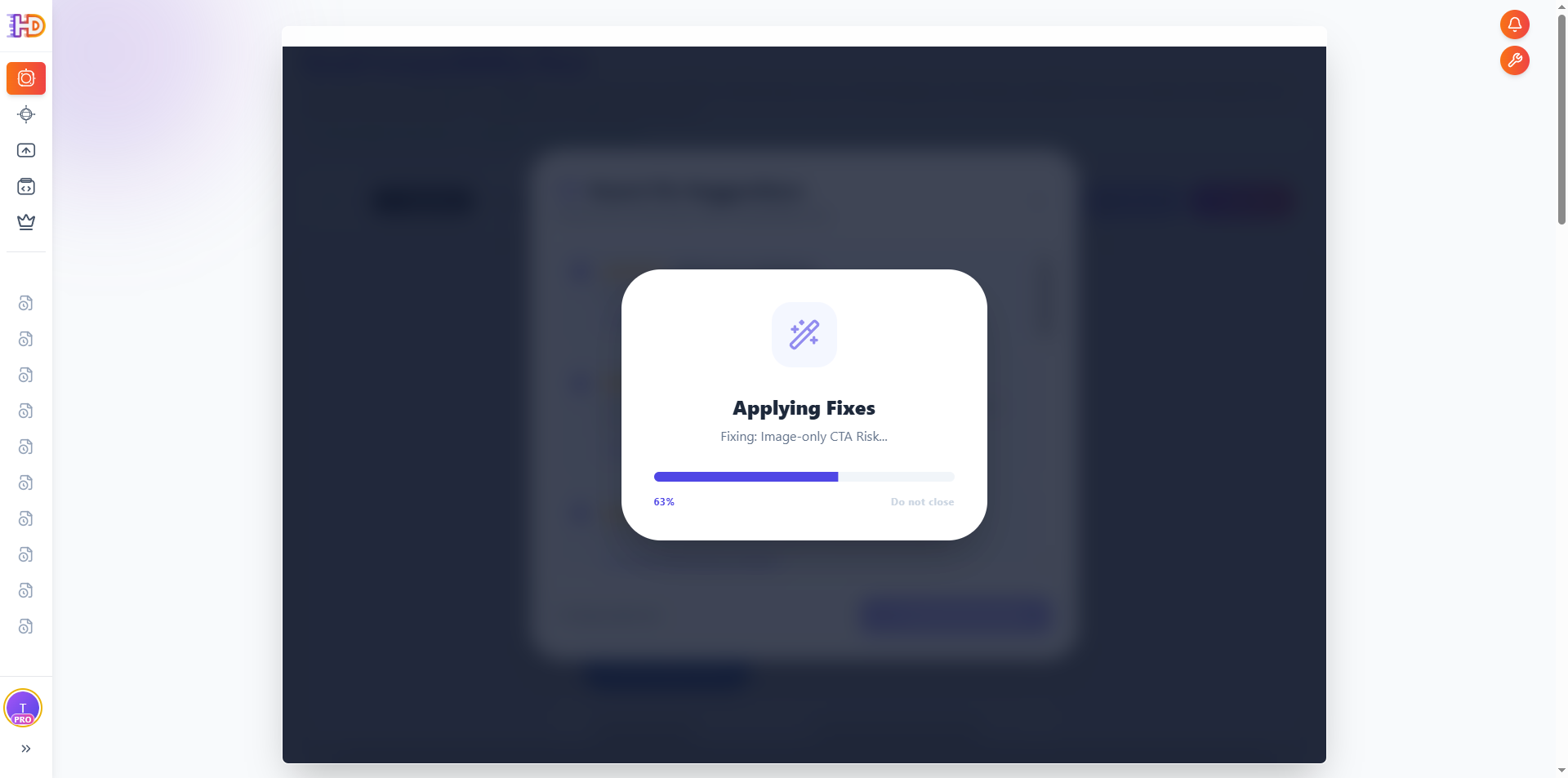
For Outlook, the system injects MSO Conditional Comments. It converts background images into VML and transforms CSS buttons into Outlook-friendly shapes. For Gmail clipping, it performs code minification to reduce size while keeping your layout consistent.
Step 4: Finish & Download
When fixes complete, the Download button appears in the top-right corner. Click it to export the fixed HTML.
Comparison: Why Experts Don't Fix Code Manually
| Core Issue | Traditional Manual Search | HtmlDrag Automation |
| Gmail Clipping | Hunting for redundant comments/spaces | Minification to reduce total HTML size |
| Outlook Alignment | Cross-referencing massive MSO docs | Automatic VML & conditional injection |
| Auto Blue Links | Wrapping every number in custom spans | One-click global data-detectors override |
Conclusion: Focus on Strategy, Not "Dirty Work"
Elite marketers in 2026 aren't the ones who write the best prompts—they're the ones who use tools to bridge the gap between AI generation and final delivery. Don't waste your hours fighting Outlook's outdated engine.
Visit htmldrag.com now to give your AI-generated emails a "compatibility check" and make sure your creativity reaches the reader's eyes.