
For many AI-generated websites and vibe-coded launches, the page that most often turns early interest into real intent is the waitlist page. The first draft may already exist, the layout may already feel usable, and the product direction may already be visible. But once a visitor lands on the signup section, the question changes from “what is this?” to “why should I join now, what happens next, and is this worth my email?”
That is why AI-generated waitlist pages often need a different kind of refinement than a homepage. The issue is not always missing content. More often, the issue is weak focus: hero copy that sounds generic, signup sections that ask for attention without enough payoff, buttons that do not feel urgent, and lower-page blocks that add scrolling instead of confidence.
This article focuses on that exact editing workflow. Rather than regenerating an AI-built launch page from scratch, we start from a public live page and show how to make it feel clearer, more focused, and more conversion-ready through visual editing alone.
Why This Topic Matters
Refining AI-generated websites is one of the most practical website-editing topics because AI builders and vibe coding can already produce usable first drafts quickly. What still determines whether a waitlist page performs well is the human refinement layer: clarity, momentum, trust, and signup flow. That is also where a browser-based visual HTML editor becomes useful, especially when you want to edit existing HTML instead of restarting the whole page.
- improve an AI-generated waitlist page without reopening code
- refine a vibe-coded launch page without rebuilding the whole design
- improve hero clarity and signup CTA emphasis after AI generation
- remove friction from popups, distractions, and low-value lower-page sections
That makes AI-page refinement a strong long-tail topic for founders, marketers, consultants, and non-technical operators who already have a working page from AI or vibe coding but still need it to feel more deliberate and easier to act on.
What Usually Makes an AI-Generated Waitlist Page Hard to Convert
Most AI-generated waitlist pages do not fail because they are empty. They fail because they ask visitors to make a commitment before the page has created enough clarity and momentum:
- generic hero messaging that does not quickly explain the offer
- weak signup framing where the benefit of joining feels vague
- unclear CTA wording that slows the next step
- buttons with low visual emphasis that do not stand out enough
- popup layers and floating widgets that interfere with evaluation
- extra sections below the fold that dilute the conversion path instead of supporting it
If those issues are cleaned up quickly, the same AI-generated page can feel more direct and more trustworthy without needing a full redesign. For this walkthrough, we use waitlister.me as the public demo page. The point is not that Waitlister itself is AI-generated. The point is that its live waitlist-page structure is stable enough to demonstrate the same refinement workflow you would also use on an AI-generated or vibe-coded launch page.
Step-by-Step: Refine an AI-Generated Waitlist Page Without Coding
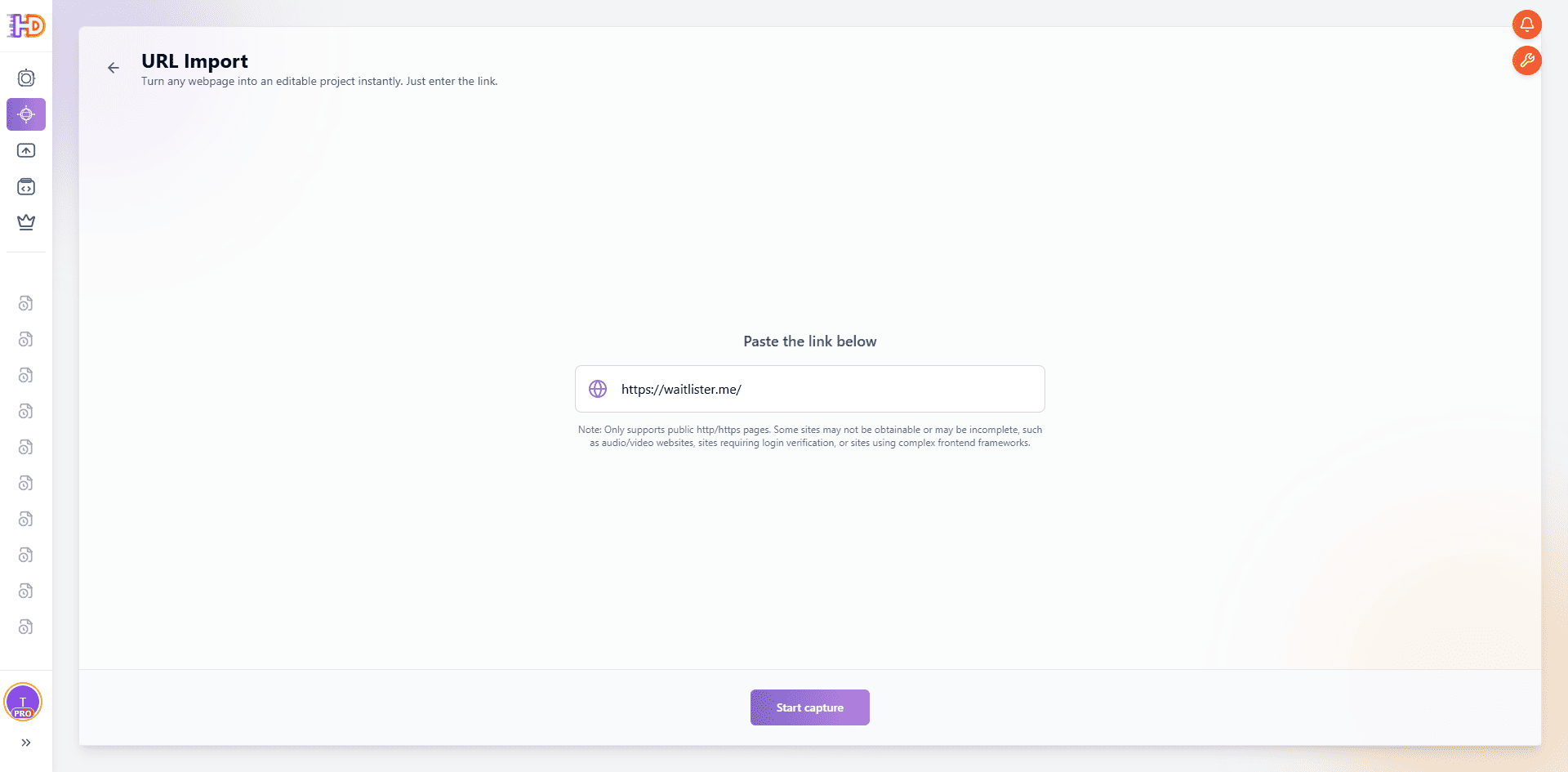
Step 1: Import the Live Waitlist Page by URL and Open It as an Editable Canvas
Open HtmlDrag, a browser-based visual HTML editor for editing existing HTML, choose URL Import, and paste the waitlist page you want to refine. In this example, we use:
The value of this step is not just that it captures a page. It turns an already-published launch page into something you can adjust visually right away. That is especially useful when an AI builder or vibe-coding workflow has already given you a workable draft and what you need now is a faster pass on messaging, hierarchy, CTA emphasis, and signup flow. In practice, this means you can edit an existing website from URL instead of rebuilding the whole thing.
Step 2: If a Lower Overlay Stays on the Page, Delete the Unneeded Block Directly
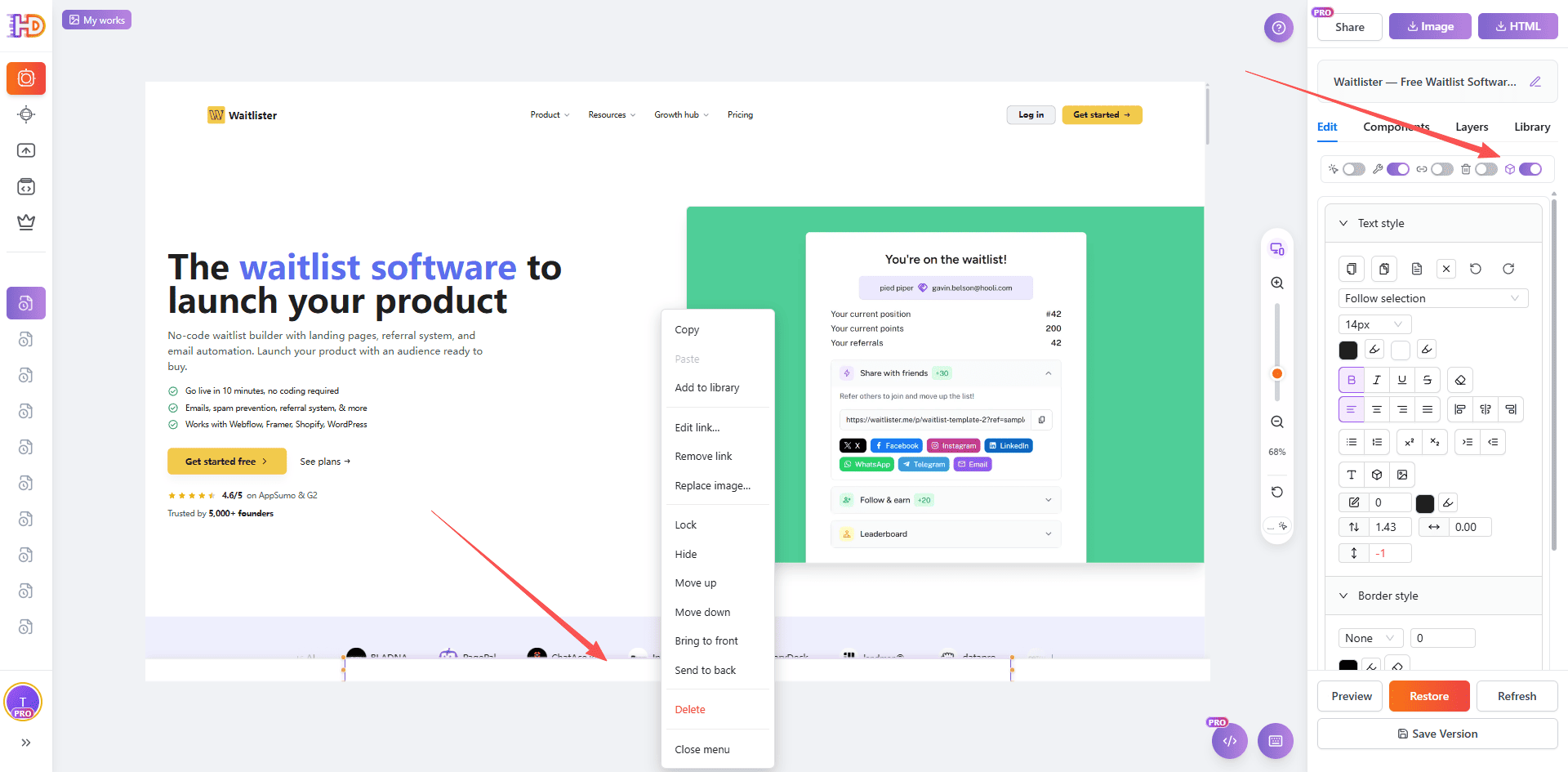
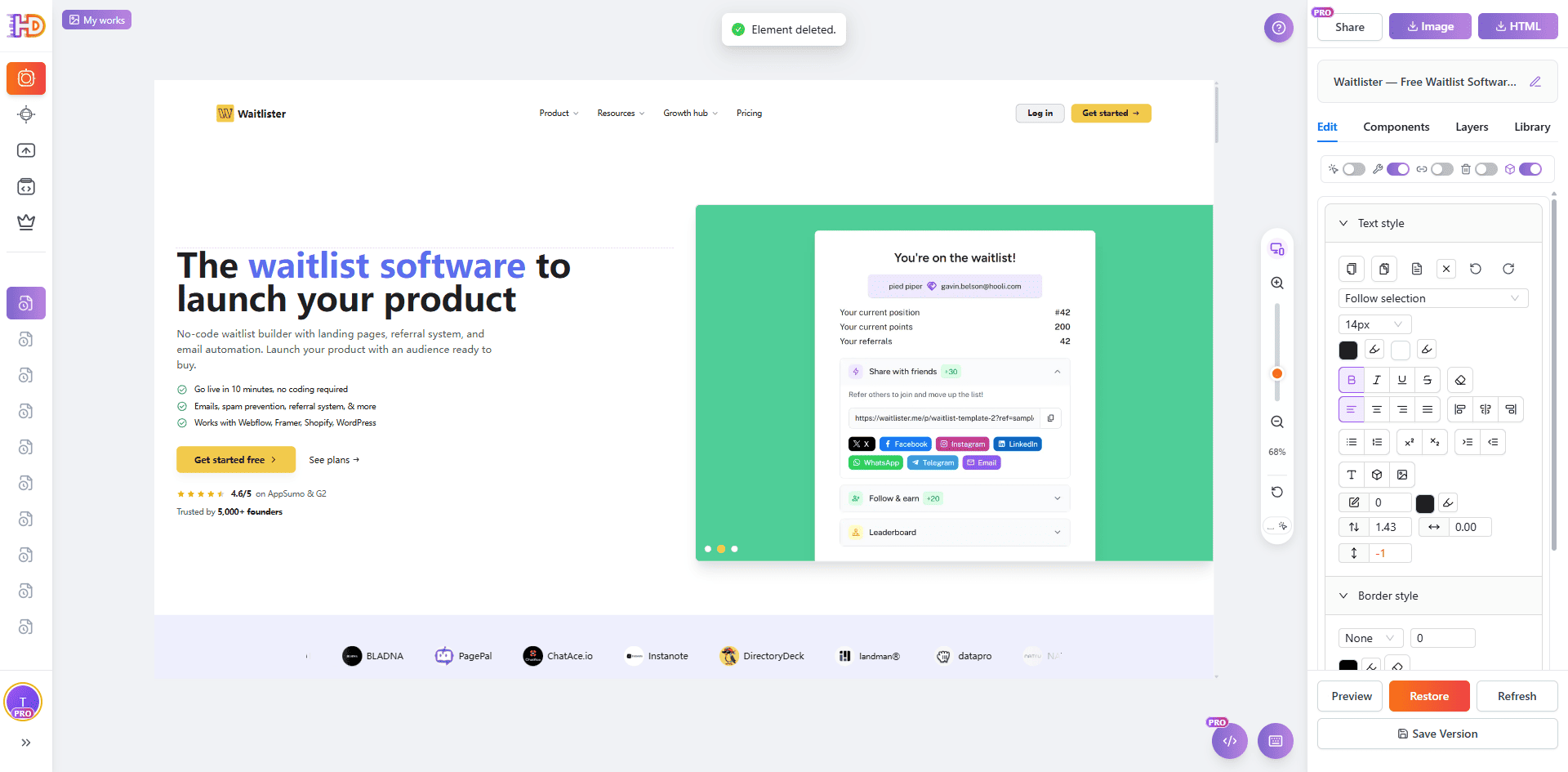
After importing a public page, the most common problem is not that the page cannot be edited. The problem is that cookie bars, sticky strips, or lower overlays make the layout harder to evaluate. In real editing work, not every interfering layer is caught by the first cleanup action.
That is why the second step should stay practical. If a lower blocking strip or other unneeded content remains visible, you do not have to stop the workflow. You can select that unnecessary content and delete it directly, which is often the fastest way to restore a cleaner canvas and keep refining the page.

Step 3: Turn On Decorative layers to Reach Deeper Elements That Are Hard to Select
What if a layer is still visible but not easy to select from the normal canvas? That does not mean it cannot be removed. In those cases, switch on Decorative layers in the editor. This can help the editor identify deeper visual layers that are otherwise harder to target from the main page surface.
Once those deeper layers become selectable, you can edit them or delete them just like other page elements. That is especially useful when a decorative strip, background piece, or embedded visual layer stays in the way and you want to clean it up without rebuilding the page.
Step 4: Refine Text, Button Color, and Images Without Rebuilding the Section
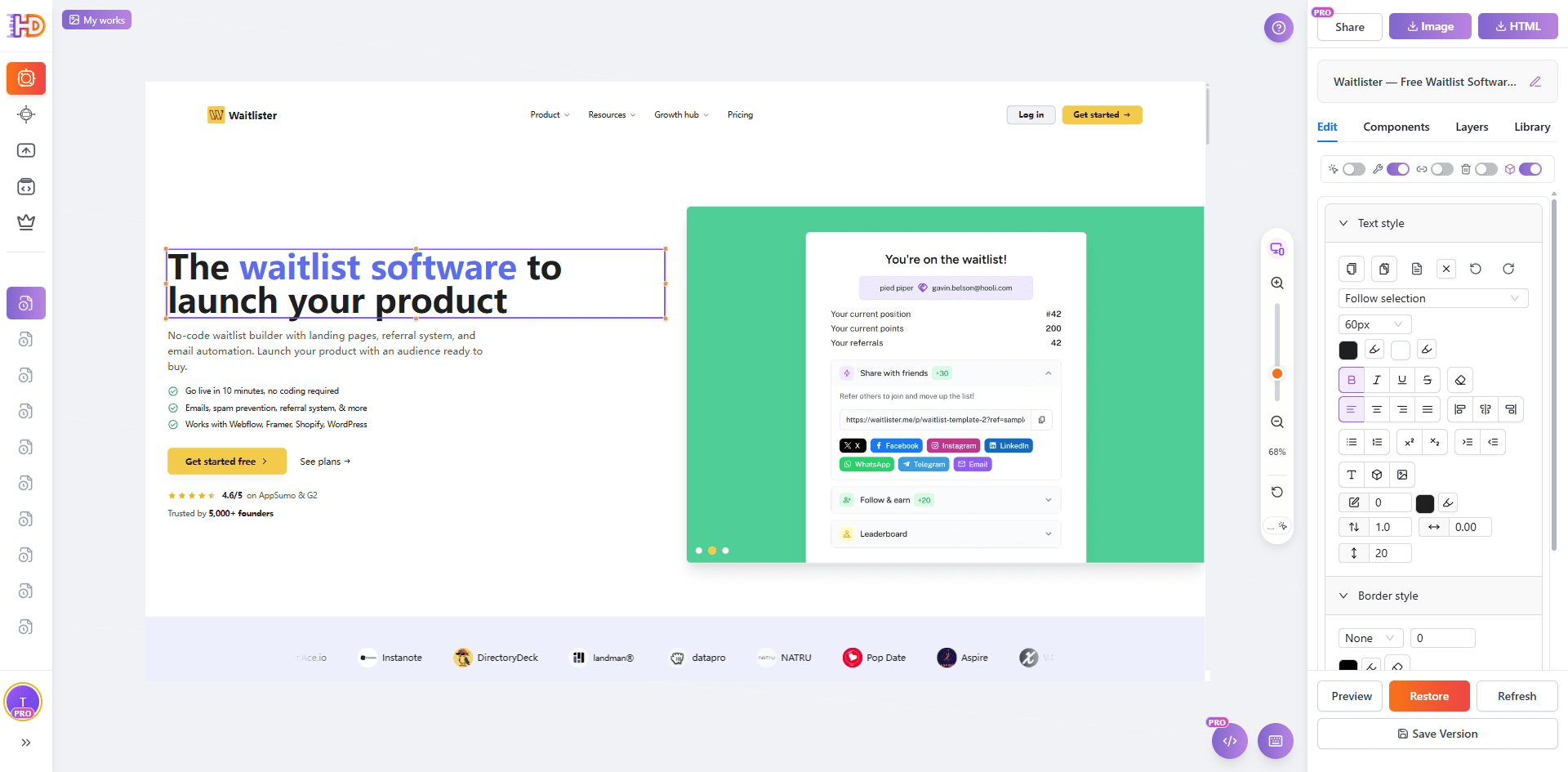
Once the page is easier to work with, you can move to the content layer. A good waitlist page usually improves through small edits rather than a full redesign: tighten the main text, make the CTA color stand out more clearly, and update visuals so the page feels closer to your actual brand or product direction.
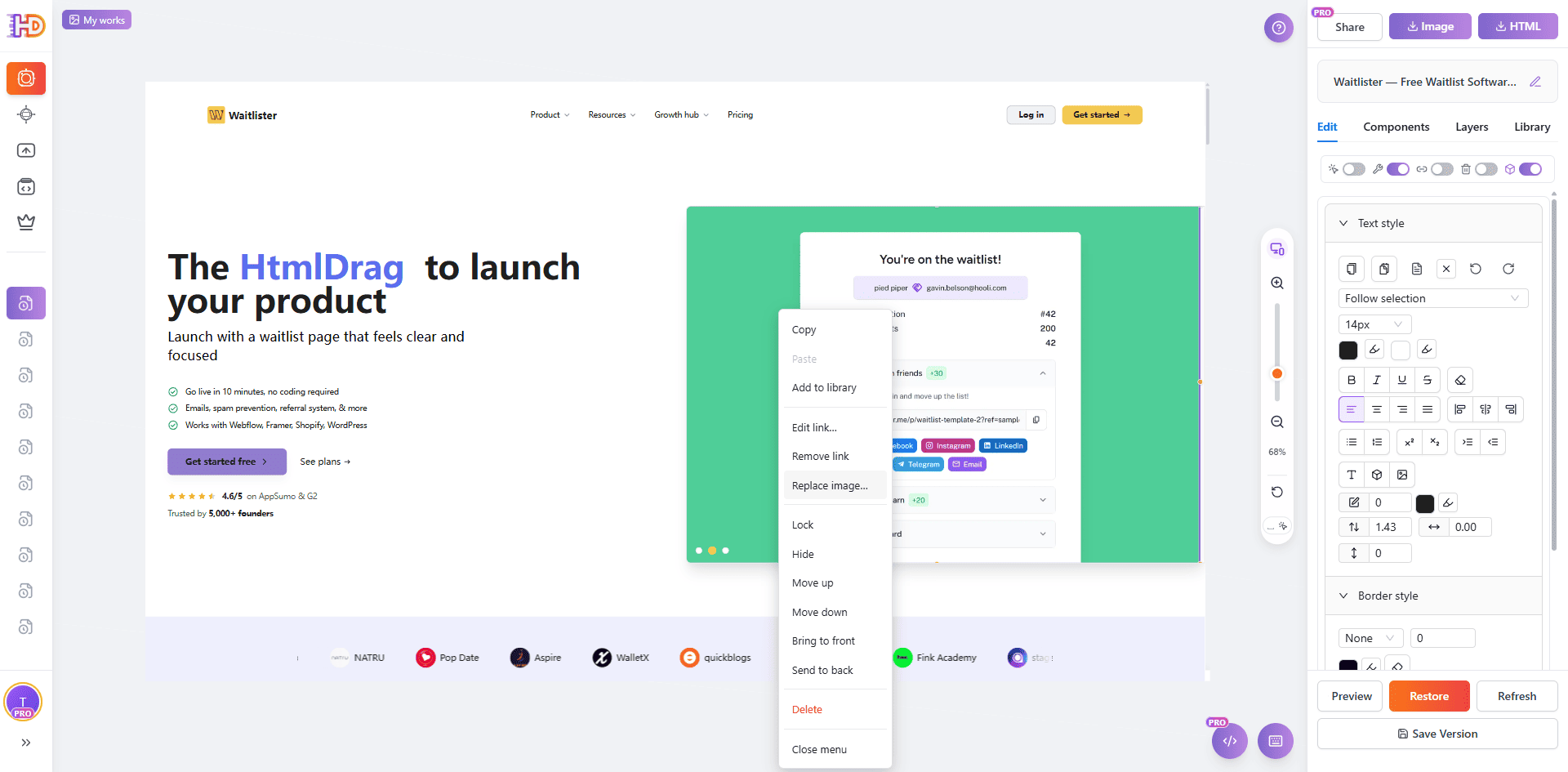
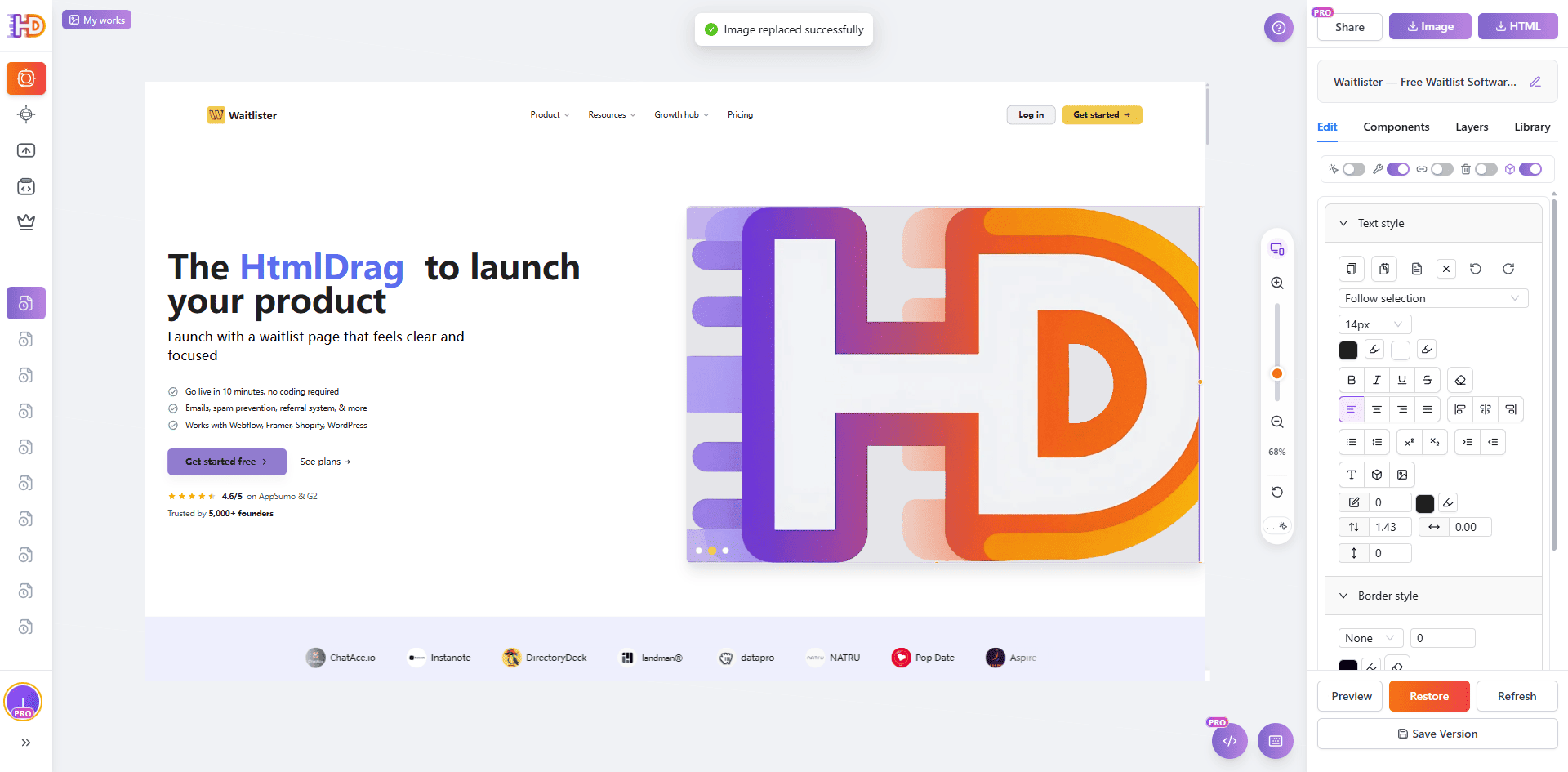
This is also where direct image replacement becomes useful. If the original visual is not the one you want, you can right-click the image and use Replace image to swap it quickly. Together, text editing, button styling, and image replacement create a fast refinement pass that keeps the existing HTML structure while making the page feel more intentional.
Step 5: Drag, Reposition, and Batch-Move Elements to Improve Layout Hierarchy
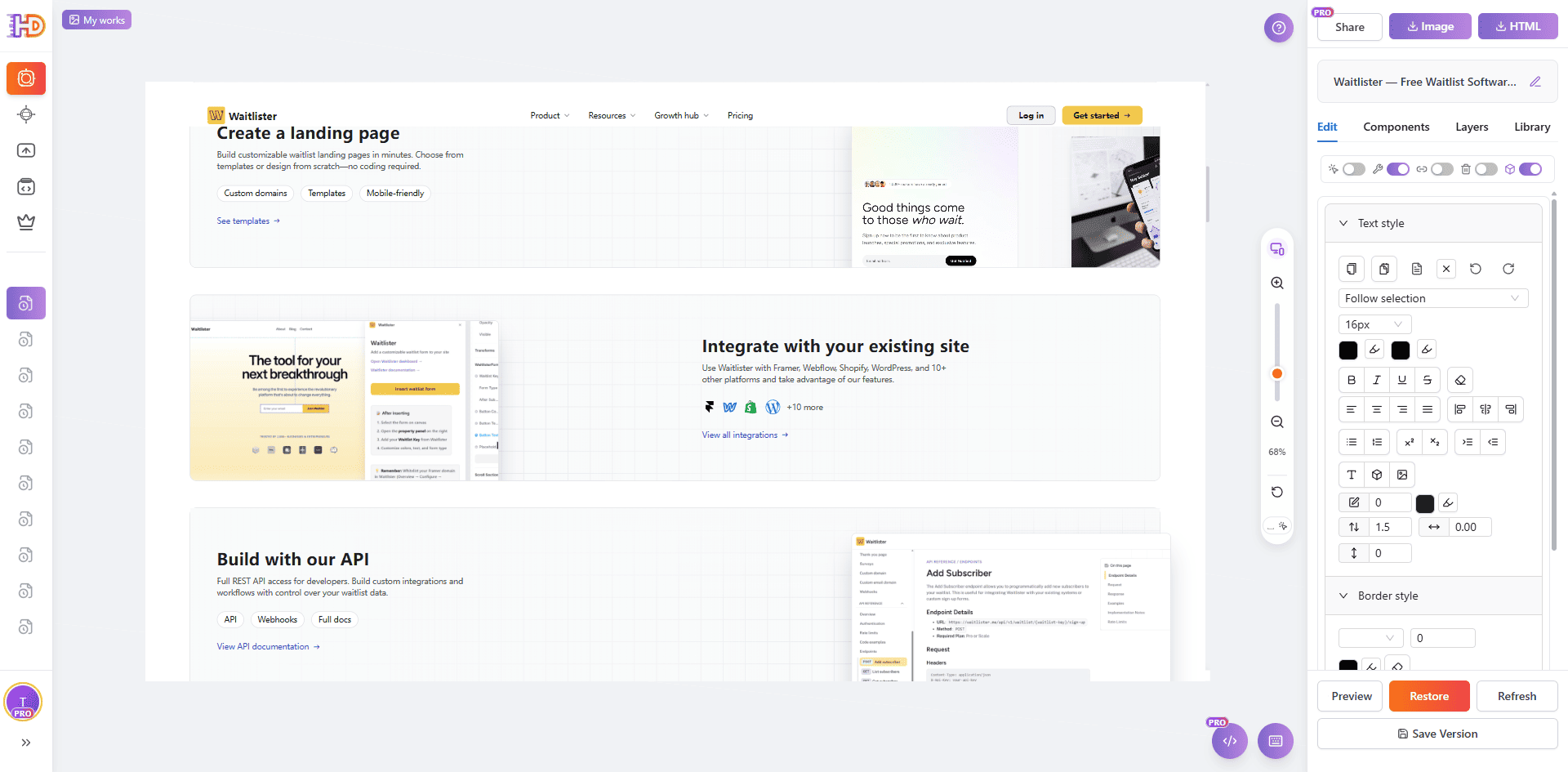
Refining an AI-generated page is not only about deleting and rewriting. In many cases, the page becomes better once you can physically move content into a stronger layout. That can mean dragging an image, shifting text, or nudging a section so the structure feels tighter and easier to scan.
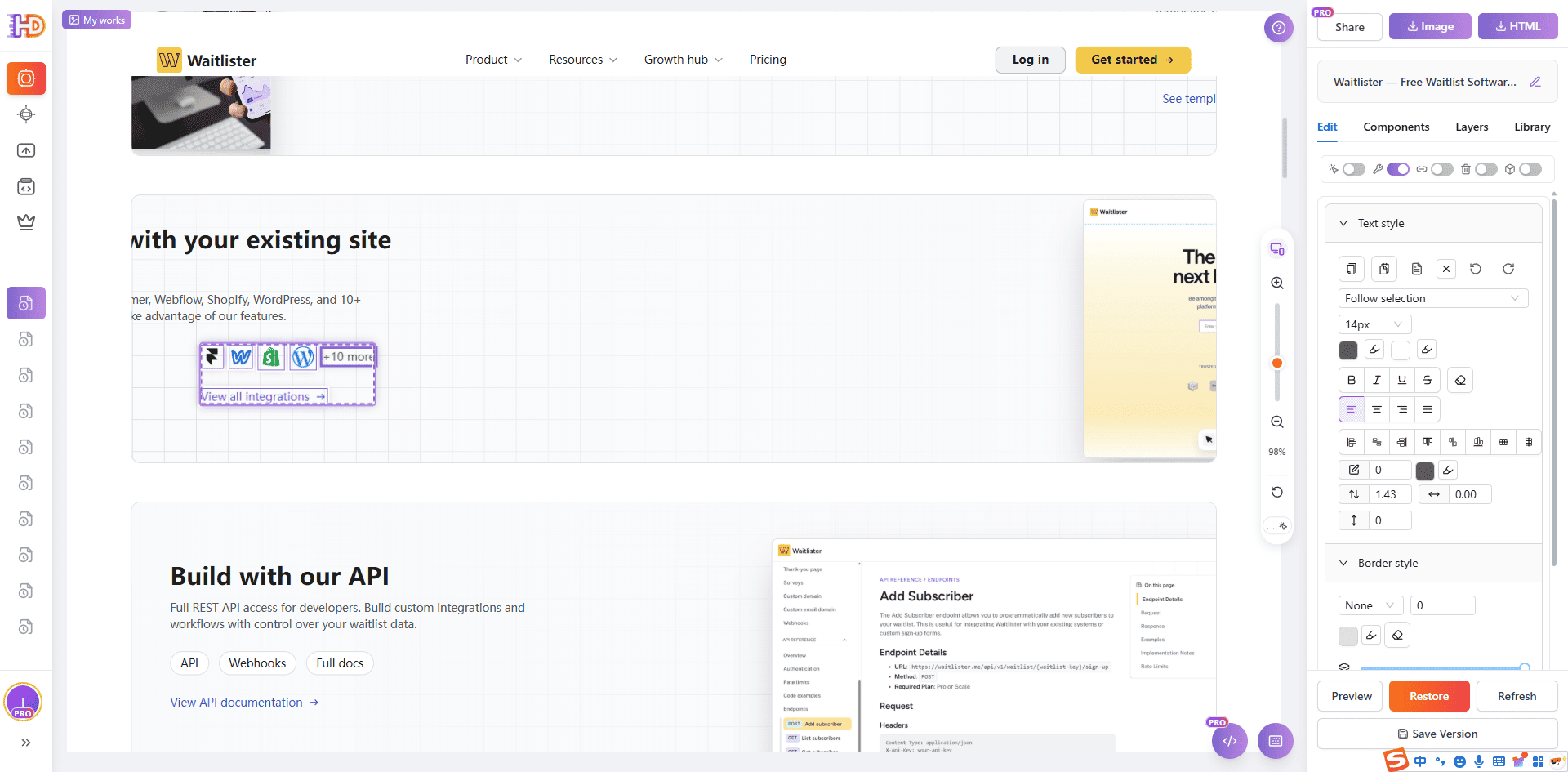
That is where drag-and-drop and batch movement help. You can move single elements like images or text, and when several items need to shift together, batch selection lets you reposition them as a group. This makes it much easier to improve spacing and hierarchy without rebuilding the page from scratch.
Editing tip: If some content becomes hard to select or stops moving during editing, refresh the page and reload the canvas before trying again. In many cases that restores normal selection behavior, and after reloading you can also try Decorative layers again for deeper elements.
AI-Generated Default Draft vs Clearer, More Conversion-Focused Version
| Focus Area | Default Waitlist Page | Clearer Edited Version |
| Page entry | The live page exists, but it is not easy to change directly | Import by URL and turn it into an editable canvas immediately |
| Stubborn layers | A lower strip or deep layer can stay in the way after import | Delete the unneeded block directly or target it with Decorative layers |
| Text and CTA clarity | The hero copy and button emphasis feel generic | Direct text editing and button styling make the page easier to understand |
| Visual assets | The default image may not fit the new message or brand direction | Replace image helps update the page without rebuilding the section |
| Layout hierarchy | Elements stay in their default positions even when spacing feels weak | Drag-and-drop and batch movement improve structure without touching code |
Who This Workflow Helps Most
- Founders using AI builders or vibe coding who need their generated launch page to feel more intentional
- Marketers who want an AI-generated waitlist page to convert better without a full rebuild
- Consultants and freelancers who refine AI-generated or exported HTML pages for clients
- Growth teams trying to reduce hesitation between curiosity and signup
- Non-technical teams that need more control over messaging and hierarchy without touching code
FAQ
Do I need to regenerate the whole AI website to improve the waitlist page?
No. In many cases, the structure is already good enough. The bigger gains often come from clearer hero positioning, stronger signup CTA emphasis, shorter supporting copy, and less lower-page friction.
Does this only work for Waitlister?
No. Waitlister is only the public example used here. The same workflow works for many AI-generated waitlist pages, vibe-coded launch pages, exported HTML files, public signup pages, and other live pre-launch pages that are already structurally usable.
What if the cleanup action does not catch a visible layer?
You can often keep moving by deleting the unnecessary block directly. If the layer is still hard to target, turn on Decorative layers to help expose deeper elements that are not easy to select from the normal page surface.
What should I improve first if I want the fastest impact?
Start with the elements that most affect clarity and control: stubborn overlays, important hero text, CTA emphasis, key visuals, and any layout positions that make the page harder to scan. Those are usually small edits with an outsized effect on clarity, decision speed, and signup direction.
What if I suddenly cannot select or move some content while editing?
Refresh the page and reload the canvas first. In many cases, that restores normal selection and movement behavior. After reloading, you can try selecting again or turn on Decorative layers if the issue involves a deeper visual layer.
Why not just ask the AI tool to regenerate the whole page again?
You can, but regeneration often rewrites too much and removes details you already want to keep. If the page is already live and the structure mostly works, a visual editing pass is often the quickest way to improve clarity without restarting the whole workflow.
Final Take
An AI-generated waitlist page does not need to be perfect on the first pass. It needs to help visitors understand the offer quickly and move toward signup with less hesitation. That is why clarity, momentum, and confidence matter more than adding even more content.
If your AI-generated waitlist page already has the right pieces but still feels vague or less controlled than it should, the fastest improvement is often not rebuilding it from scratch. It is making a focused editing pass: import the page from URL, remove or delete stubborn layers, use Decorative layers when deeper elements are hard to select, refine text and CTA styling, replace visuals, and reposition content with drag-and-drop.
That is exactly why a workflow in htmldrag.com can be such a practical bridge between an AI first draft and a clearer, more conversion-focused page. When you need a visual HTML editor that helps you edit existing HTML and refine a website directly from URL, this kind of browser-based editing flow becomes especially valuable.