
Many projects start not with a finished website, but with a slide deck. A PowerPoint presentation might already contain a title, an introduction, key goals, a data table, a team section, a timeline, and a summary. The problem is that while slides are great for a live talk or an internal review, they are not ideal as a web page that clients can open in a browser or that visitors can scroll through on a phone. This article demonstrates how to use HtmlDrag AI Creator to convert a PowerPoint or PPTX presentation into an editable HTML page, which you can continue to refine visually, including editing the HTML tables, without writing a single line of code.
Key Takeaways at a Glance:
- Prepare a PowerPoint / PPTX deck containing a title, key sections, a data table, a team, and a summary.
- Upload the PPTX file to AI Creator File Mode, adding a brief goal such as turning the deck into a modern HTML page.
- Let AI Creator read the slide order and content, then map titles, bullet points, tables, and sections into responsive web blocks.
- Open the HtmlDrag visual editor to fine-tune text, edit the HTML table content directly, adjust colors, and reorder sections.
- Save versions online, share preview links, copy HTML codes, export standalone source files, or download high-res screenshots.
The critical difference is that this workflow does not simply paste your slides onto a webpage, nor does it output static frontend code that only developers can touch. It reorganizes the narrative of your deck into web structures, turning slide-by-slide content into a modern, responsive HTML page that can be easily previewed, modified, shared, and delivered.
Why a PPT Deck is Suitable for an HTML Landing Page
Many teams search for terms like PPT to HTML, PPTX to webpage, pitch deck to landing page, or presentation to website. The underlying need is very clear: the user already has a complete story and structure inside a slide deck, but lacks immediate design resources, frontend development schedules, or a published page.
The traditional approach requires passing the deck to a designer to draw web sections, then having a developer write frontend code or rebuild the page in a website builder. This works for large projects, but is too slow for quick proposals, internal reports, client previews, or campaign launches. More often than not, teams need a rapid webpage draft that colleagues or clients can review immediately instead of waiting for a full development cycle.
HtmlDrag AI Creator File Mode can read and understand a presentation deck: it extracts the title, headings, bullet points, data tables, section order, and closing actions, then maps them onto responsive HTML sections. The output is not a rigid static export, but a fully editable webpage draft that can be further adjusted, styled, and customized within the HtmlDrag editor.
Our Demo: A Work Report and Strategic Plan Deck
In this demonstration, the source file is a business work report and strategic plan presentation. Its slides already cover an introduction, primary goals, areas of growth with a performance metrics table, the team, a timeline, and a summary. It is not a finished web design, but it already contains almost all the content needed for a complete HTML page.
To achieve the most stable and accurate generation, we highly recommend uploading a structured PPTX with a clear slide order and readable text instead of a deck full of dense images and tiny footnotes. A clean narrative flow, such as introduction, goals, growth, team, and summary, helps AI Creator correctly recognize and map each slide into the appropriate page section, including turning a slide table into a proper HTML table.
If your deck contains internal financial projections, private client names, unreleased roadmap details, or confidential notes, we suggest copying the file and removing these slides before uploading. The goal of generating an HTML page is to make the story clear and attractive, not to expose the raw, internal details of your working deck.
 Step-by-Step: Converting a PPT Presentation to an HTML Page
Step 1: Open AI Creator and Enter File Mode
Open AI Creator on htmldrag.com and switch to File Mode. File Mode is built for generating high-quality web structures starting from your existing documents or visual inputs, supporting formats like PPT/PPTX, Word/DOCX, PDF, Excel/XLSX, CSV, Markdown, TXT, JPG, and PNG.
For this specific workflow, the core input is a PowerPoint deck. It can be a work report, a strategic plan, a product launch deck, a startup pitch, a webinar presentation, or any structured slide set that tells a clear story from opening to closing summary.
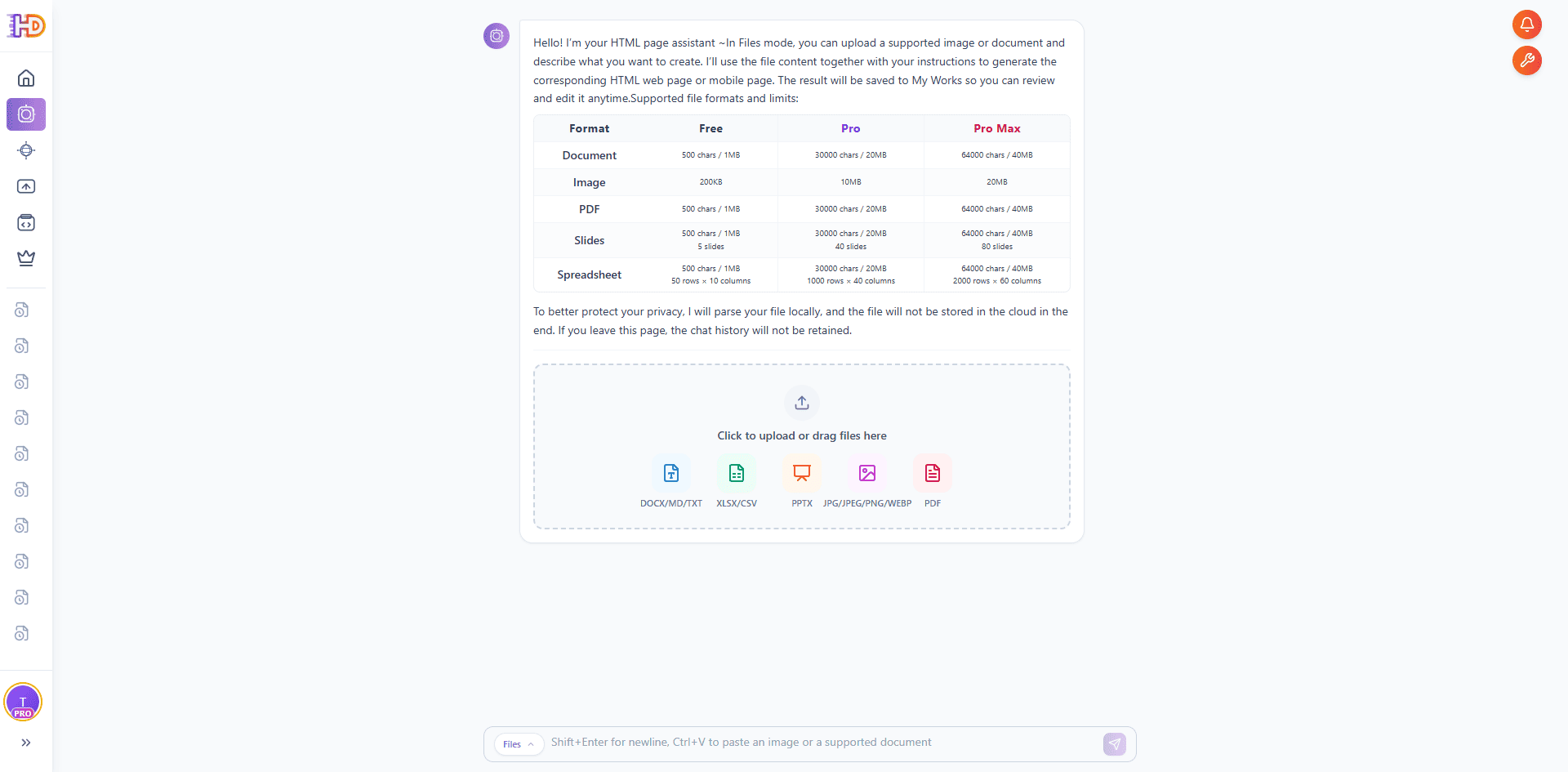 Step 2: Upload Your PPTX and Let It Parse Locally
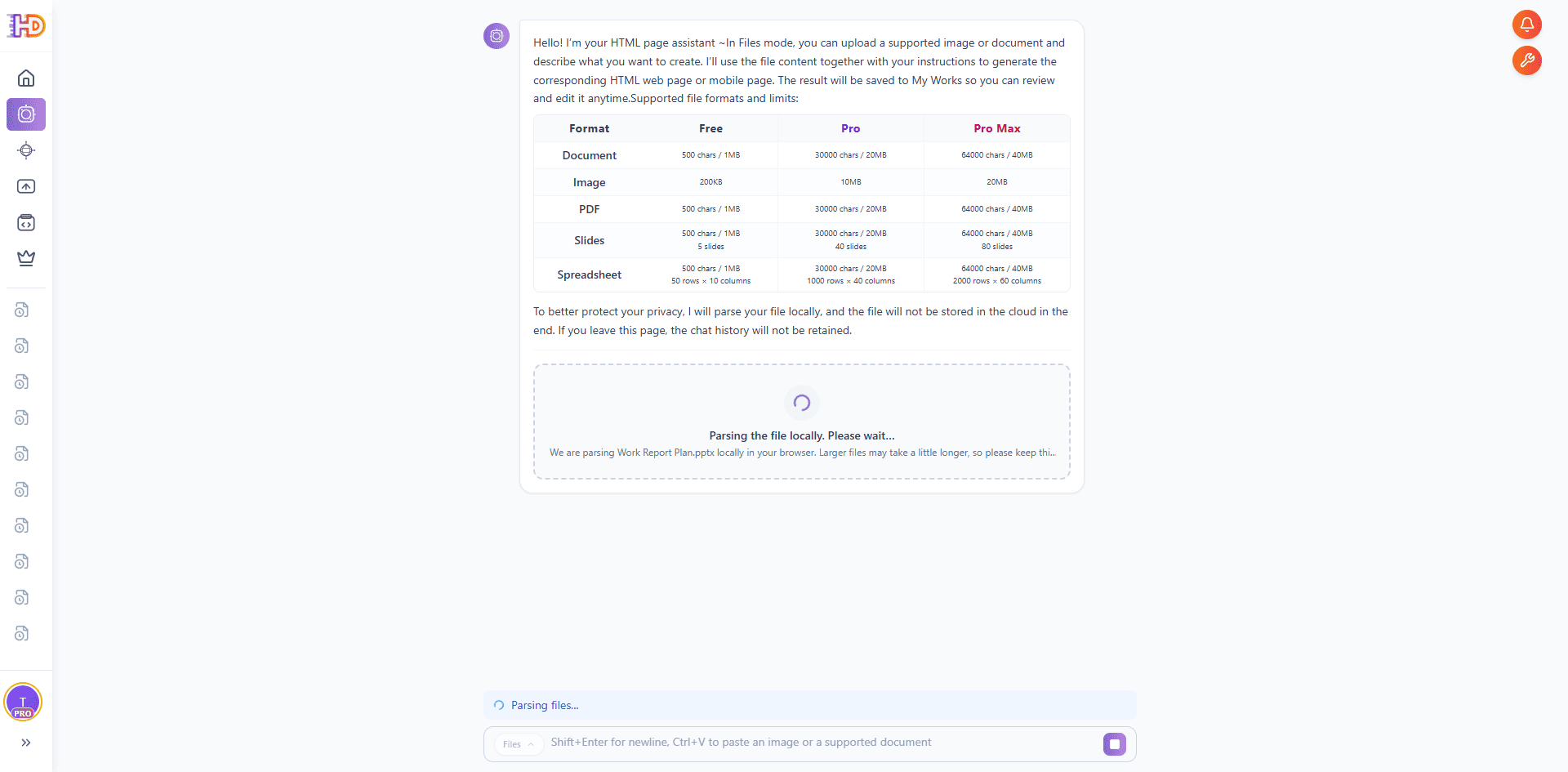
Drag your PowerPoint file into the upload area of File Mode. AI Creator first parses the presentation locally in your browser, so the original file is not stored in the cloud and the chat history is not retained if you leave the page. This keeps your working deck private while the structure is being read.
Larger decks may take a little longer to parse, since the tool needs to read every slide, including titles, bullet points, and any data tables. A clean, well-organized deck parses faster and maps more accurately into web sections.
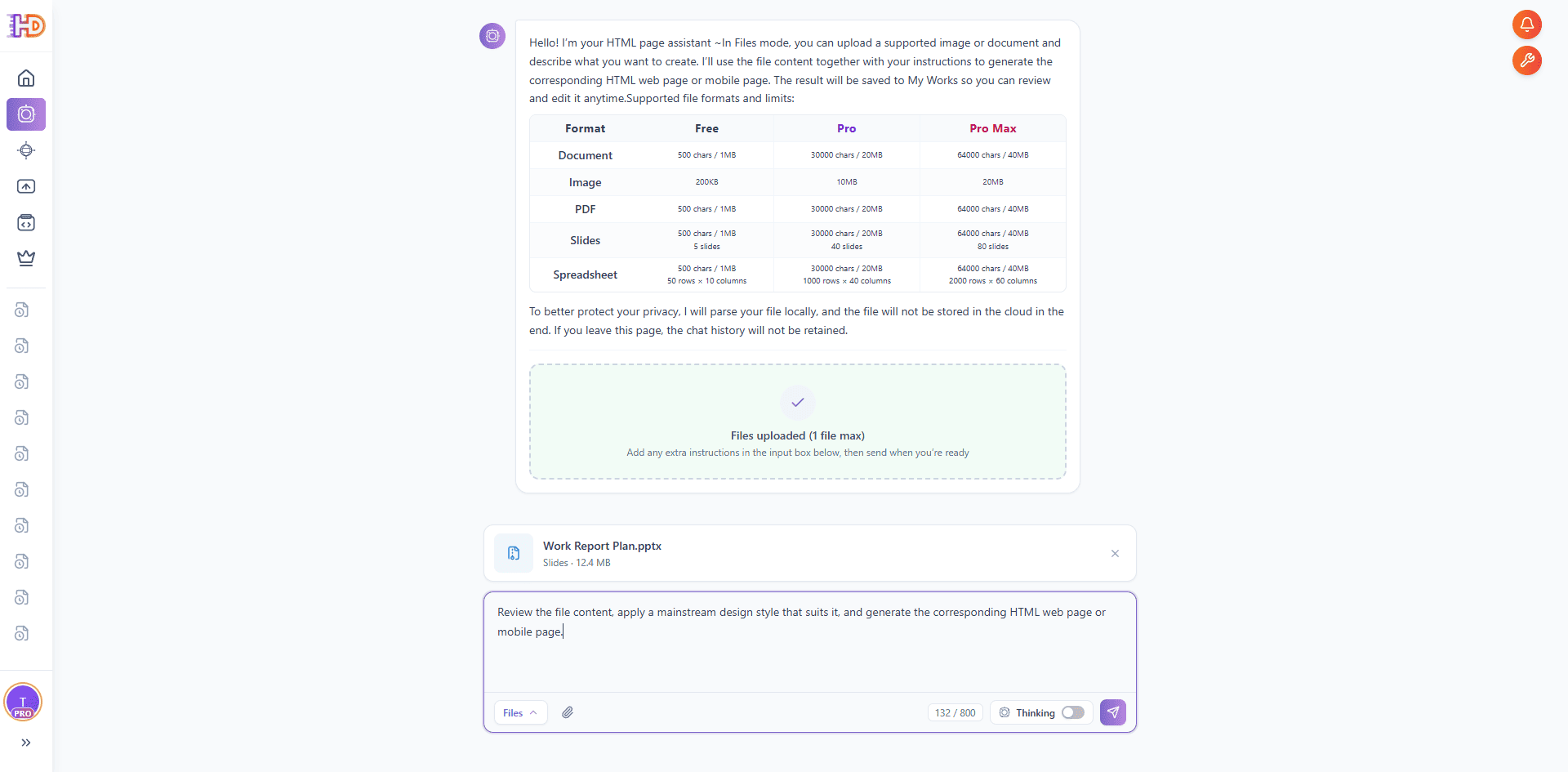
 Step 3: Confirm the Upload and Add a Generation Goal
Once the file is processed, you will see an upload confirmation and the slide deck listed as ready. You only need to enter a brief generation goal into the input prompt box. For example:
"Please review the file content, apply a mainstream design style that suits it, and generate the corresponding HTML web page or mobile page."
This prompt does not need to be extremely long because the deck itself already provides the bulk of the content. Your goal statement simply needs to tell AI Creator what type of page you want to build and whether it will be used for a client preview, an internal report, a product launch, or a campaign page.
 Step 4: Let AI Creator Read and Organize the Slides
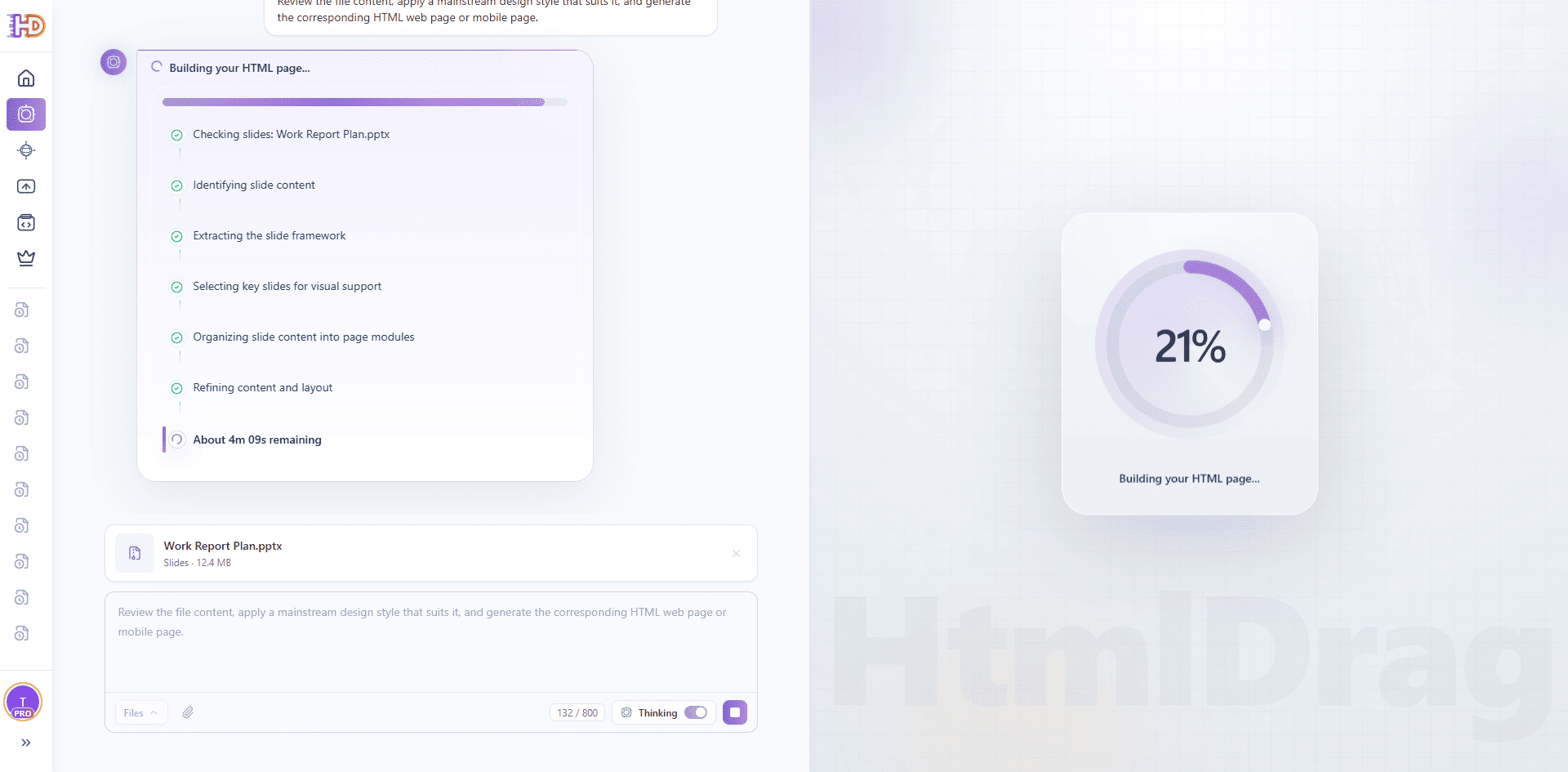
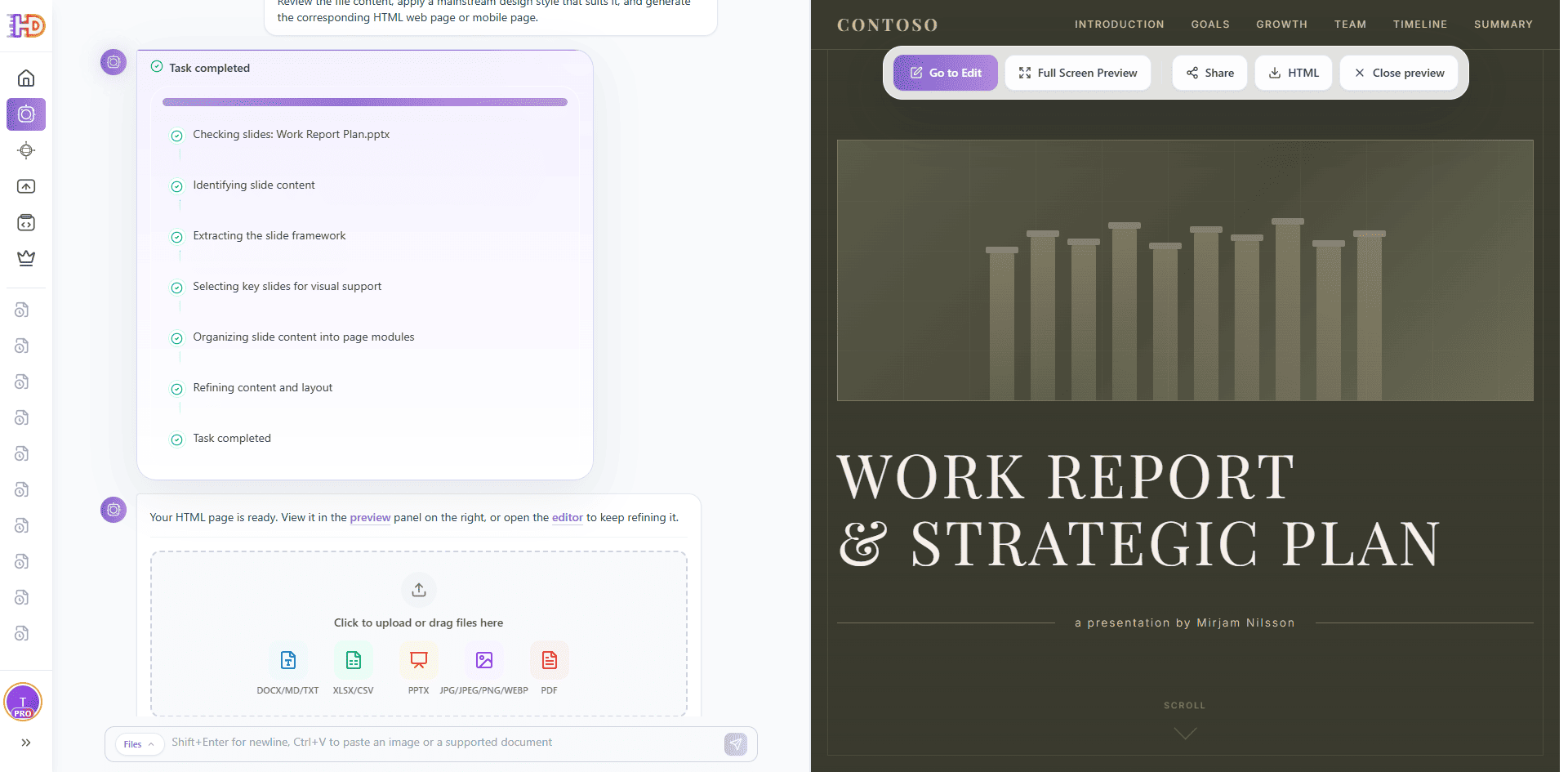
After sending the task, AI Creator reviews and organizes your content. It checks the slides, identifies the slide content, extracts the slide framework, selects the key slides for visual support, and organizes the slide content into page modules. This is where the deck stops being a set of frames and starts becoming a structured web page.
This step is critical because a slide deck is not a webpage. Slides are paced for a presenter speaking one frame at a time, while a web page requires a continuous scroll: a compelling Hero, clear sections, readable tables, and logical navigation. AI Creator's job is to translate slide frames into a continuous web structure.
 Step 5: Watch AI Creator Build the HTML Page
Once the slide structure is fully understood, AI Creator begins building the HTML page and shows the live progress. The content scattered across your slides will gradually materialize into a Hero banner, an introduction section, goal blocks, a performance data table, a team section, a timeline, and a summary.
For analysts, managers, product, and marketing creators, this step saves a massive amount of manual copying and formatting. You do not need to rewrite each slide into a web builder, nor do you need to wait for high-fidelity designs and front-end development. Your first HTML page draft is created automatically.
 Step 6: Preview the Generated Page
Once the generation is complete, the right-side preview panel will show the interactive page. The ideal result does not look like slides pasted onto a page, but rather a modern web page: a clear Hero title, a top section navigation, scannable content blocks, and a clean data table.
The preview toolbar is also extremely useful. You can proceed to open the visual editor, enter full-screen preview mode, copy the shareable preview link, export the standalone HTML source code, or close the preview. This turns the page from a simple output into a valuable asset.
 Step 7: Open Full-Screen Preview for Review
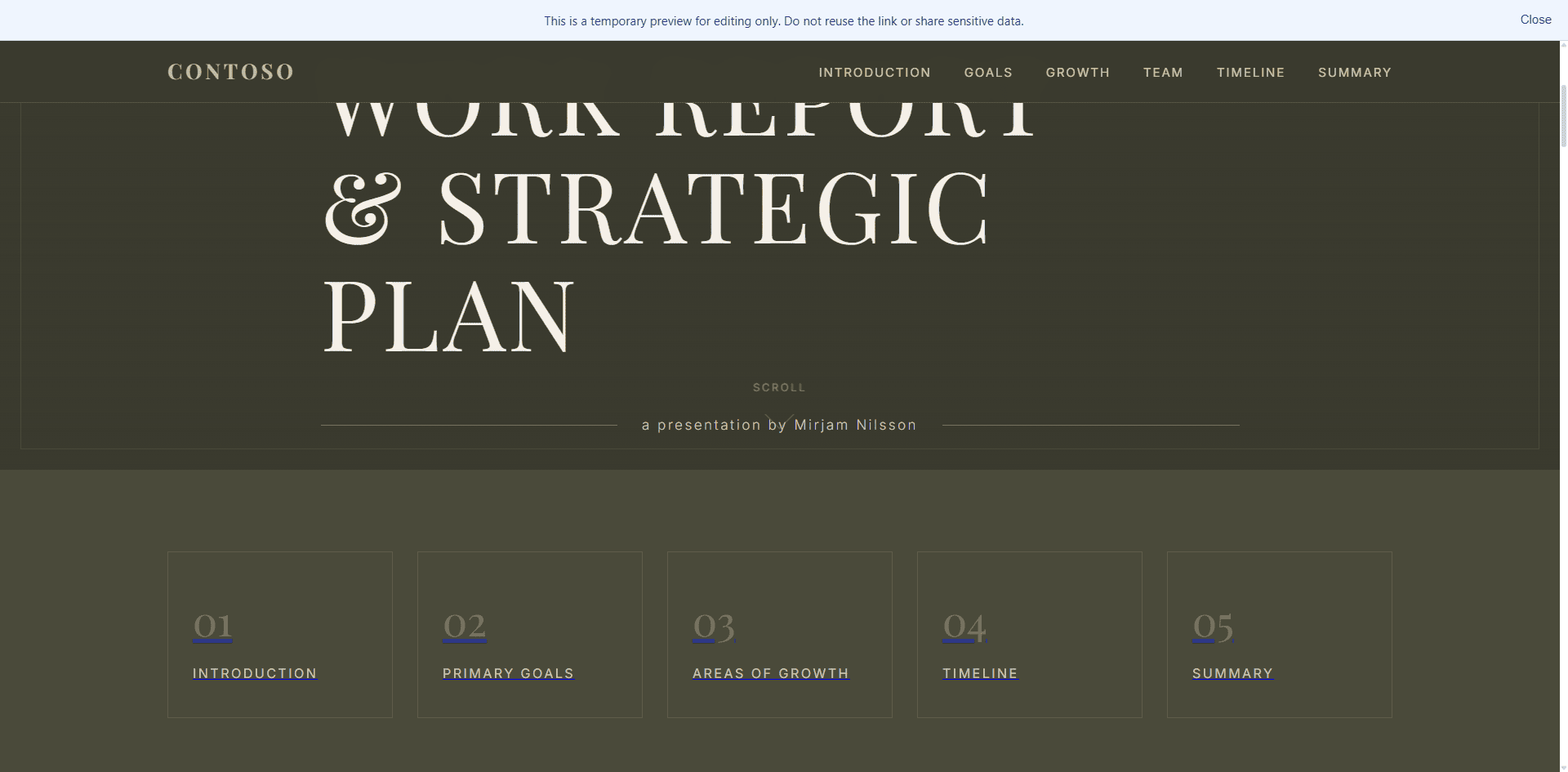
Full-screen preview is perfect for checking if the page reads well as an independent webpage. While slides are built for a presenter clicking through frames, a web page is designed for a continuous scroll, visual balance, and multi-device usability. Reviewing it in full-screen helps you judge its readiness for clients or stakeholders.
At this stage the page already shows a clear hero title and a section overview, such as introduction, primary goals, areas of growth, timeline, and summary. If some sections are too long, headlines need quick adjustments, or table values need fixing, you can simply note them down and edit them directly in the next step.
 Step 8: Load into the HtmlDrag Editor to Edit Text, Tables, and Colors
This final step is where HtmlDrag provides unmatched utility compared to general document converters. Once the page is generated by AI Creator, you can load it directly into the HtmlDrag visual editor to fine-tune it without writing any HTML or CSS.
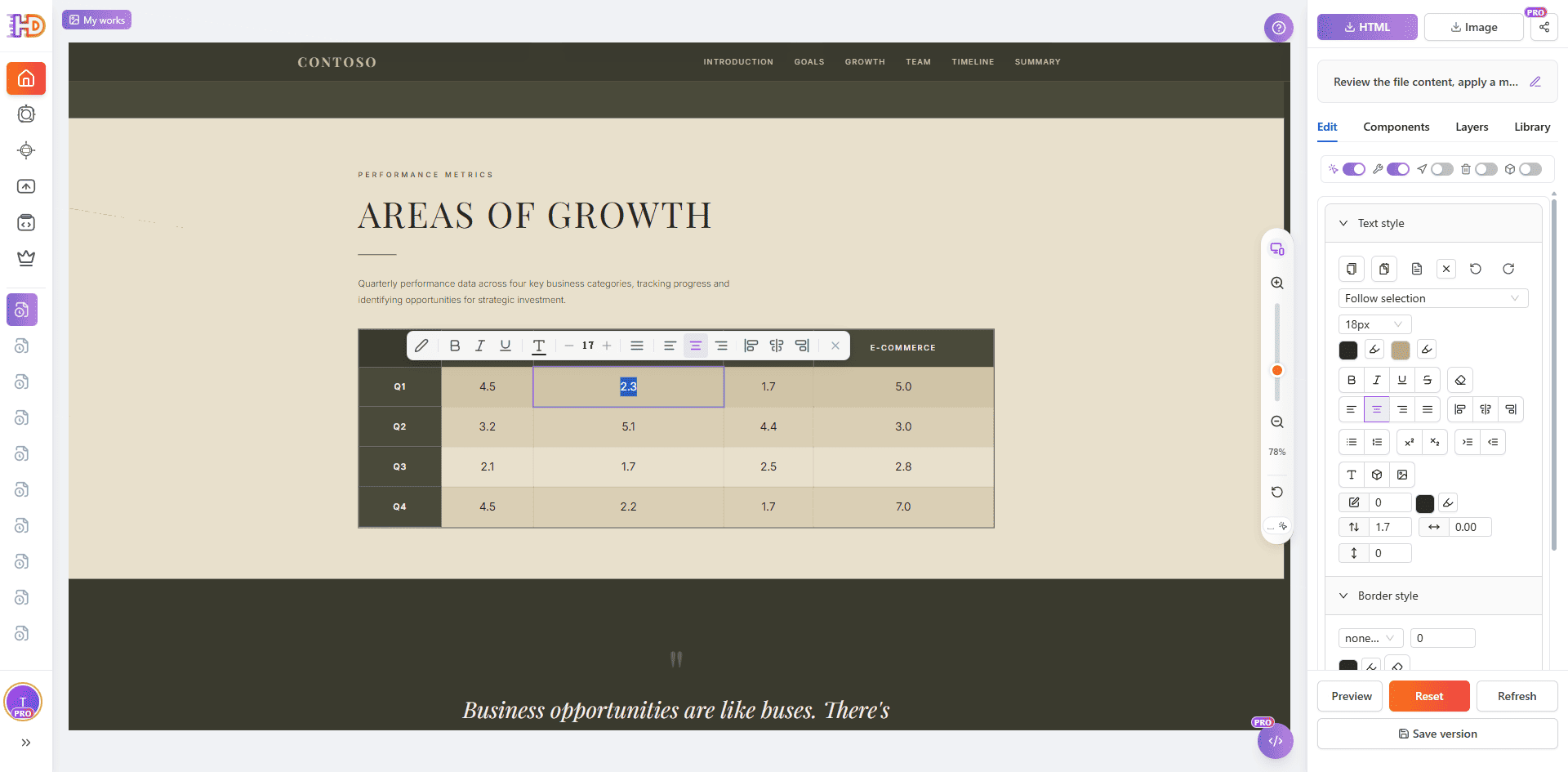
A standout capability is that HtmlDrag lets you edit the HTML table content directly inside the editor. Many converters lock a slide table into a static image or a read-only block, but here the performance metrics table from your deck becomes a fully editable HTML table. You can click any cell to change its value, edit table headers, fix numbers, and adjust the table rows and columns visually. If you have ever wanted to edit an HTML table without touching code, this is exactly where it happens.
 Beyond tables, you can modify this page as if it were a live production website:
- Click directly into any HTML table cell to edit its value, fix numbers, or update table headers
- Double-click to modify headlines, section titles, body text, and call-to-action labels
- Double-click to adjust details such as outdated year values, changing old formats (like 2014) to 2026 on the fly
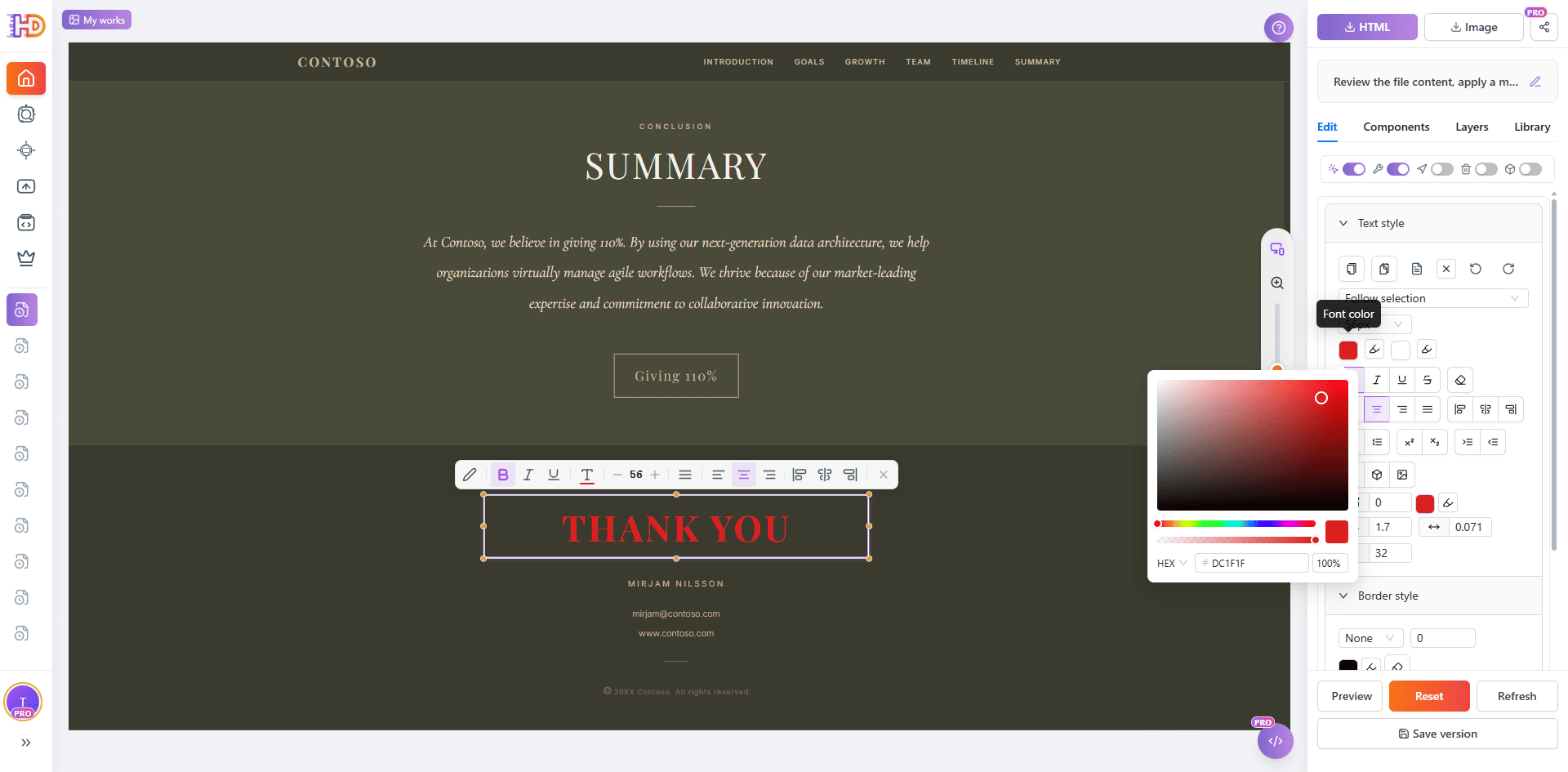
- Select text blocks and use the inline color picker to highlight key titles with a custom color (like red)
- Drag-and-drop to rearrange the sequence of content sections, cards, tables, and bottom CTAs
- Save multiple iterations online, copy HTML source codes, download webpage screenshots, or export standalone files
Text content is just as easy to refine. You can double-click a team member card to update names and titles, edit headings and descriptions, and clean up any text that did not come across perfectly from the slides. The editor recognizes each content block, so you only edit what you need.
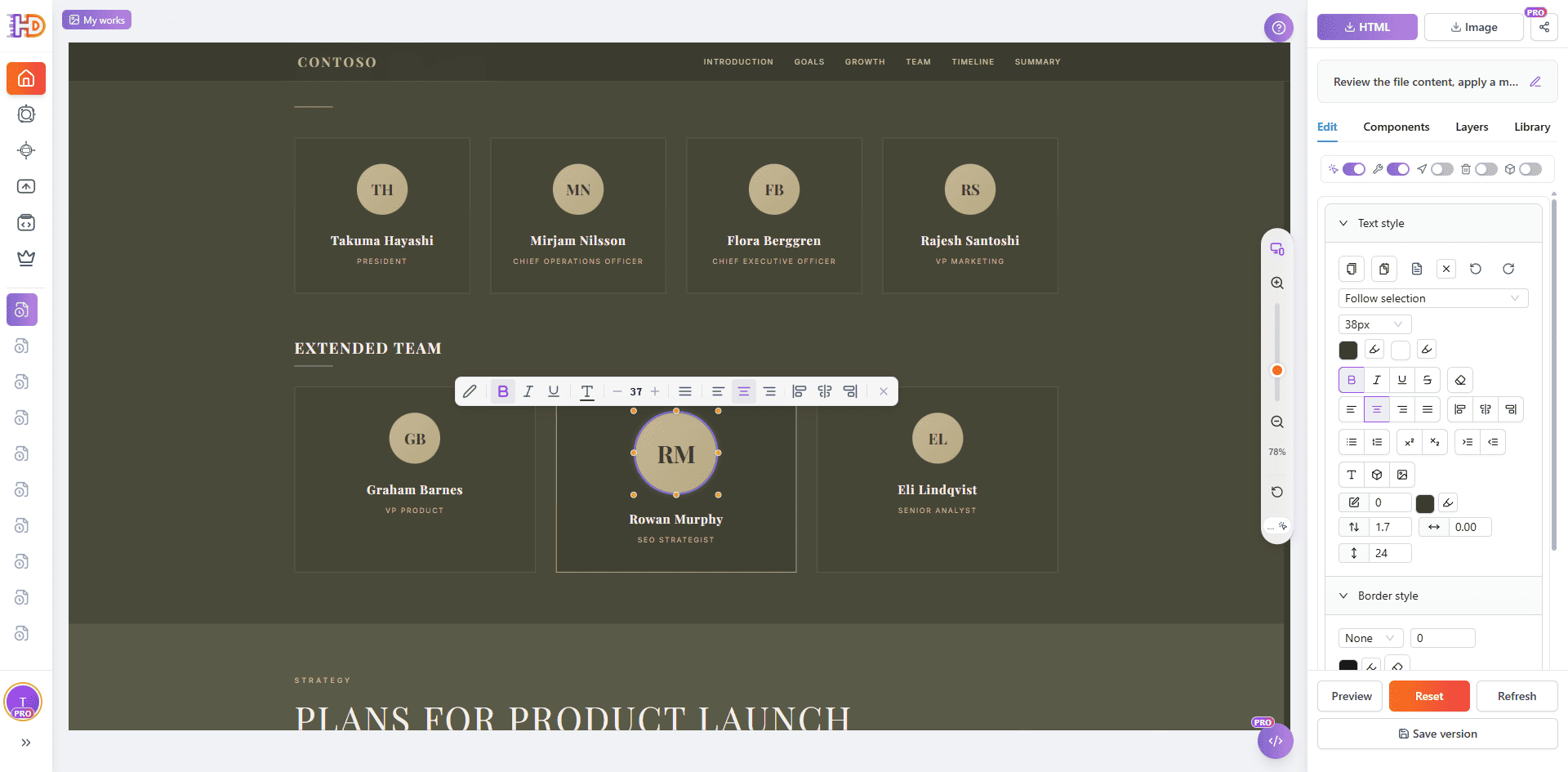 You can also highlight key text with the inline color picker. For example, selecting a closing "thank you" heading and applying a bold red color makes the final section stand out, completing the loop: PPT presentation deck → AI-generated HTML page → visual editing of text, tables, and colors → previewing, sharing, saving, or exporting.
 Traditional Slide Export vs AI Creator File Mode
| Task | Traditional Slide Export / AI Code Tools | HtmlDrag AI Creator |
| Generate from a deck | Exports fixed-size slide frames or generates code that requires manual hosting | Extracts the core narrative and maps it into a continuous, responsive HTML page |
| Review page layout | Requires setting up local servers, deploying code, or manual copy-pasting | Generates immediate full-screen previews with complete mobile responsiveness |
| Edit tables and details | Tables are often locked as static images or read-only blocks that need raw code | Lets you edit HTML table cells, text, and colors visually, with no coding |
| Deliver client proposals | Limited to sharing static slide files or static frontend source files | Provides share links, online versions, standalone HTML codes, or high-res images |
What Kind of Presentation Decks Work Best
This workflow works best with PowerPoint decks that already have a clear narrative and realistic content. The closer your source file is to a finished story, the more accurate and polished your generated HTML page will be.
- Work Report Decks: covering an introduction, key results, a performance data table, a team, and a summary
- Strategic Plan Decks: covering goals, areas of growth, a timeline, owners, and next steps
- Product Launch Decks: covering a title, value proposition, key features, usage steps, and a closing call to action
- Startup Pitch Decks: covering the problem, solution, market, product highlights, and a contact or sign-up action
- Webinar or Service Decks: covering an agenda, key topics, deliverables, takeaways, and a registration action
If your deck is massive and packed with full-screen image slides or dense appendices, we suggest trimming the backup slides, internal notes, or confidential frames before uploading. A clean, focused deck is always more effective for generating a high-quality, shareable HTML page.
Frequently Asked Questions
Can AI Creator build an HTML webpage directly from a PPT or PPTX file?
Yes. The AI Creator File Mode can read PowerPoint / PPTX decks, and automatically map their titles, bullet points, data tables, sections, and buttons into editable HTML page blocks that can be refined in HtmlDrag.
Is this the same as exporting PowerPoint slides to HTML?
No. Standard slide exports simply turn each slide into a fixed-size image or frame. Our workflow uses the deck as a raw content source, completely reconstructing it into a modern, responsive HTML page with a continuous scroll and proper sections.
Can I edit the table content in the generated HTML page?
Yes. This is a key advantage of HtmlDrag. The data table from your slides becomes a fully editable HTML table, so you can click into any cell to change values, edit headers, and adjust rows and columns visually, without writing any code.
What types of presentation decks yield the best results?
Decks with a clear narrative flow, readable text, and a logical slide order yield the best results. It is helpful to include a title, section headings, a clean data table, and a closing summary.
Can I continue editing the page after it is generated?
Yes. After generation, you can visually customize text, table cells, button styles, section borders, padding, colors, and responsive layouts directly inside the editor without any coding.
Can the final webpage be exported as clean HTML code?
Yes. Once editing is done, you can save versions, copy share links, export clean standalone HTML code, or download high-resolution screenshots for quick proposal submissions.
Final Thoughts
A PowerPoint deck should not just sit in a shared folder after the meeting ends. Especially when teams need to present a report to clients, review a plan with managers, or validate a page before going live, converting slides into HTML pages is incredibly efficient.
With HtmlDrag AI Creator, the process is extremely direct: upload the PPTX deck, let AI Creator extract and structure the contents, preview the generated HTML page, and load it into the visual editor to refine text, tables, and colors with drag-and-drop ease.
If you are looking for the fastest way to turn a PPT presentation into an editable, high-quality HTML page, the AI Creator File Mode provides both outstanding initial layouts and complete visual control, right down to editing the HTML table content.