
A lot of business content already exists in presentation form. Product launch plans, investor pitch decks, marketing campaign presentations, internal strategy reviews, training decks, and client proposals are often carefully structured in PowerPoint before anyone thinks about building a web page.
But when the team needs a shareable landing page, a presentation alone is not enough. A PPTX file is useful for meetings, yet it is not ideal when you need a page that can be previewed in a browser, shared with stakeholders, edited visually, exported as HTML, or reused as a campaign asset.
That is the exact workflow this guide focuses on: turning a PPTX presentation into an editable HTML landing page without writing code. With HtmlDrag AI Creator, you can upload a PPTX deck, let AI Creator read and organize the slide content, generate an HTML page, and then continue refining the result in a visual drag-and-drop editor.
Why PPTX to HTML Is More Than a Simple File Conversion
Many users search for phrases like PPTX to HTML, PowerPoint to HTML, convert presentation to webpage, or PowerPoint deck to landing page. The real intent behind those searches is usually not just exporting slides as static images. Teams want a page that can communicate the same idea in a web-native format.
A traditional PowerPoint deck is arranged slide by slide. A strong landing page needs a different structure: hero message, navigation, benefit sections, proof points, metrics, visual blocks, CTA buttons, and a flow that works in a browser. Simply copying slide images into a web page may preserve the look, but it does not create an editable HTML page.
AI Creator File Mode is useful because it treats the PPTX as source material. It reviews the slide content, identifies the main sections, selects useful visual cues, and rebuilds the idea as a browser-friendly HTML page that can still be manually edited afterward.
The Example: A Dark Hexagon Business Presentation
For this walkthrough, the source file is a dark business-style PPTX deck named Hexagon presentation dark.pptx. The original presentation uses a navy background, orange accents, geometric hexagon graphics, business photos, agenda slides, strategy sections, market analysis, financial overview, and initiative planning.
This kind of deck is a good candidate for a PPTX-to-HTML workflow because it already contains the ingredients of a landing page: a clear visual identity, a structured agenda, business value points, metrics, and a CTA-style direction. Instead of starting from a blank prompt, the presentation itself becomes the design and content reference.

Step-by-Step: Generate an HTML Landing Page From a PPTX Presentation
Step 1: Open AI Creator and Choose File Mode
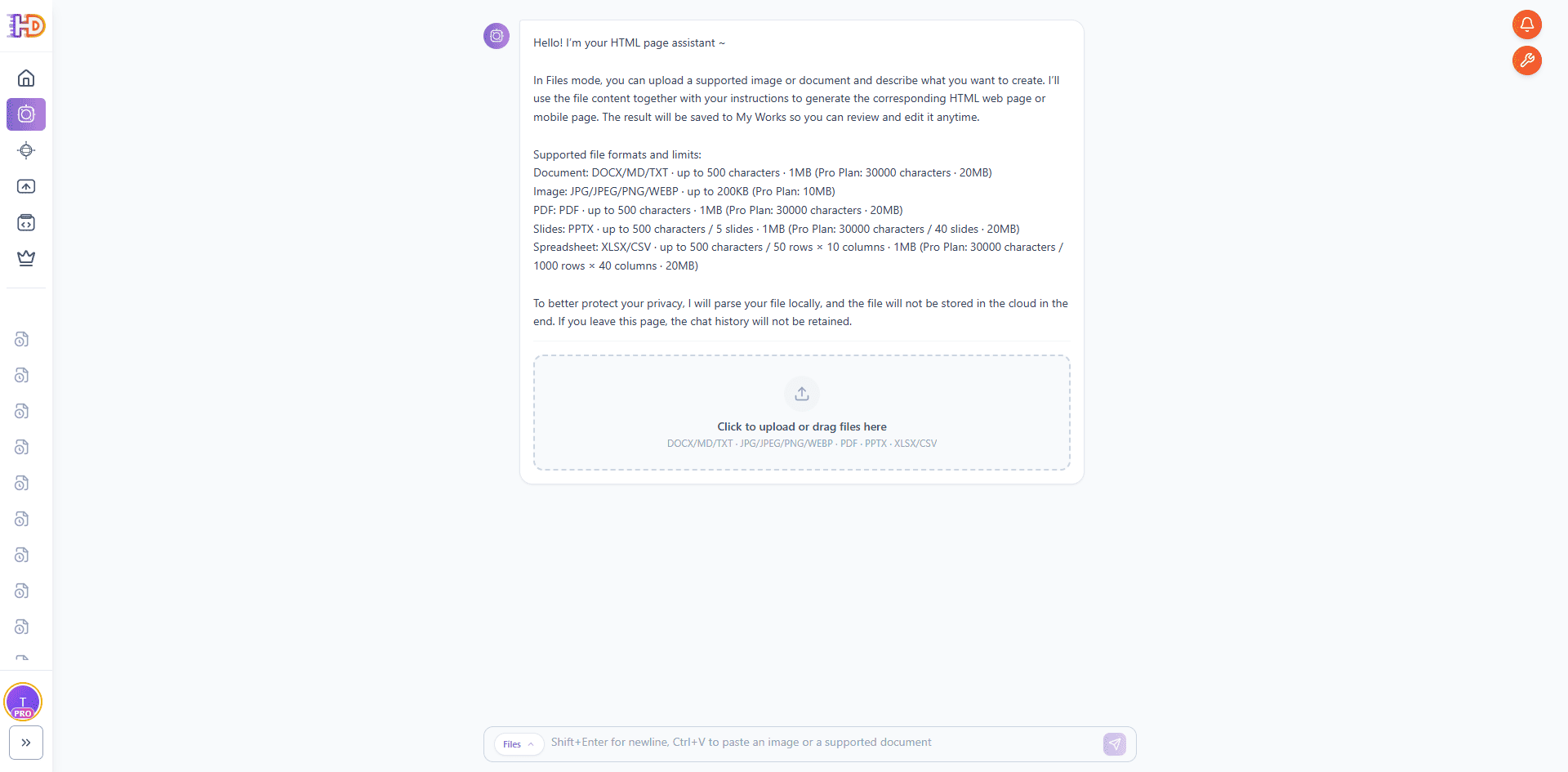
Open HtmlDrag and enter AI Creator. File Mode is designed for workflows where the source material already lives in a file. If you want to review the full AI Creator workflow, supported file types, privacy notes, and conversion boundaries before starting, see the HtmlDrag AI Creator guide. In this mode, you can upload supported documents and visual files, then describe what kind of HTML page you want AI Creator to generate.
For this article, the key input is a PPTX presentation. This is important for accuracy: the workflow is built around modern PowerPoint `.pptx` files rather than older `.ppt` files.
Step 2: Upload the PPTX and Let It Parse Locally
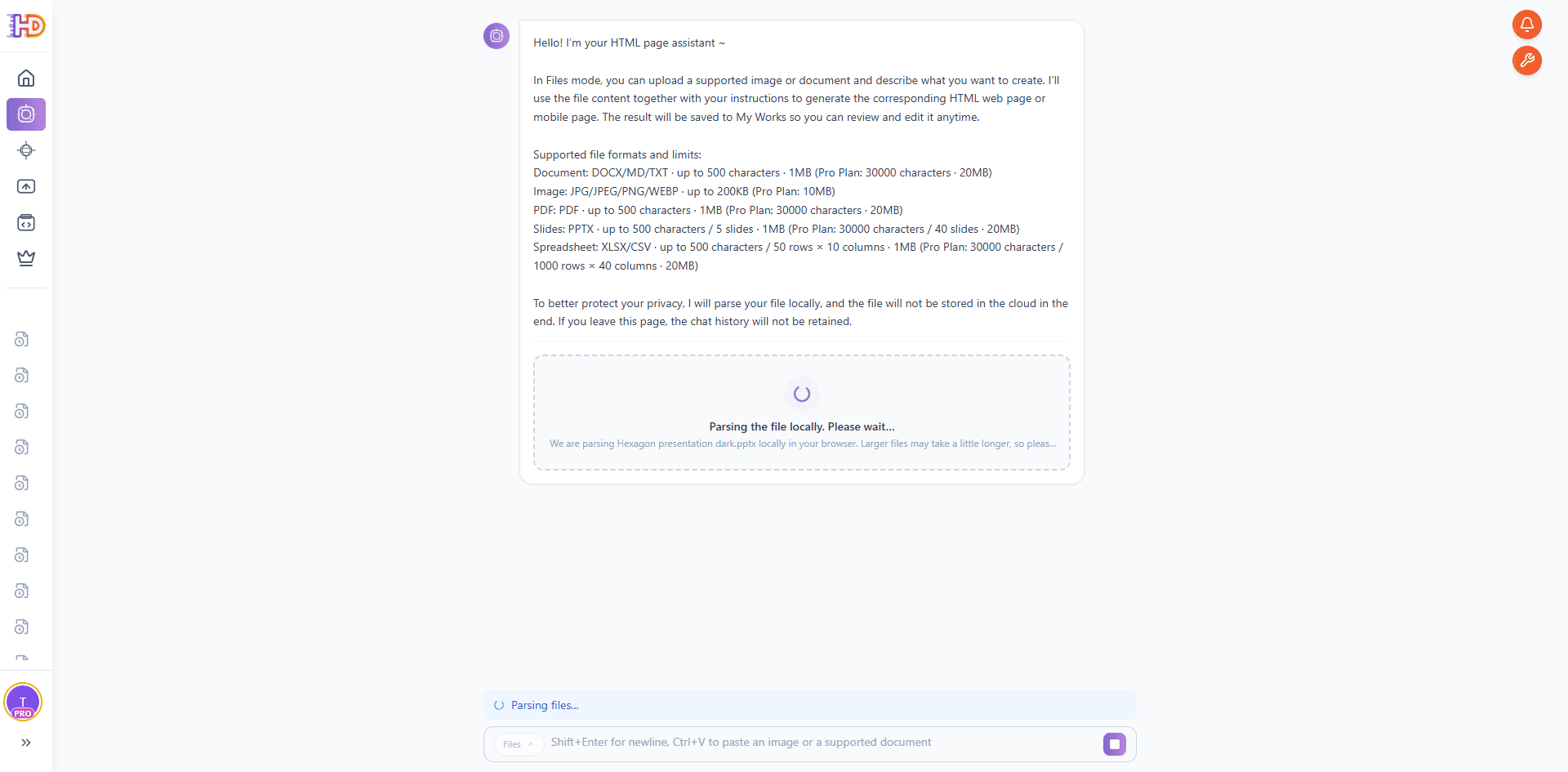
After selecting the PowerPoint deck, AI Creator starts parsing the file locally in the browser. This step prepares the slide content before generation. For teams handling campaign decks, client proposal decks, or internal strategy presentations, local parsing helps keep the upload workflow simple and privacy-conscious.
The interface makes the process visible: the file is being parsed, the deck name is shown, and the system indicates that larger files may take a little longer. This is the start of the PPTX to editable HTML page workflow.
Step 3: Add a Short Goal for the Generated HTML Page
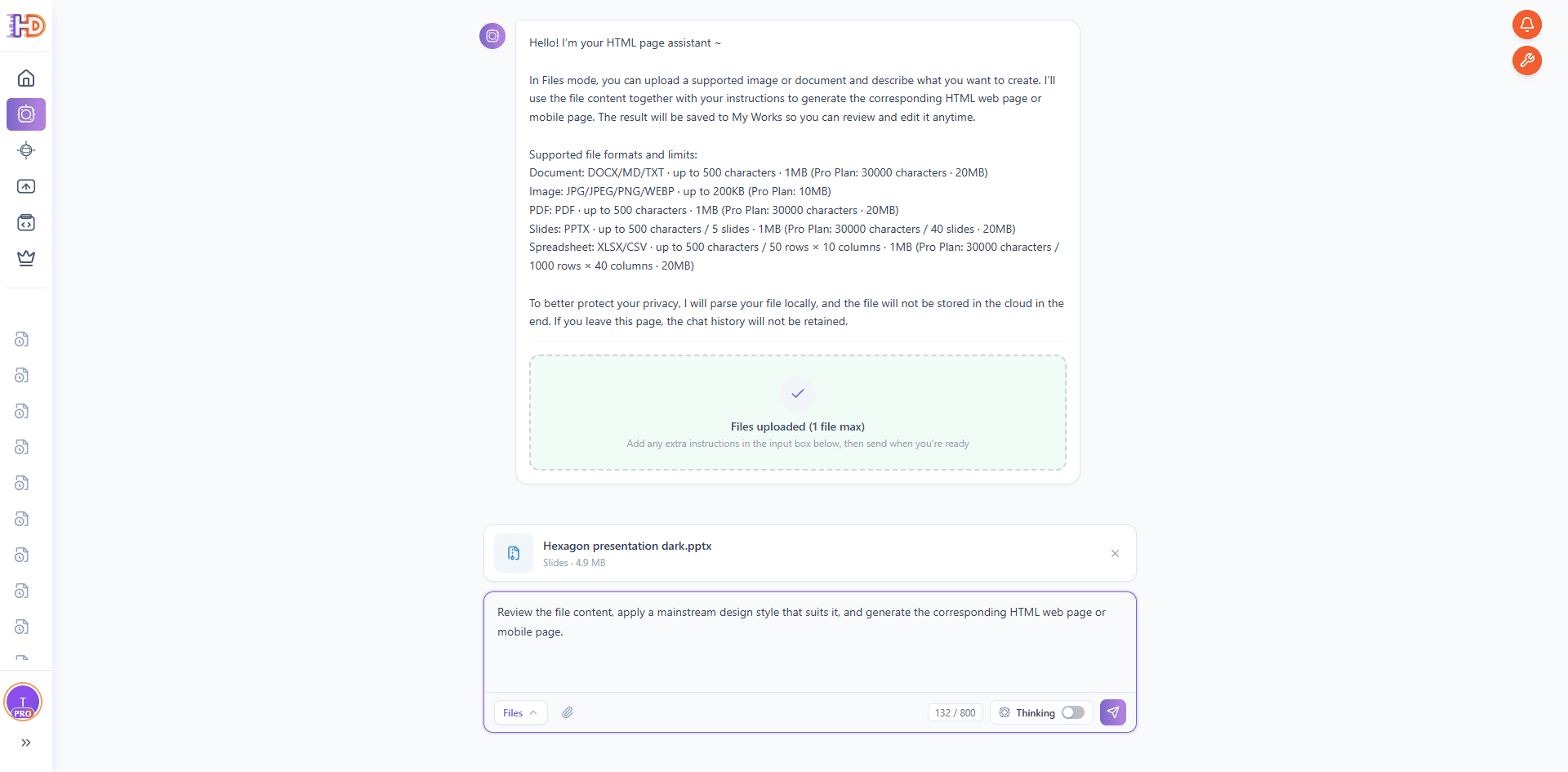
Once the file is ready, add a short instruction that describes the target result. In this example, the prompt asks AI Creator to review the file content, apply a suitable mainstream design style, and generate the corresponding HTML web page or mobile page.
This short goal is enough because the PPTX already contains the presentation structure, visual direction, and business content. Instead of writing a long prompt from scratch, you can let the deck provide the context and use your instruction to clarify the output format.
Step 4: Let AI Creator Review Slides and Extract the Page Framework
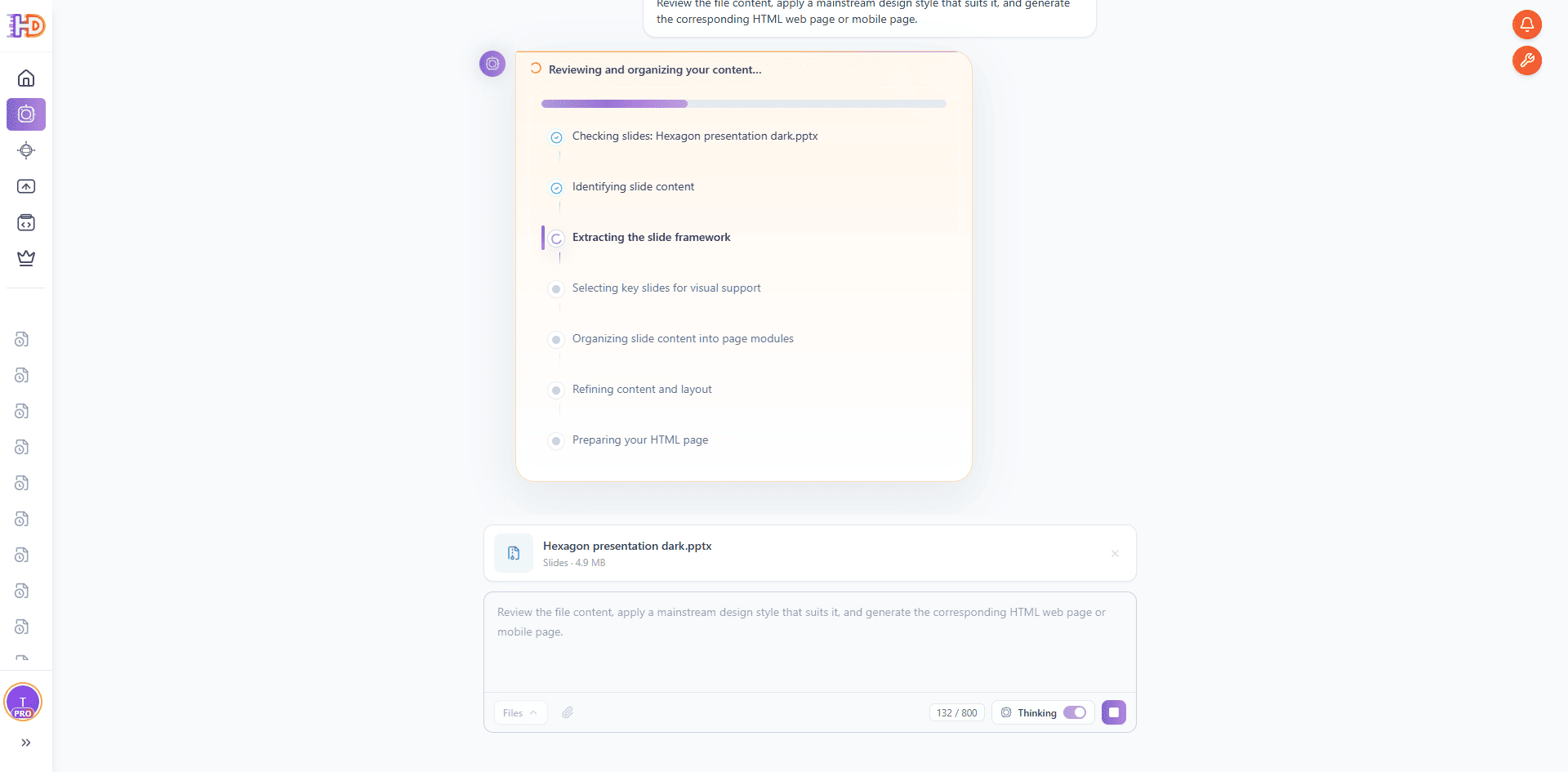
After sending the request, AI Creator begins reviewing and organizing the content. The process shows several important steps: checking slides, identifying slide content, extracting the slide framework, selecting key slides for visual support, organizing slide content into page modules, refining content and layout, and preparing the HTML page.
This is where the workflow becomes different from a basic PPTX-to-image converter. AI Creator is not only copying slides. It is turning a slide-based narrative into web page sections. That makes the result more suitable for a landing page, product overview, strategy page, or campaign preview.
Step 5: Watch AI Creator Build the HTML Page
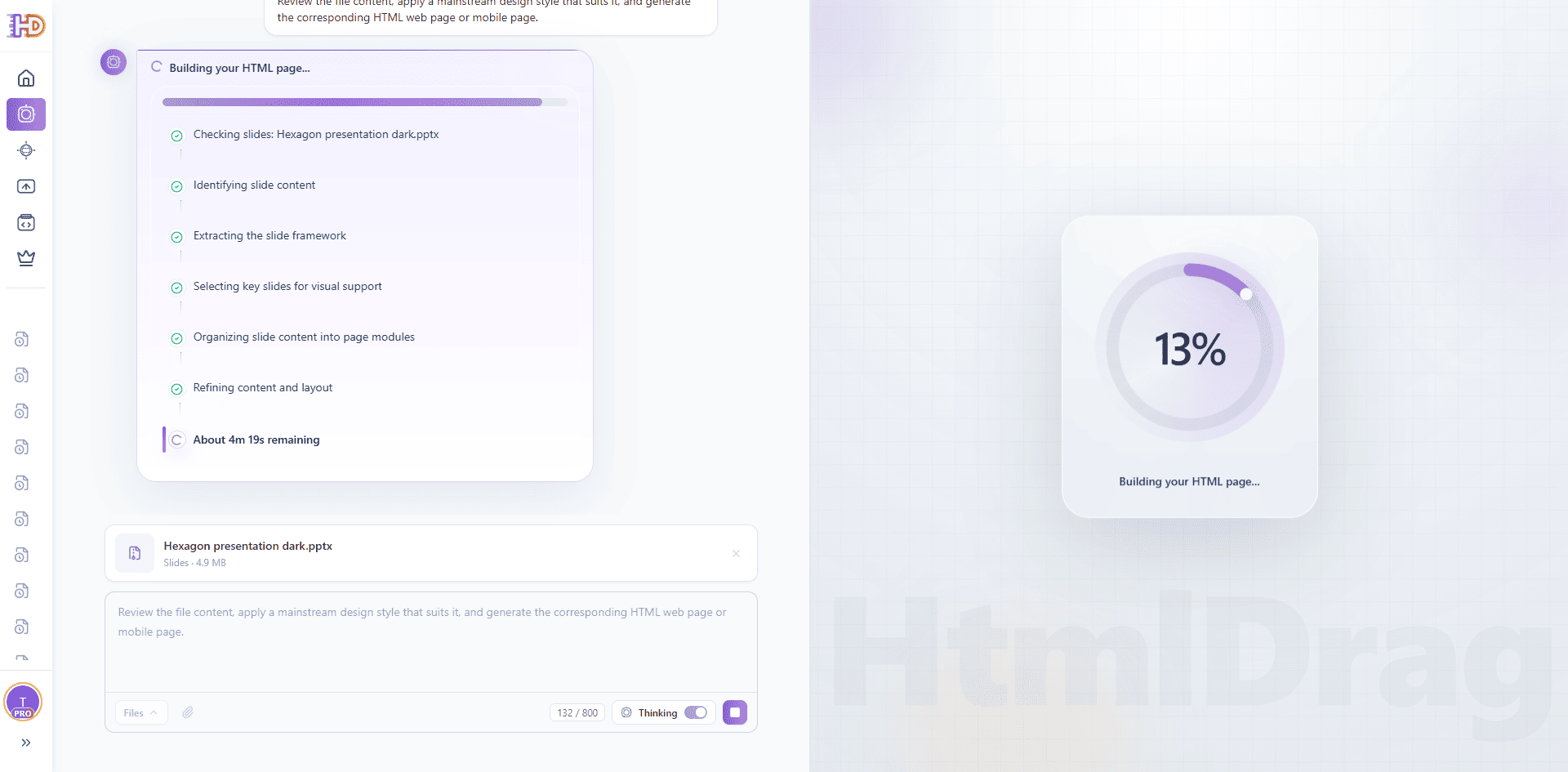
Once the slide framework is clear, AI Creator moves into HTML creation. The progress view shows the page being built, while the reasoning panel continues to track the transformation from slide deck to page modules.
For a marketing or business team, this is the high-value moment: a static PPTX deck begins turning into a browser-based HTML page that can be reviewed, shared, edited, and exported. Instead of asking a designer and developer to manually rebuild the slide deck as a web page, the first draft is generated directly from the presentation.
Step 6: Preview the Generated HTML Landing Page
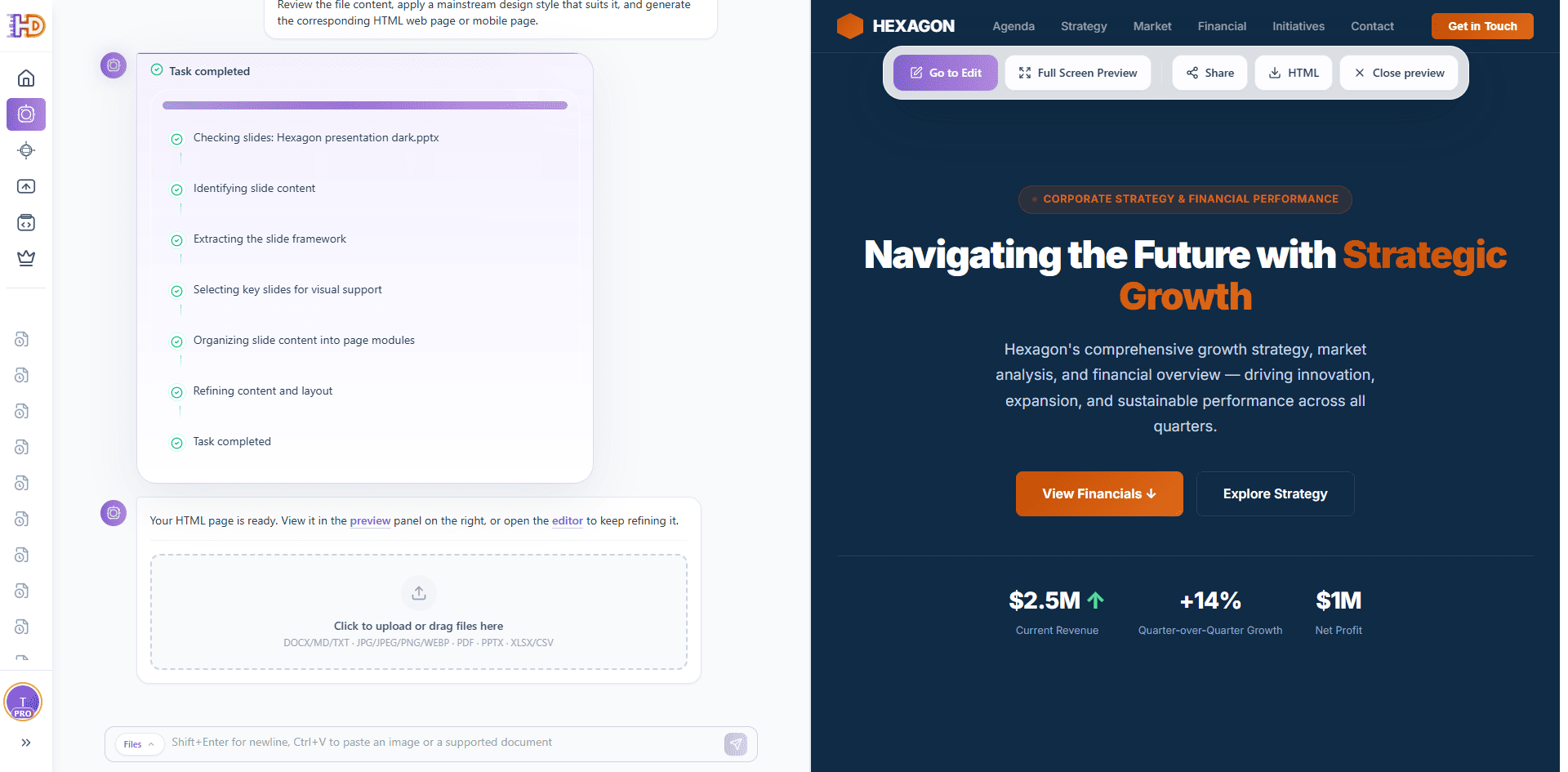
When generation is complete, the preview appears on the right side. The result is no longer a slide deck. It is a structured HTML landing page with a top navigation bar, brand mark, hero section, CTA buttons, strategy message, business metrics, and page sections built from the original presentation.
The preview toolbar also shows useful next actions: Go to Edit, Full Screen Preview, Share, and HTML. This is important because the workflow does not stop at generation. The result can continue into editing, sharing, or exporting.
Step 7: Open the Full-Screen Preview for Stakeholder Review
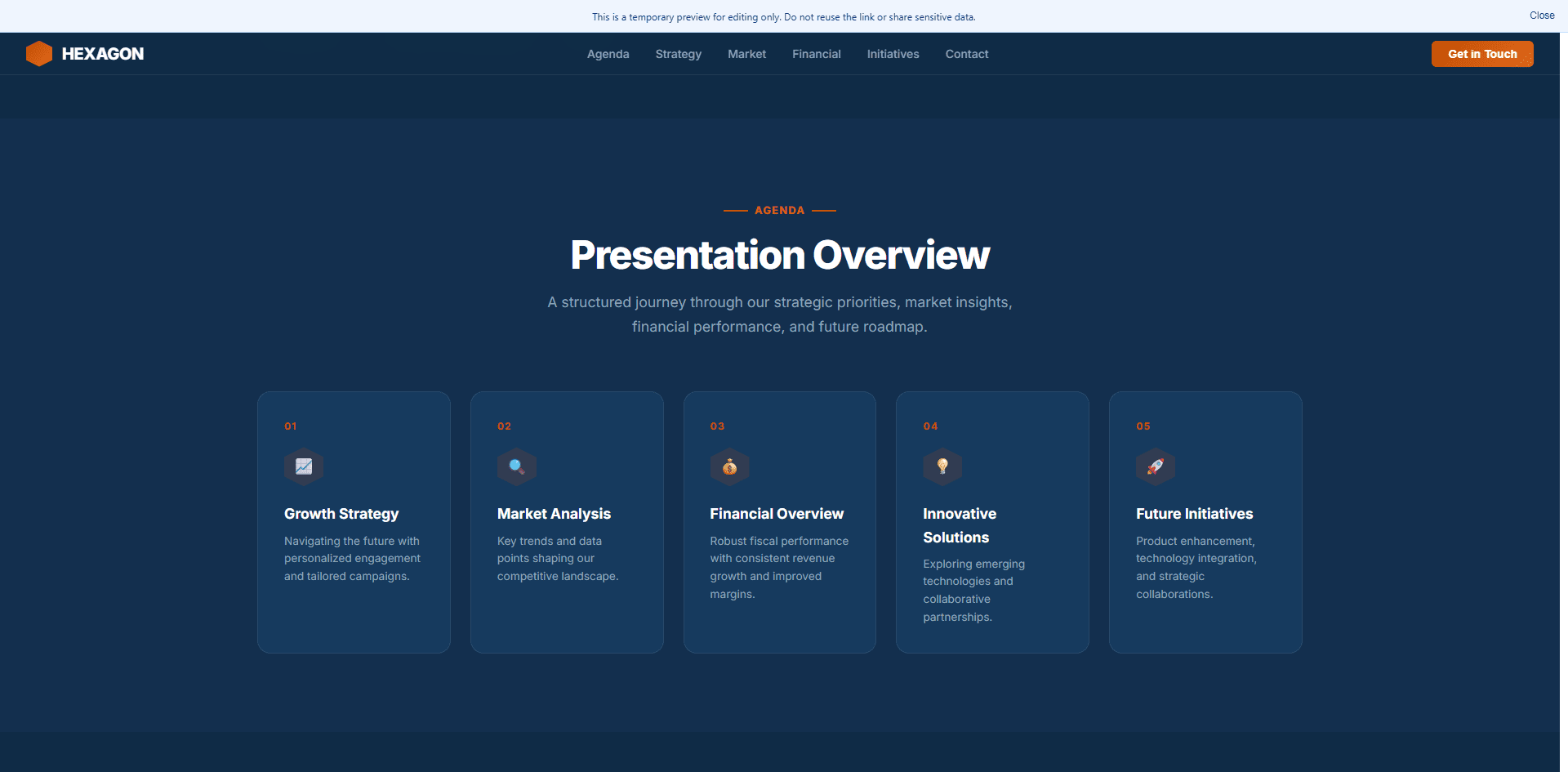
Full-screen preview is useful when you want to check whether the generated page works as a standalone web experience. In this example, the page presents the deck as a business website: navigation items, agenda section, strategy cards, market overview, financial narrative, and a clear call to action.
This is especially helpful for internal reviews. A product manager, marketer, or founder can upload a PPTX proposal and quickly get a browser-friendly version for discussion before investing in a final design and development cycle.
Step 8: Continue Editing the Generated HTML Visually
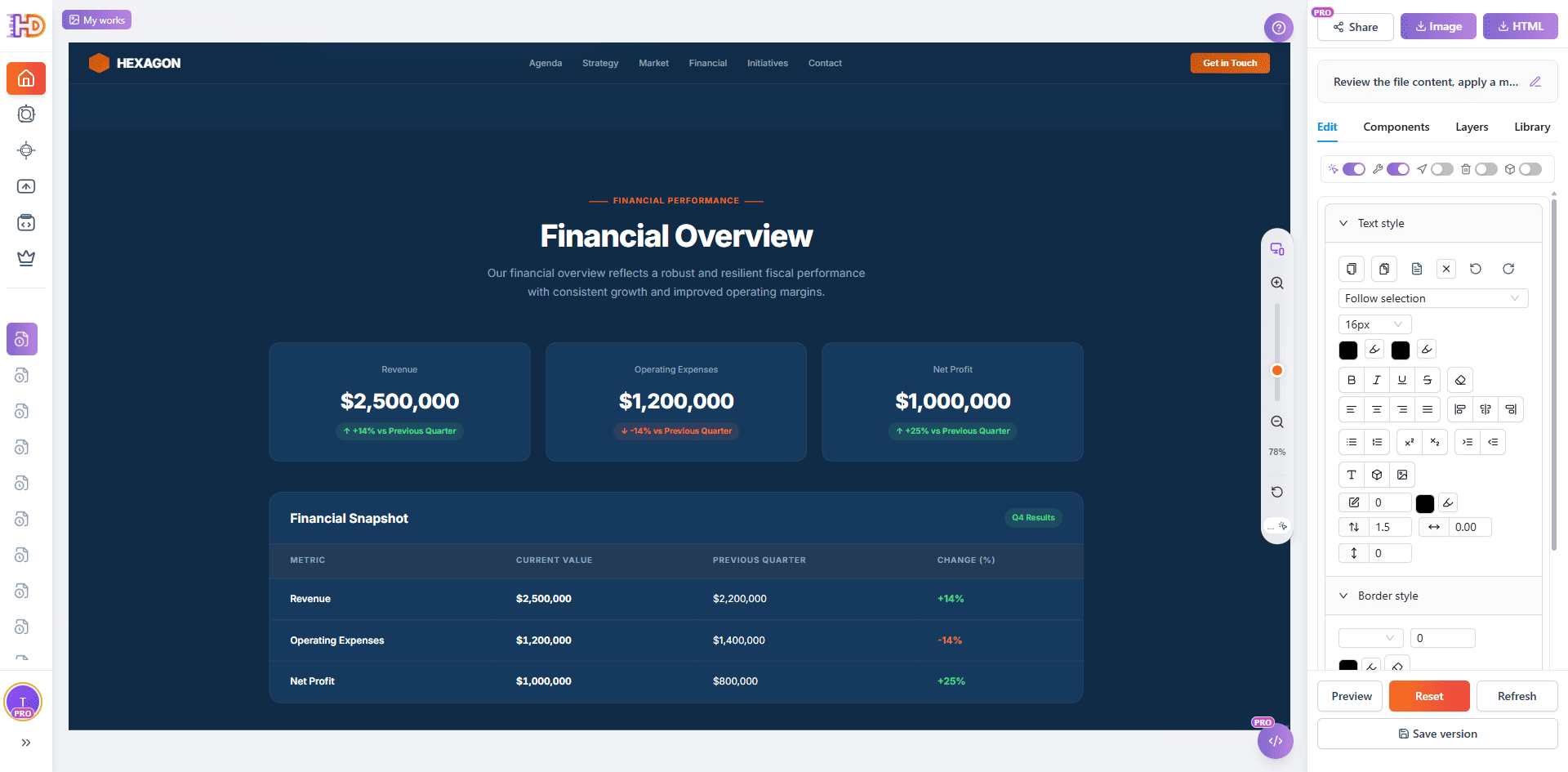
The final step is where HtmlDrag becomes more practical than a simple AI code generator or online file converter. After AI Creator generates the page, you can open the result in the visual editor and keep refining it without writing HTML or CSS.
You can adjust the generated page like a real design canvas:
- rewrite the hero title and supporting text
- change CTA button copy and links
- replace presentation images with updated product visuals
- drag sections into a better order
- fine-tune spacing, colors, typography, and layout
- save the result or export the final HTML
This closes the full workflow: PPTX presentation → AI-generated HTML page → visual editing → save or download.
Traditional PowerPoint Export vs AI Creator File Mode
| Task | Traditional PPT export or converter | HtmlDrag AI Creator |
| Start from a PPTX deck | Often exports slides as static assets or requires manual rebuilding | Reads the PPTX and uses the deck as structured source material |
| Create a web-native page | The result may still feel like slides inside a page | Generates a landing-page-style HTML layout with sections and CTA |
| Make small visual changes | Usually requires editing code, re-exporting, or restarting conversion | Supports visual editing, drag-and-drop refinement, and image replacement |
| Prepare for review or delivery | The output may be difficult to polish without technical help | The generated page can be previewed, shared, saved, and exported as HTML |
Best PPTX Decks for This Workflow
This workflow works best when the PPTX already has a clear message and visual direction. You do not need a perfect design, but the deck should contain enough structure for AI Creator to understand what the page is about.
- Product launch decks that need a quick landing page for announcement or internal review
- Marketing campaign decks that should become a promotional web page
- Pitch decks that need a shareable online version for stakeholders
- Business strategy presentations that need a polished web preview
- Training or onboarding decks that can become online learning pages
FAQ
Can AI Creator generate an HTML page from a PowerPoint presentation?
Yes. In this workflow, AI Creator uses a PPTX presentation as the source file and generates an HTML page based on the slide content, visual direction, and structure.
Should I upload PPT or PPTX?
Use PPTX for this workflow. PPTX is the modern PowerPoint file format and is the recommended format when you want AI Creator to parse a presentation and generate an HTML page.
Is this the same as exporting PowerPoint to images?
No. Exporting slides as images usually creates static visuals. AI Creator is designed to organize the presentation into editable HTML sections, so the result can be refined in the HtmlDrag editor.
Can I edit the generated page after AI creates it?
Yes. After generation, you can open the page in HtmlDrag and visually adjust text, images, layout, spacing, colors, and CTA elements without writing code.
What if the first result is not perfect?
That is expected. Treat the AI-generated page as a strong first draft. The advantage of this workflow is that you can continue polishing it manually instead of repeatedly asking an AI coding tool to regenerate small changes.
Final Thoughts
A PPTX deck should not be locked inside a meeting format when the team needs a web page. If your presentation already contains the message, structure, visuals, and business logic, it can become the starting point for an editable HTML landing page.
With HtmlDrag AI Creator, the workflow is simple: upload the PPTX, let AI Creator review and organize the slides, generate the HTML page, preview the result, then open it in the visual editor for final drag-and-drop refinement.
If you need a faster way to turn a PPTX presentation into an editable HTML landing page without coding, AI Creator File Mode gives you both the first draft and the visual control needed to finish the page.