
Many projects begin as a Word brief, not a finished design. The document may already include the project background, target audience, product value, service scope, delivery details, timeline, pricing notes, and final CTA. That is useful for internal planning, but it is not always the easiest format to show to a client, manager, or potential user. This guide shows how to turn a Word project brief into an editable HTML landing page with HtmlDrag AI Creator, then continue refining the generated page visually without writing code.
At a glance:
- Start with a Word / DOCX brief that includes the project goal, audience, value points, page sections, delivery details, and CTA.
- Upload the DOCX file to AI Creator file mode and provide a short goal, such as turning the brief into a modern project proposal landing page.
- Let AI Creator read the document structure, extract the page hierarchy, and organize the hero, pain points, solution, features, process, proof, and CTA.
- Preview the generated page, then open it in the HtmlDrag visual editor to refine copy, images, cards, spacing, colors, and section order.
- Save a version, share a preview link, export clean HTML, or download an image for client review and internal approval.
The key distinction is that this workflow is not about pasting a Word document into a web page, and it is not about generating code that only a developer can handle. It reorganizes the business content inside the brief into a web-native structure, so a planning document can become a page that is easy to preview, edit, share, and deliver.
Why a Word Brief Works Well as Landing Page Source Material
Many users search for Word to HTML, DOCX to web page, project brief to landing page, or client proposal to website. The real intent behind those searches is usually practical: someone already has a reasonably complete document, but they do not yet have design resources, development time, or a published page.
The traditional path is to hand the document to a designer, turn it into a page structure, and then ask a developer or website builder to recreate it as a page. That can be right for a final production project, but it is too slow for a quick proposal, client preview, internal review, or direction validation before investing in full design and development.
HtmlDrag AI Creator file mode treats the Word brief as source material. It reads headings, paragraphs, lists, key points, and CTA content, then rebuilds them into browser-friendly HTML blocks. The result is not a one-time static export; it is a page draft that can keep moving through visual editing inside HtmlDrag.
The Example: A Project Proposal Brief
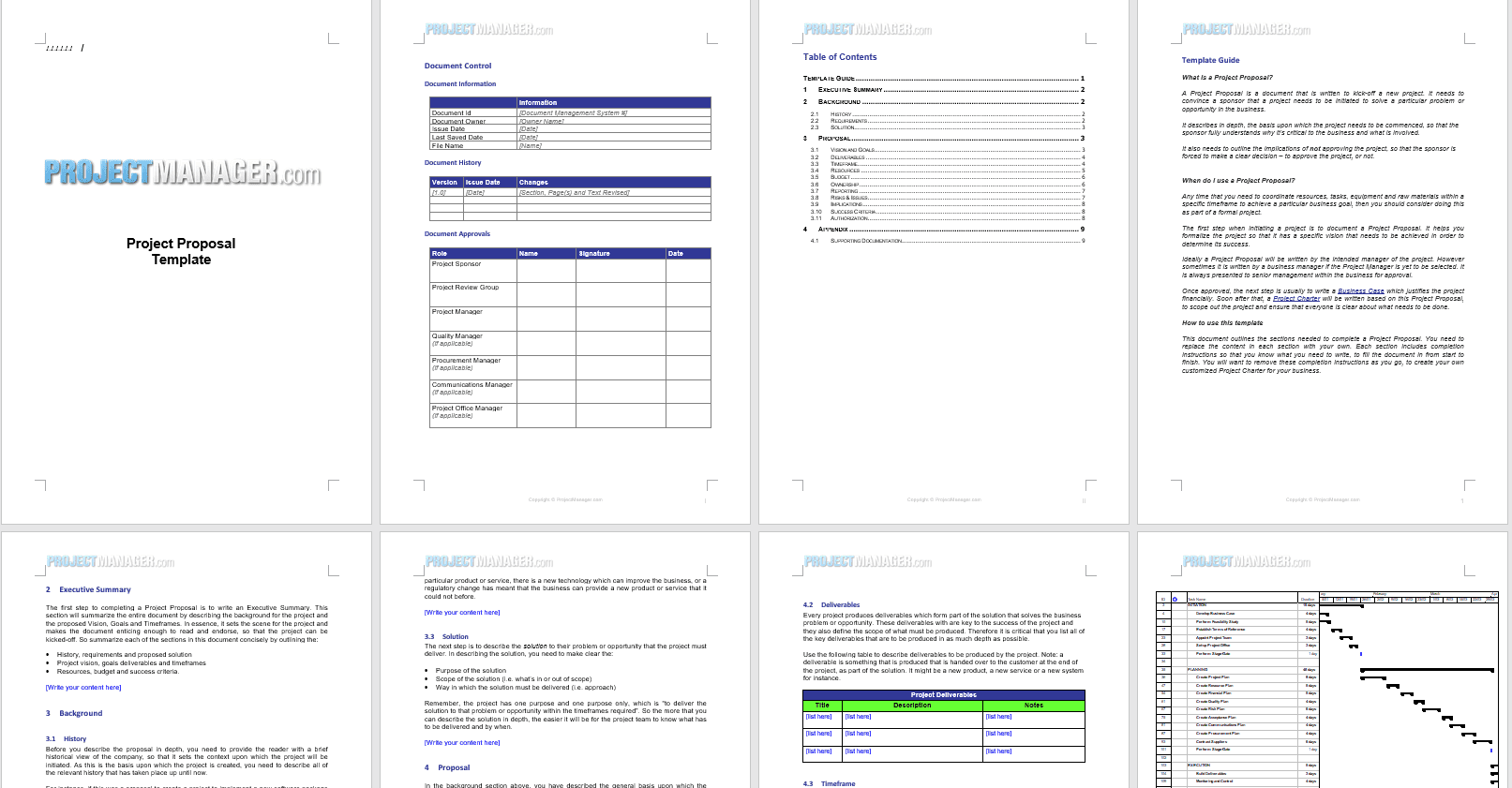
For this walkthrough, imagine the source file is an English project proposal brief. The document already includes project background, an executive summary, goal statements, deliverables, budget resources, timeline details, and approval information. It is not a final design, but it already contains most of the content a proposal landing page needs.
For a more stable result, use a DOCX file with clear structure instead of a few scattered notes. Headings such as “Executive Summary,” “Project Goals,” “Deliverables,” “Budget & Resources,” “Timeline,” and “Approval Process” help AI Creator understand where each piece of content should appear on the page.
If the brief contains internal pricing, client names, unpublished data, or sensitive attachments, prepare a public-facing copy before uploading. The goal is to make the proposal easier to understand and discuss, not to expose every internal detail from the original document.
 Step-by-Step: Generate a Landing Page From a Word Brief
Step 1: Open AI Creator and Choose File Mode
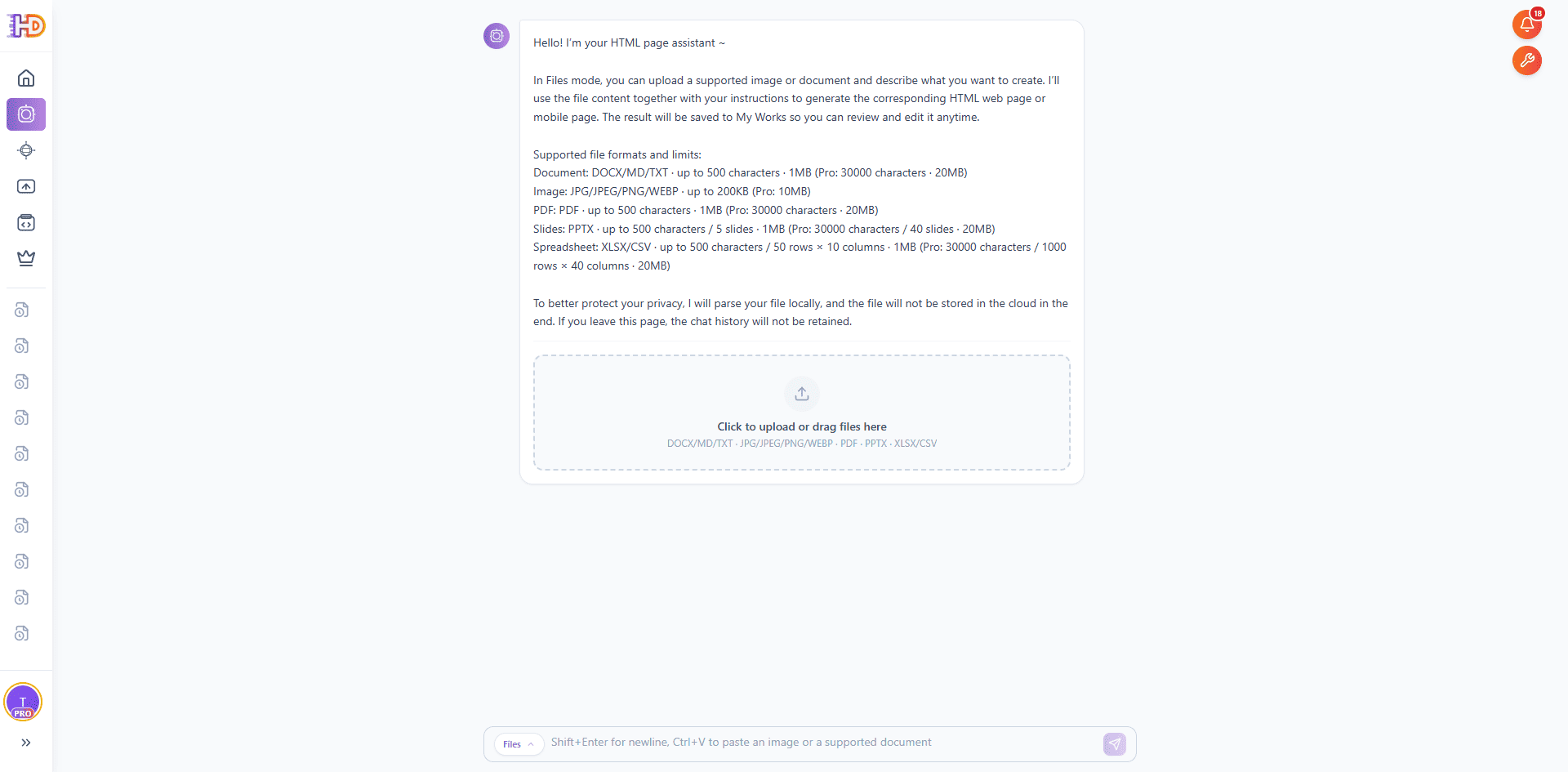
Open AI Creator on htmldrag.com and switch to file mode. File mode is designed for workflows that start from an existing document or visual asset, such as Word / DOCX, PDF, PPT/PPTX, Excel/XLSX, CSV, Markdown, TXT, JPG, and PNG.
For this workflow, the key input is a Word project proposal brief. It can be a product launch brief, SaaS proposal, service introduction, campaign plan, client proposal, freelance service document, or any document that already contains a goal, audience, offer, and CTA.
 Step 2: Upload the DOCX and Add a Short Page Goal
Upload the Word brief into the file mode upload area. Once the file is ready, add a short instruction in the input box. For example:
"Review this Word project proposal, extract a page structure, and generate a modern editable HTML landing page suitable for client preview."
The instruction does not need to be long because the brief already provides the source content. Your goal note simply tells AI Creator what kind of page to build and whether it is meant for a client preview, product introduction, internal review, or pre-launch draft.
 Step 3: Let AI Creator Read and Organize the Document
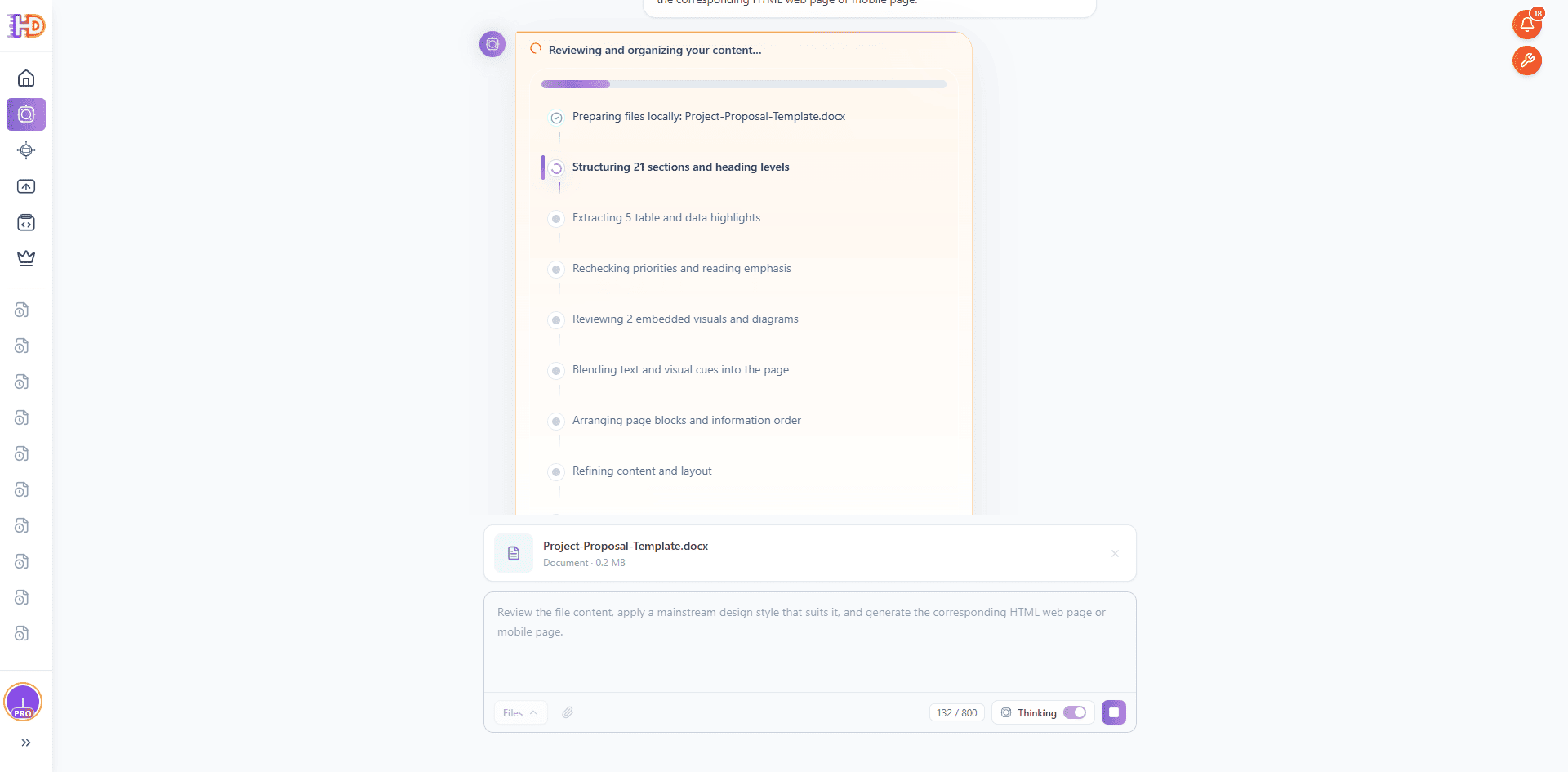
After sending the request, AI Creator starts by reading the uploaded DOCX file and organizing the document content. It identifies heading levels, paragraph priorities, list items, page goals, target audience, feature points, trust signals, and CTA content before preparing a web page structure.
This matters because a Word brief is not a landing page. Document writing is usually linear, while a landing page needs a clearer browsing order: value first, then problem and solution, followed by features, process, proof, and action. AI Creator helps translate document information into sections that work better in a browser.
 Step 4: Watch AI Creator Build the HTML Page
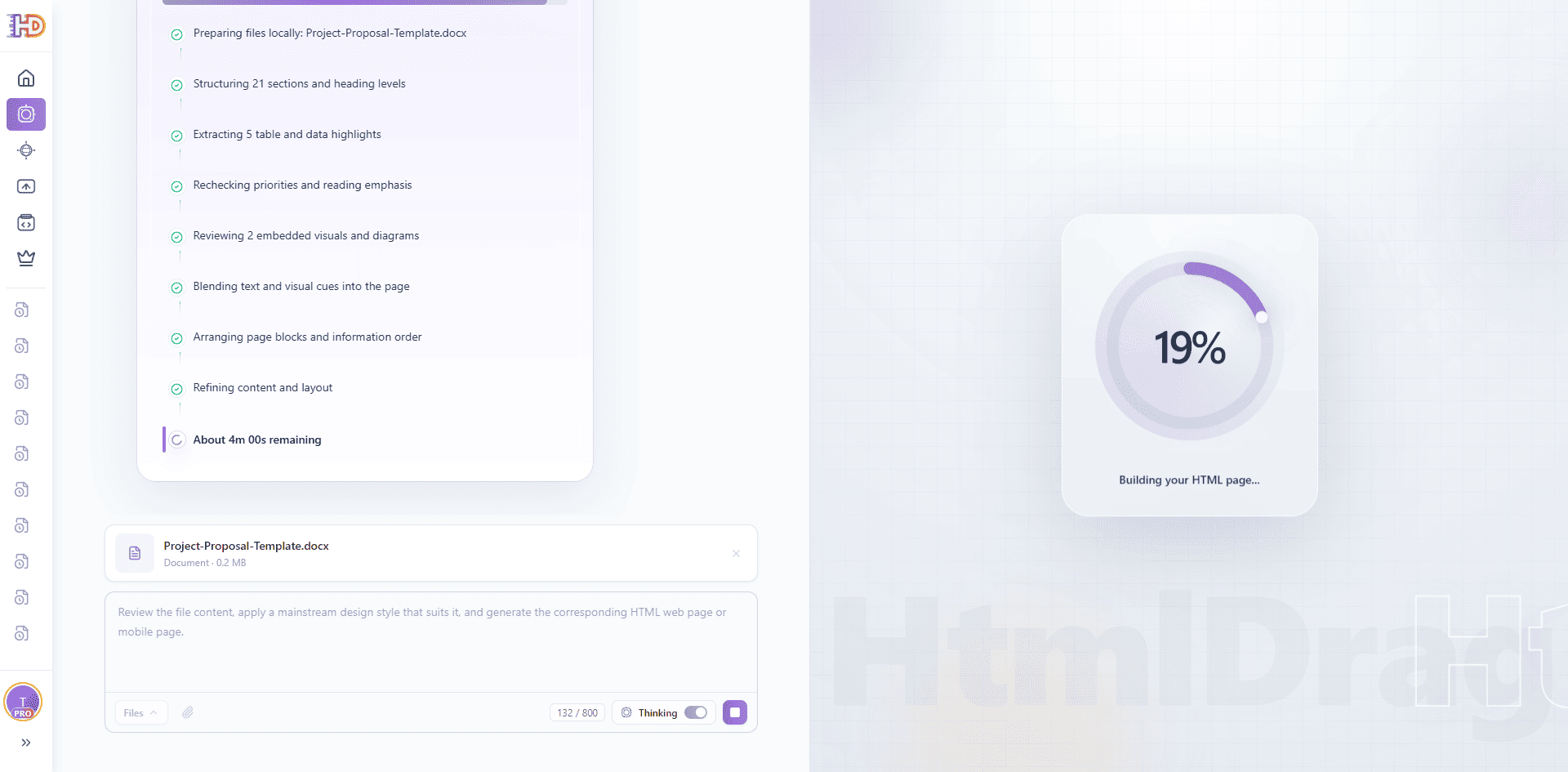
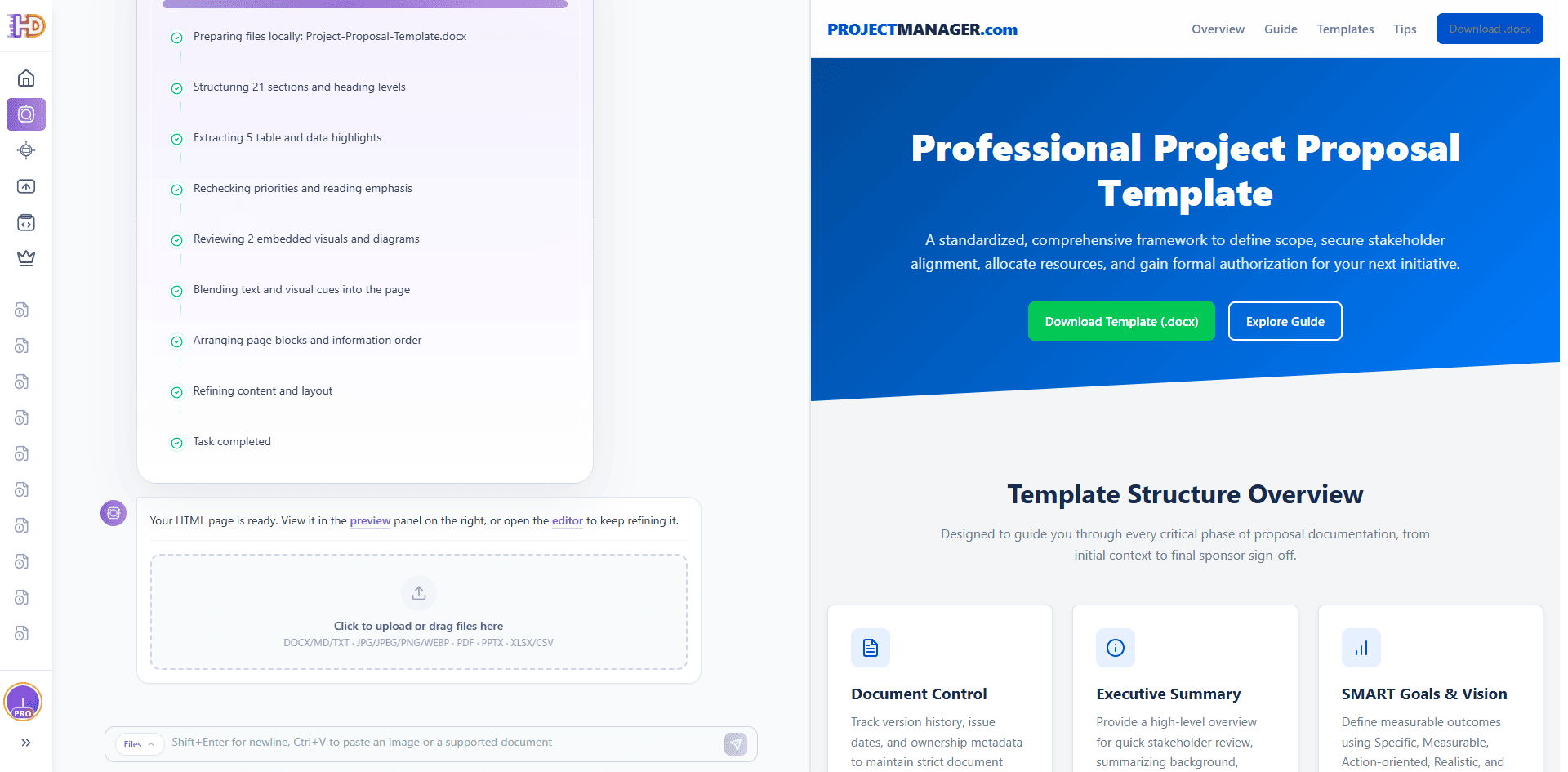
Once the document structure is clear, AI Creator moves into HTML page generation. Paragraphs that were scattered across the Word file start becoming a hero section, explanation sections, feature cards, process steps, proof content, and a final CTA.
For product, marketing, sales, and freelance teams, this step removes a lot of repetitive restructuring work. You do not need to manually copy brief content into a website builder, create a complete mockup first, or ask a developer to rebuild the page from scratch. The first page draft can come directly from the brief.
 Step 5: Preview the Generated Landing Page
When generation finishes, a page preview appears. The ideal result should not look like a Word document copied into a browser. It should read like a real landing page: a clear hero message, pain points, solution, feature highlights, process explanation, audience fit, trust content, and CTA.
The preview toolbar is also important. You can open the editor, view the page full screen, share a preview link, export HTML, or download an image. The page is not just a generated result; it becomes a working asset for review, discussion, handoff, and publishing.
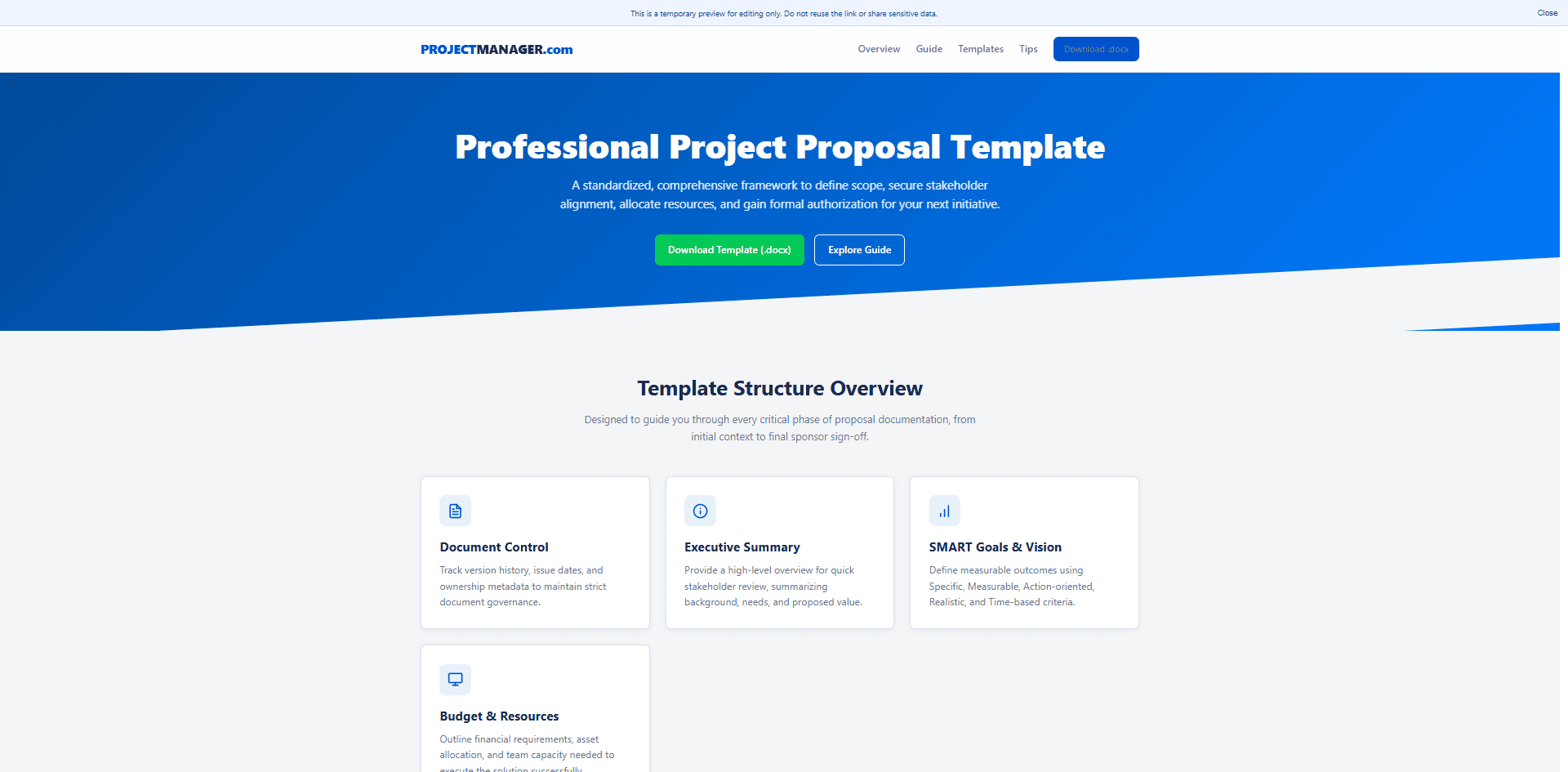
 Step 6: Open Full-Screen Preview for Client or Internal Review
Full-screen preview helps you check whether the page already works as a standalone web experience. A Word brief is usually written for sequential reading, but a landing page depends on the first screen, scroll rhythm, section hierarchy, and CTA placement. Viewing it full screen makes the review closer to how a real visitor would experience it.
If some copy is too long, the card order is unclear, or the CTA appears too late, you can note the issue and fix it in the editor next. You do not need to regenerate the whole page just to make these practical adjustments.
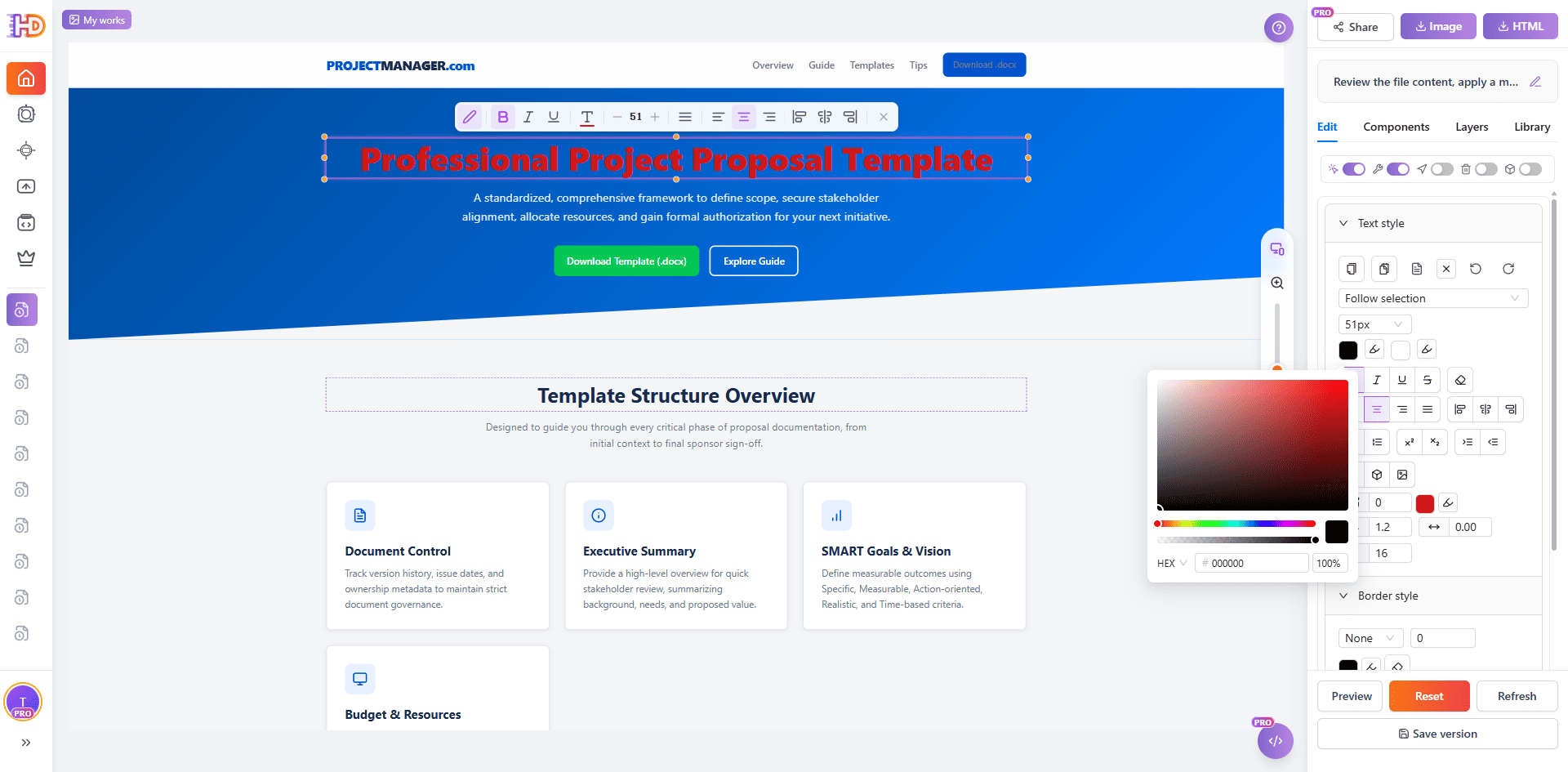
 Step 7: Continue Refining the Page in the HtmlDrag Visual Editor
This final step is where HtmlDrag becomes more useful than a basic document converter. After AI Creator generates the page, you can open it directly in the HtmlDrag visual editor and continue adjusting it without opening HTML or CSS.
You can treat the generated landing page like a real design canvas:
- rewrite the hero headline, supporting text, and CTA button copy
- split long paragraphs into clearer cards or bullet points
- replace hero visuals, product screenshots, client logos, or illustrations
- drag feature, process, proof, and FAQ sections into a better order
- fine-tune typography, colors, radius, borders, shadows, spacing, and responsive layout
- save a version, share a preview, export HTML, or download an image for approval
This closes the full workflow: Word project brief → AI-generated HTML landing page → visual editing → preview, share, save, or export.
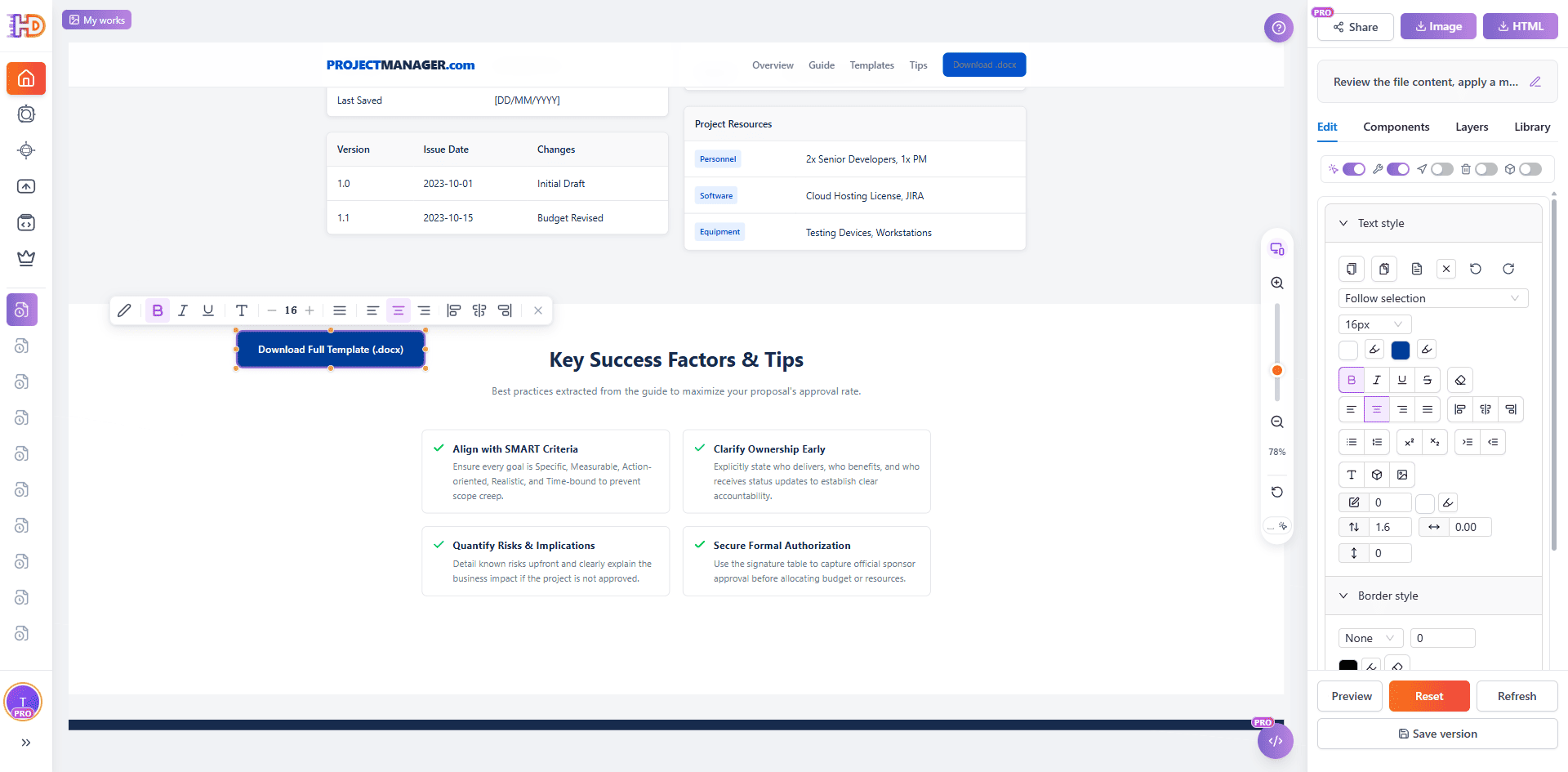
 The same editor can handle more detailed style work, such as selecting text to change color, adjusting button styles, aligning card spacing, or replacing image assets. Instead of prompting repeatedly, you can finish the page step by step in the visual editor, which is often more stable and easier to hand off.
 Traditional Document Conversion vs AI Creator File Mode
| Task | Traditional Word conversion or AI coding tool | HtmlDrag AI Creator |
| Start from a project brief | Often preserves a document-like shape or generates code that still needs cleanup | Reads DOCX content and rebuilds it as web sections |
| See a page preview quickly | May require copying content, running code, or deploying a preview | Generated pages can be previewed and viewed full screen immediately |
| Make small changes after generation | Usually requires more prompts, code edits, or document restructuring | Supports visual editing, drag-and-drop refinement, image replacement, and style changes |
| Prepare for client preview or handoff | Often stays at the document or code level | Can be shared, saved as a version, exported as HTML, or downloaded as an image |
Best Word Documents for This Workflow
This workflow works best when the Word document has real structure and useful content. The closer the source file is to a complete brief, the more likely the generated result will feel like a page that can move forward instead of a loose collection of text blocks.
- Product launch briefs with target users, core value, feature highlights, launch goals, and CTA
- Client proposal documents with client problems, solution details, delivery scope, examples, and next steps
- SaaS service introductions with positioning, use cases, feature modules, benefits, and trial entry points
- Freelance service documents with service scope, process, pricing range, examples, and booking CTA
- Campaign or project plans with background, audience, execution steps, resource needs, and registration entry
If the document is long, remove internal notes, meeting records, and details that should not appear publicly. A short, clear brief usually works better for landing page generation than a long file that mixes many unrelated materials.
FAQ
Can AI Creator generate an HTML page from a Word or DOCX file?
Yes. AI Creator file mode can read a Word / DOCX document, reorganize its headings, paragraphs, lists, and CTA into an editable HTML page, and open the result in the HtmlDrag visual editor for further refinement.
Is this the same as a normal Word-to-HTML conversion?
No. A normal conversion often preserves document formatting. This workflow treats the brief as source content and creates a web-native structure with a hero section, feature cards, process blocks, FAQ, and CTA.
What kind of brief works best?
A structured, realistic, goal-driven brief works best. The document should include the target audience, core value, feature details, customer benefits, delivery process, trust signals, and next action.
Can I edit the generated page manually?
Yes. After generation, you can open the page in HtmlDrag and visually adjust text, images, layout, spacing, colors, buttons, and section order without writing code.
Can I export the final result as HTML?
Yes. After editing, you can save the page, share a preview link, export clean HTML for hosting, or download the page as an image for client review and internal approval.
Final Thoughts
A Word project brief should not stay trapped as an attachment when the team needs to show a page direction quickly. If the brief already contains the audience, value points, structure, and CTA, it can become the starting point for an editable HTML landing page.
With HtmlDrag AI Creator, the workflow is simple: upload the DOCX, let AI Creator read and organize the document, generate an HTML page, preview the result, and open it in the visual editor for final drag-and-drop refinement.
If you need a faster way to turn a Word project brief into an editable HTML landing page without coding, AI Creator file mode gives you both the first draft and the visual control needed to finish the page.