
When a page is almost ready, asking AI for help should be simple. In practice, many teams still copy a huge block of HTML, paste it into ChatGPT, Claude, or Cursor, then hope the assistant understands which version is current. That workflow is fragile: the copied code may include editor markers, the message can be too long, and the AI may review an old version instead of the page you just edited. HtmlDrag Export to AI solves this by turning the current canvas into a read-only AI snapshot link, paired with a prompt that tells the AI how to read and preserve the page.
What this workflow changes:
- Start from an existing public webpage by using URL Import instead of rebuilding the page from scratch.
- Make quick visual edits in HtmlDrag first, so the AI sees the page state you actually care about.
- Use Export to AI to create a read-only snapshot link for the current edited HTML.
- Paste one clean prompt into ChatGPT, Claude, or Cursor instead of pasting a massive HTML blob.
- Return to HtmlDrag to apply the AI's recommendations visually, then save, share, copy, or download clean HTML.
The point is not to replace the visual editor with AI. The point is to give AI a clean, stable version of the page so it can review copy, hierarchy, CTA clarity, section order, or implementation details without forcing you to expose your entire workflow in one oversized message.
Why Copy-Pasting HTML into AI Gets Messy
AI tools are useful when you ask them to review a landing page, improve a CTA, simplify a section, or suggest better messaging. But raw HTML copy-paste is not a great handoff format. It is easy to copy the wrong version, include temporary editing states, lose context about what the page is for, or hit message length limits before the AI can read the full structure.
This is especially common when the page already exists online. You may not want to rebuild it. You may only want to import it, adjust a few visible details, and ask AI for a second pass on the latest edited page. HtmlDrag is designed for that middle layer: first make the HTML editable, then let AI read the cleaned current version.
Demo Source: Start from a Public Product Page
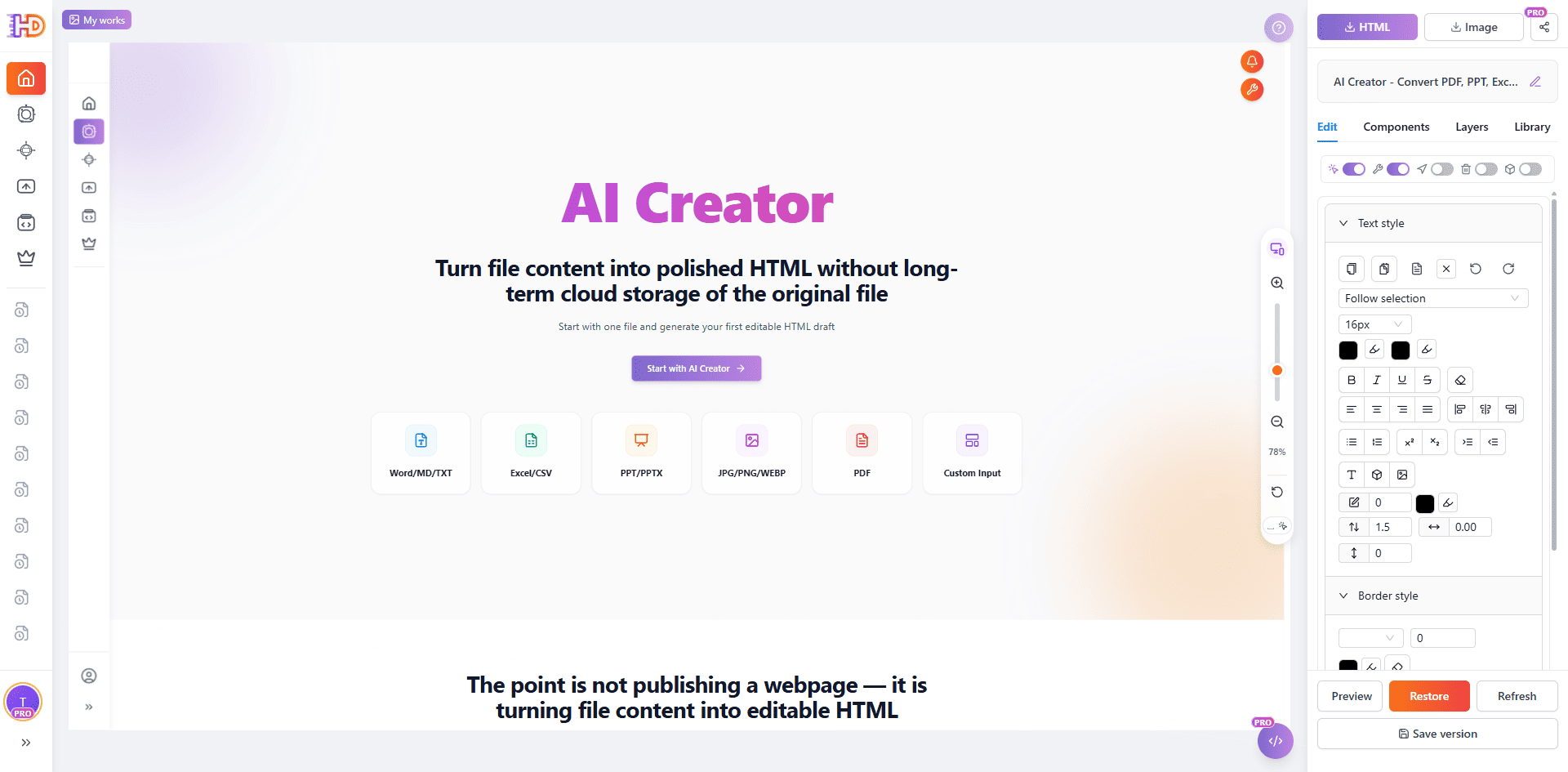
For this walkthrough, we start with a public product explanation page. The goal is not to create a brand-new page with AI, but to capture an existing page, turn it into an editable HTML project, make several light visual edits, and then export the edited HTML state to an AI assistant for review.
This makes the example closer to a real marketing or product workflow. A page may already be live, but the team still wants to refine the headline, inspect the CTA, adjust a section, or ask AI whether the hierarchy is clear enough for new visitors.
 The Workflow: From URL Import to AI Snapshot
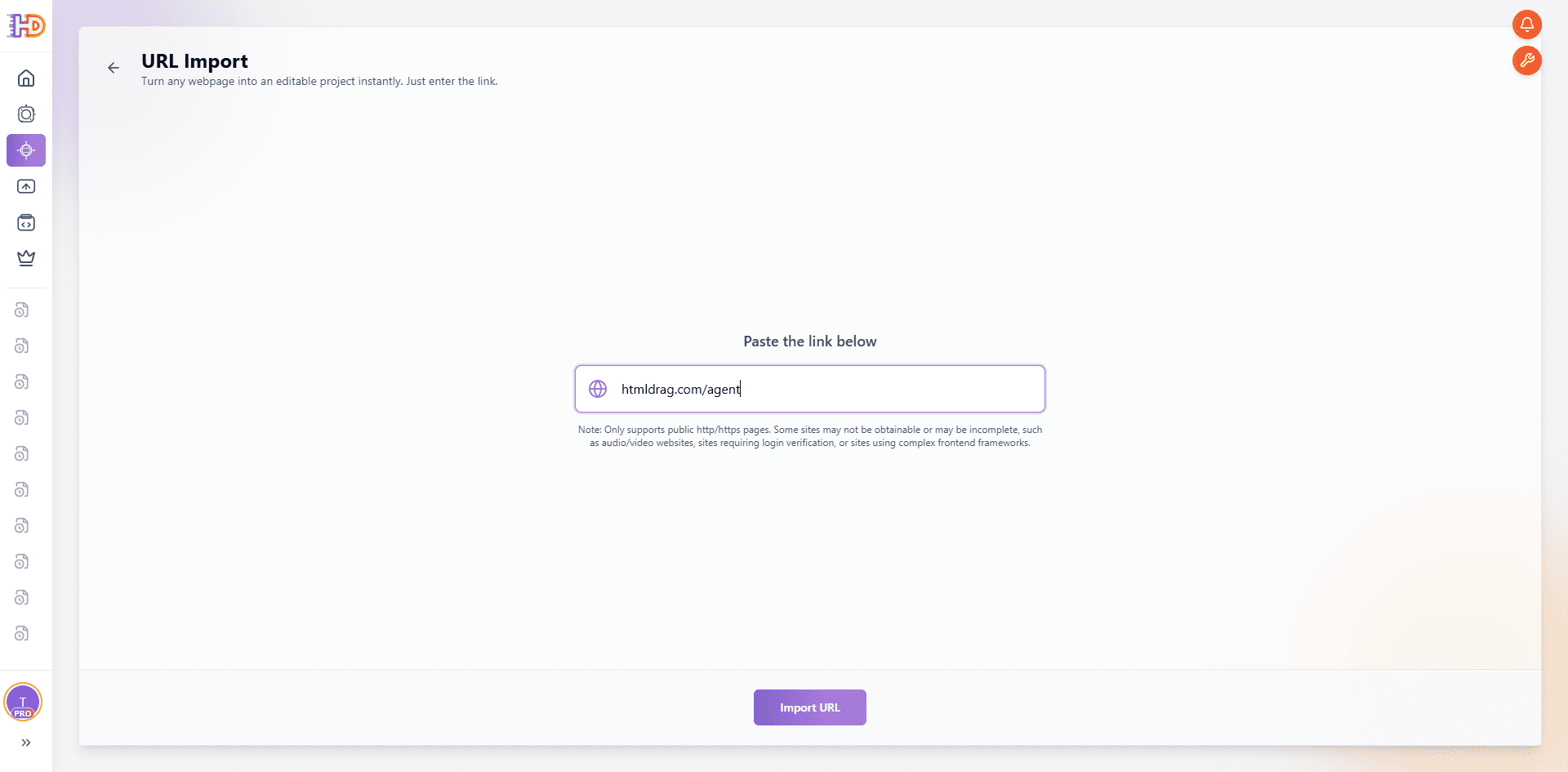
Step 1: Import the Existing Page by URL
Open URL Import in HtmlDrag and paste the public page address. URL Import is useful when the page already exists in a browser and you want to continue editing it visually, rather than asking a developer to rebuild it or copying the source code by hand.
After the page is captured, it becomes an editable HTML project inside the HtmlDrag canvas. The important difference is that you are now working with a visual page state: text, buttons, sections, and layout can be selected and adjusted directly.
 Step 2: Make a Small Visual Edit Before Asking AI
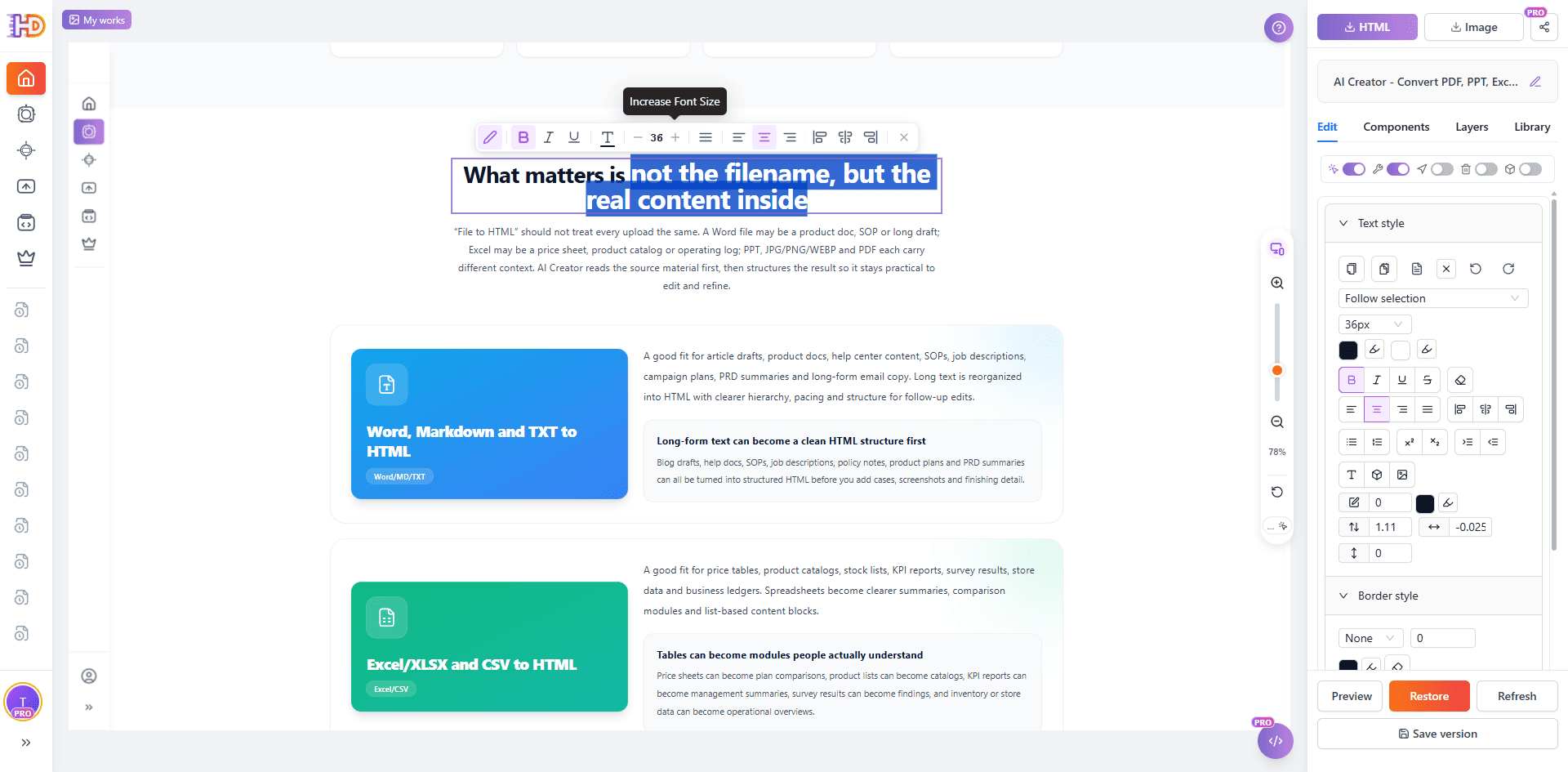
Before exporting anything to AI, make the quick edits you already know are needed. In this example, we select a heading and adjust visible text styling directly on the page. This ensures the snapshot reflects the current edited version, not the original page before your changes.
This step matters because AI advice is only useful when it is based on the right state. If you already changed a headline, removed a section, or emphasized a phrase, the AI should review that edited page, not an outdated source file.
 Step 3: Fine-Tune Visual Details Without Touching Code
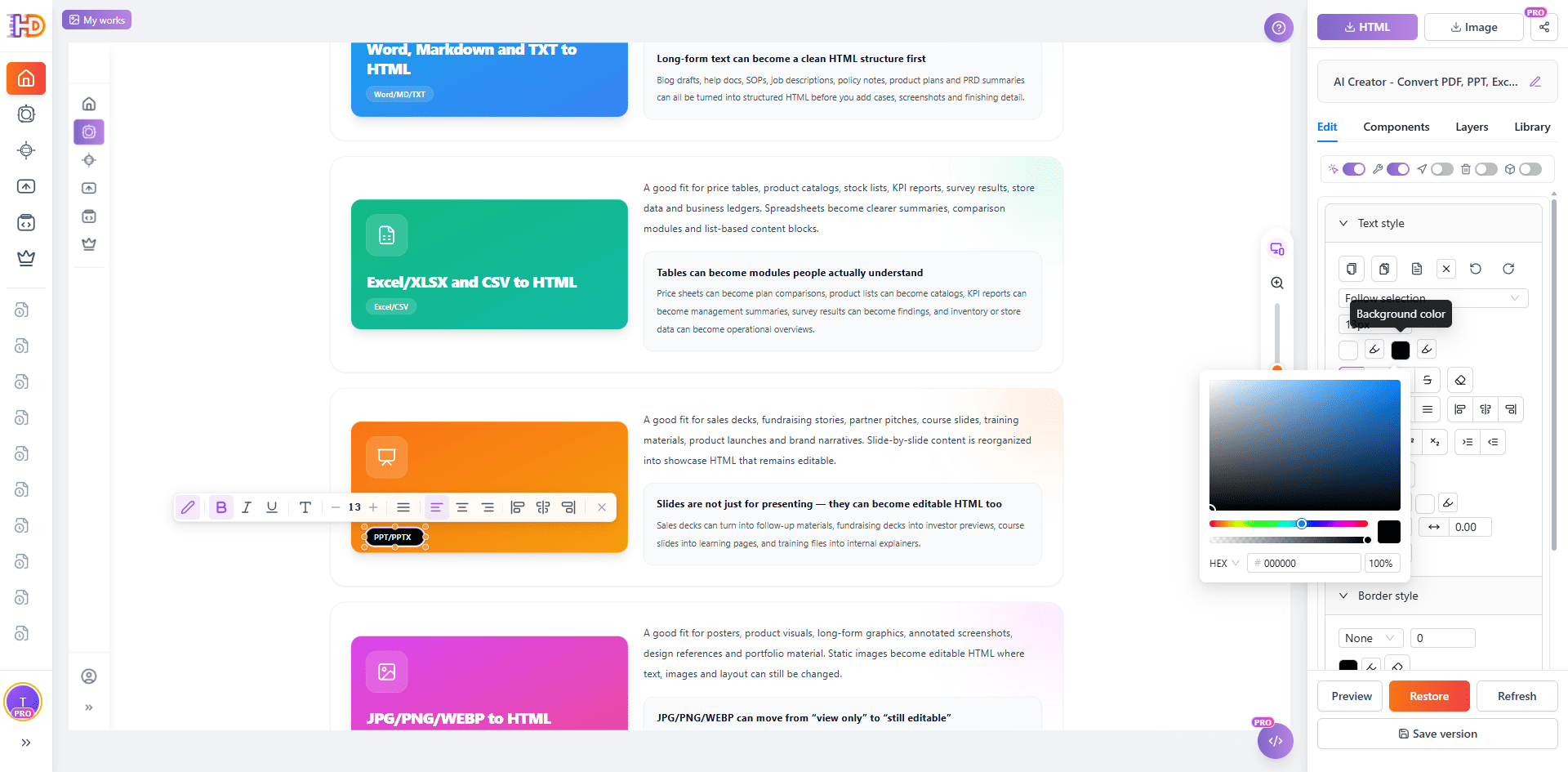
You can continue with small layout or style refinements, such as changing button emphasis, adjusting colors, or editing short labels. These are the kinds of edits that should stay visual and fast. You do not need to open a code editor just to change a call-to-action label or highlight one component differently.
Once the page feels close enough, it is a good moment to ask AI for a review. Instead of sending it unfinished raw code, you can send a stable snapshot of the page after these visible edits.
 Step 4: Check the Page Like a Real Interactive Page
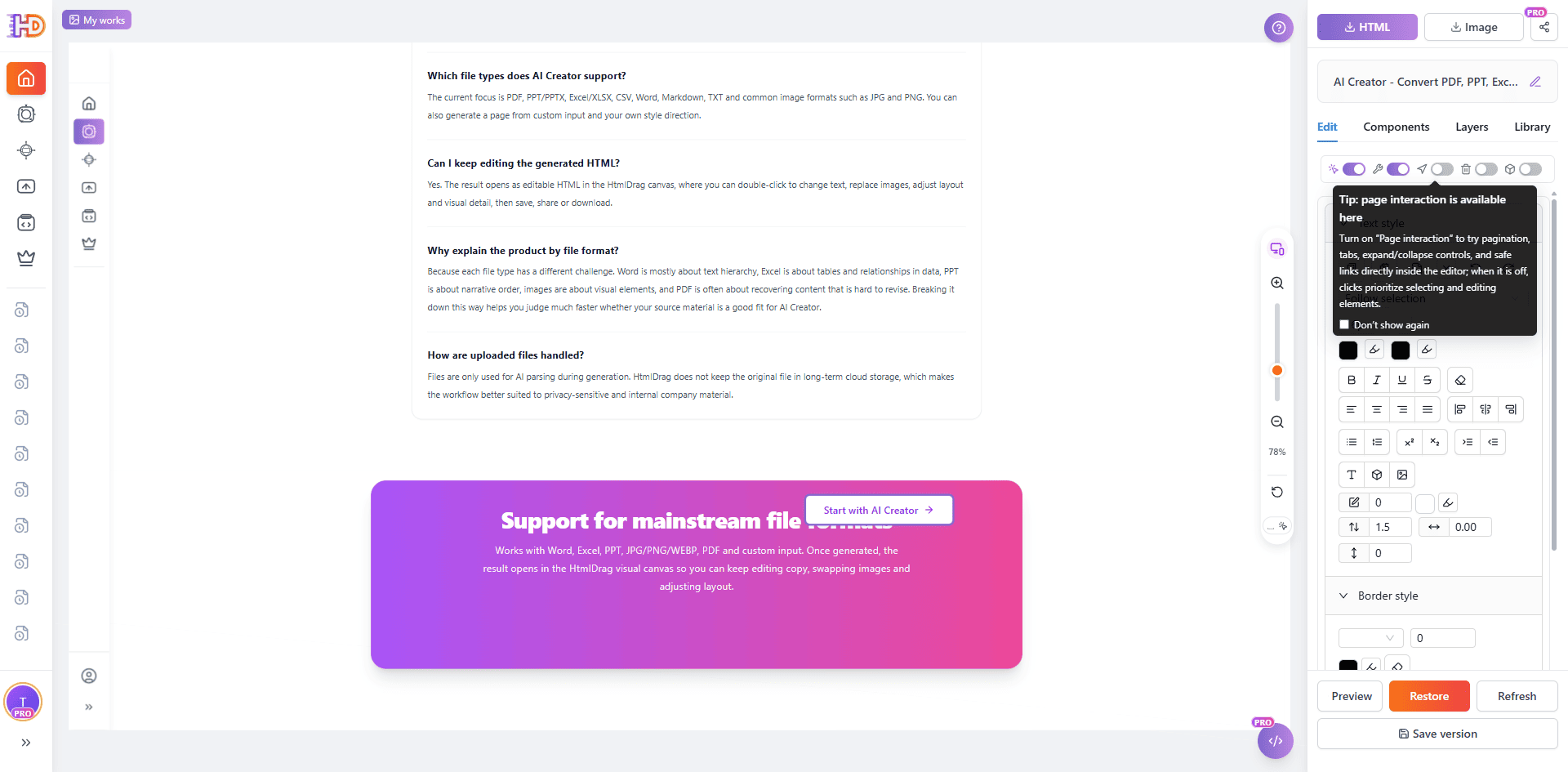
Some imported pages include tabs, links, expand/collapse areas, or other interactions. HtmlDrag keeps selection and editing as the default behavior, but you can use page interaction mode when you need to test how the page behaves. This helps you decide whether the page is ready to export to AI for a broader review.
At this stage, you can also scroll through the lower sections and FAQ content to confirm the AI will receive a complete page, not just the first screen.
 Step 5: Open Export and Choose Export to AI
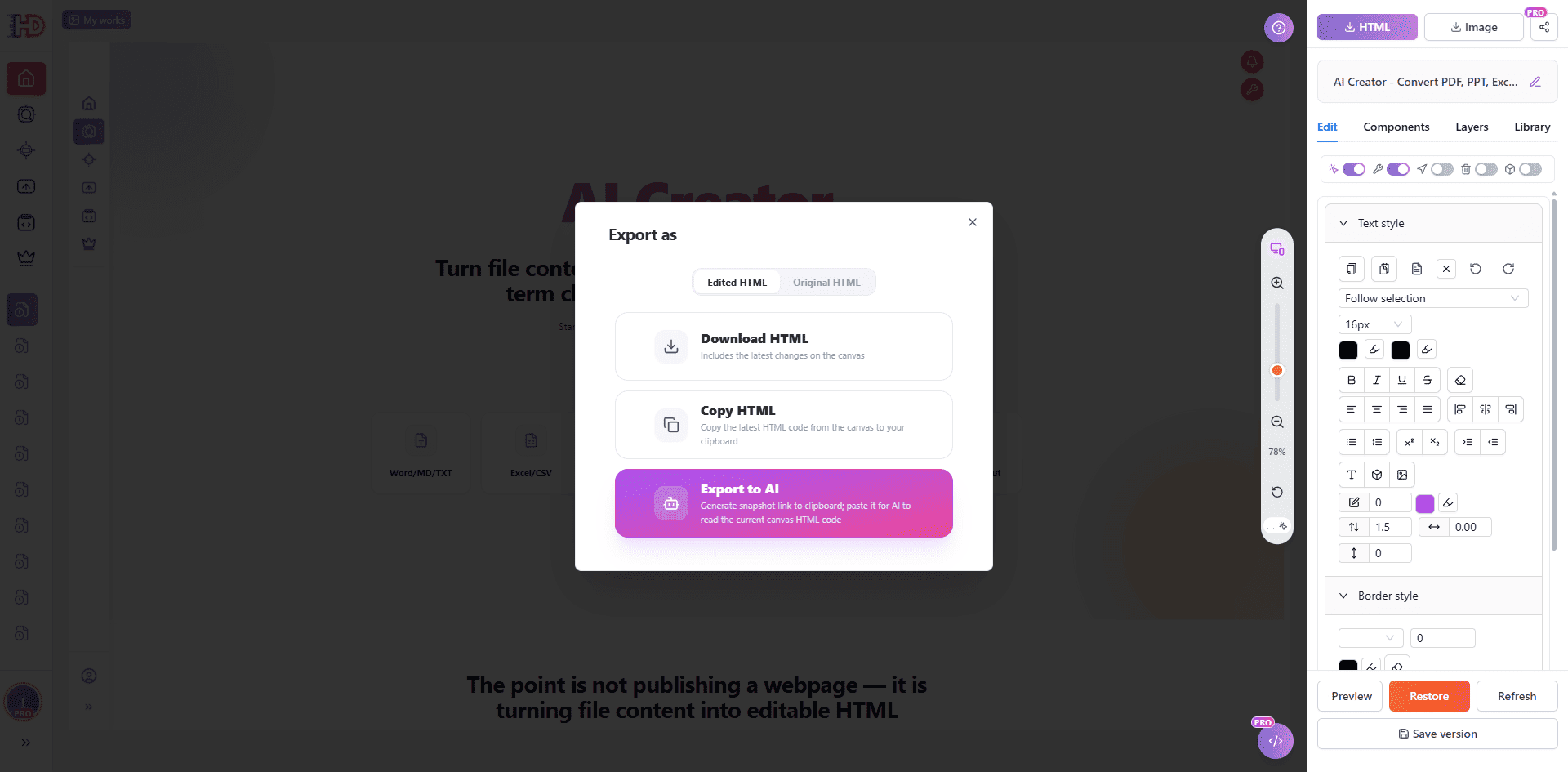
When the page is ready for AI review, open the HTML export dialog. The dialog still supports regular download and copy actions, but this workflow uses Export to AI. If you are working from the edited page, choose the edited HTML version so the snapshot includes your latest canvas changes.
Export to AI creates a read-only snapshot link and prepares a prompt for the AI assistant. The assistant can read the HTML from the link first, use it as context, and avoid guessing from a partial snippet.
 Step 6: Paste the Snapshot Prompt into ChatGPT, Claude, or Cursor
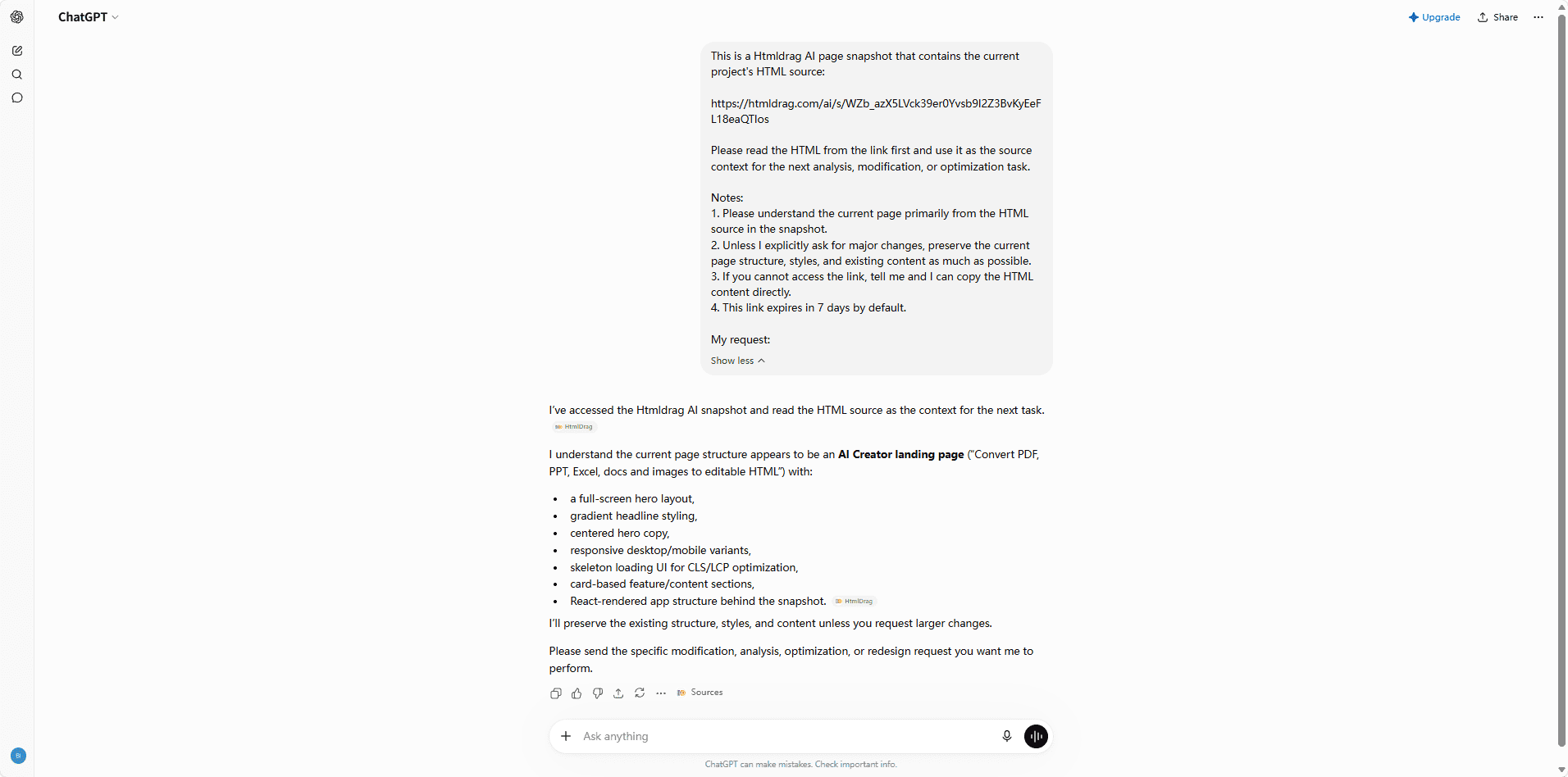
After Export to AI, paste the copied prompt into the AI tool you prefer. In this example, ChatGPT reads the snapshot link, understands the page structure, and confirms the context before making recommendations. The same idea works for other AI tools that can open or reason over the provided context.
The prompt also tells the AI to preserve the existing structure and styles unless you explicitly ask for larger changes. This is important for real production pages: you usually want AI to review and improve the page, not casually rewrite everything.
 Traditional HTML Copy-Paste vs Export to AI
| Task | Manual HTML Copy-Paste | HtmlDrag Export to AI |
| Give AI the current page | Copy a large HTML block and hope it is the latest version | Generate a read-only snapshot from the current edited canvas |
| Keep the prompt readable | The prompt becomes dominated by source code | The prompt stays short and points AI to the snapshot context |
| Protect the working page | AI suggestions may be mixed with accidental rewrites | The snapshot is read-only and cannot modify your HtmlDrag project |
| Continue editing | You may need to merge code changes manually | Use the AI's suggestions, then apply the actual changes visually in HtmlDrag |
Good Requests to Ask After Exporting a Snapshot
Once the AI has read the snapshot, the best follow-up request is specific. Instead of asking “make it better,” ask the assistant to focus on one layer of the page:
- Review the hero headline and CTA clarity for a first-time visitor.
- Suggest a simpler section order while preserving the existing design style.
- Find copy that feels vague, repetitive, or too technical.
- Improve FAQ questions so they match real user doubts.
- Point out accessibility or readability risks without rewriting the entire layout.
This keeps AI in the role of reviewer and collaborator. HtmlDrag remains the place where you visually inspect, apply, and save the final page.
Frequently Asked Questions
Does Export to AI change my HtmlDrag project?
No. The AI snapshot is read-only. It gives the AI assistant a way to read the current HTML source, but it does not let the AI modify your saved project or write back into your account.
Should I export the original HTML or the edited HTML?
If you want AI to review your latest work, export the edited HTML. Use the original HTML only when you specifically want the AI to compare or inspect the page before your visual edits.
Can I use this with Claude or Cursor instead of ChatGPT?
Yes. The workflow is designed around a prompt plus a readable snapshot link. ChatGPT is one example, but the same handoff pattern can be used with other AI tools that you use for review, optimization, or implementation planning.
Why not just paste all the HTML directly?
You can, but it is usually harder to manage. A snapshot keeps the prompt cleaner, reduces the risk of pasting the wrong version, and gives the AI a more stable page context to read before answering.
Final Thoughts
AI is most helpful when it can see the right version of the page. HtmlDrag already helps you turn an existing URL into an editable HTML project and make visual changes without touching code. Export to AI adds the next step: a clean, read-only handoff from your current canvas to the AI assistant you already use.
If your team has been copying long HTML blocks into AI chats, this workflow is a better way to work: import the page, edit what you can see, export a snapshot, ask for focused feedback, then return to HtmlDrag to apply the final changes.