
AI can produce a first version of a landing page in minutes. That is useful, but it also creates a new handoff problem: what happens after the first draft exists? A founder may want to change the headline, a marketer may need a stronger CTA, and a teammate may want to adjust colors or section order before the page is shared. If every small change requires reopening code, the AI-generated page quickly becomes difficult for non-developers to finish.
HtmlDrag is designed for that post-generation stage. In this walkthrough, we start from a simple product idea, use AI Creator to generate an editable HTML page, then continue refining the result visually. The goal is not to replace human judgment with AI. The goal is to let AI create a useful draft, then give a non-technical person enough control to polish the message, layout, and delivery format without touching source code.
The demonstration uses a fictional customer feedback SaaS called PulseKit. The sample prompt is intentionally generic and safe for public screenshots. It gives AI Creator enough context to build a waitlist-style landing page, while avoiding real customer data, private business details, or third-party template sources.
- Input: a short product-page prompt for a customer feedback tool.
- Generation: AI Creator turns the prompt into a structured HTML landing page.
- Editing: HtmlDrag visual editor lets a non-developer polish copy, CTA, color, and section emphasis.
- Delivery: the final draft can be previewed, shared, saved, copied, or exported as clean HTML.
Why AI Page Generation Still Needs a Human Finishing Workflow
AI-generated websites often look impressive at first glance, but a first draft is rarely the same as a ready-to-share page. The AI may choose a reasonable structure, but the team still needs to decide whether the headline is specific enough, whether the CTA matches the campaign goal, whether the visual emphasis feels right, and whether the page explains the product in a way real visitors can understand.
This is where many teams get stuck. The person who understands the message may not be the person who can edit the generated HTML. A developer can make every change, but that slows down quick experiments. A marketer can write better copy, but may not want to search through code or risk breaking layout rules.
Demo Source: A Short Prompt for a Waitlist Page
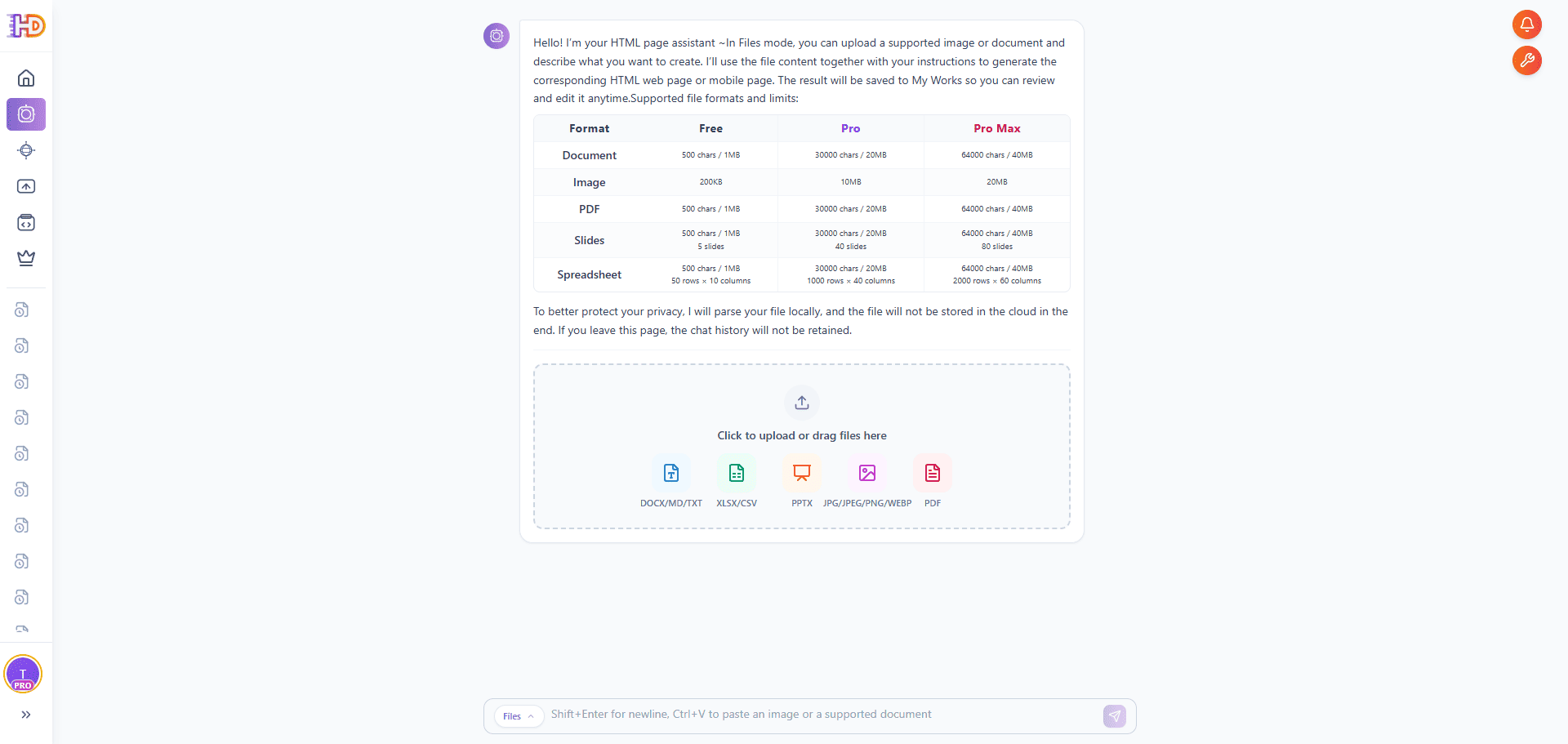
For this article, the source material is a short text prompt for a fictional product named PulseKit. This is not a file-upload workflow: there is no PDF, Word document, Excel sheet, PowerPoint deck, HTML file, pasted code, or URL import involved. The product helps small SaaS teams collect customer feedback before launch, and the prompt asks for a clean waitlist landing page with a hero section, problem statement, feature cards, workflow steps, social proof placeholders, and a final CTA.
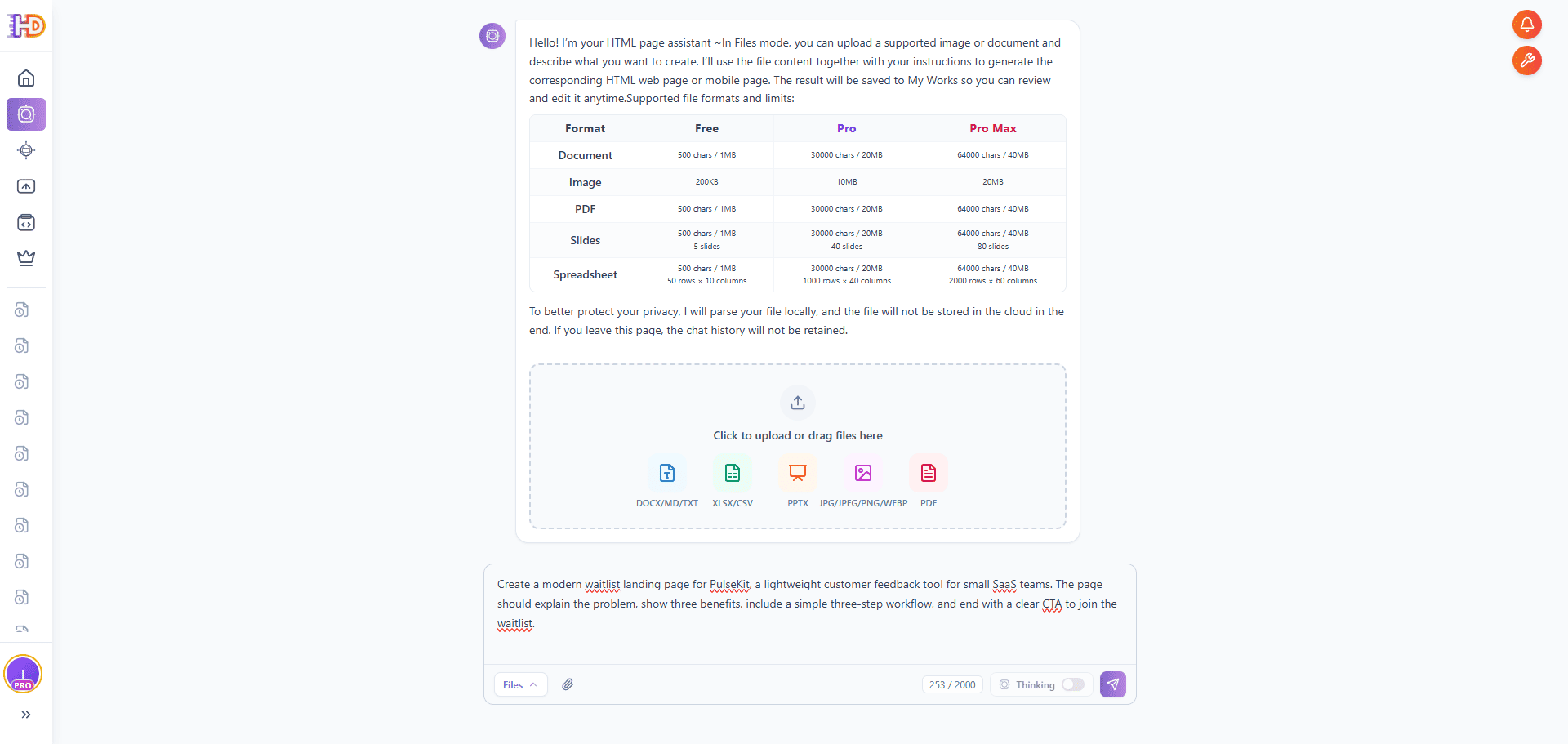
Sample prompt for the demo: “Create a modern waitlist landing page for PulseKit, a lightweight customer feedback tool for small SaaS teams. The page should explain the problem, show three benefits, include a simple three-step workflow, and end with a clear CTA to join the waitlist.”
The screen also shows file mode support, but this walkthrough deliberately uses the text input only. The upload area stays empty because the goal is to demonstrate a prompt-to-page workflow, not another document-to-HTML conversion.
 The Workflow: From AI First Draft to Editable Page
Step 1: Enter the Prompt Instead of Uploading a File
Open AI Creator and enter the product-page prompt in the message box. The upload area stays empty in this workflow, because the page starts from a text request rather than a PDF, document, spreadsheet, presentation, HTML file, pasted code, or URL import.
 Step 2: Let AI Creator Organize the Request
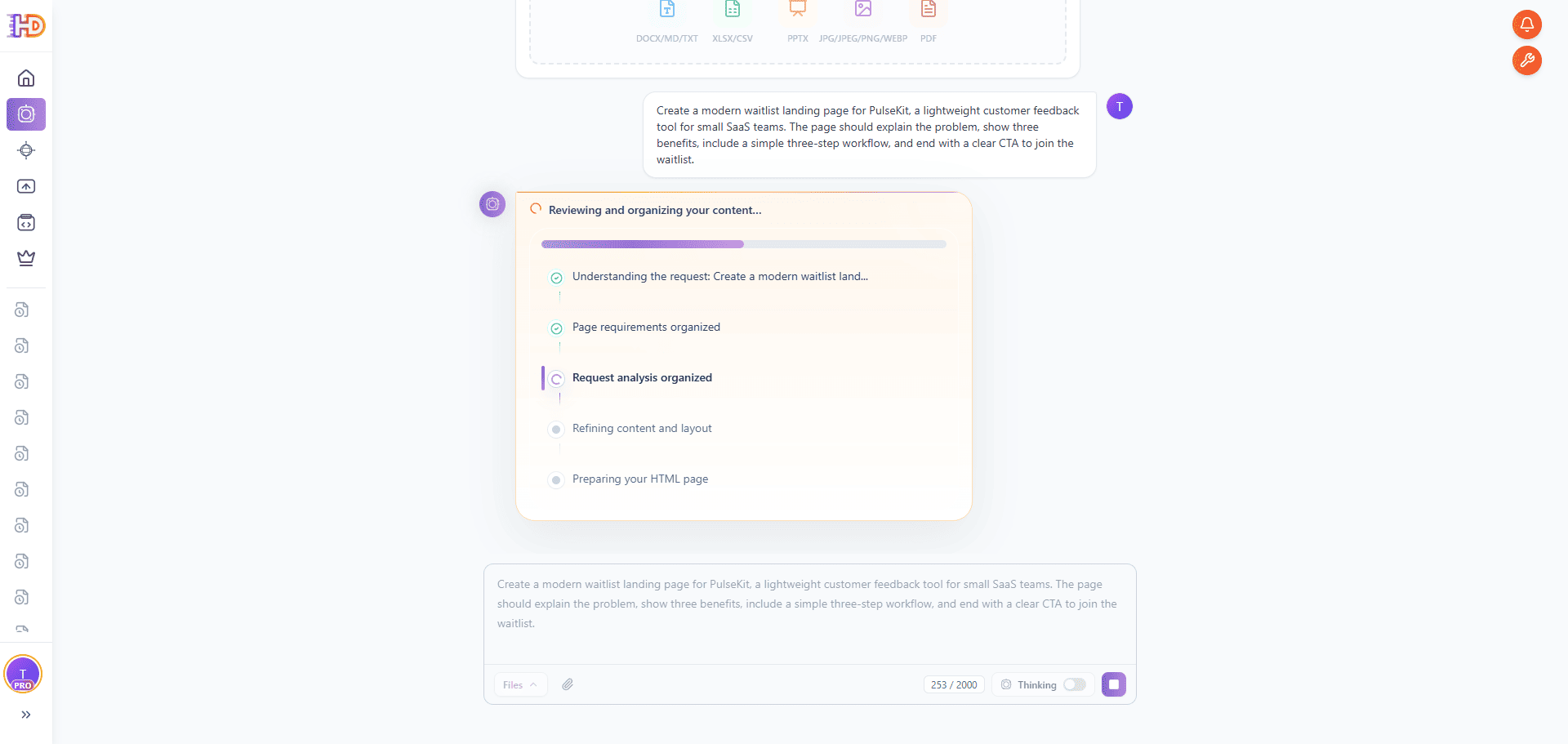
After you send the prompt, AI Creator reviews and organizes the content. In this stage, the system identifies the request, turns the page requirements into a structure, and prepares the HTML page. This gives non-developers a visible progress path instead of a blank screen or raw code output.
 Step 3: Review the Generated Page Before Editing
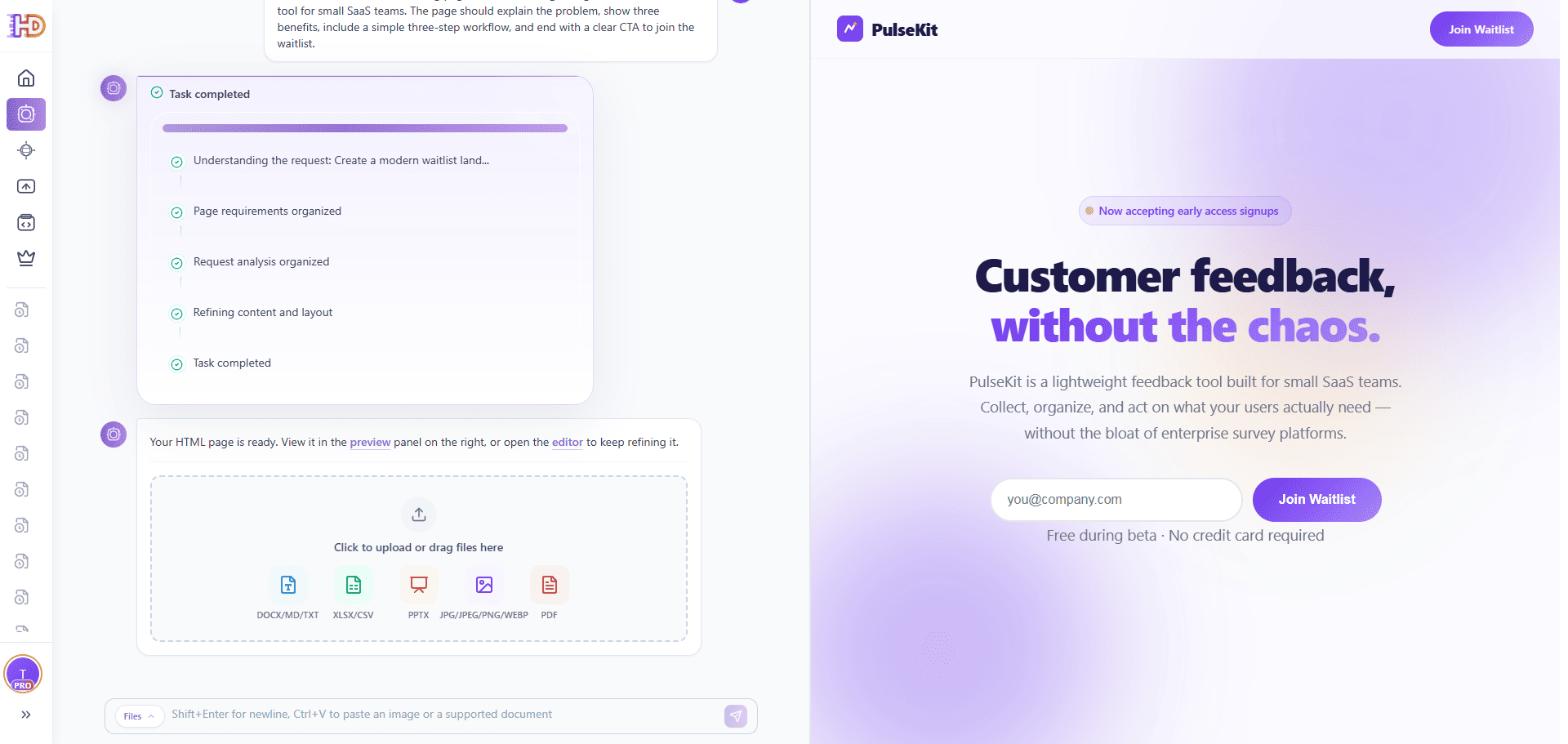
When the task is complete, the generated PulseKit page appears in the preview panel. The first draft already includes a brand mark, a hero message, an email field, and a waitlist CTA. Before editing, review the page as a visitor would and decide whether the structure is good enough to refine instead of regenerating from scratch.
 Step 4: Open the Draft in the Visual Editor and Adjust Copy
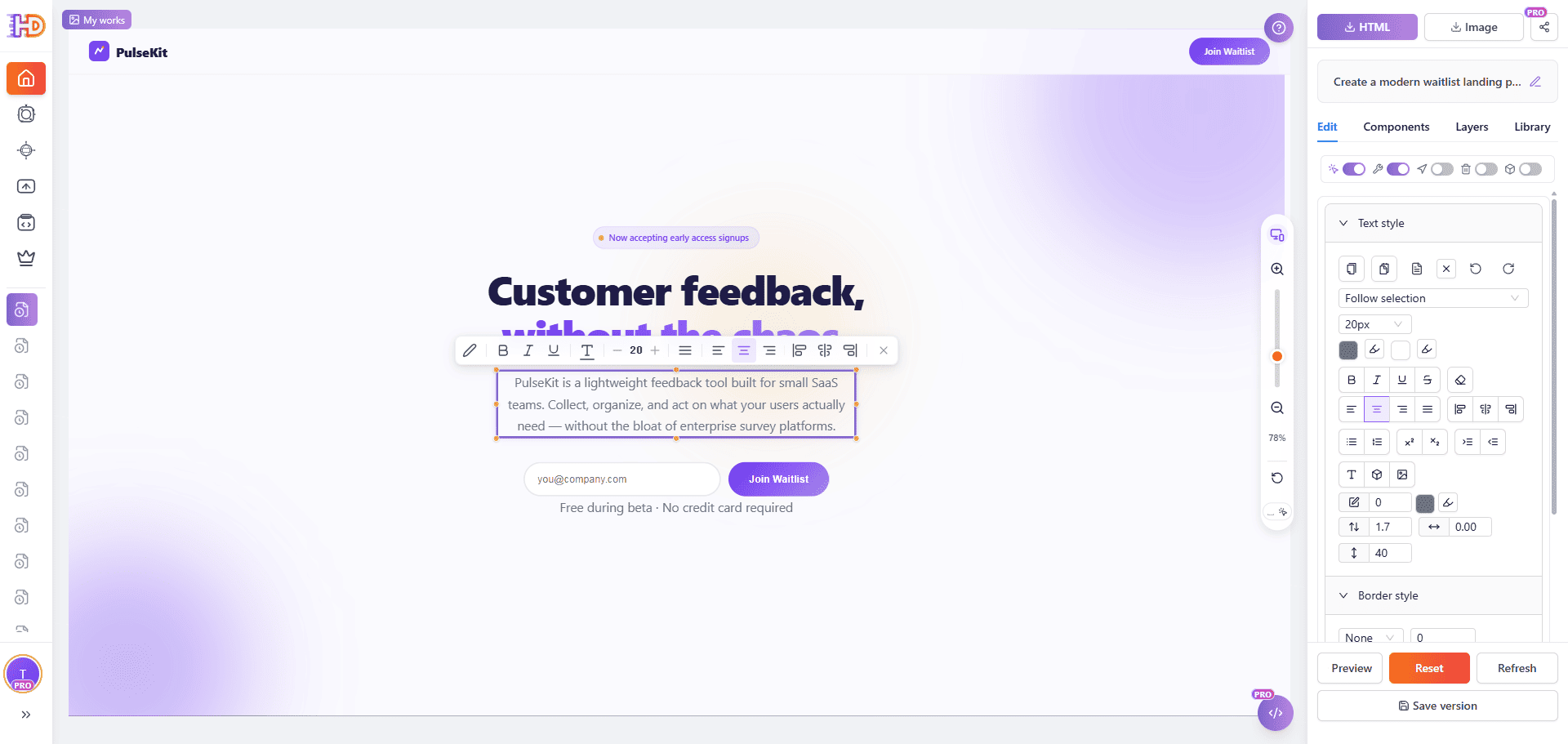
Open the generated result in the HtmlDrag editor. In the screenshot, a paragraph in the hero area is selected directly on the canvas. This is the key handoff moment: the page is no longer just an AI response. It is an editable HTML draft where a non-developer can click visible text, adjust wording, and immediately see the result.
 Step 5: Refine Colors and Section Emphasis
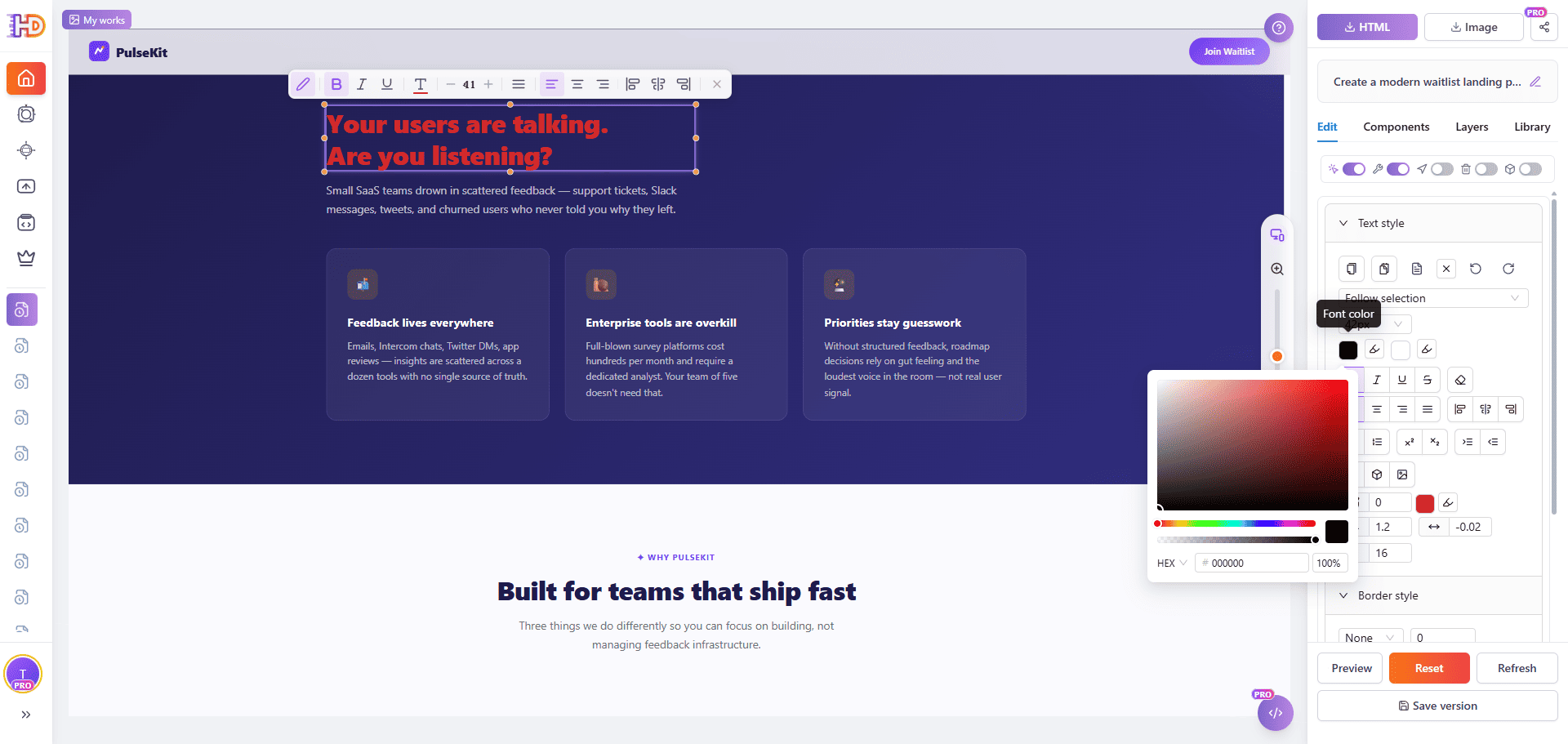
Next, select a headline, button, card, or section and adjust the visual emphasis. The example shows a darker content section with selected heading text and a color picker open. Instead of editing CSS by hand, you can test color and contrast changes visually while keeping the generated layout intact.
 Step 6: Check the Workflow Section as a Real Page
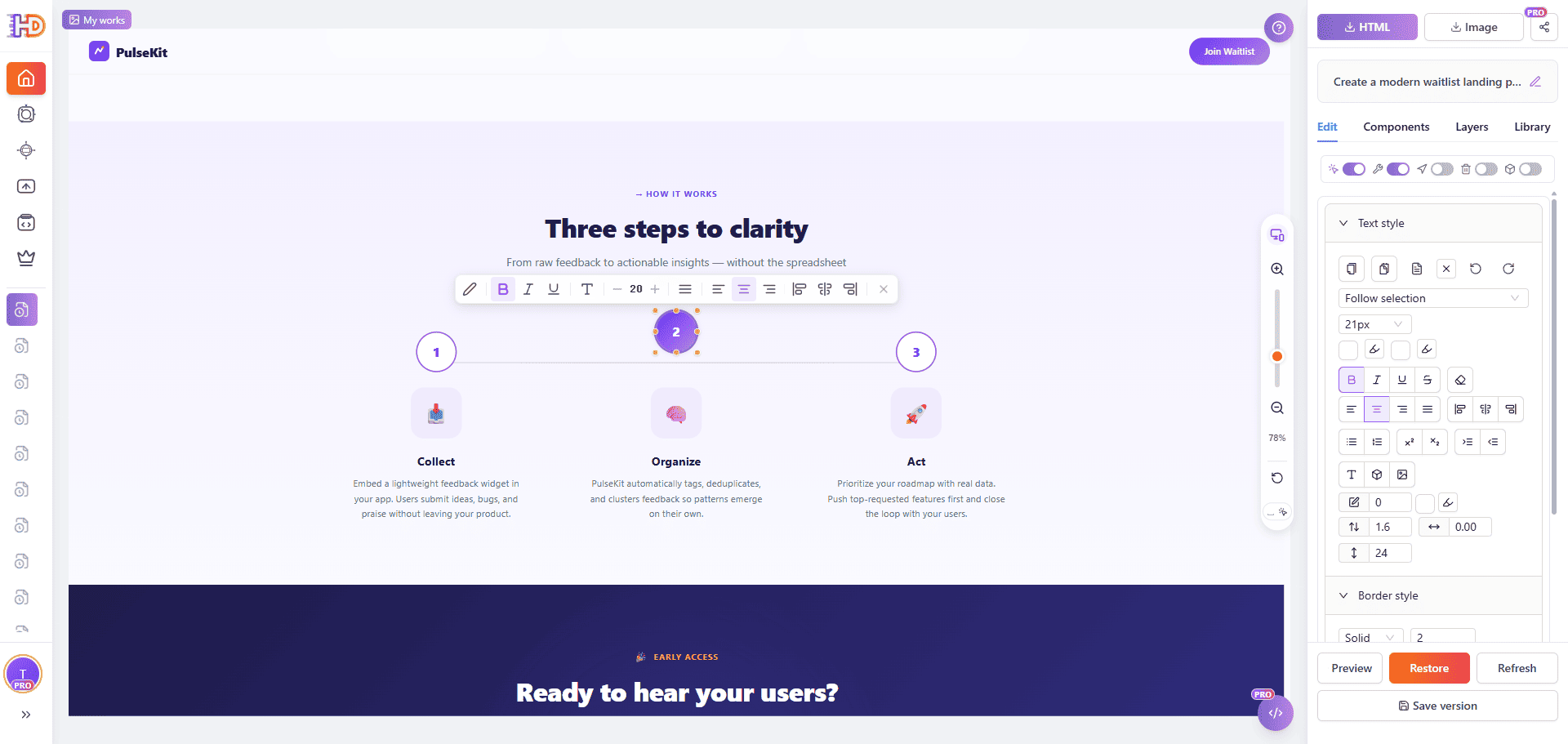
Scroll through the generated page and inspect the lower sections, not only the hero. In the PulseKit draft, the “Three steps to clarity” section shows how the product works: collect, organize, and act. This is where a product or marketing teammate can check whether the story still makes sense after the first AI pass.
 Step 7: Finish at the Final CTA and Prepare Delivery
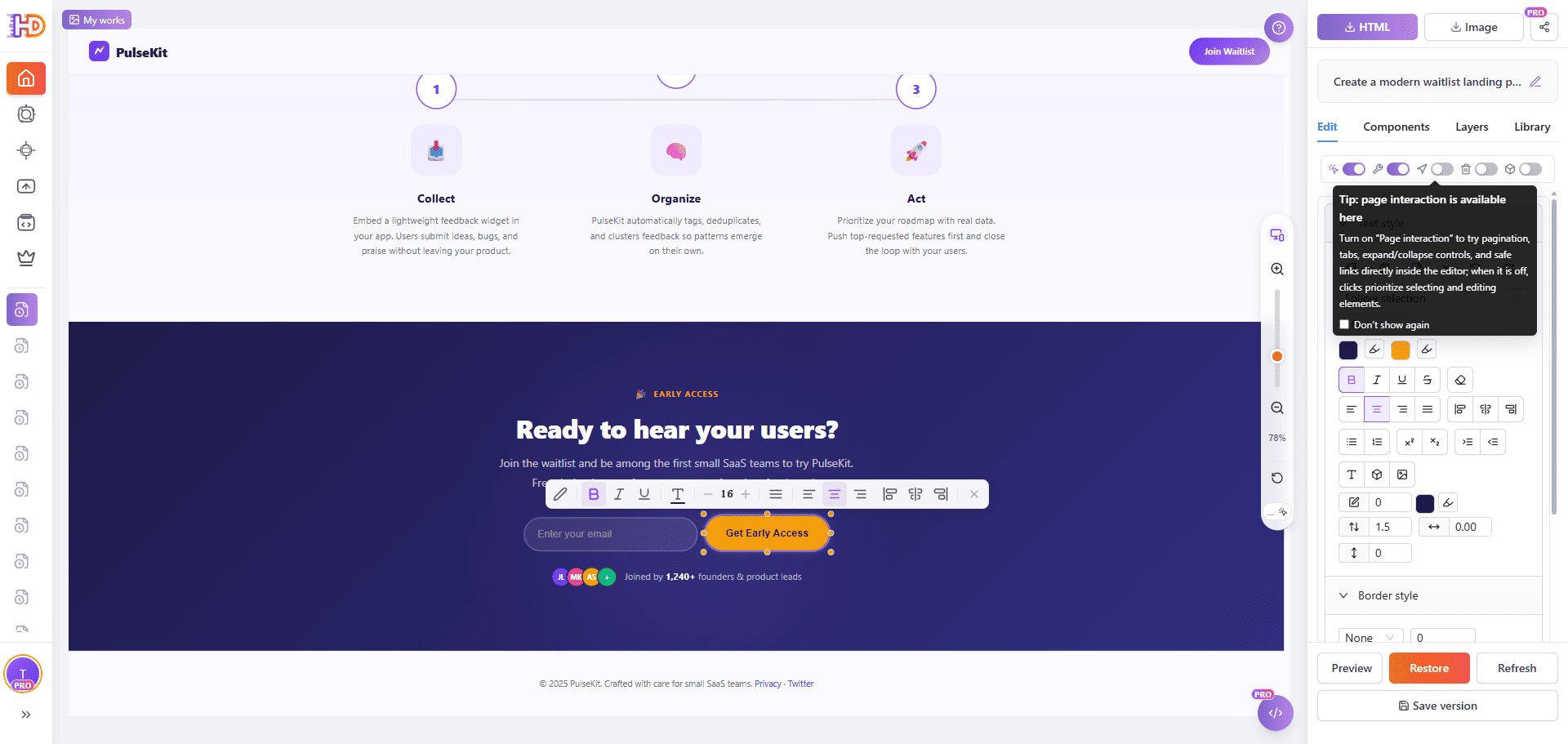
Finally, review the bottom CTA section. The screenshot shows the final “Ready to hear your users?” block with the email field and early access button selected. This is a useful final checkpoint before saving, sharing, copying HTML, exporting the page, or taking a quick image for approval.
 Before and After: What Changes After Visual Editing?
| Area | AI First Draft | After HtmlDrag Visual Editing |
| Hero message | Often clear, but sometimes broad | Specific to the audience and campaign |
| CTA text | May use default wording | Matches the real action |
| Delivery | Draft exists but may need handoff | Page can be previewed, shared, saved, copied, or exported |
Who This Workflow Helps Most
- Founders who need to turn a quick AI-generated product page into a more credible launch or waitlist draft.
- Marketers who want to adjust copy, CTA, and visual emphasis without asking a developer for every small change.
- Product teams that need a fast page draft for internal review, customer discovery, or campaign validation.
- Freelancers and agencies who want to deliver editable HTML drafts to clients without locking every revision inside code.
When You Should Still Be Careful
Visual editing is helpful, but it does not remove the need for review. If the generated page includes legal claims, pricing promises, compliance statements, internal product details, or customer quotes, verify them before sharing the page publicly. AI can organize content quickly, but your team should still check accuracy, brand tone, accessibility, and final links.
FAQ
Can I edit an AI-generated page without touching code?
Yes. If the page is generated or imported into HtmlDrag as editable HTML, you can select visible elements, change text, adjust styling, refine sections, preview the result, and export the page without manually editing source code.
Do I need a detailed prompt before using AI Creator?
No, but a clearer prompt usually creates a better starting point. At minimum, describe the audience, page goal, product benefit, and desired action. You can use visual editing later to polish the details.
Should I regenerate the page or edit the current draft?
If the structure is completely wrong, regeneration may be faster. If the page is mostly right and only needs copy, CTA, style, or section-level refinement, editing the current draft visually is usually more efficient.
Is this only for SaaS waitlist pages?
No. The same workflow can apply to product launch pages, service pages, campaign drafts, personal pages, internal proposal pages, and other AI-generated HTML drafts that need human finishing.
Final Take
The most useful AI web workflow is not just “generate a page.” It is generate, review, edit, preview, and deliver. AI Creator can help you move from an idea to a first HTML draft quickly, while HtmlDrag visual editing helps non-developers turn that draft into something clearer, more specific, and easier to share.
If your team already uses AI to create page drafts, the next step is to make those drafts editable by the people who understand the message. Start with AI Creator, polish the result visually in HtmlDrag, and export the page when it is ready for review or delivery.