
Sometimes the page you need to update is already online, but the original HTML file is nowhere nearby. You may be reviewing a previous campaign, recovering a static page from an older project, or preparing a new message while the developer who owns the source is unavailable. The visible page is useful; rebuilding every section just to revise a headline, asset, or call to action is not.
In that situation, start with the URL you are allowed to work from. A URL import workflow captures an accessible page as an editable working copy, so you can assess the real layout, make focused visual changes, preview the result, and hand off or export HTML afterward. It does not edit the website that is already live at that URL.
This guide shows how to edit an existing web page from a URL without rewriting code. The demonstration imports Firefox's public marketing page into HtmlDrag as a working copy. The Firefox page is simply the source for the walkthrough: every change shown below remains inside the imported project and does not update the original website.
Can you edit a web page when you only have its URL?
For an accessible page, yes: enter the full public http or https URL into a visual HTML editor, let it create an editable project, then work from the rendered page. This is useful when you need to revise the visible layer—headlines, supporting copy, images, color, spacing, or a CTA—without first hunting through a codebase.
The important distinction is between a working copy and the original website. URL import gives you a page to inspect and refine; it does not grant access to the production server, publish your changes automatically, or make a live page update itself. Deployment, forms, analytics, and other functional work remain part of your normal release process.
When URL import is the right starting point
Use URL import when the web address is the source you actually have. It is a better fit than creating a blank page when the page already has a useful hierarchy, navigation, images, and section structure but needs a finishing pass.
- Use URL Import when the starting point is an accessible webpage.
- Use Upload HTML when you already have the local
.htmlor.htmfile. - Use Paste Code when the source is raw HTML copied from an AI tool, a teammate, or an existing project.
Before importing, choose a page you own or are authorized to use and start with a full, public URL. Login-only areas, live dashboards, pages that rely heavily on personal data, and highly interactive app screens are poor candidates for a visual finishing workflow. A clean public landing page is much easier to inspect and validate.
How to import a web page URL into an editable HTML project
The workflow is simple:
Paste the URL → capture the accessible page → inspect the full layout → make deliberate visual edits → preview → export the working copy
1. Start with the page URL, not a new template
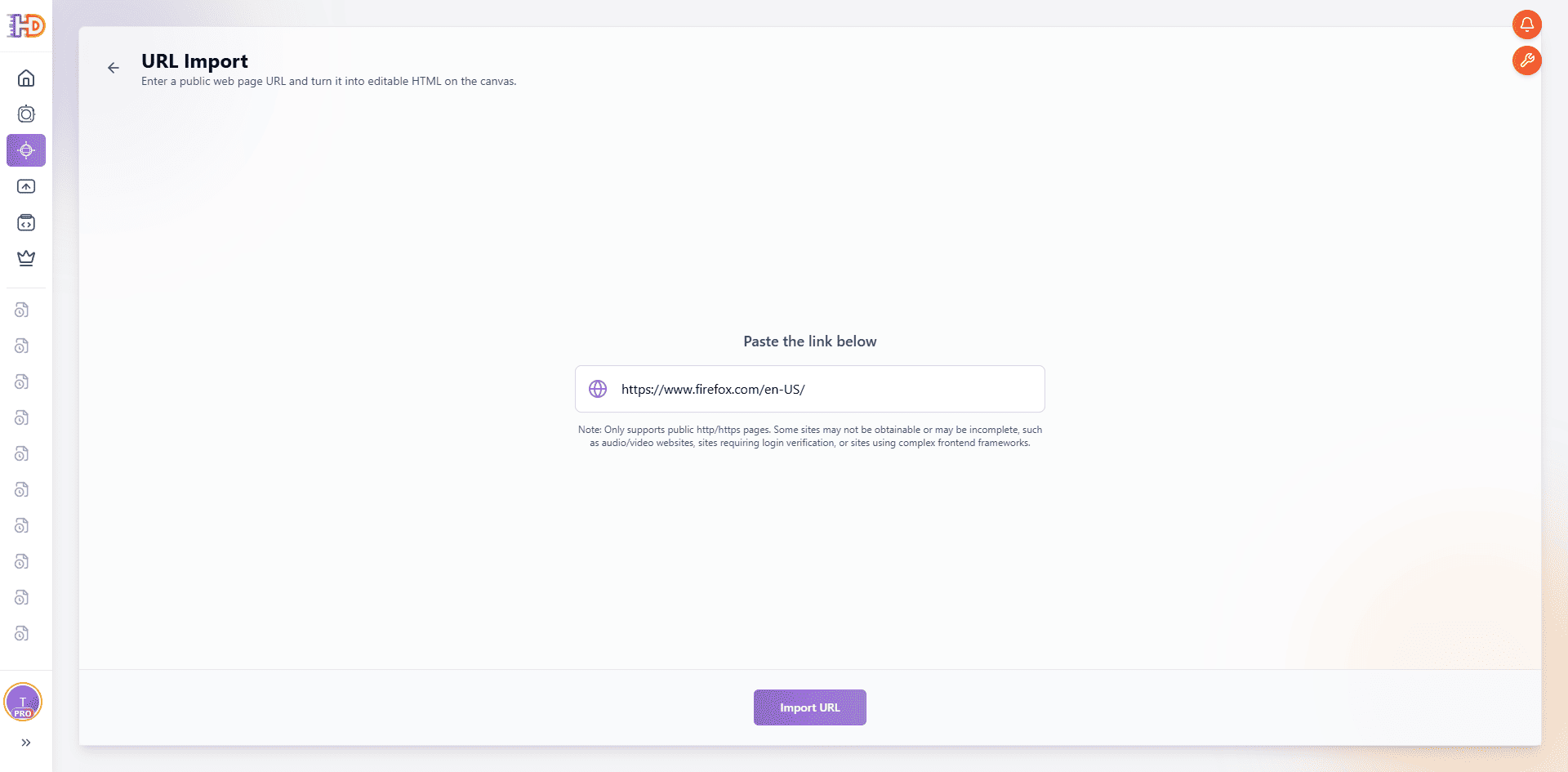
Open URL Import and paste the public page address. In this walkthrough, the starting point is https://www.firefox.com/en-US/. Nothing has been changed at this stage: the URL only tells the editor which visible page to turn into a project.
 2. Let the page become a working copy
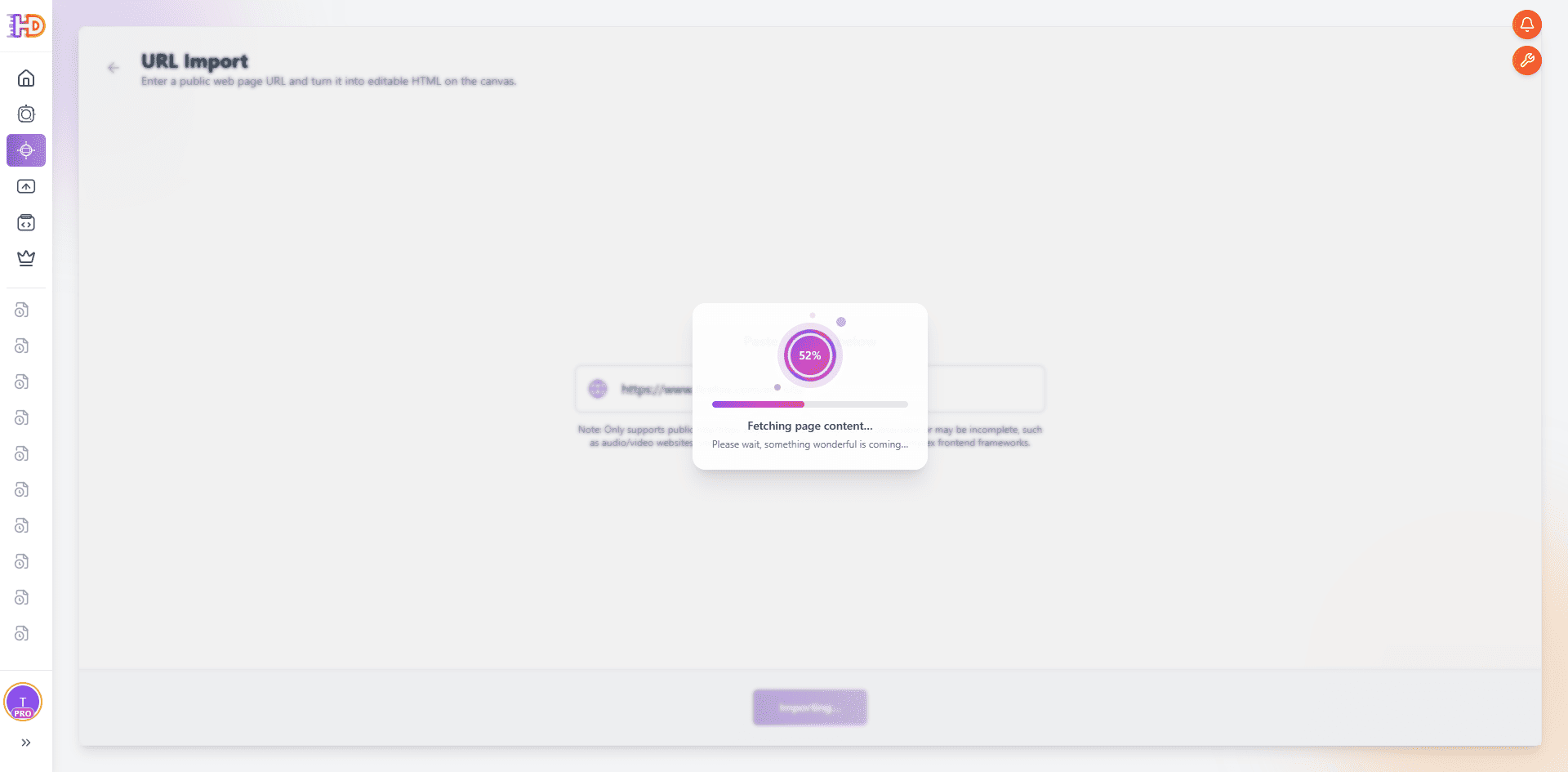
After you start the import, wait for the capture to complete rather than navigating away. The capture stage creates the editable project from the accessible page. It is not a promise that every remote script, download action, or live service will be reproduced; it is the handoff from a public page into a visual HTML workflow.
 3. Inspect the imported page before editing
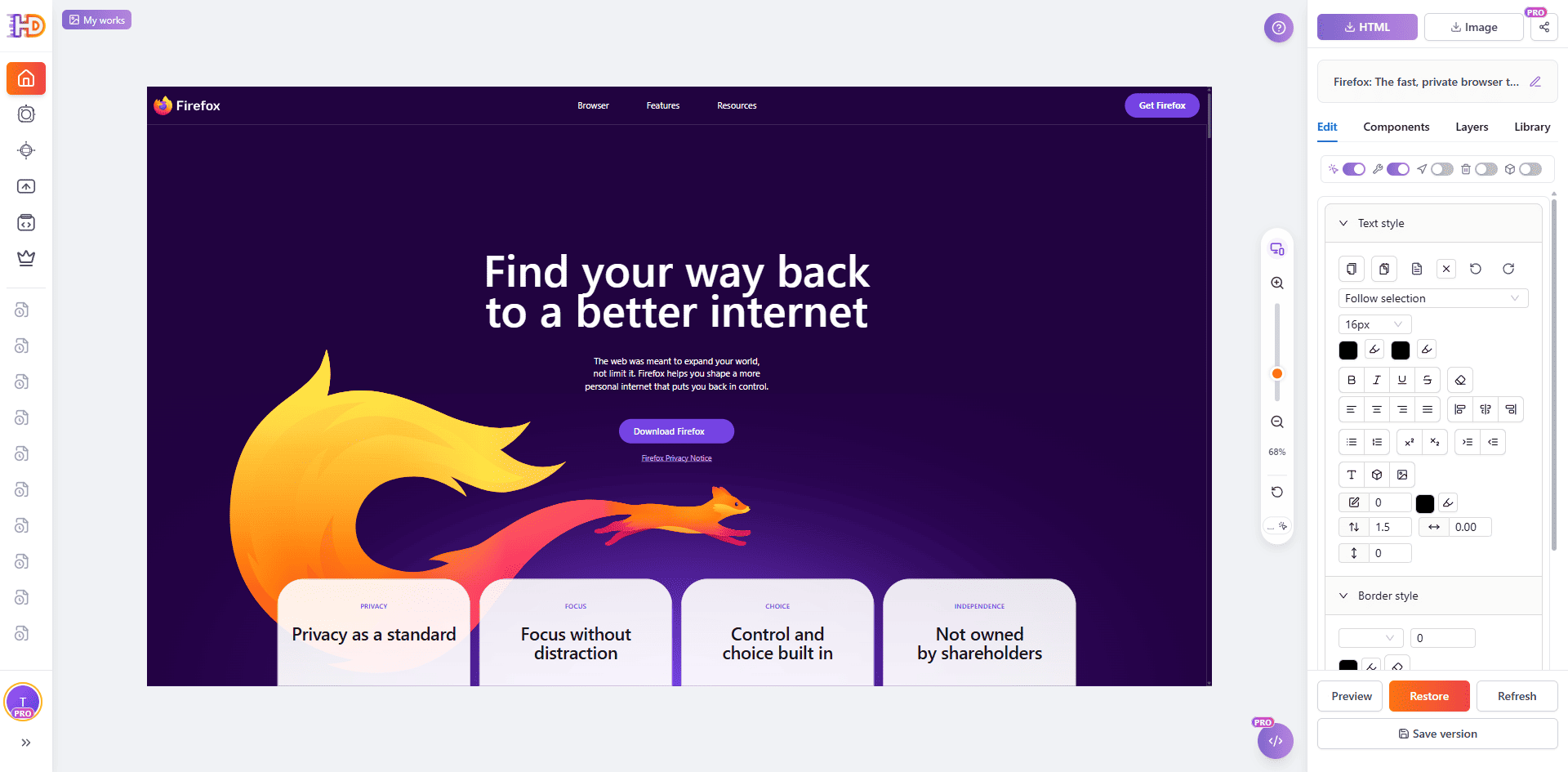
Once the page opens on the canvas, look at it as a whole before selecting anything. The imported Firefox example keeps a recognizable header, hero, supporting copy, call to action, illustration, and feature cards. This first review helps you decide what already works and where a local change will have the most value.
 Make a final visual pass instead of rebuilding the page
A useful final pass is not a request to change everything. Start with the message a visitor sees first, move to the few supporting elements that make that message clear, and leave the parts that already work alone. This keeps the imported page understandable and makes each decision easier to review.
Start with the headline and its visual hierarchy
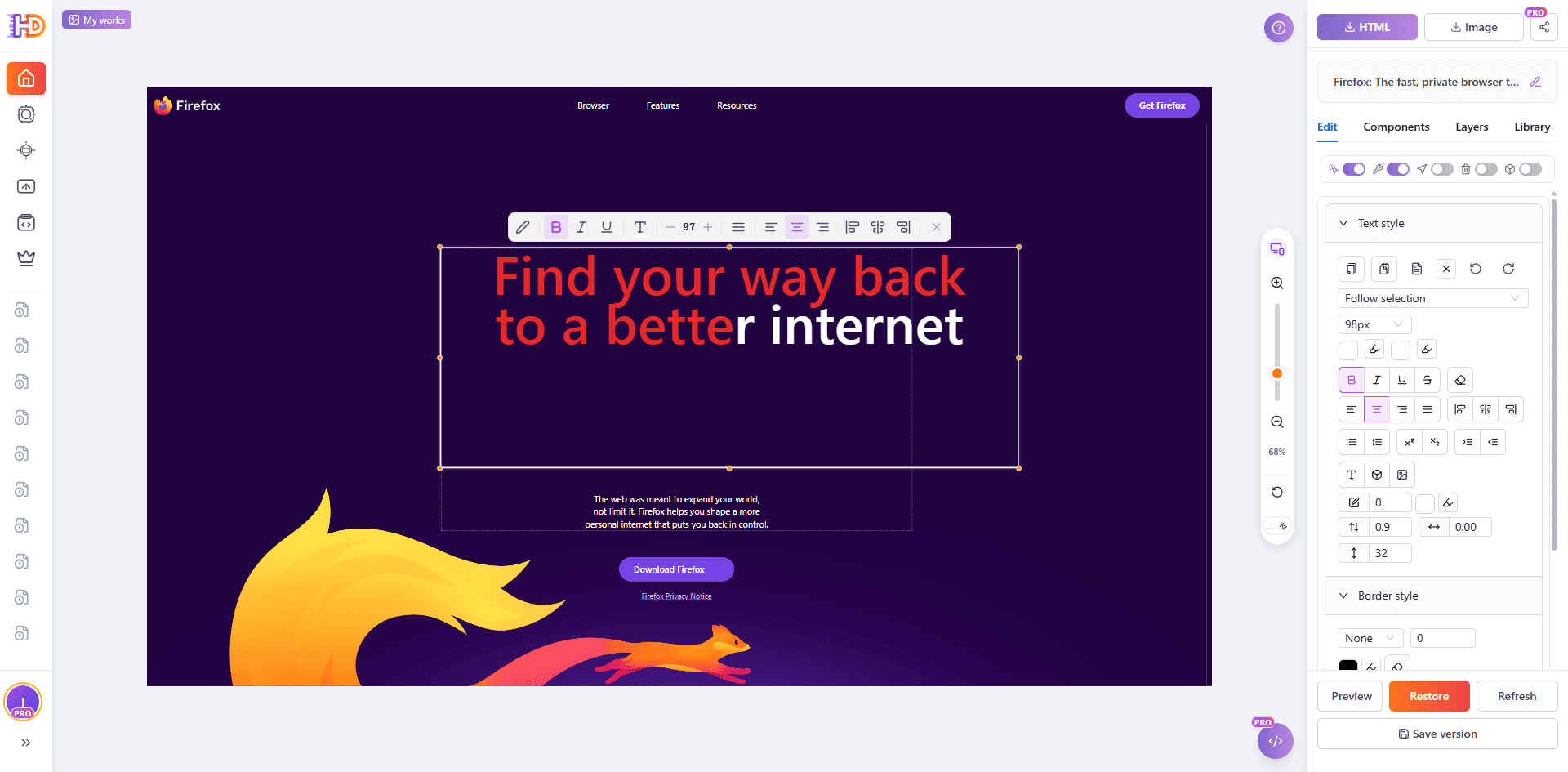
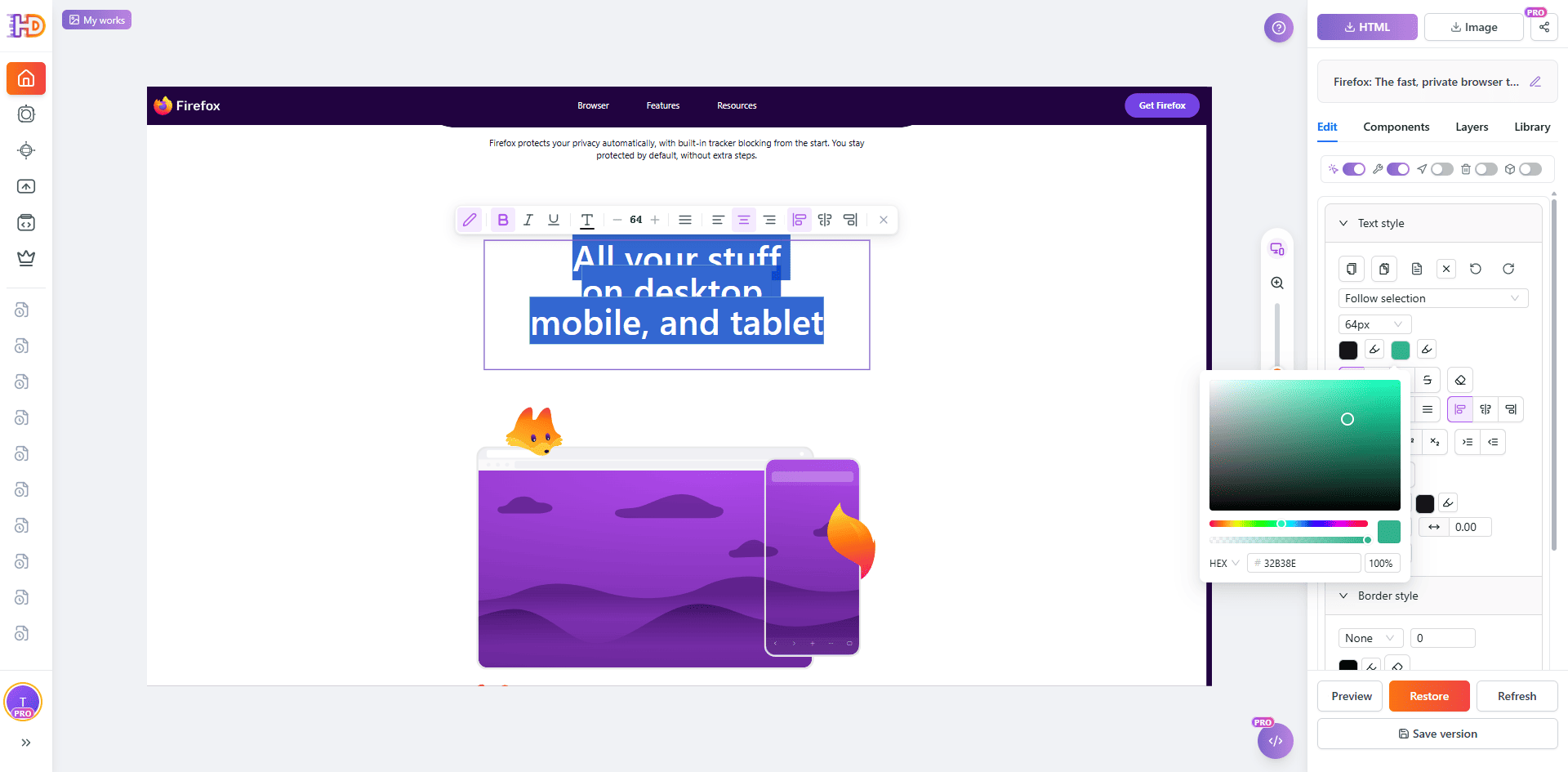
The hero headline is usually the best first checkpoint because it carries the main promise of the page. Select the heading directly on the canvas, review it against the surrounding copy and image, and use the available text controls to test a focused treatment. In the example, the headline text is selected and a color choice is reviewed in place.
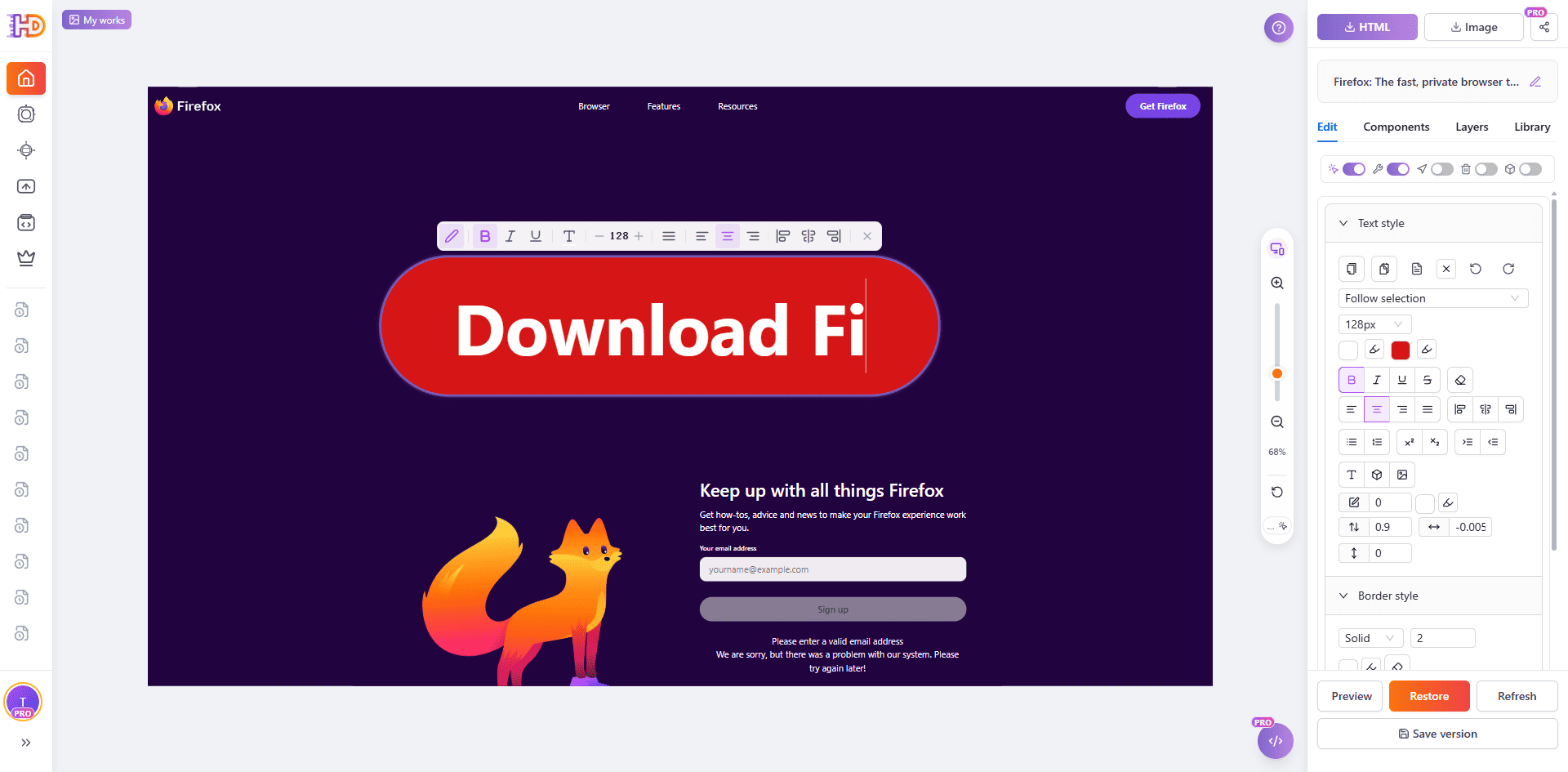
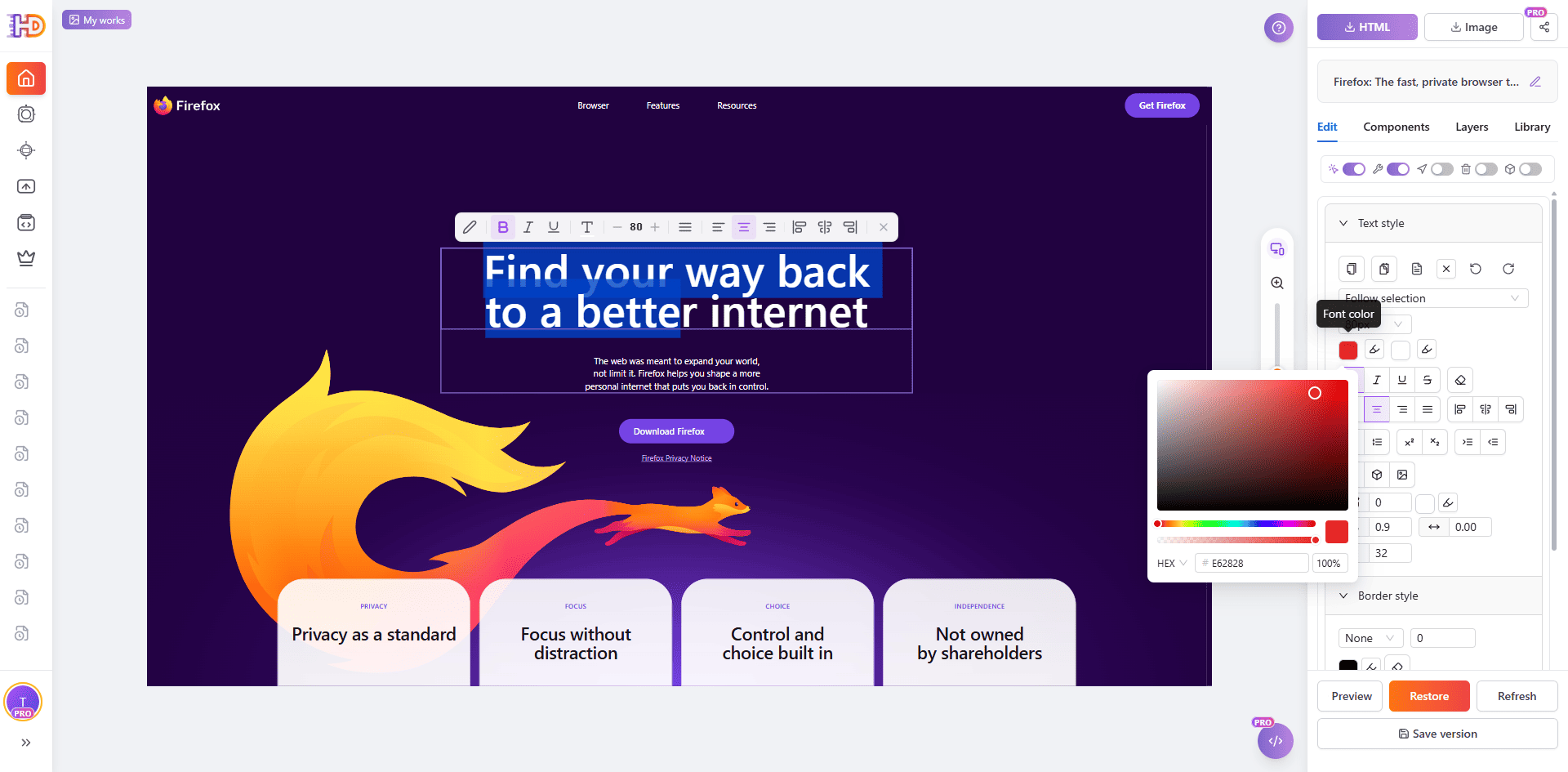 Color and scale only work when they preserve the reading order. The next view shows why visual context matters: the heading is larger and partly red, while the final word stays white. A strong change may improve attention, but it still needs enough contrast, spacing, and balance with the rest of the hero.
 Review supporting cards one element at a time
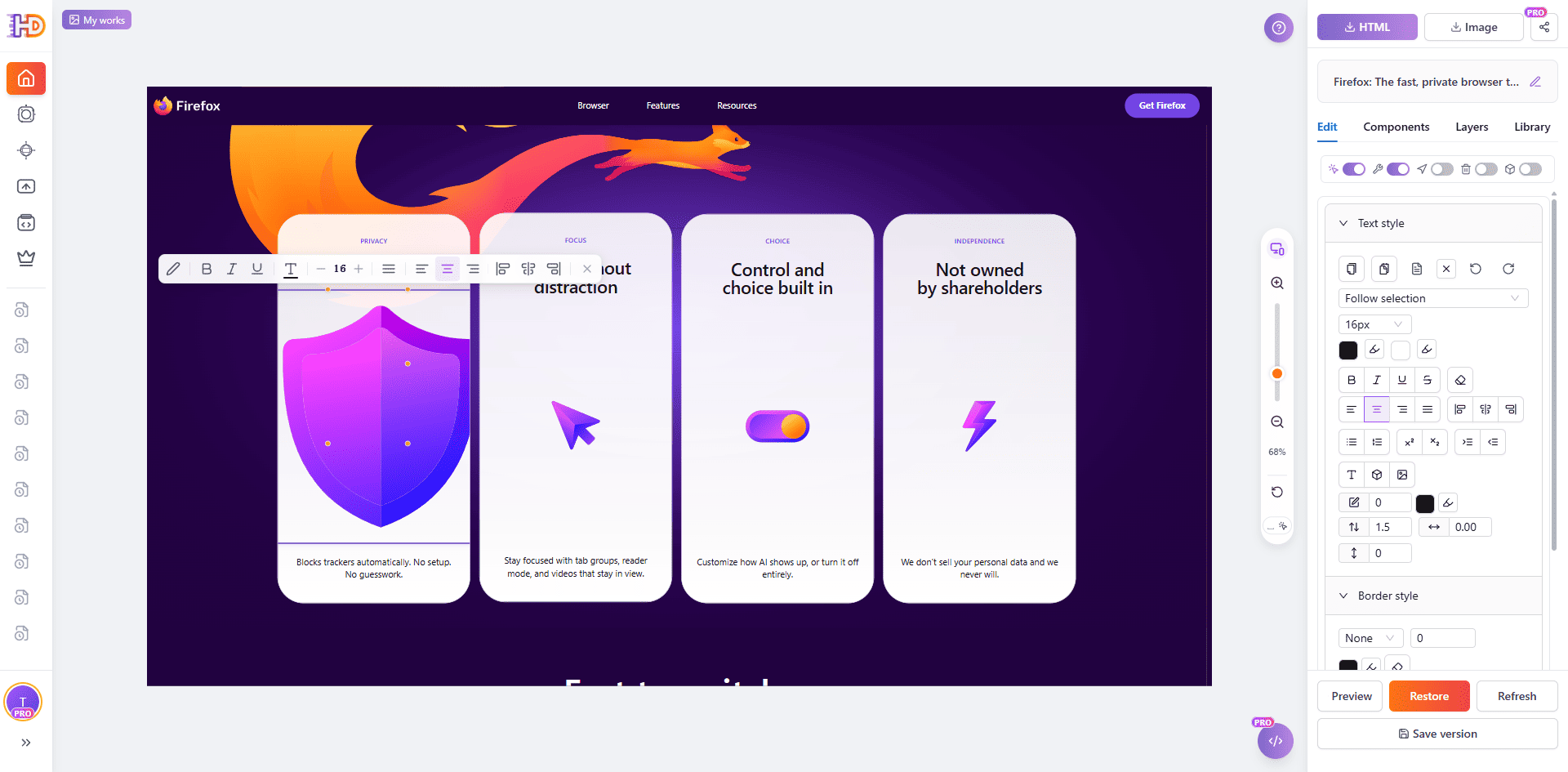
Once the hero is clear, inspect the supporting content that reinforces it. Select the exact card heading, paragraph, or icon that needs attention rather than applying a broad change to the whole section. In the imported page, the Privacy as a standard card is selected separately, preserving the rest of the card group as context.
 Replace an outdated image without rebuilding its section
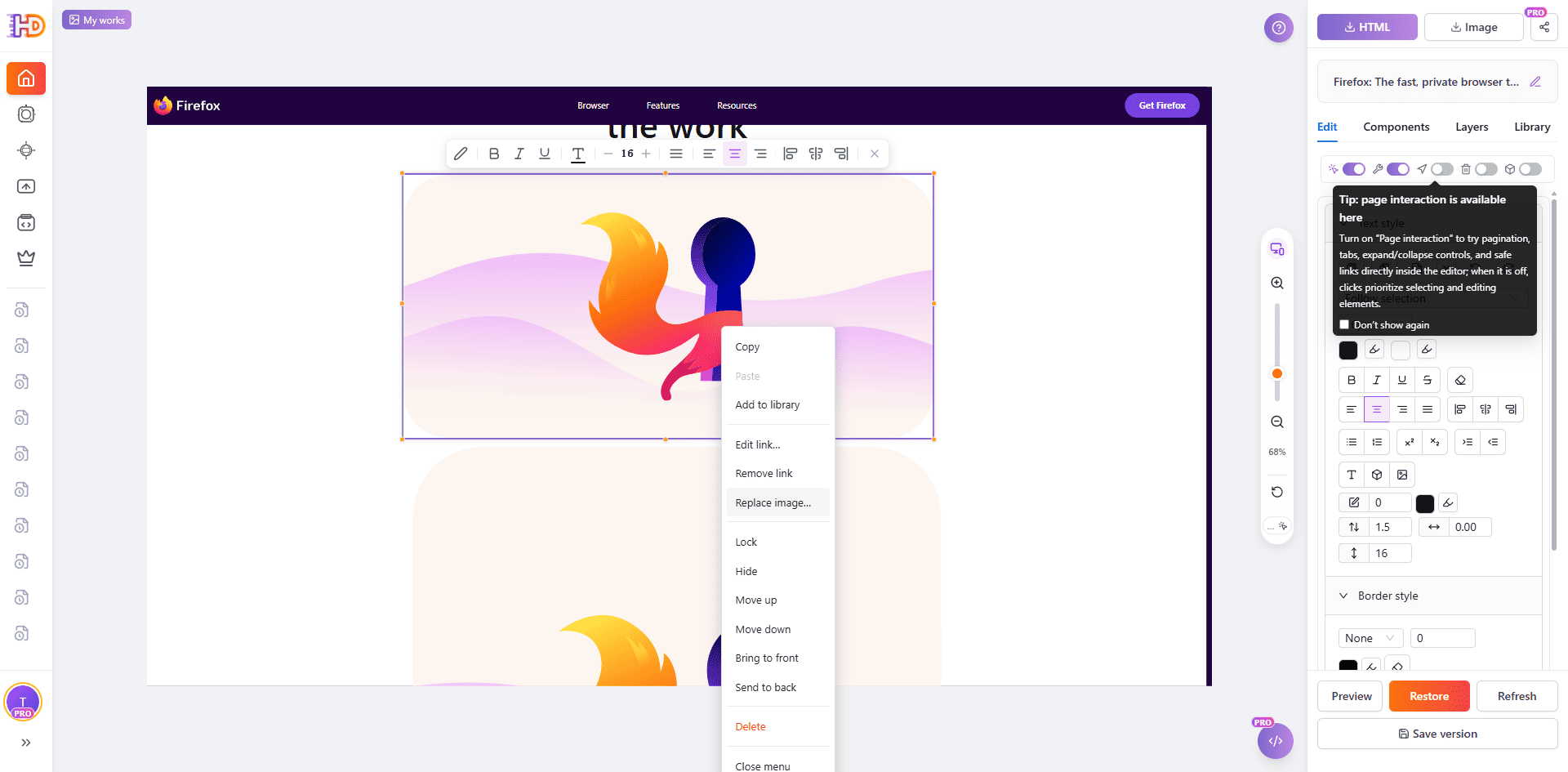
Visual finishing is not limited to copy. When an image is a supported page element, select it and open the context menu to find the image replacement action. This lets you keep a section's structure and nearby copy while testing a more relevant asset.
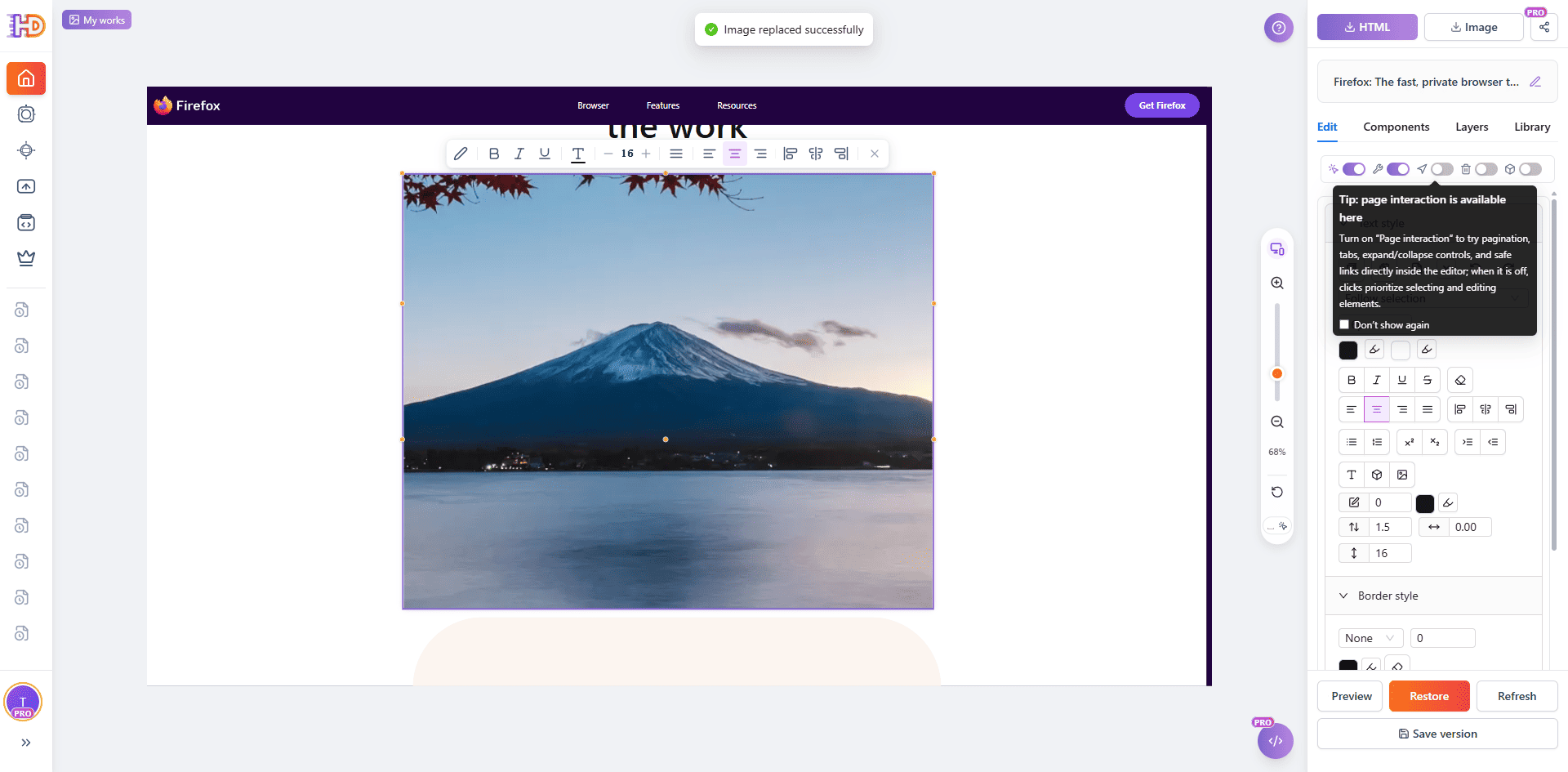
 Here, the original illustration is replaced in the working copy with a mountain image. The point is not that a mountain belongs on every page. The point is to judge a specific replacement inside the real layout—its crop, visual weight, nearby copy, and relationship to the section—before it reaches a deployment review.
 Check section hierarchy and CTA treatment
Do not let the first hero change become the only decision. A lower-page heading can need a different emphasis because it appears later in the reading path. Select it in context, then review type size, color, alignment, and spacing before deciding whether the change actually improves the section.
 Give the main call to action the same focused review. It should remain easy to find after the visitor has understood the page, but it should not overpower the message it is asking them to act on. A visual editor can help you inspect the CTA's text, scale, contrast, and placement. The destination and any download, form, payment, or other functional behavior still need testing in the final deployment environment.
 Preview and export the page you actually reviewed
Before delivery, step back from the selected element and review the page as a visitor would. Check the complete path: headline, supporting message, feature sections, CTA, and mobile layout. A visual edit that looks good in isolation may create an awkward line break, weak contrast, or disconnected CTA elsewhere on the page.
When you are ready to hand the work off, use the export options for the version you intend to deliver. The export dialog in this workflow distinguishes the Edited HTML from the Original HTML, so you can deliberately choose between the current canvas result and the initial imported source.
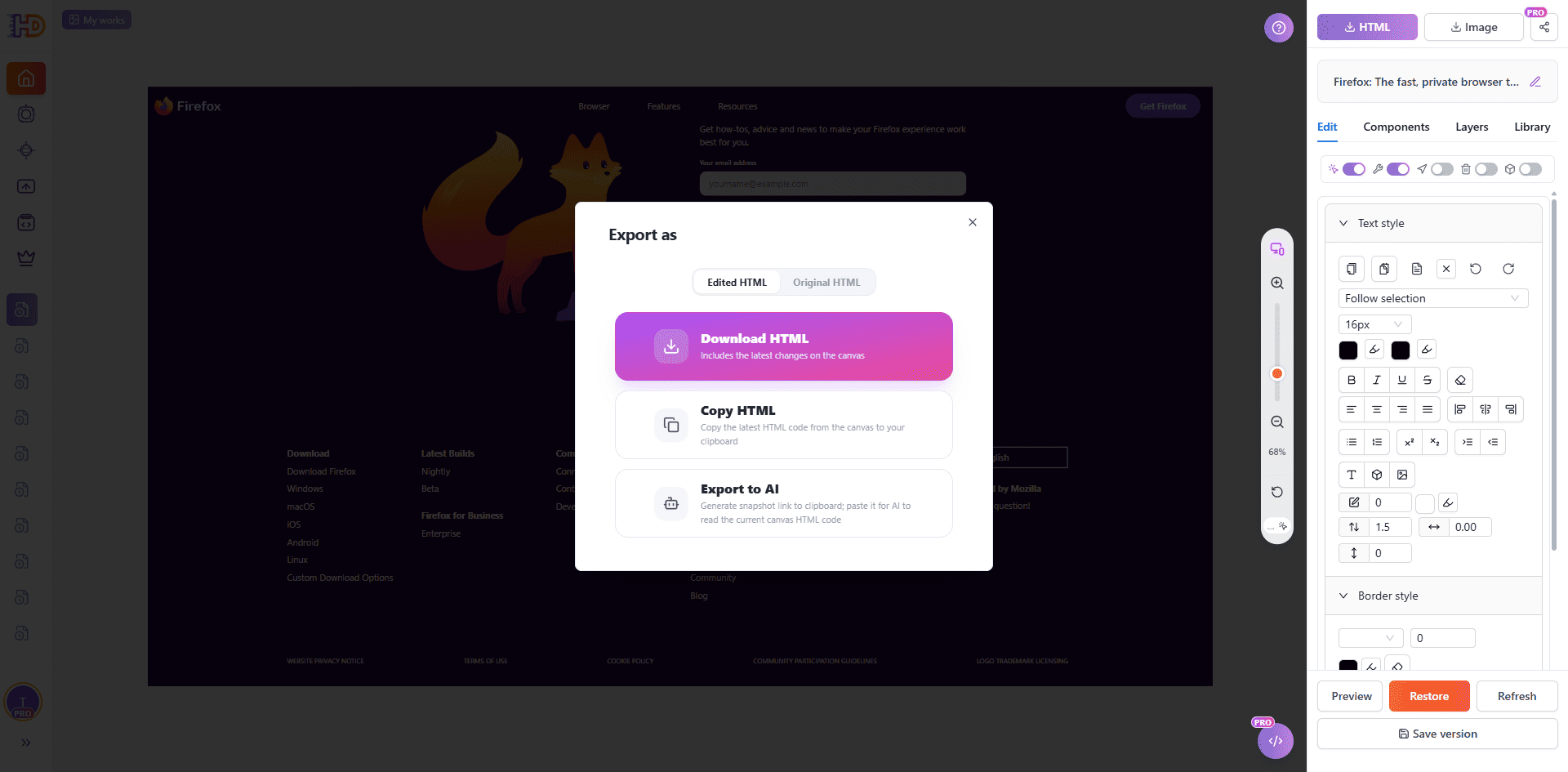 The full-page preview is the final visual check. In this example, it shows the revised hero treatment and image replacement while the wider page structure remains intact. Previewing the complete working copy is how you catch a local change that no longer belongs to the whole page.
 What URL import does not replace
URL import is a strong option for a visible HTML finishing pass, not a replacement for every production task. Use your normal workflow to validate anything that depends on server access or application behavior:
- form submissions, payments, logins, and account-specific content;
- analytics, consent tools, redirects, downloads, and third-party integrations;
- script-driven interactions, live data, cross-origin embeds, Canvas content, and protected resources;
- the final deployment, QA, and release approval for the destination site.
If the page is behind a login, blocked from capture, or too dynamic to produce a reliable working copy, start from the actual HTML file or source code instead. The aim is not to force every website through one tool. It is to use the fastest safe starting point for the page you need to finish.
Frequently asked questions
Can I edit a live website by pasting its URL?
You can create an editable working copy of an accessible page. Changes made in that project do not update the original live website. To publish, follow your own deployment or handoff process.
Can I update webpage text without opening the HTML source?
For supported visible text, select it on the rendered page and edit it in context. Review the final page afterward so the new wording still works with the surrounding layout, image, and call to action.
Can I replace an image after importing a URL?
When the imported image is a supported element, select it and use the image replacement action. Check the replacement's crop, scale, contrast, and relationship to nearby copy before export.
Will every URL import look exactly like the original page?
Not always. Login restrictions, anti-bot protections, external fonts and assets, lazy loading, dynamic data, scripts, iframes, and other cross-origin behavior can affect the captured result. Use preview to assess the project, and switch to an HTML file or source-code workflow when that is the more reliable source.
Conclusion
When a useful page already exists online, the URL can be the most practical starting point. Import the accessible page into a working copy, preserve the structure that already works, make a few deliberate visual decisions, and inspect the result before you export it.
With HtmlDrag, URL Import turns an existing page into an editable HTML project for the final pass—so you can refine visible copy, images, hierarchy, and CTA treatment without rebuilding the page or rewriting every line of code.