
Many HTML pages are not blank canvases waiting for a new design. They are already useful: a landing page has the right sections, a product page has a working hierarchy, an AI tool has produced a convincing first draft, or a team has an older HTML file that still contains the content people need. The problem is usually the last round of changes—one headline, one image, one button, or a few layout decisions—not the need to rebuild the entire page.
That is where a visual HTML editor can be more practical than a code-first workflow. Instead of hunting through nested tags and CSS rules, you work from the rendered page, select the visible element that needs attention, make a focused change, and review the result in context. You keep the existing HTML as your starting point while making the visible page easier to finish.
This guide explains how to edit existing HTML visually without coding. The demonstration starts with a standalone Morrow & Pine workspace collection page, uploads it as an HTML file, and follows the page through visual editing, image replacement, preview, and HTML export. The example is intentionally a real business page rather than an editor mockup: the useful part is seeing how an existing page becomes a working visual canvas.
What is a visual HTML editor?
A visual HTML editor is a browser-based workspace that lets you edit the rendered structure of an HTML page instead of treating the source code as the only interface. A good WYSIWYG HTML editor keeps the page visible while you change the parts that visitors will actually see.
Depending on the source and the element, a visual HTML editing workflow can help you:
- select visible text and revise its wording in context;
- adjust typography, color, alignment, spacing, and visual emphasis;
- move or resize visible elements on a freeform canvas;
- replace a supported image without rebuilding the surrounding section;
- inspect lower-page sections and supporting cards one element at a time;
- preview the edited page and export the HTML version you actually reviewed.
This is different from a template-only website builder. A template builder usually asks you to work inside its own components and page structure. A visual HTML editor for existing HTML starts with the page you already have, whether that page came from a local file, a template, an AI coding tool, a pasted code snippet, or an accessible webpage.
Why edit existing HTML instead of rebuilding the page?
Rebuilding can be the right choice when the information architecture is wrong, the page needs a new interaction model, or the existing source cannot support the intended result. But many everyday requests are narrower:
- “Change the hero headline before the campaign goes live.”
- “Replace the old product image, but keep the section layout.”
- “Make this CTA more visible without redesigning the page.”
- “Move this element slightly so the hierarchy reads better.”
- “Fix the wording in the AI-generated HTML without sending the whole page back to the model.”
For these changes, a full rebuild can create unnecessary risk. It may alter sections that were already acceptable, introduce new spacing problems, or replace a useful visual direction with another generic draft. Editing the existing HTML visually keeps the review anchored to the real page and makes each change easier to compare.
What can you bring into a visual HTML editing workflow?
The best entry point depends on what you already have:
- Upload HTML when you have a local
.htmlor.htmfile. This is the route used in the walkthrough below. - URL Import when the accessible webpage is the source you are authorized to work from and the original file is not nearby.
- Paste Code when the HTML came from ChatGPT, Claude, another AI coding tool, a teammate, or a code repository.
- AI Creator when you need to turn a prompt or supported file input into an initial editable HTML page before refining it visually.
These routes lead to the same important idea: do not force a page that already exists into a blank-page workflow. Start from the source you have, then choose the smallest visual change that moves the page closer to delivery.
How to edit an existing HTML page without coding
The practical workflow is:
Upload the HTML → let it become a working page → inspect the rendered layout → make focused visual edits → preview the whole page → export the edited HTML
1. Start with the HTML file you already have
Open Upload HTML when your starting point is a local file. The upload screen provides a work title field, a local file area, and a preview panel. At this stage, the page has not been redesigned. You are simply choosing the existing HTML that should become the working copy.
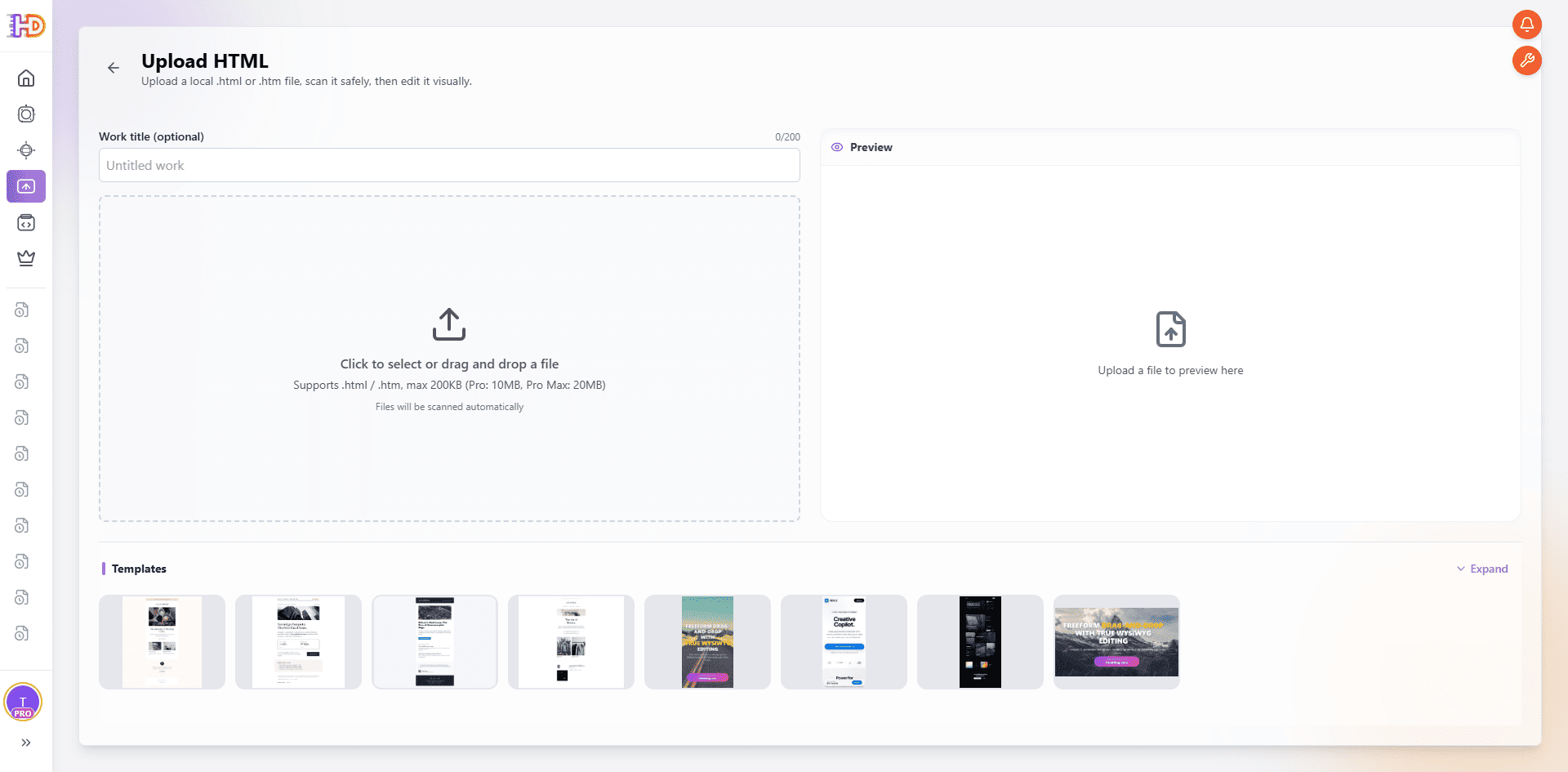 The Upload HTML starting point lets you bring an existing local page into a visual editing workflow.
Use a page you own or are authorized to edit. A self-contained landing page is often a good first test because its visual hierarchy is easy to inspect: hero, supporting copy, cards, imagery, and a final call to action all appear in one page context.
2. Let the file become an editable working copy
After selecting the file, HtmlDrag checks it and prepares the work. The file name and work title help you distinguish this page from later versions. The preview area communicates that the source is being turned into an editable project, not merely displayed as a static screenshot.
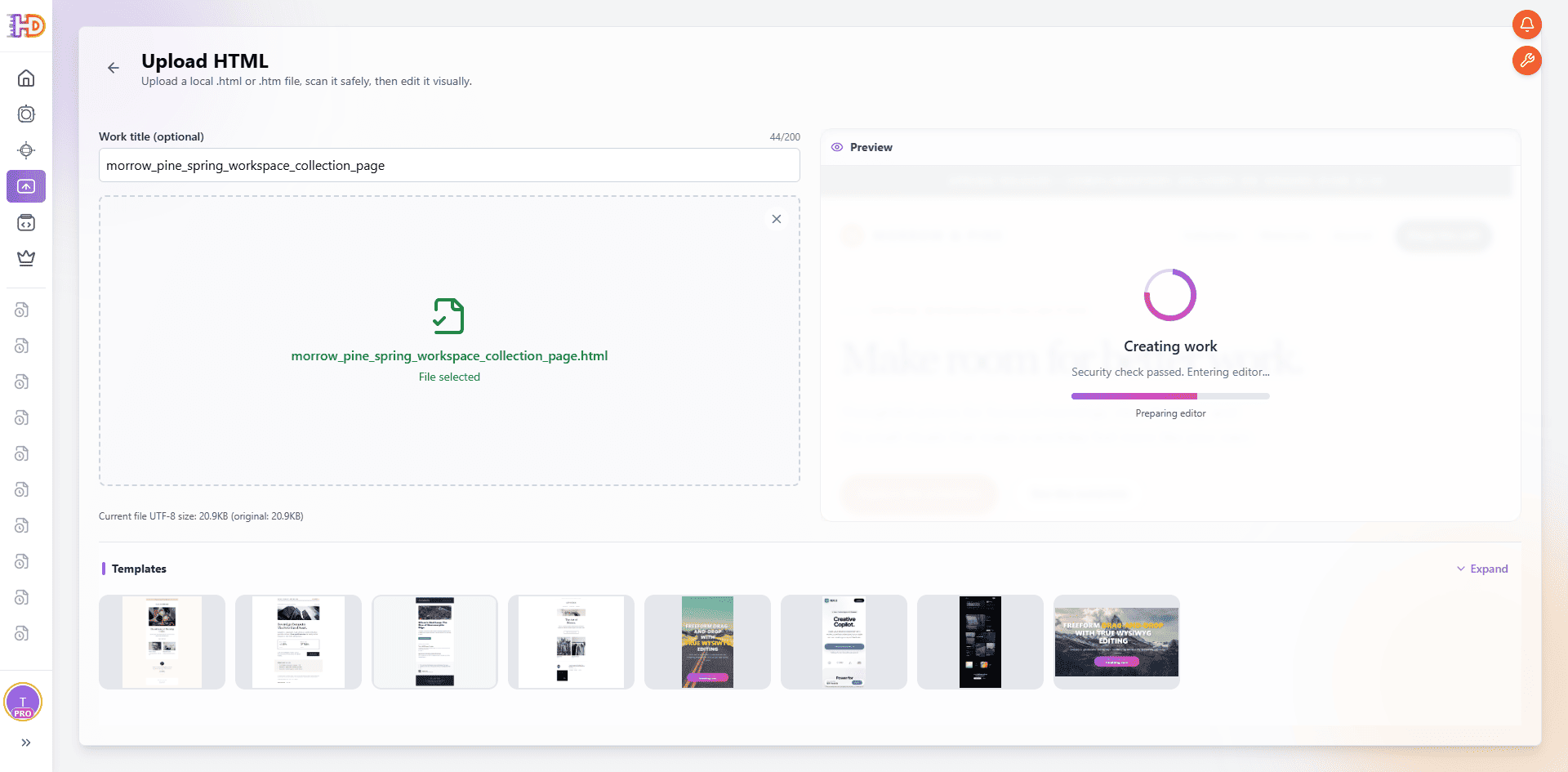 The selected Morrow & Pine HTML file is being prepared as a working page.
That distinction matters. The goal of visual HTML editing is not to flatten the page into an image. The page should remain an HTML project whose visible elements can be inspected and refined before you export it.
3. Inspect the rendered page before changing anything
Once the work opens in the editor, take a short pass through the existing page. Look at the hero, the main image, the supporting sections, and the lower-page CTA before changing the first element you notice. This gives you a baseline for deciding what should change and what should stay intact.
In the example, the Morrow & Pine page already has a clear brand direction and a complete content path. That makes it a better candidate for a focused visual pass than for regeneration. The page can be improved through local decisions without replacing its whole structure.
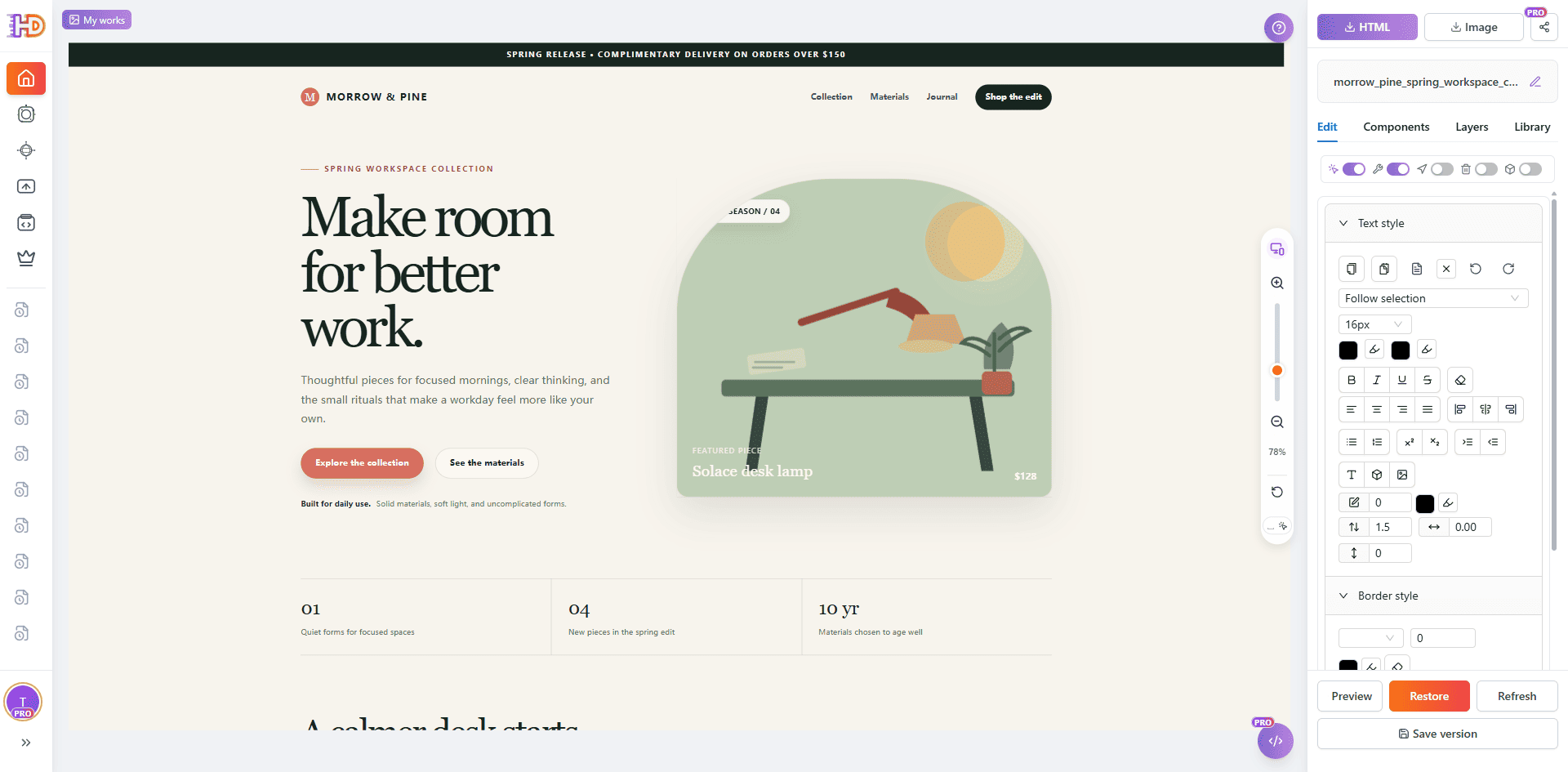 The existing HTML is rendered as a page canvas where visible content can be reviewed in context.
Make focused visual changes on the real page
The point of a no-code HTML editor is not to turn every page into a collection of random adjustments. It is to shorten the distance between noticing a problem and testing a deliberate fix. Start with the element that affects the reader’s next decision, then check the result against the surrounding layout.
4. Adjust the visual emphasis of a visible element
The hero usually deserves the first review because it establishes the page’s promise. Select the visible hero block and inspect the inline controls or style panel. You may need to change background color, text color, scale, alignment, or spacing to make the hierarchy clearer.
The exact change depends on the page. A strong visual editor should let you see the element in its real surroundings while you make the change, so you can judge contrast and balance rather than editing an isolated CSS value.
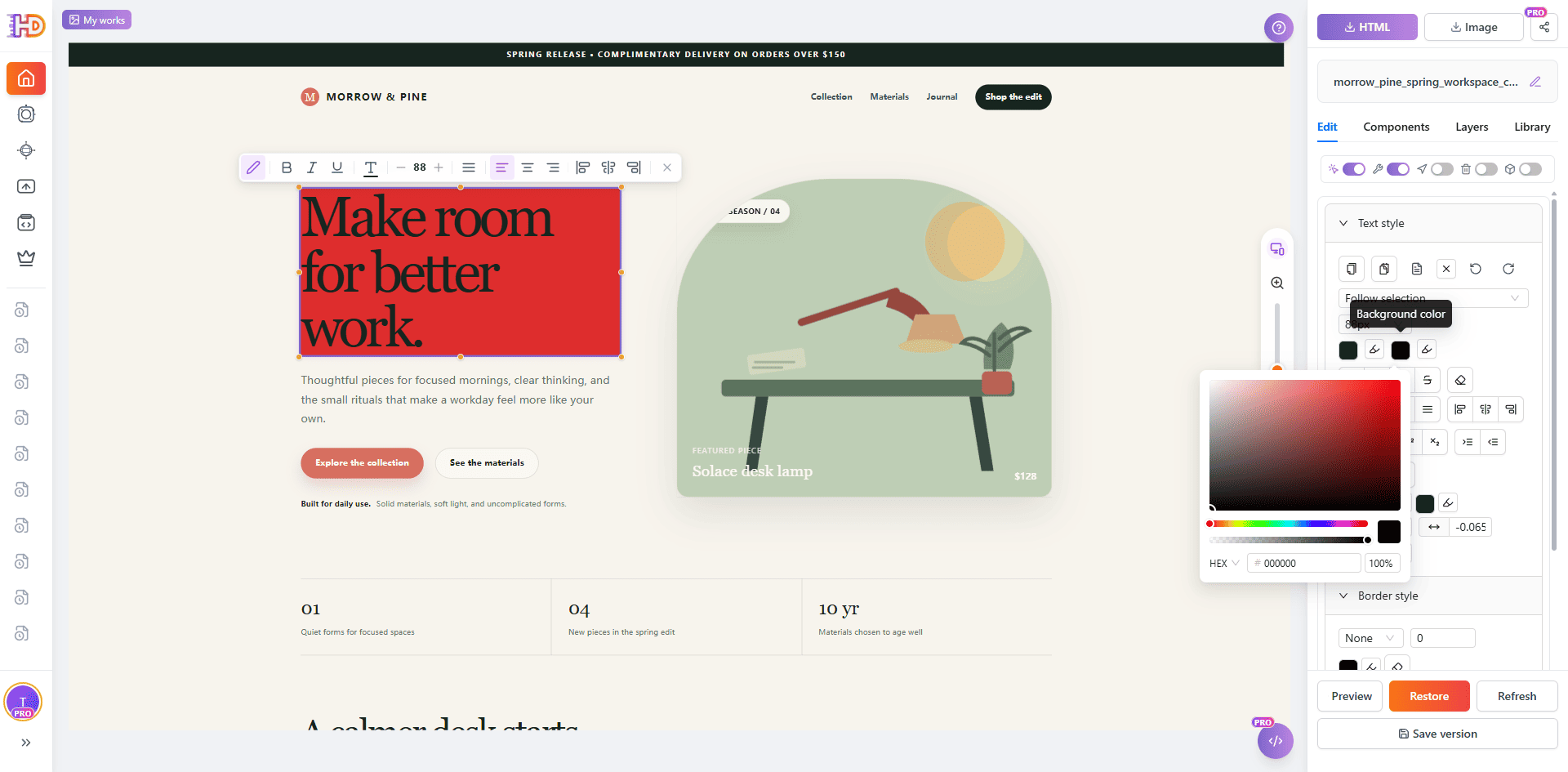 A visible hero element is selected for a focused styling adjustment instead of a full-page rewrite.
5. Refine the CTA and layout in context
After the hero, review the action you want visitors to take. A CTA can be technically present but visually disconnected from the message above it. Select the button, edit its text or emphasis, and adjust its position when the page hierarchy needs a small correction.
Freeform positioning is useful here because the decision is visual: you are checking where the action belongs relative to the headline, supporting copy, and primary image. The goal is not to redesign the entire page grid. It is to make one visible relationship clearer.
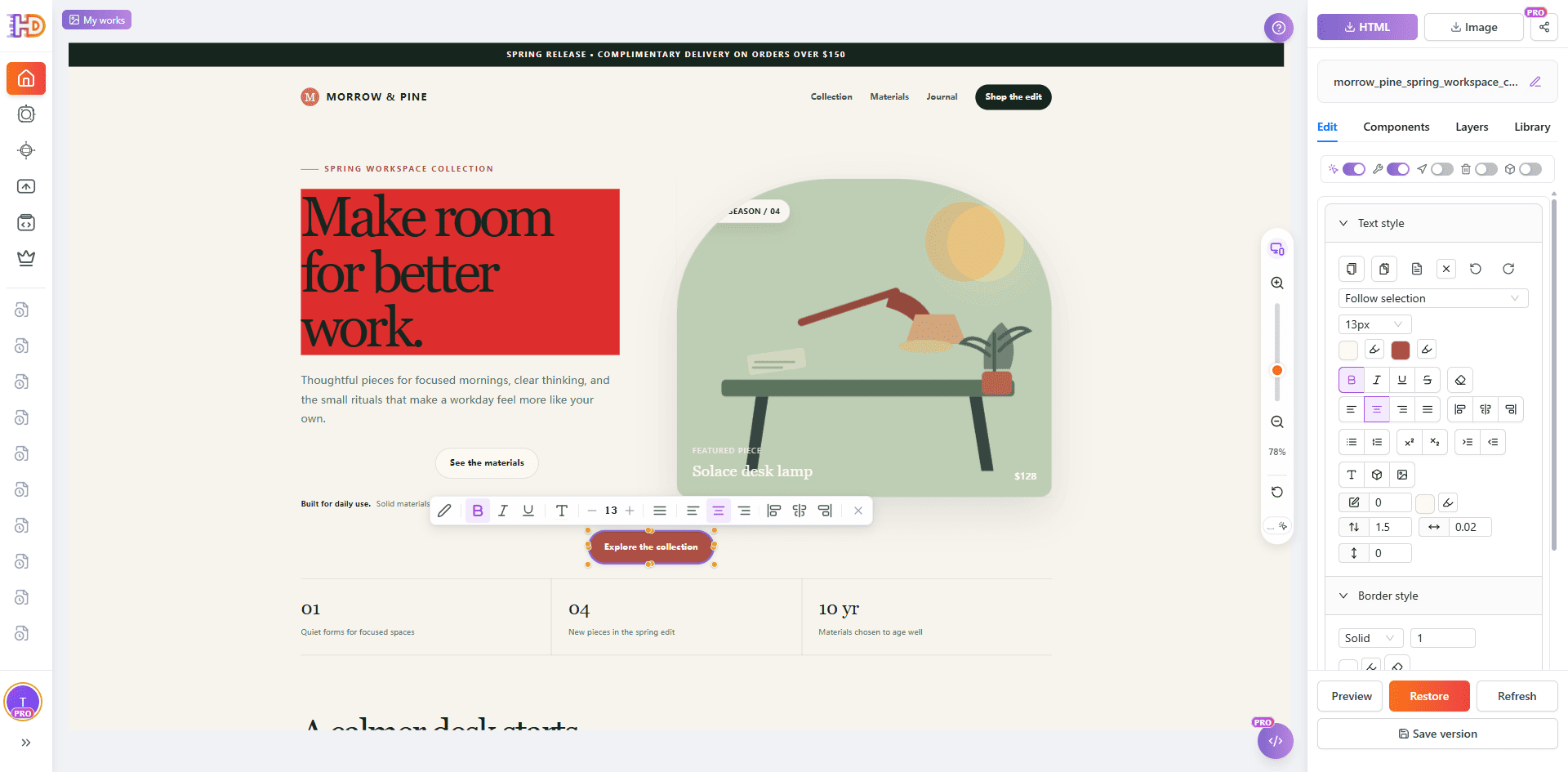 The CTA is reviewed as part of the page hierarchy, not as an isolated button.
6. Continue below the hero
A visual HTML editor is most useful when it helps you finish the whole page, not only the first screen. Scroll to the supporting content and select individual headings, cards, or descriptions when they need attention. This keeps the rest of the section visible as context while you refine one element.
For example, a benefit card heading might need a clearer scale, a different emphasis, or a small wording change. You can make that local decision without losing the relationship between the card, its paragraph, and the other cards around it.
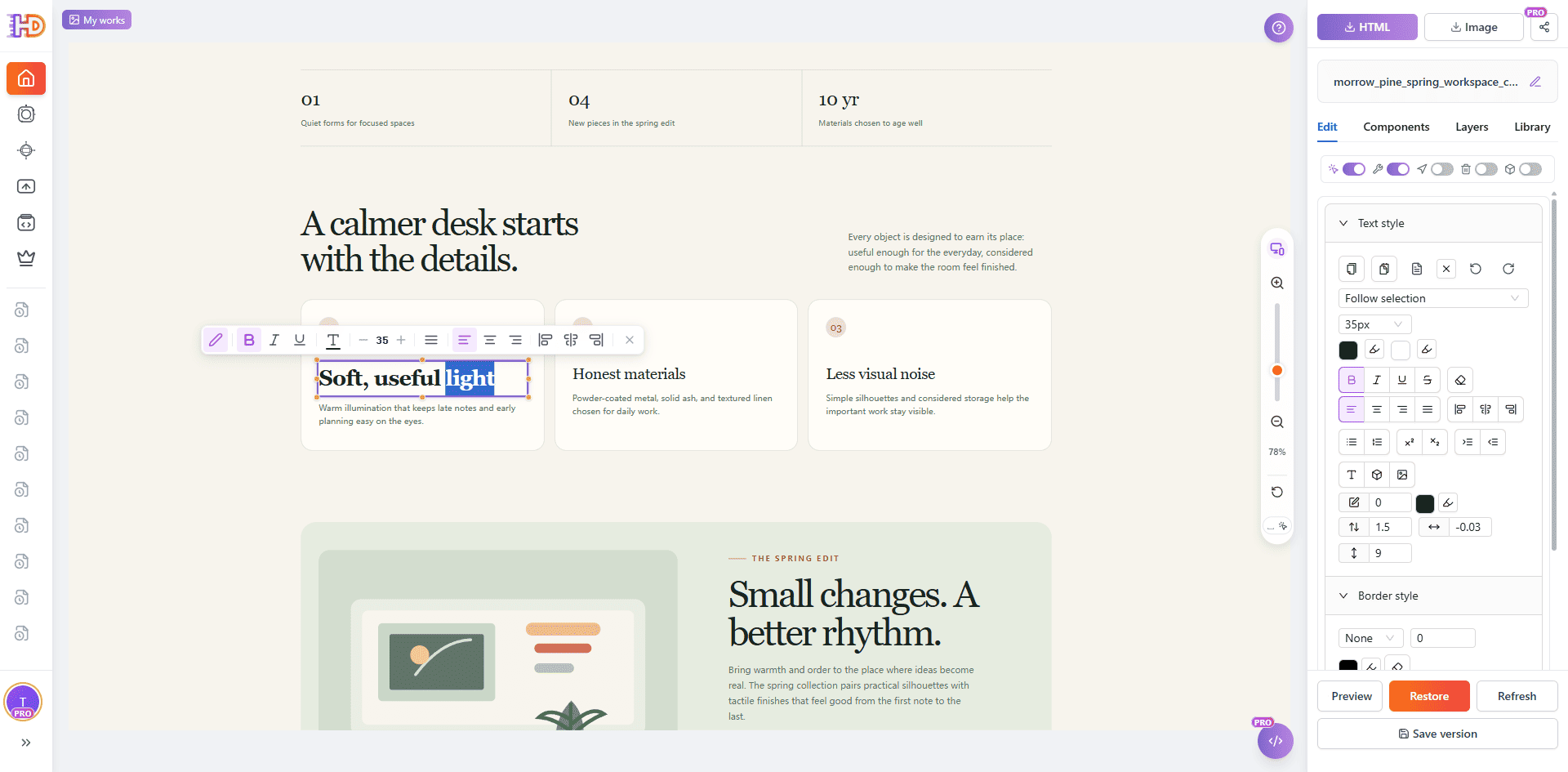 A lower-page card heading can be refined separately while the surrounding section remains visible.
7. Replace an image without rebuilding the section
Images often carry as much meaning as the headline. If the current asset belongs to an old campaign or no longer matches the page, select the supported image element and use the replacement action. Keeping the section structure means you can judge the new asset’s crop, scale, contrast, and visual weight in the place where it will actually be used.
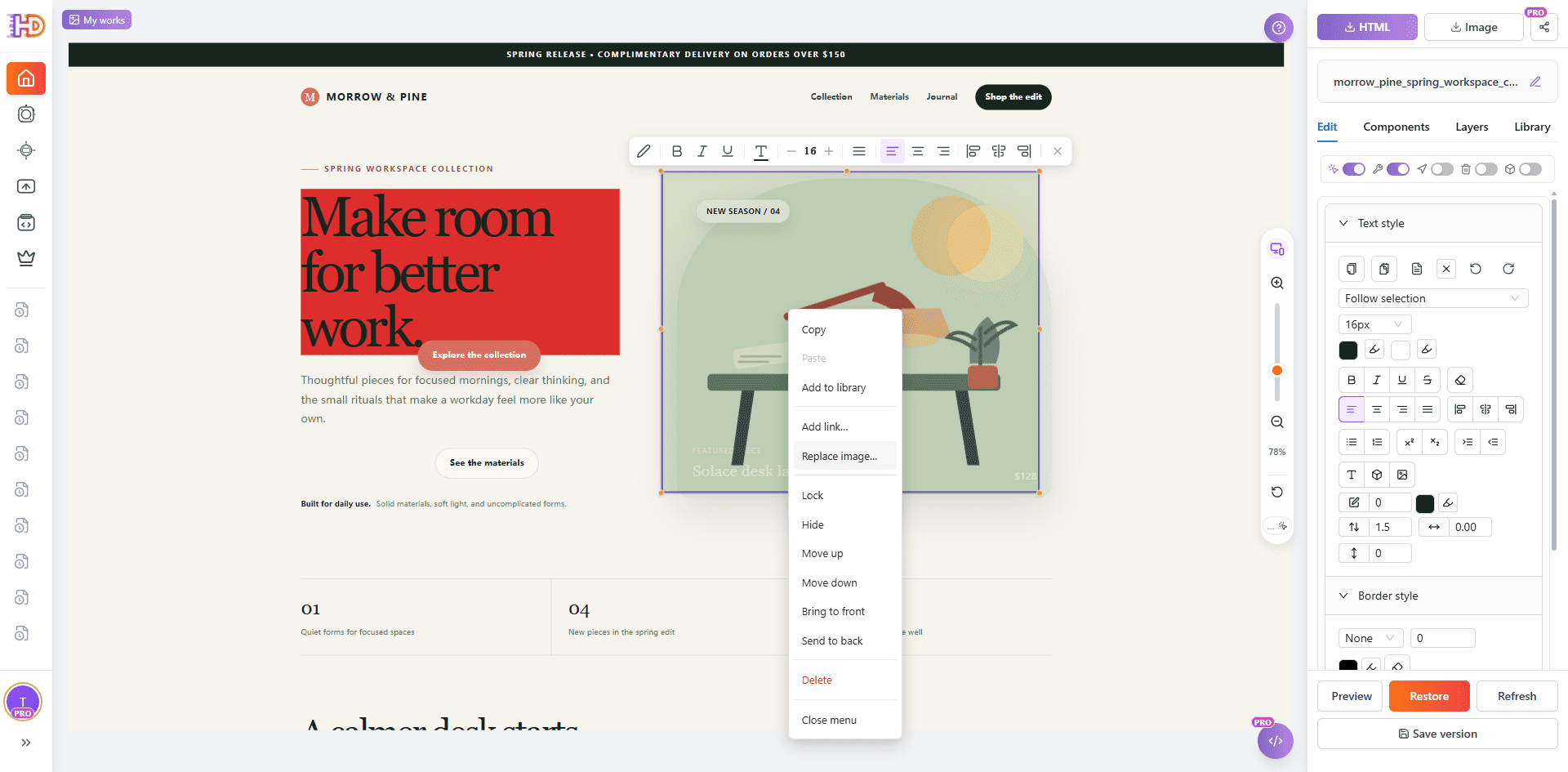 The image context menu exposes a replacement action while the page section remains intact.
After choosing a new asset, check the result in the full composition. A replacement can be technically successful and still be a poor design decision if the subject is cropped badly, the contrast is weak, or the image competes with the message.
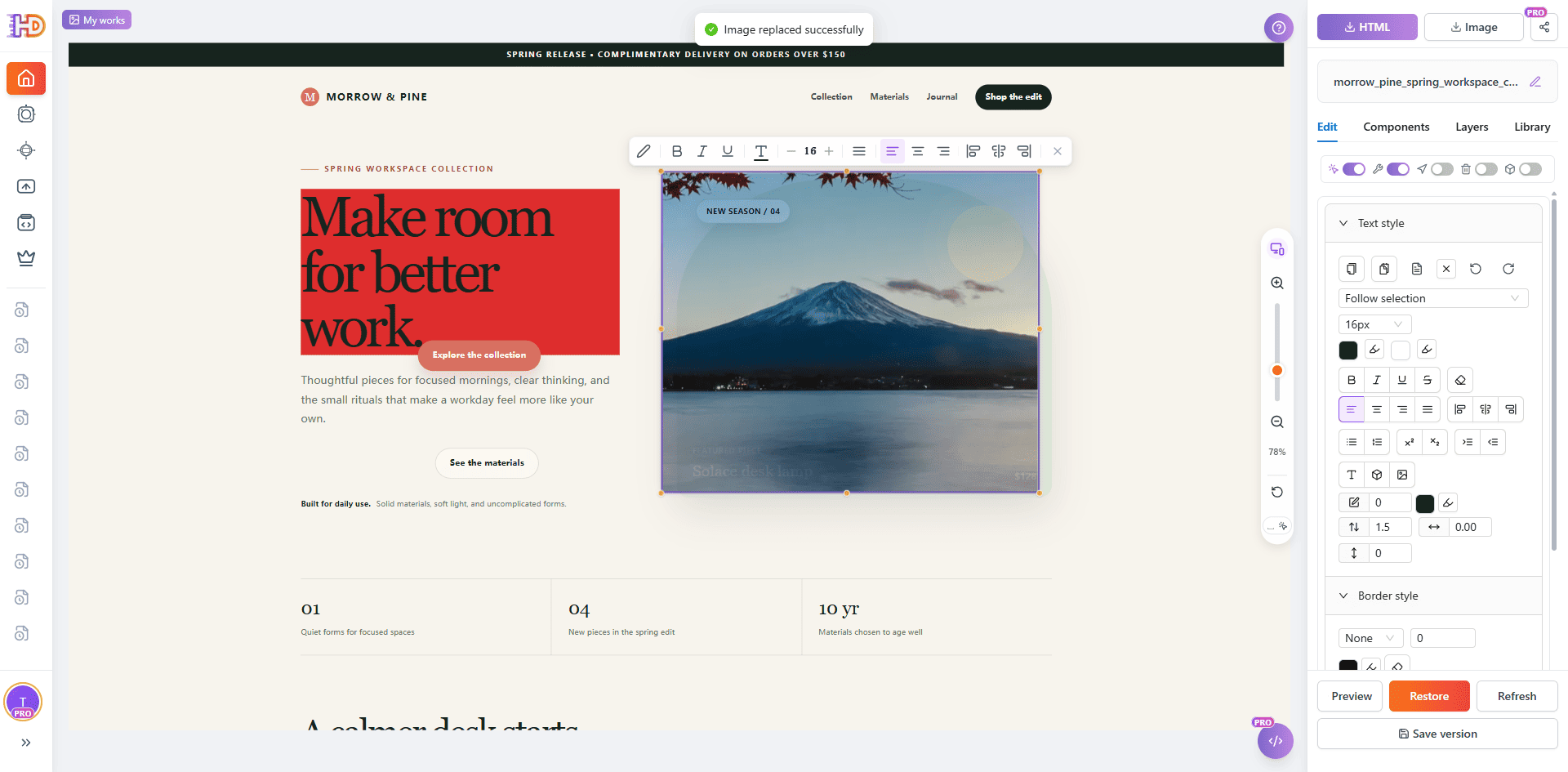 The image replacement completes in the working copy, ready for a wider visual review.
Preview the edited page before export
Editing is not finished when the selected element looks better. Close the editing state and review the full page as a visitor would. Check the reading order, line breaks, image treatment, supporting sections, CTA hierarchy, and any responsive behavior that matters for your page.
This is where the difference between a visual HTML editor and a code-only patch becomes clear. The final question is not only “Did the CSS value change?” It is “Does the page still communicate the right thing after the change?”
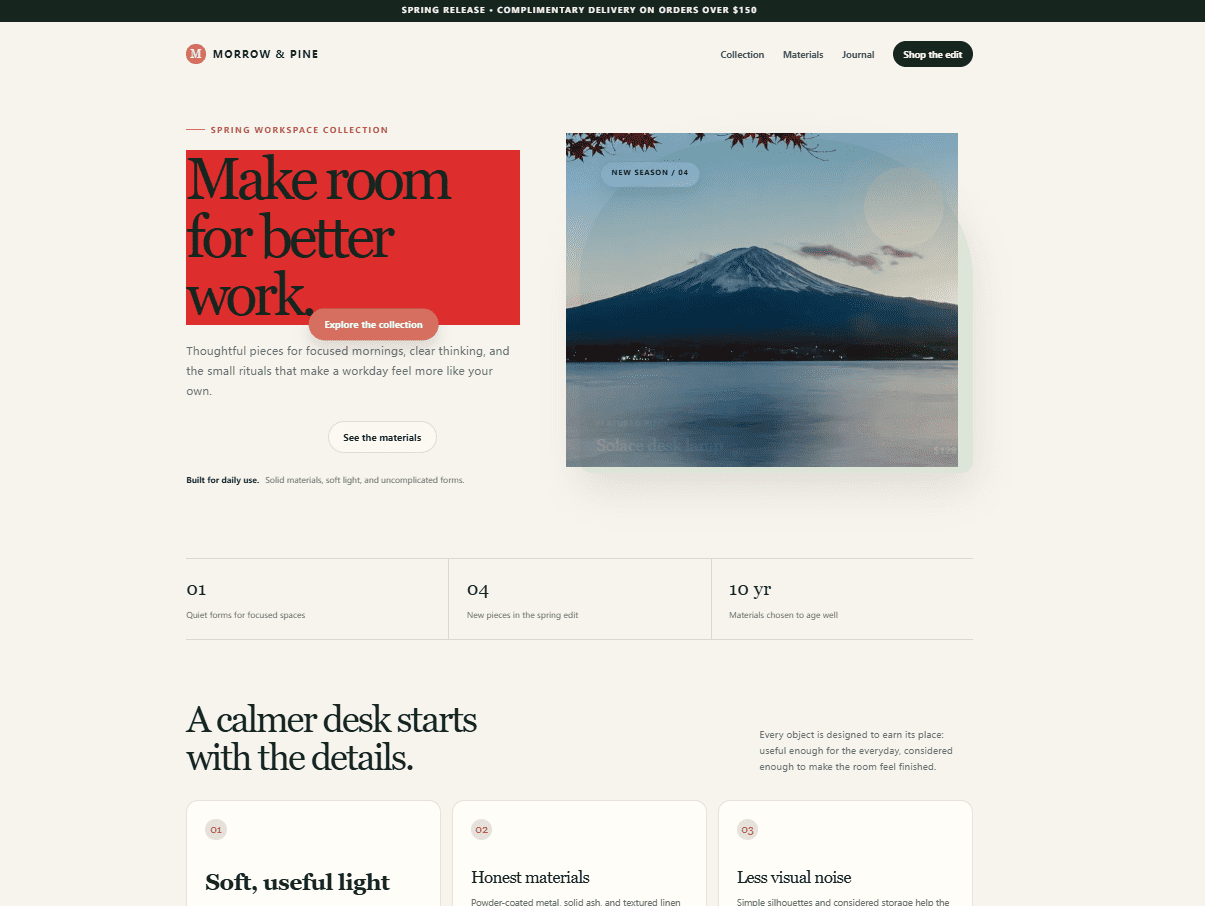 The full-page preview shows the working copy after the visual changes, without the editor selection state.
When the page is ready to hand off, choose the edited version rather than accidentally exporting the original source. HtmlDrag’s export workflow distinguishes Edited HTML from Original HTML, and provides actions for downloading or copying the current HTML.
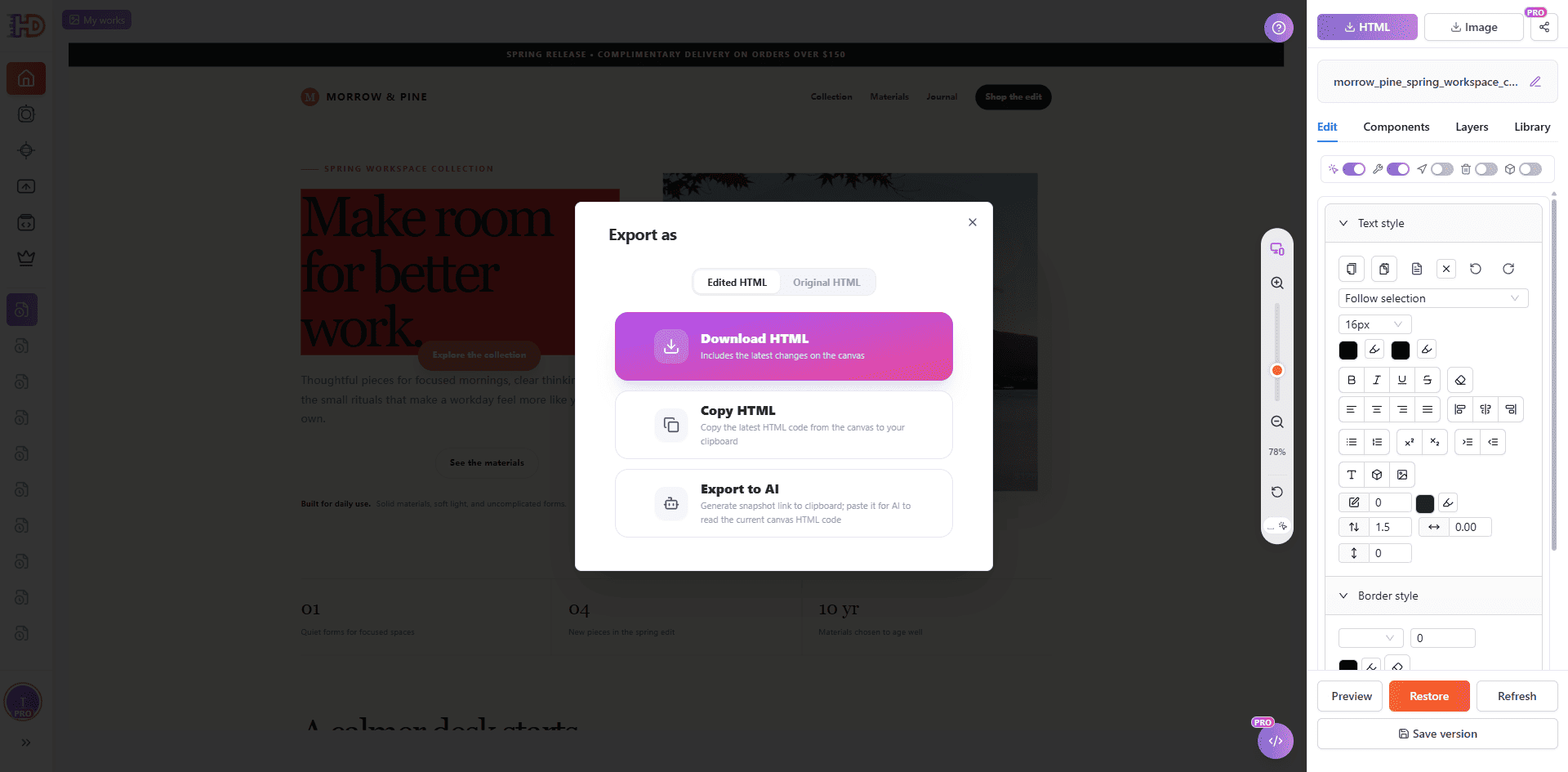 The export dialog lets you choose the edited HTML version and download or copy it for the next workflow.
What a visual HTML editor can—and cannot—replace
Visual editing is a strong fit for the visible finishing layer of an existing HTML page. It can help you refine text, images, styling, spacing, hierarchy, and positioning without rebuilding the page. It is especially useful when the structure is already close and the remaining work is easier to judge on the canvas than in the source.
It does not remove the need for normal production checks. Forms, payments, authentication, analytics, redirects, server-side behavior, dynamic data, third-party integrations, complex JavaScript, and deployment still need to be tested in the environment where the page will run. Some SVG, Canvas, iframe, script-driven, or cross-origin content may also require a deeper technical review.
The practical boundary is simple: use visual editing for the decisions you can verify on the rendered page, then use your normal development and QA workflow for behavior that depends on code, services, or production infrastructure.
Is this the same as a website builder?
Not exactly. A traditional website builder often starts with its own templates, blocks, or component system. HtmlDrag is better understood as a visual HTML editor for pages that already exist. You can bring in a local HTML file, an accessible webpage, pasted HTML, or an AI-generated page, then refine the real page structure instead of starting over inside a closed template system.
That difference matters when the HTML already contains a useful layout, client-approved content, custom markup, or a design direction that should be preserved. The editor becomes a visual finishing layer beside the tools that created the original page.
Frequently asked questions
Can I edit existing HTML without coding?
Yes, for supported visible elements. Upload the HTML file, open the rendered page, select the element that needs attention, and make the change through the visual controls. You should still review the result and test any functional behavior before publishing.
Can I edit an AI-generated HTML page visually?
Yes. You can use Paste Code for raw HTML from an AI tool, Upload HTML for a saved file, or another supported entry point. The visual editing pass is useful when the AI draft is structurally close but needs human decisions about copy, emphasis, imagery, and layout.
Can I replace images in an existing HTML page?
When the selected image is supported by the editor, you can use the image replacement action and then review the new asset in context. The replacement should be checked for crop, dimensions, contrast, loading behavior, and relevance to the surrounding content.
Does visual editing change the original HTML file?
The safest workflow is to treat the imported page as a working copy. Keep the original source as your reference, review the edited version, and export the result you intend to deliver.
Can I edit a live website directly?
URL Import can turn an accessible webpage into an editable project, but edits to that project do not automatically update the original live website. Publishing still belongs to your own deployment or handoff process.
Conclusion
You do not need a blank canvas every time a page needs a better headline, a new image, a clearer CTA, or a small layout adjustment. If the existing HTML already contains a useful structure, keep it as the starting point and work visually from the page visitors will see.
HtmlDrag brings that workflow into one browser-based visual HTML editor: import the HTML you already have, edit visible content and layout without coding, preview the full result, and export the edited HTML when the page is ready for the next step.