
An AI-generated landing page can get a campaign from a blank brief to a credible first page very quickly. The next problem is usually less dramatic, but just as important: the offer changes. A launch moves from a discounted pilot to a private preview, the call to action needs a new destination, a proof point needs more emphasis, or a small comparison needs to be added before the page goes to market.
Those changes do not automatically require a new prompt or a full rewrite of the HTML. When the existing page already has a useful structure, the practical job is to keep that structure and update the visible campaign layer with care. A visual HTML editor gives marketers, founders, and product teams a working copy where they can review the whole page, make local decisions in context, preview the result, and export the HTML they approved.
This guide explains a safe workflow for updating an AI-generated landing page after an offer changes. The example starts from a complete local HTML page, uses Upload HTML to turn it into a visual working copy, then shows the real editor surfaces for text styling, inserted tables and icons, image insertion, preview, and export.
When an offer change should not trigger a full regeneration
Return to the AI or the original codebase when the campaign needs a different page architecture, new product logic, an interaction that does not exist yet, or a broad rewrite of the content. Use a visual finishing pass when the page is already structurally useful and the remaining work is local: an approved message, a CTA destination, a visual priority, a supporting comparison, or a section that is no longer relevant.
Before editing, make the campaign decision explicit. A short revision list is enough:
- What promise is changing, and what should the reader understand first?
- Which CTA label and destination now match the campaign?
- What information should be added, simplified, or removed?
- Which brand, structural, or legal elements must stay untouched?
This separates a deliberate update from an unfocused redesign. It also makes review easier: each visual change can be checked against the campaign decision rather than against a vague feeling that the AI output needs to look different.
Start with the HTML you already have
1. Use a complete, authorized source page
Start with the HTML file you are allowed to update. Keep the original version as your reference and treat the upload as a working copy. This is particularly useful when an AI response, a developer handoff, or a previous campaign already produced a page with a sound hero, a useful content flow, and a responsive layout.
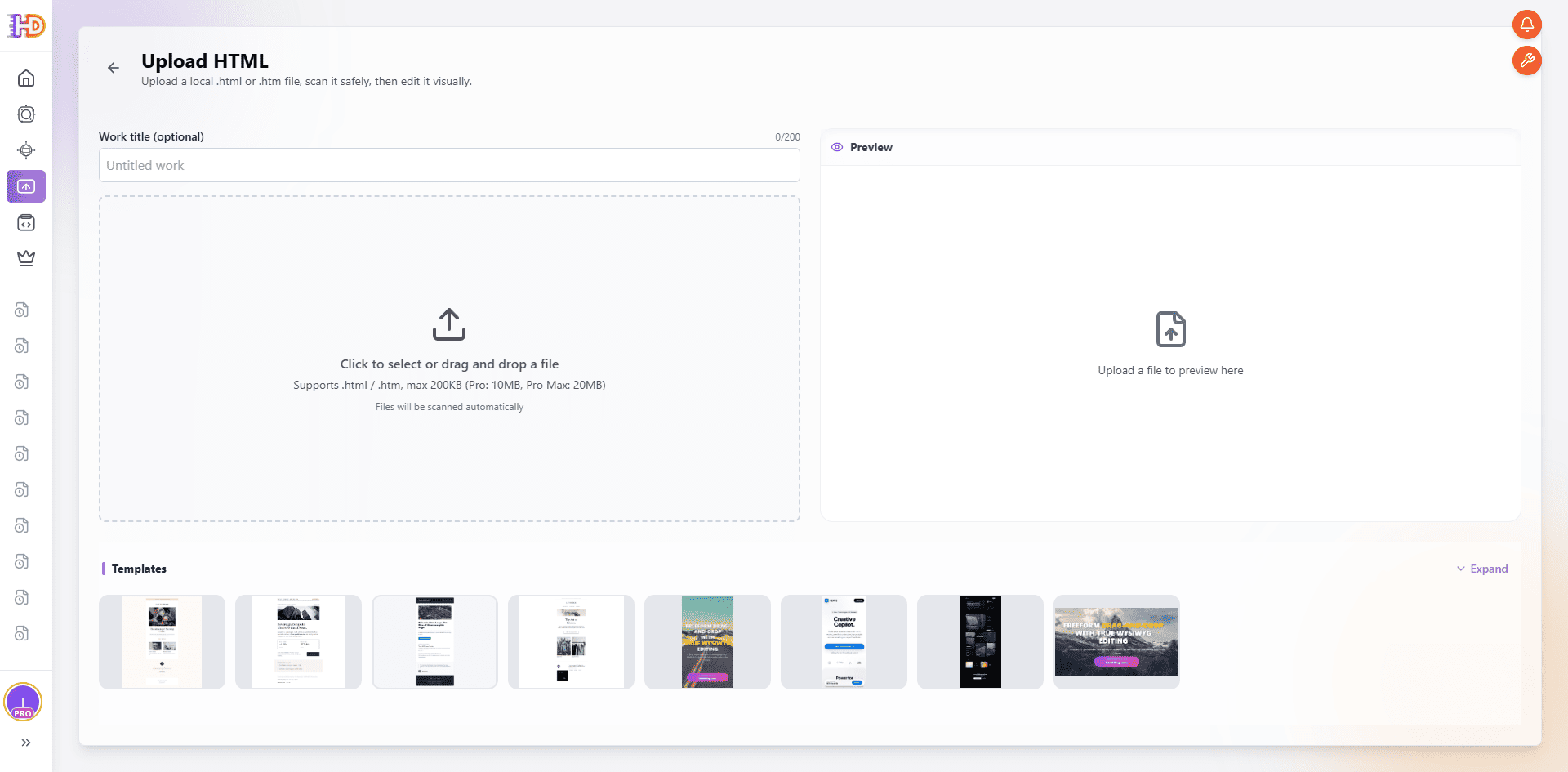 Upload HTML starts from a local page file, preserving the existing page as the source of the visual working copy.
2. Upload the page and let the editor prepare it
Open Upload HTML, give the work a useful name, and choose the source file. The page is checked and prepared before it opens as an editable project. At this point, do not assume the first visible element is the only thing that matters; wait for the page to render, then review the campaign from the first message through the final action.
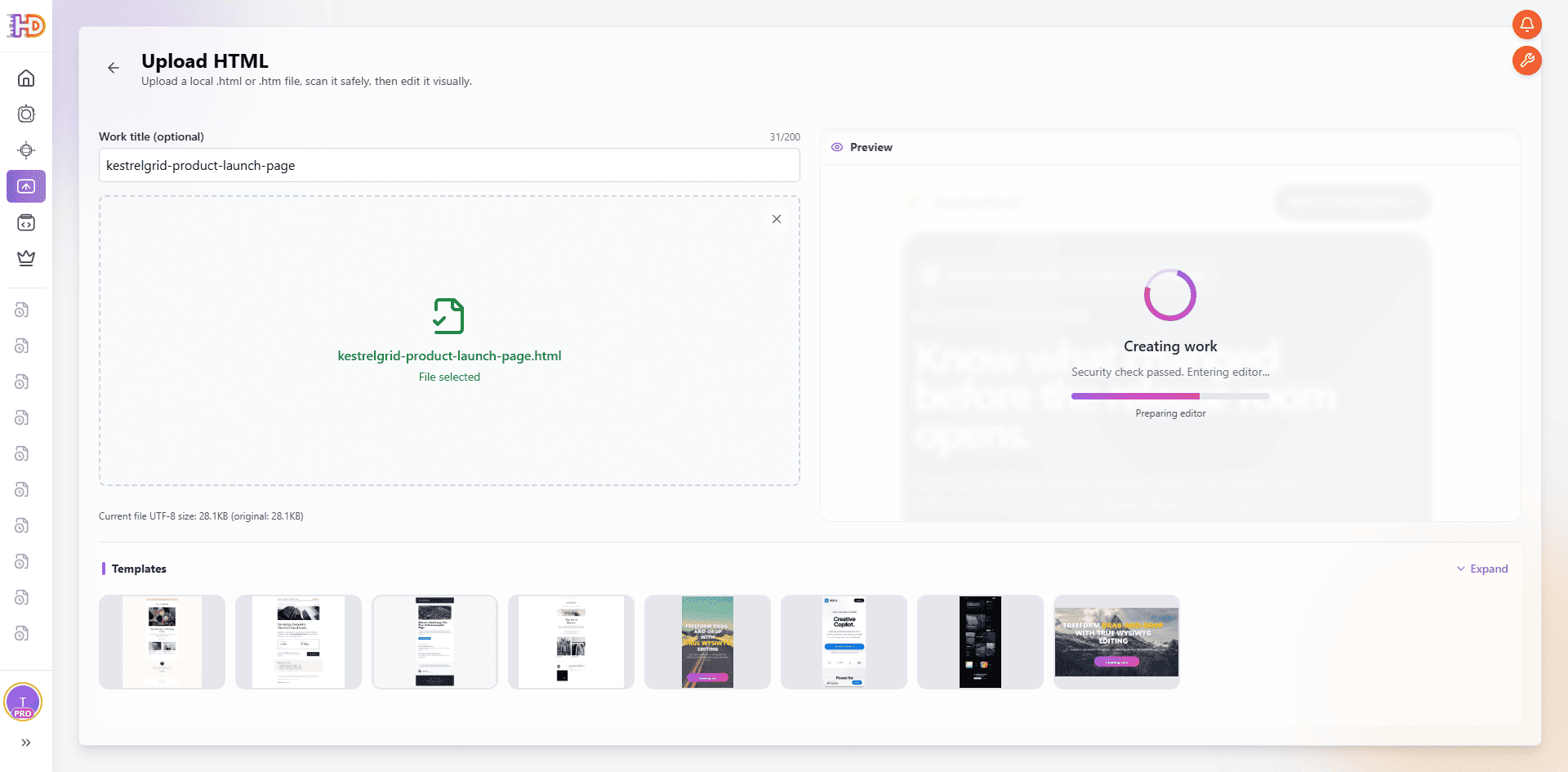 The selected HTML becomes an editable work after the upload check completes.
3. Read the whole page before changing the first headline
Once the canvas opens, scan the original landing page as a reader would. Does the opening message still support the new offer? Is the CTA still connected to that promise? Are lower-page feature cards, launch details, and the final call to action telling the same story? This page-level check prevents a common failure mode: fixing one line while leaving the rest of the campaign in the previous version.
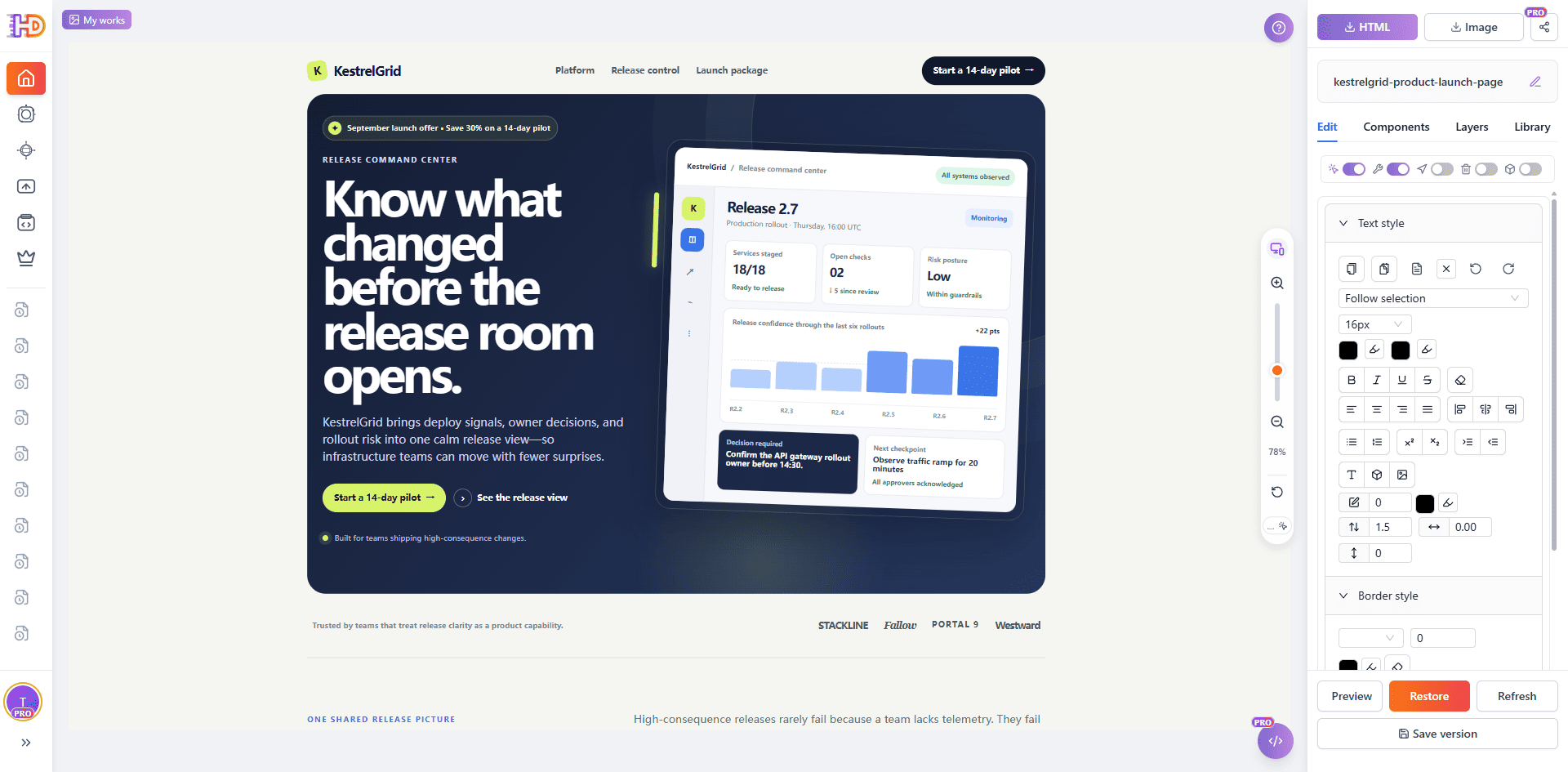 The initial canvas makes it possible to evaluate the hero, supporting sections, and lower-page content as one campaign page.
Make visual changes in the context visitors will see
4. Select the message, then decide its visual weight
An offer update often begins with copy, but the message also has a visual job. Select the headline or phrase on the canvas, then consider its color, size, alignment, and relationship to the CTA. A local styling adjustment can help a new phrase stand apart, but it should still support the reading order of the whole hero.
The screenshot below records a real selected hero message and the color control in the editor. It demonstrates in-context visual styling; it does not claim that changing a color alone completes the offer update. The final words, approved brand color, and CTA destination should come from the campaign brief.
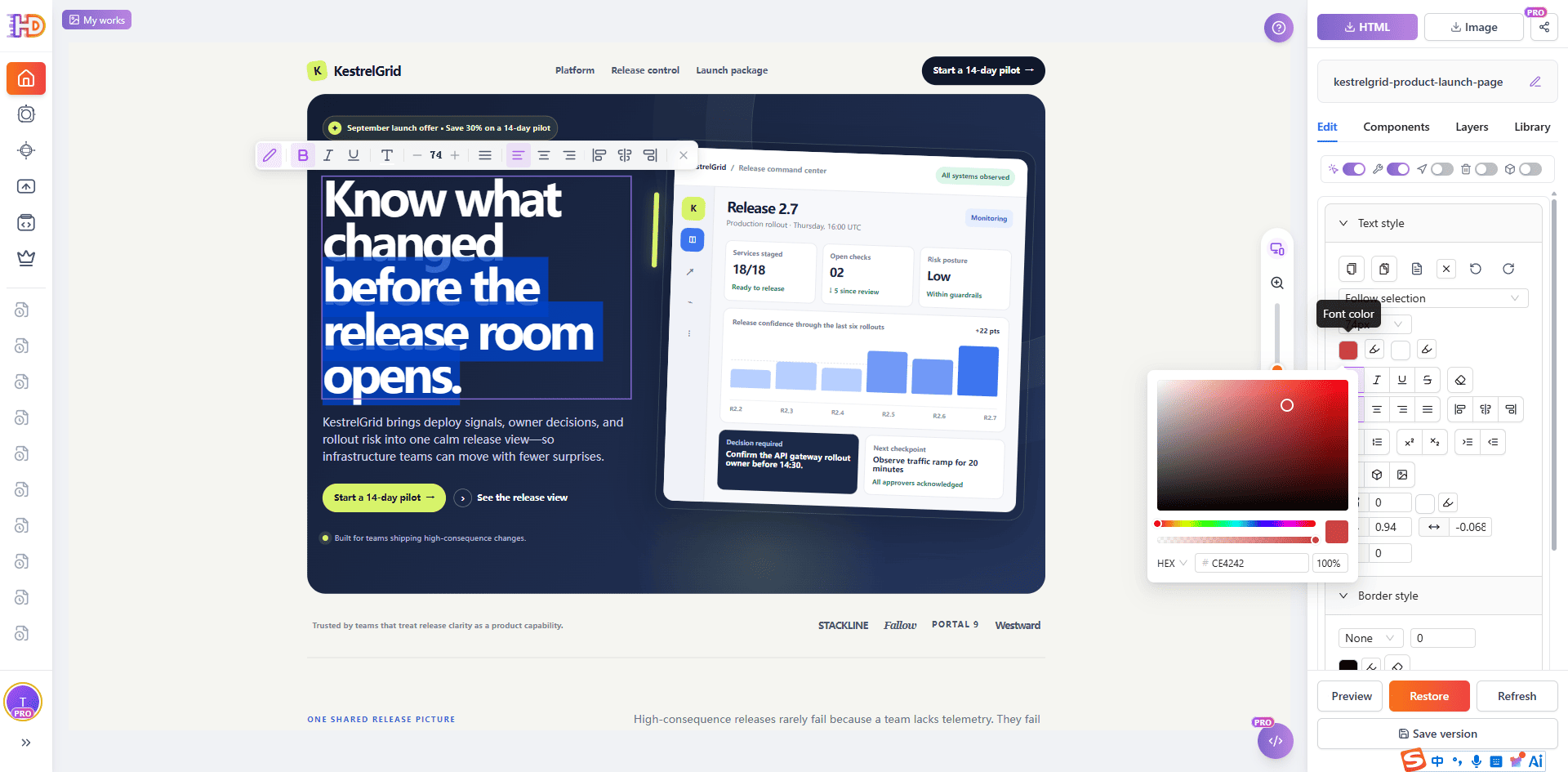 Visual emphasis can be adjusted on the selected message while the surrounding hero remains visible.
5. Check the surrounding hierarchy before moving on
AI-generated pages can hide an information-priority problem inside a polished layout. If a headline becomes more prominent, review nearby cards, statistics, labels, and images before calling the change complete. The goal is not to decorate every item; it is to make the campaign’s most useful message easier to notice without making the surrounding system compete with it.
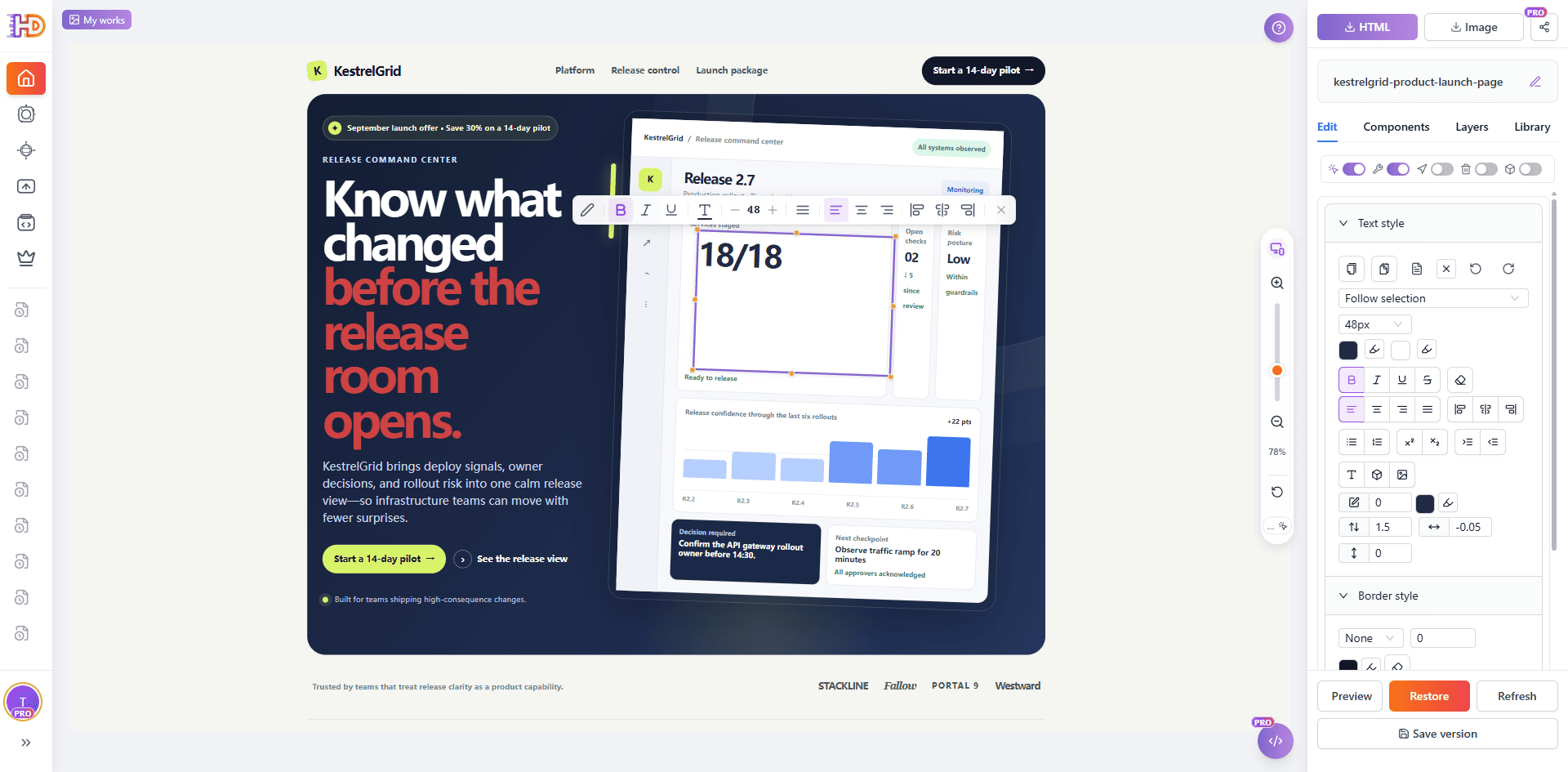 A nearby metric can be selected and reviewed as part of the same visual hierarchy, not as an isolated number.
Add the campaign detail the existing page is missing
When an offer changes, the page may need one new piece of clarity rather than a new design. A comparison table can explain what a preview includes, an inserted text element can state a deadline or qualification, and a small icon can help a reader scan a dense area. Add only the element that clarifies the decision; an inserted component should earn its space on the page.
6. Insert a table when rows and columns answer the question better
Open the Components tab and choose Table. The grid picker lets you select the starting dimensions before insertion. Begin with the smallest table that expresses the campaign difference, then edit the headers, cells, alignment, borders, and spacing for the actual content. A table is most useful when it reduces comparison work for the reader, not when it turns a landing page into a spreadsheet.
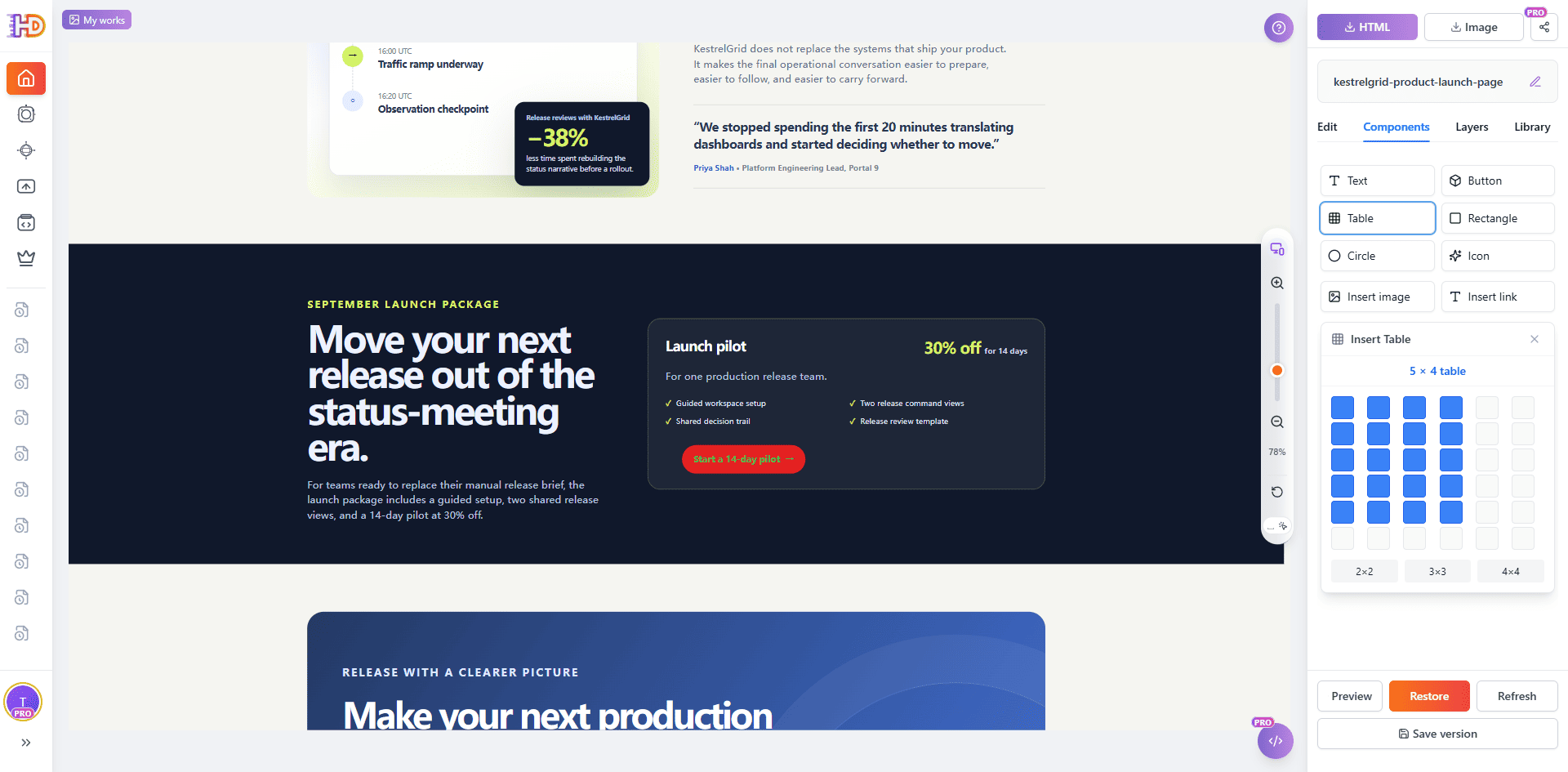 The table picker creates a starting grid; the campaign content and final structure still need an editorial decision.
7. Treat every table cell as reader-facing content
After insertion, click into the cells and enter only information a visitor needs to compare. In the working canvas below, a table is being edited directly on the page. Its content is still an in-progress example, which is why it should not be presented as a finished pricing or entitlement table. Before export, replace placeholders, remove empty rows or columns, and make sure the table supports the headline above it.
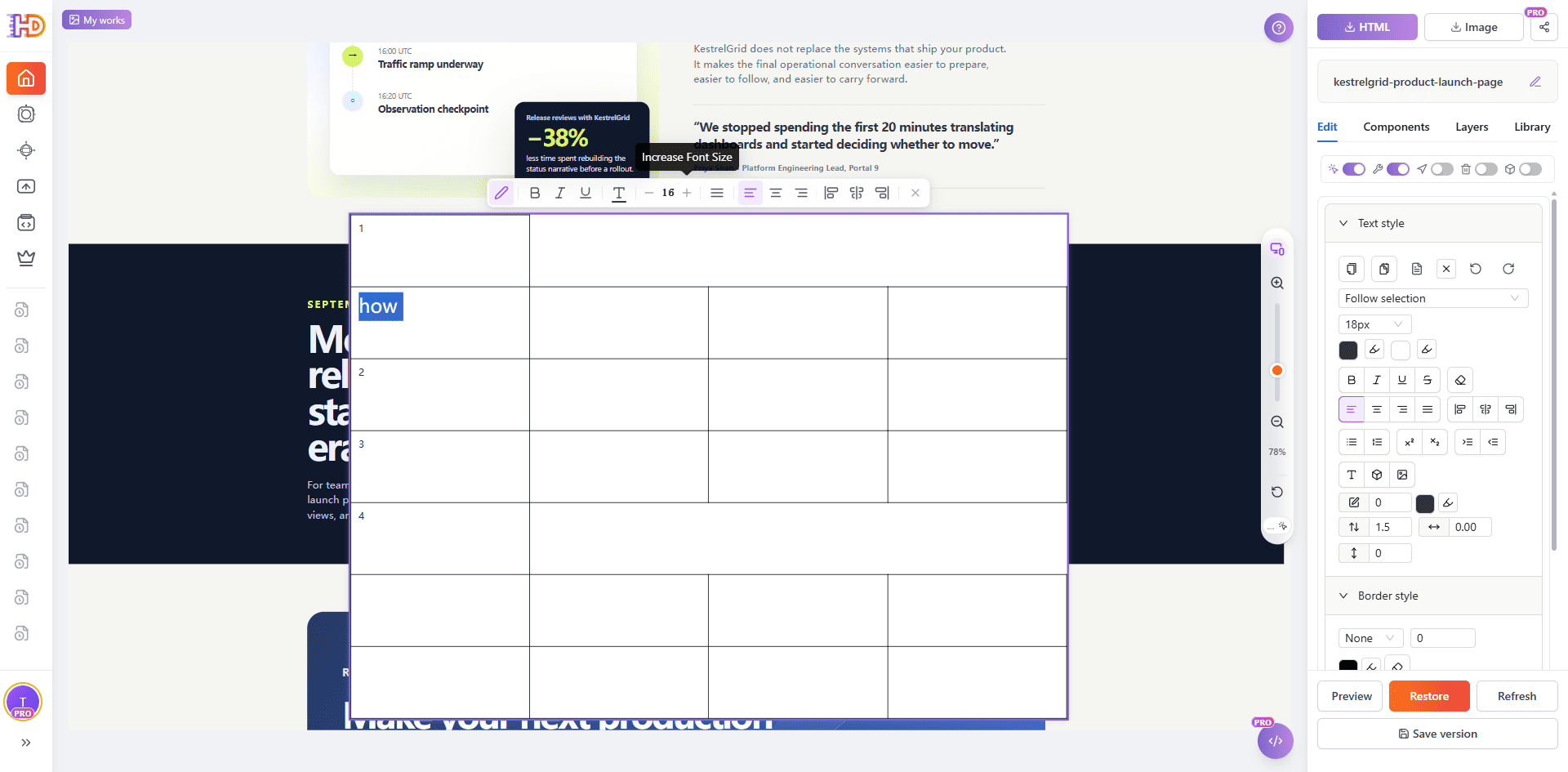 An inserted table remains editable on the page, so placeholder content can be replaced and its visual effect reviewed in context.
8. Use small inserted elements with a clear purpose
Components are not limited to tables. You can insert text, buttons, images, icons, shapes, and links when the page needs them. The editor confirms the icon insertion shown below. In a real campaign update, a small directional icon should support a nearby action or explanation—not become decoration that asks the visitor to work harder.
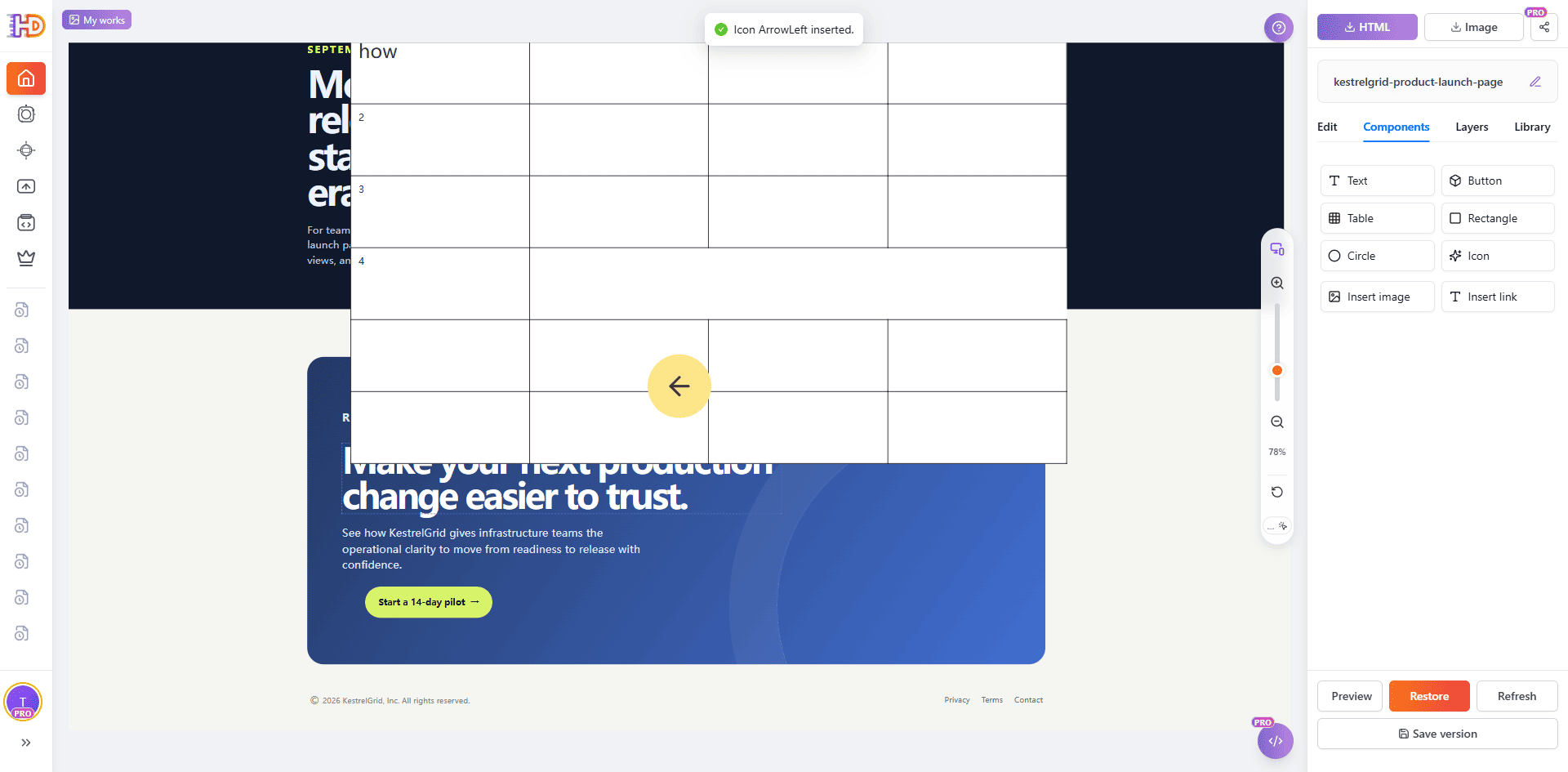 The editor confirms a newly inserted icon; its position and meaning should be reviewed before the page is exported.
9. Add imagery only when it helps the revised story
An offer change may also require a new image—for example, a current product view, customer context, or campaign visual. The image insertion dialog supports both an upload from the device and an online image source. Choose an asset you have the right to use, give it meaningful alt text in the exported page, and check its crop and contrast against the copy around it.
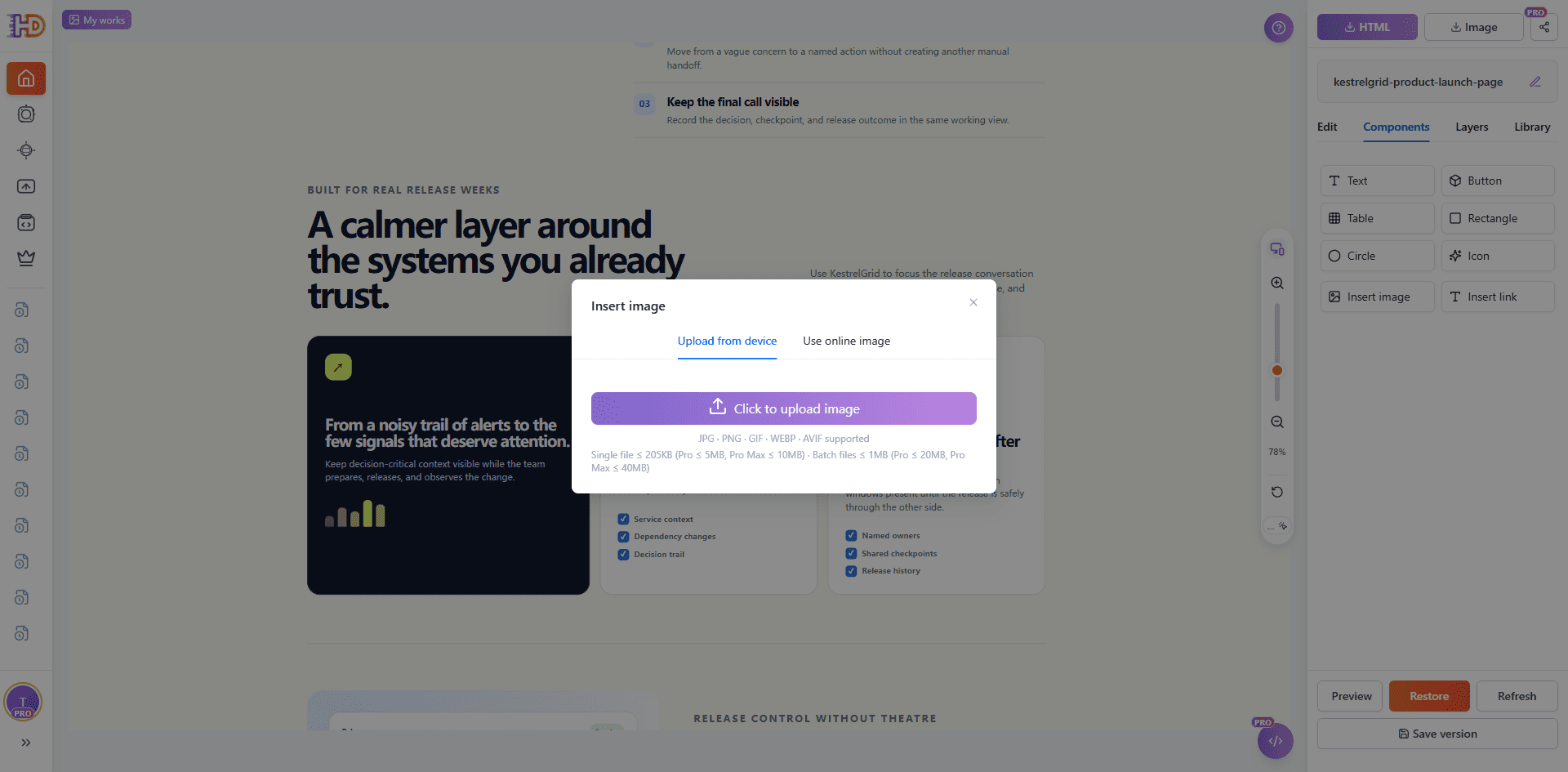 Image insertion starts with a choice of source; the finished page still needs a relevance, rights, and accessibility check.
Protect the parts that are already right
A campaign update can introduce accidental changes if every element remains equally easy to move. Lock approved brand or structural elements before working nearby, and unlock them only when there is a real reason to revise them. Remove obsolete offer cards or duplicate AI-generated filler rather than hiding it behind the new campaign message.
Links deserve the same review as visible copy. Use the link editor to update a CTA destination when the offer changes, then verify that the label, destination, and surrounding promise all agree. A CTA that still leads to a prior trial or an unrelated page is not a minor cosmetic defect; it breaks the campaign’s next action.
Preview the complete page, then export the version you reviewed
Do not finish in the middle of the canvas. Open a full preview and check the content as a visitor will encounter it: hero first, supporting sections next, and the final CTA last. Look for headline line breaks, visual competition, incomplete tables, empty placeholders, and any leftover message from the previous offer.
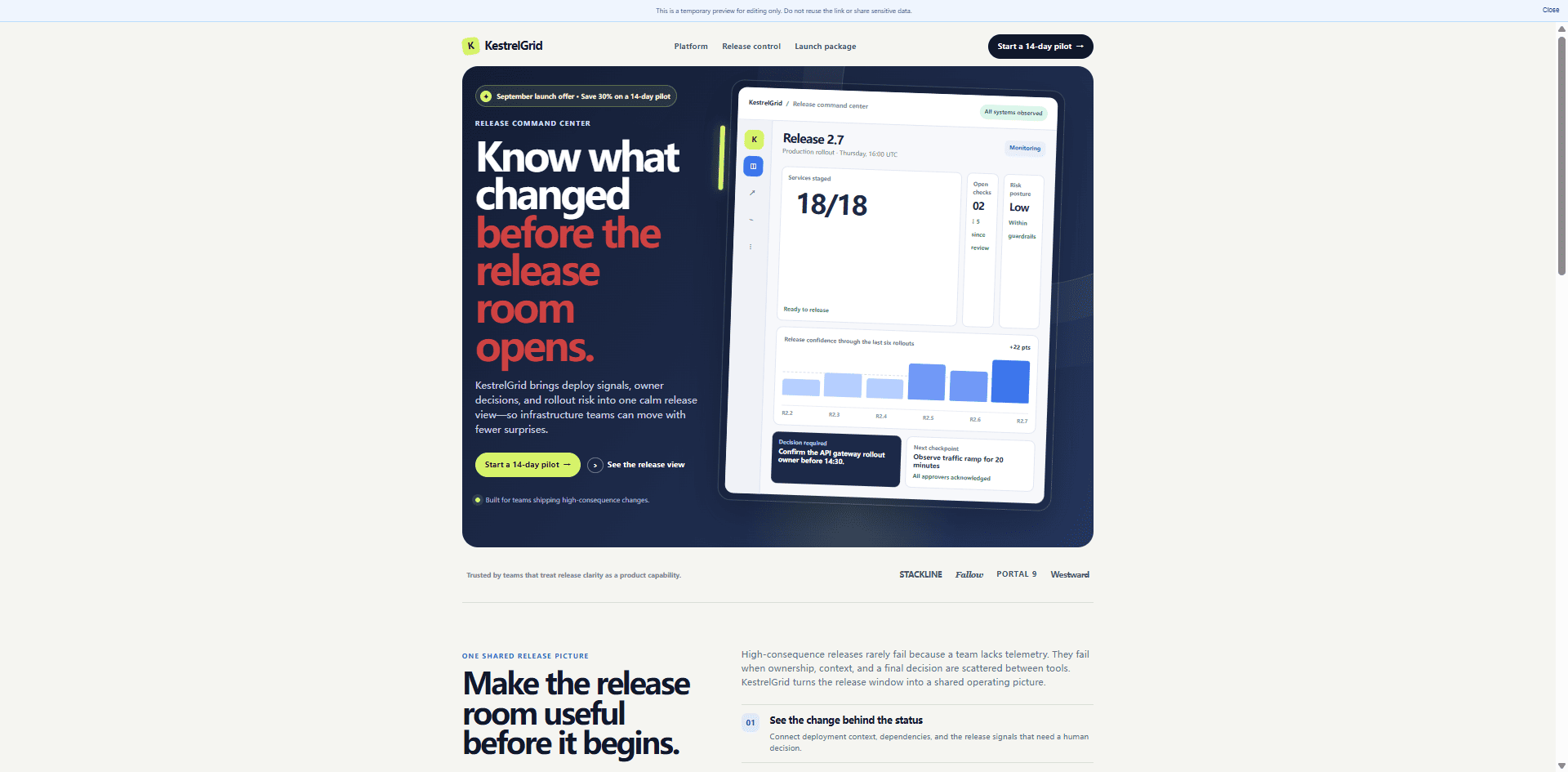 Full preview returns the working canvas to a reader’s page view for a final visual review.
When the page is ready, export the edited HTML. The export panel offers the edited HTML, a copy-to-clipboard option, and an AI snapshot export. Export is a handoff point, not a production deployment: keep your normal QA, code review, analytics, legal, and publishing checks for anything that depends on the live product.
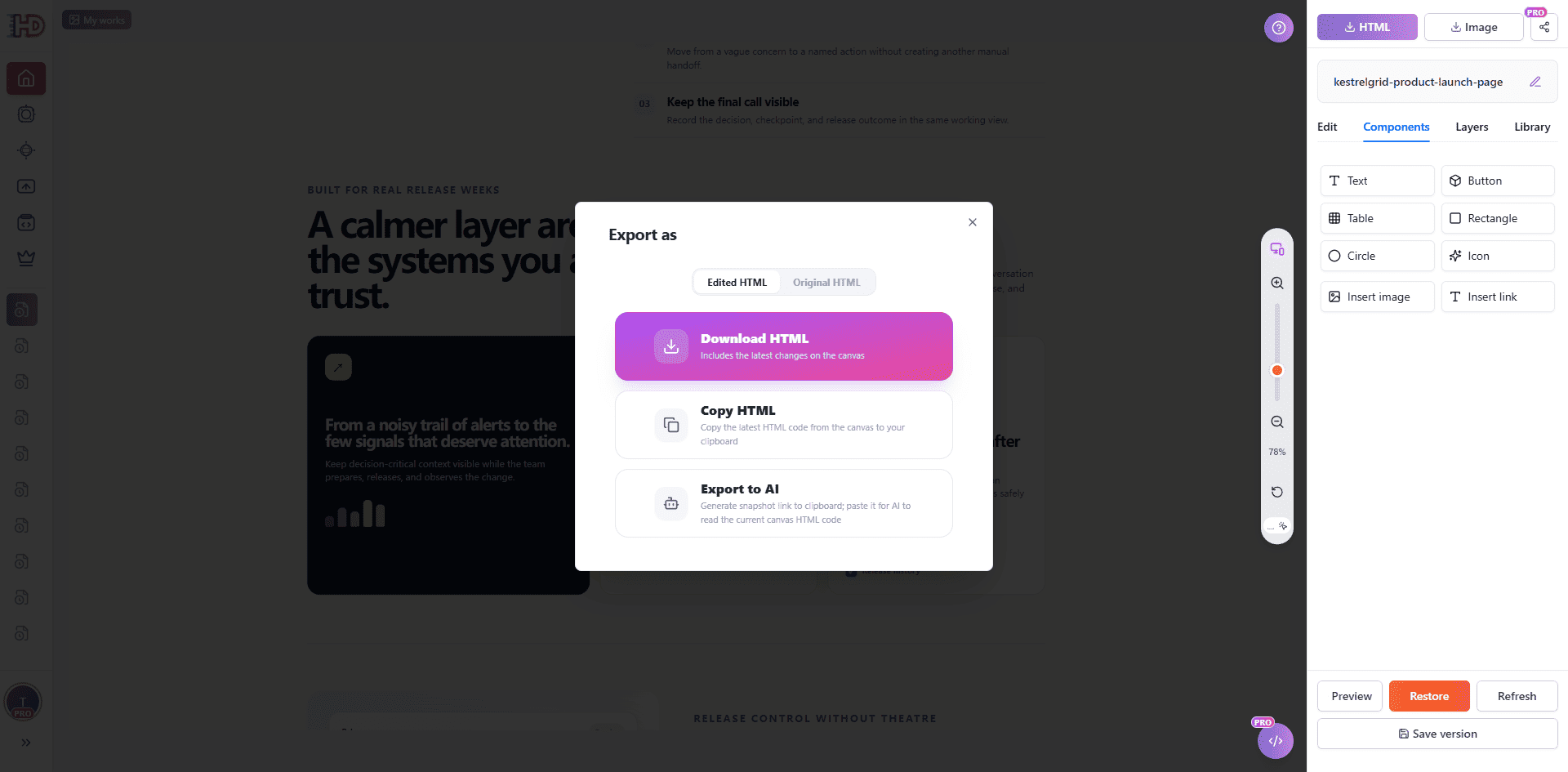 Export the HTML version that was reviewed in preview, then continue through the team’s normal publishing process.
Keep the useful first draft and update what the campaign actually needs
AI is valuable because it can remove the blank-page problem. It does not mean every new offer should send a working page back to zero. Keep the HTML that already gives the page its structure, make the approved visual and content changes where visitors can see them, protect what should remain stable, preview the whole result, and export the version you can stand behind.
Upload an HTML page to HtmlDrag when an existing or AI-generated landing page needs a focused visual update rather than another full rebuild.