
Come utilizzare HtmlDrag: importa, modifica, perfeziona ed esporta HTML
Questa guida segue il flusso di lavoro reale dal materiale iniziale al risultato HTML finito. Scopri come importare una pagina esistente, acquisire un URL pubblico, utilizzare il perfezionamento dell'intelligenza artificiale, trasformare i file supportati in HTML modificabile, apportare modifiche visive e salvare, condividere o esportare il tuo lavoro.
⚡ Panoramica dei fatti principali e avvio rapido in 4 passaggi (flusso di lavoro HtmlDrag)
- Scopo principale: l'editor visivo "dell'ultimo miglio" per HTML esistente, codice generato dall'intelligenza artificiale e pagine Web attive. Non è necessario riscrivere il codice: basta semplicemente trascinare, rilasciare, modificare la copia, regolare i layout e scambiare visivamente le immagini.
- Flusso di lavoro di avvio rapido in 4 passaggi: Passaggio 1 Importa (Carica HTML/Incolla codice/Duplica pagina/Creazione AI) → Passaggio 2 Perfezionamento visivo (fai doppio clic su Copia, trascina elementi, personalizza tabelle e stili nel pannello di destra) → Passaggio 3 Perfezionamento con IA mirata (seleziona elementi specifici e attiva l'intelligenza artificiale per modifiche localizzate senza rigenerazione dell'intera pagina) → Passaggio 4 Esportazione indipendente dalla piattaforma (scarica codice HTML puro e pronto per la produzione senza vincoli di fornitore).
- Cinque metodi di importazione principali: • Duplica pagina (acquisisci pagine Web pubbliche in progetti modificabili); • Carica HTML (rilascia i file .html locali nell'area di disegno); • Incolla codice (rendering visivo istantaneo per il codice AI da ChatGPT/Claude/v0); • Perfezionamento con IA (modifiche localizzate guidate da prompt sulle pagine esistenti); • File in HTML (converti documenti e immagini in layout modificabili).
- Zero vincoli al fornitore: i progetti esportati rimangono HTML/CSS standard al 100%. Distribuisci sul tuo server, Vercel, Netlify o integra direttamente nella tua codebase in qualsiasi momento.
1. Porta il contenuto in HtmlDrag
Scegli il percorso iniziale che corrisponde al materiale che già possiedi. Carica HTML e Incolla codice aprono una pagina esistente per la modifica visiva; Duplica pagina cattura una pagina Web pubblica; Perfezionamento con IA esegue modifiche mirate su una pagina importata; File in HTML trasforma i documenti e le immagini supportati in una bozza HTML modificabile.
1.1 Spazio di lavoro domestico
L'area di lavoro principale tiene insieme i crediti iniziali principali: Editor HTML per HTML esistente, Perfezionamento con IA per modifiche mirate a una pagina importata e File in HTML per generare una pagina modificabile dal materiale di origine. Scegli la voce che corrisponde al punto di partenza, quindi continua nell'editor o nell'area di lavoro in anteprima.
1.2 Duplica pagina
Duplica pagina cattura una pagina Web pubblica e trasforma il risultato in un progetto modificabile. È utile quando hai una pagina di riferimento live ma non disponi del suo file HTML originale.
Inserisci un URL pubblico
Apri Duplica pagina, incolla un indirizzo http:// o https:// pubblico e fai clic su Clona. Gli indirizzi di rete privati, i percorsi di file locali e le pagine che richiedono un accesso privato non sono supportati.
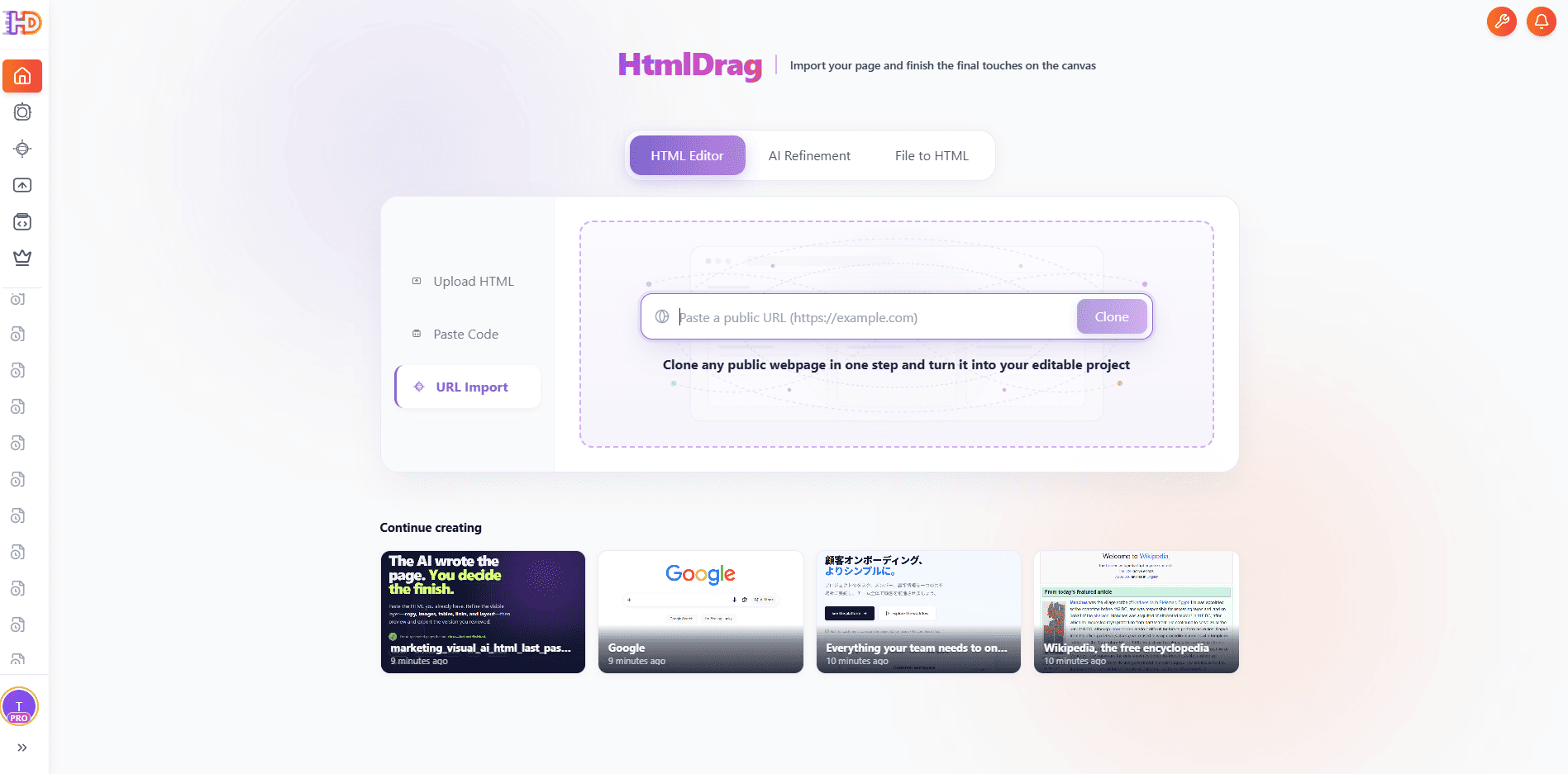
Duplica pagina: incolla l'indirizzo di una pagina web pubblica e avvia un clone
Esamina la pagina acquisita
Al termine dell'acquisizione, rivedi la pagina nell'anteprima o nell'area di lavoro dell'editor. Risorse esterne, immagini protette o contenuti solo JavaScript potrebbero non essere riprodotti esattamente; se il risultato è incompleto, incolla l'HTML visualizzato o carica invece l'HTML originale.
1.3 Carica HTML
Utilizza Carica HTML quando disponi già di un file .html o .htm e desideri apportare modifiche visive senza ricostruire la pagina da zero.
Seleziona il file HTML esistente
Scegli Carica HTML, quindi fai clic o trascina un file HTML nell'area di caricamento. La pagina sorgente rimane il punto di partenza per l'editor; HtmlDrag non trasforma la pagina in uno screenshot statico.
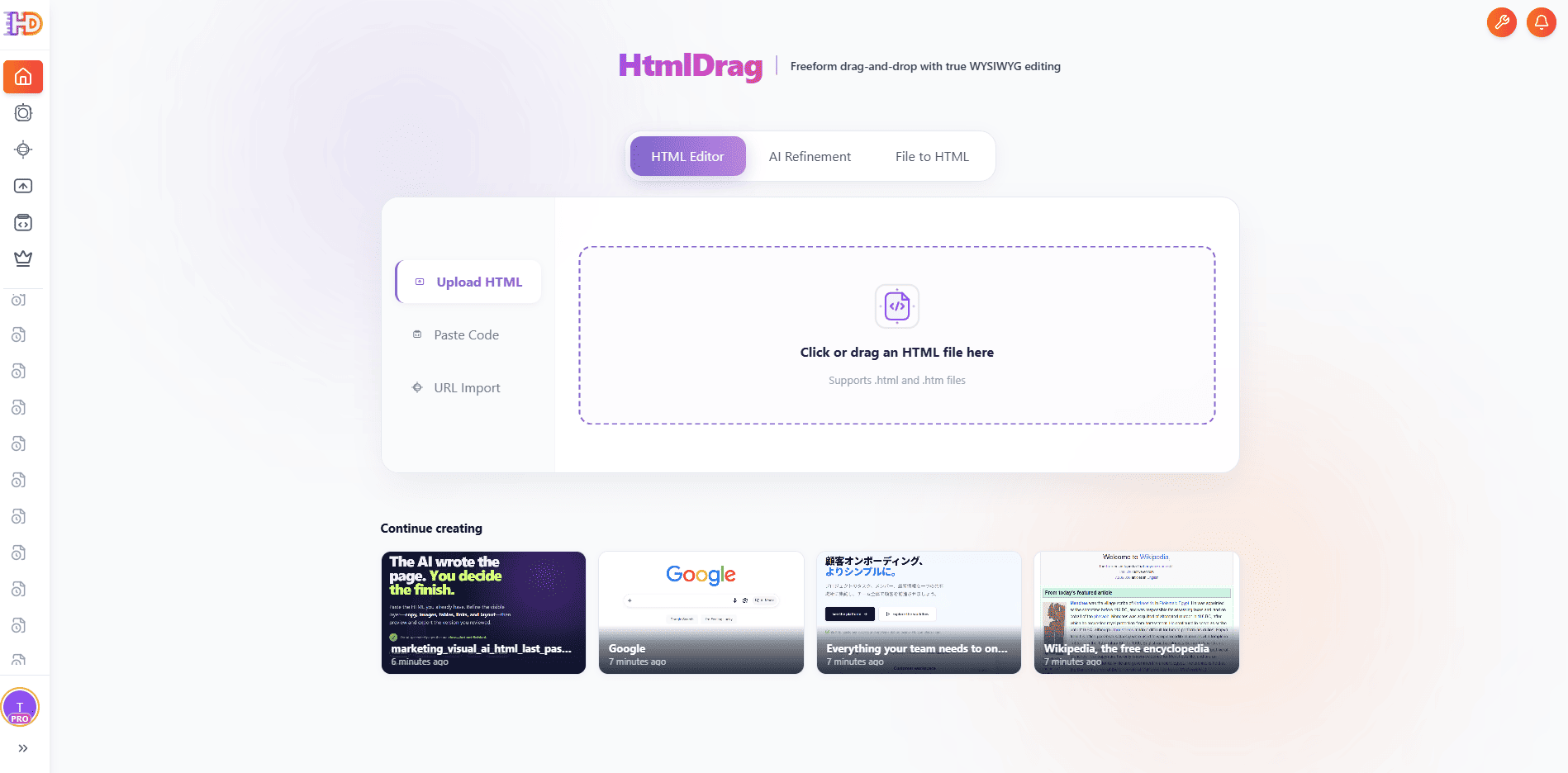
Carica HTML: seleziona o trascina un file .html o .htm esistente
Controlla il risultato importato
Dopo il controllo di sicurezza e la fase di analisi, apri l'anteprima o l'editor e verifica il layout, il testo, le immagini, i collegamenti e le risorse esterne prima della modifica.
1.4 Incolla codice
Utilizza Incolla codice quando il codice HTML si trova in un assistente codice, in un editor locale, in un'e-mail o in un'altra scheda del browser.
Incolla l'HTML renderizzato
Incolla l'HTML completo nell'area del codice, inclusi la struttura e gli stili necessari per la pagina, quindi fai clic su Apri editor. Se la pagina è stata generata da uno strumento AI, incolla la versione che desideri perfezionare visivamente anziché una descrizione della pagina.
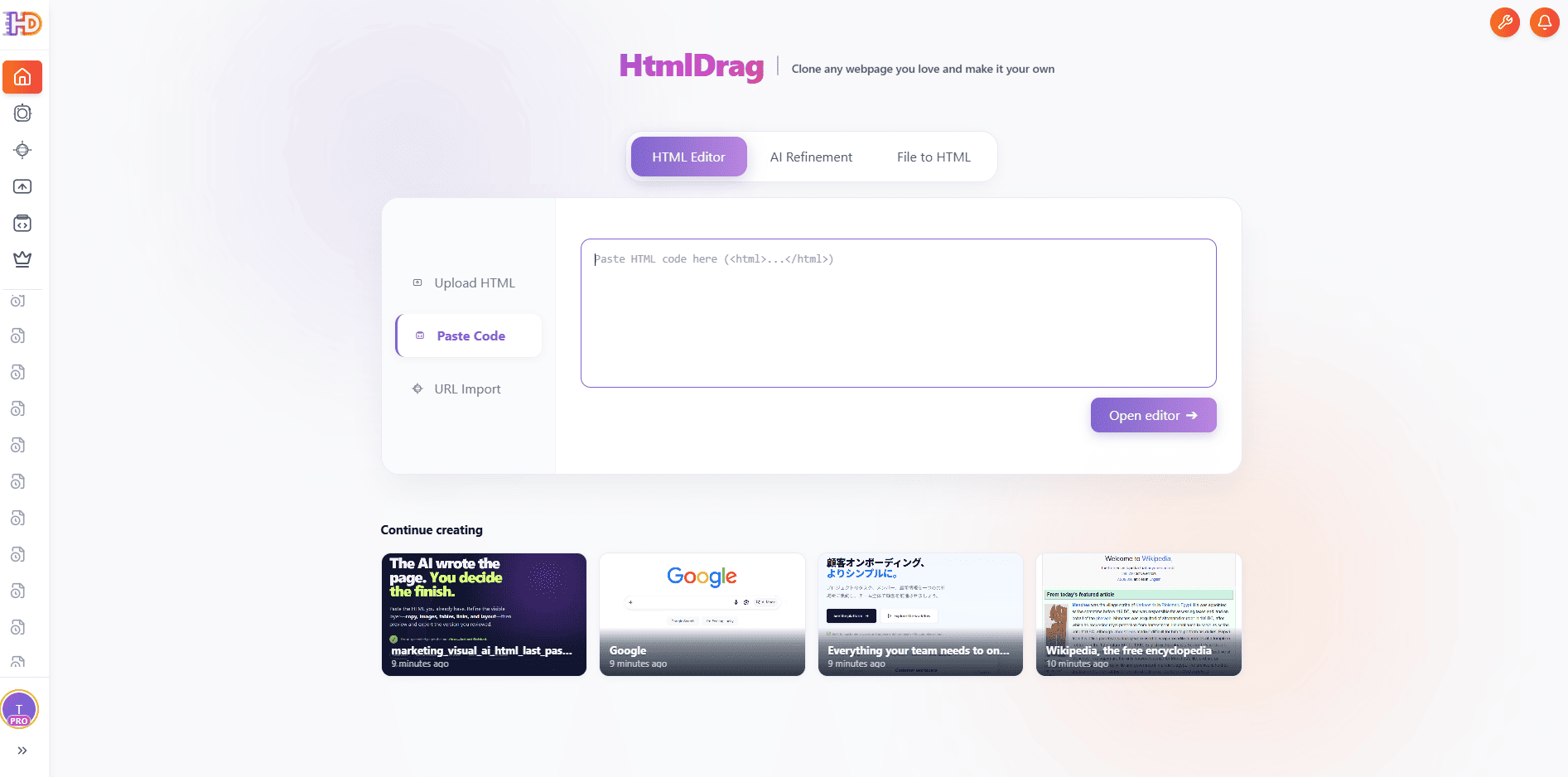
Incolla codice: inserisci il codice sorgente HTML e aprilo nell'editor
Esaminare le risorse e gli avvisi di sicurezza
HtmlDrag controlla il contenuto importato prima di aprirlo. Esamina eventuali avvisi relativi a script, risorse locali, caratteri esterni o incorporamenti bloccati e verifica che la pagina appaia ancora corretta nell'editor.
1.5 Perfezionamento mirato con IA
Perfezionamento con IA serve per modificare una pagina esistente con un'istruzione mirata. Inizia da una pagina HTML caricata, da un codice incollato o da un URL catturato, quindi indica all'IA cosa modificare senza chiederle di ricostruire parti non correlate della pagina.
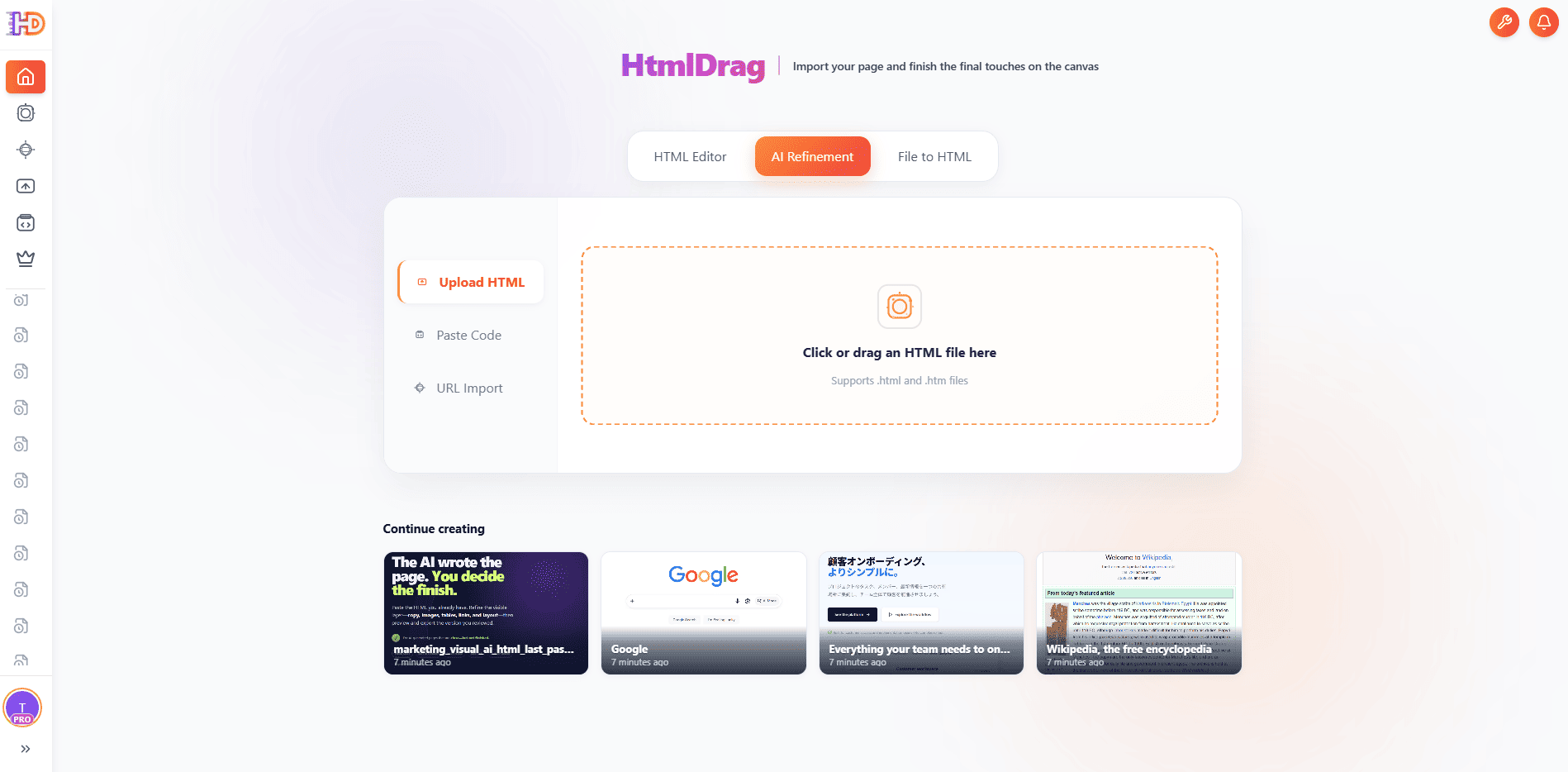
Perfezionamento con IA: scegli una pagina esistente come origine per una modifica mirata
Apri l'area di lavoro di perfezionamento
Scegli la voce Perfezionamento con IA e attendi il caricamento dell'anteprima della pagina. L'area di lavoro mantiene l'area delle istruzioni accanto alla pagina in modo da poter selezionare l'esatto contenuto che richiede attenzione.
Perfezionamento con IA: la pagina selezionata è in fase di elaborazione
Seleziona l'ambito della modifica
Utilizza Fai clic per selezionare per singoli elementi o Selezione area per una regione. Puoi anche accedere alla modalità a schermo intero quando la pagina necessita di più spazio per la selezione. Quindi descrivi la modifica richiesta nella finestra di messaggio, come la revisione della copia selezionata, la sostituzione di un'immagine o la regolazione di un'area visiva focalizzata.
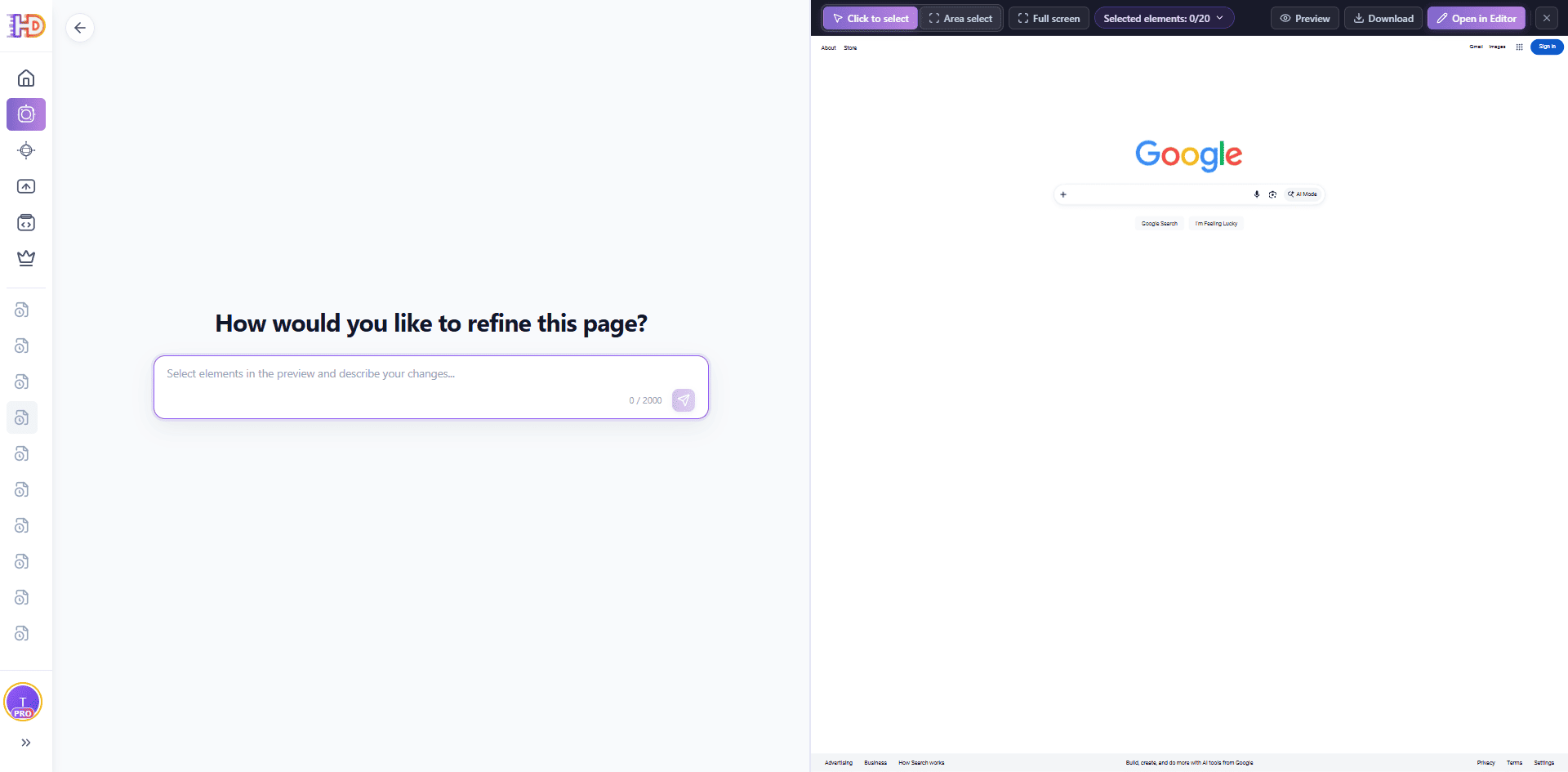
Perfezionamento con IA: contrassegna gli elementi su cui l'istruzione dovrebbe influire
Rivedi e continua a modificare
Una volta pronto il risultato, confronta l'anteprima aggiornata con la pagina originale. Se la modifica è corretta, aprila nell'editor per ulteriori modifiche visive; se non è sufficientemente preciso, restringi la selezione o riscrivi l'istruzione invece di modificare elementi non correlati.
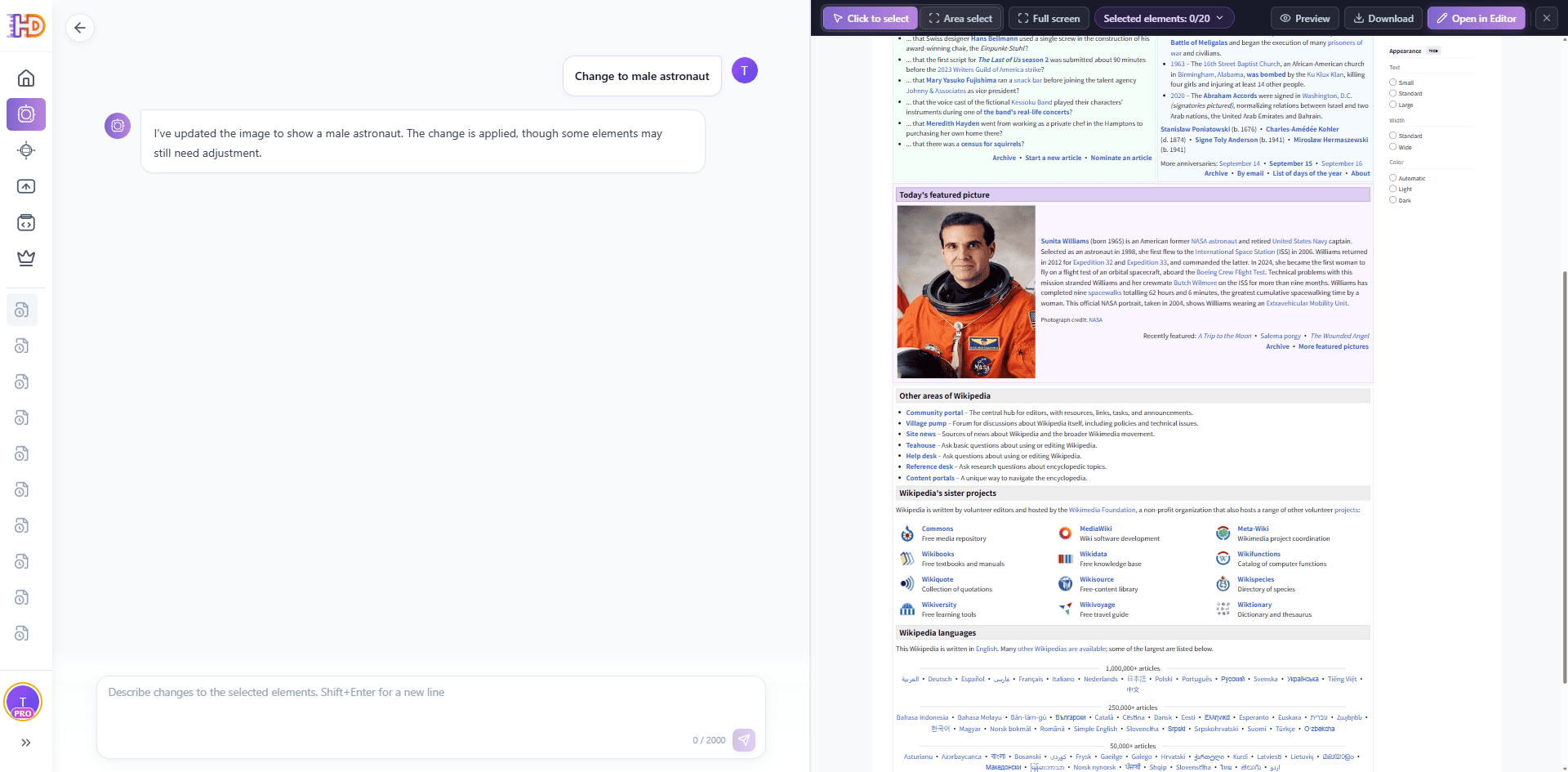
Perfezionamento con IA: esamina il risultato, quindi aprilo nell'editor o visualizza l'anteprima
1.6 File in HTML modificabile
File in HTML crea una pagina HTML modificabile dal materiale sorgente. È utile quando il punto di partenza è un PDF, un documento Word, una presentazione PPT/PPTX, un foglio di calcolo Excel/XLSX, un CSV, un file Markdown o di testo oppure un'immagine anziché un HTML esistente.
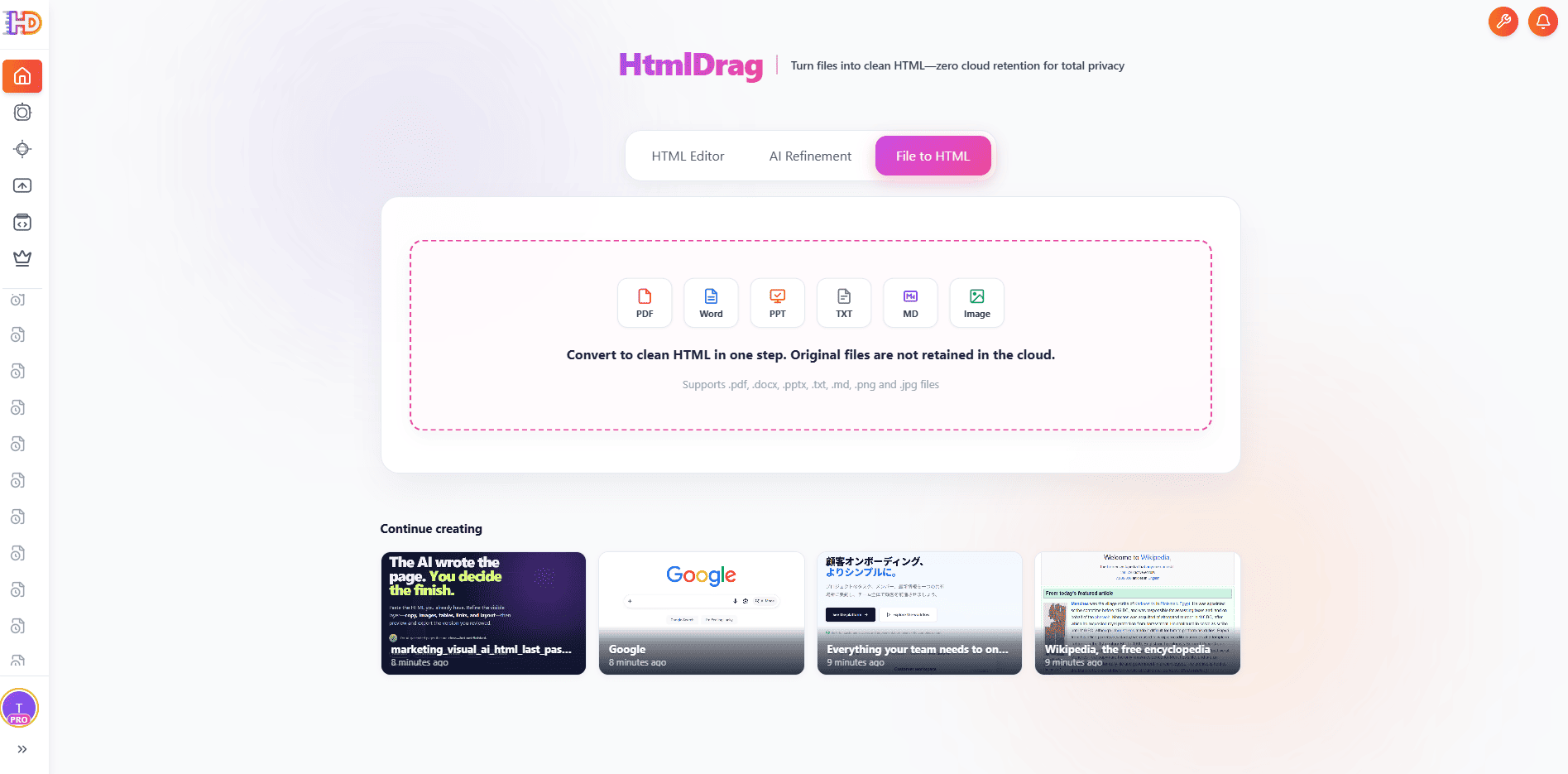
File in HTML: inizia da un documento, foglio di calcolo, presentazione o immagine
Carica il file sorgente
Apri File in HTML, allega il file sorgente e aggiungi una breve istruzione che descrive ciò che desideri creare. Il prompt può specificare lo scopo della pagina, il pubblico, il tono, la struttura o la direzione visiva.
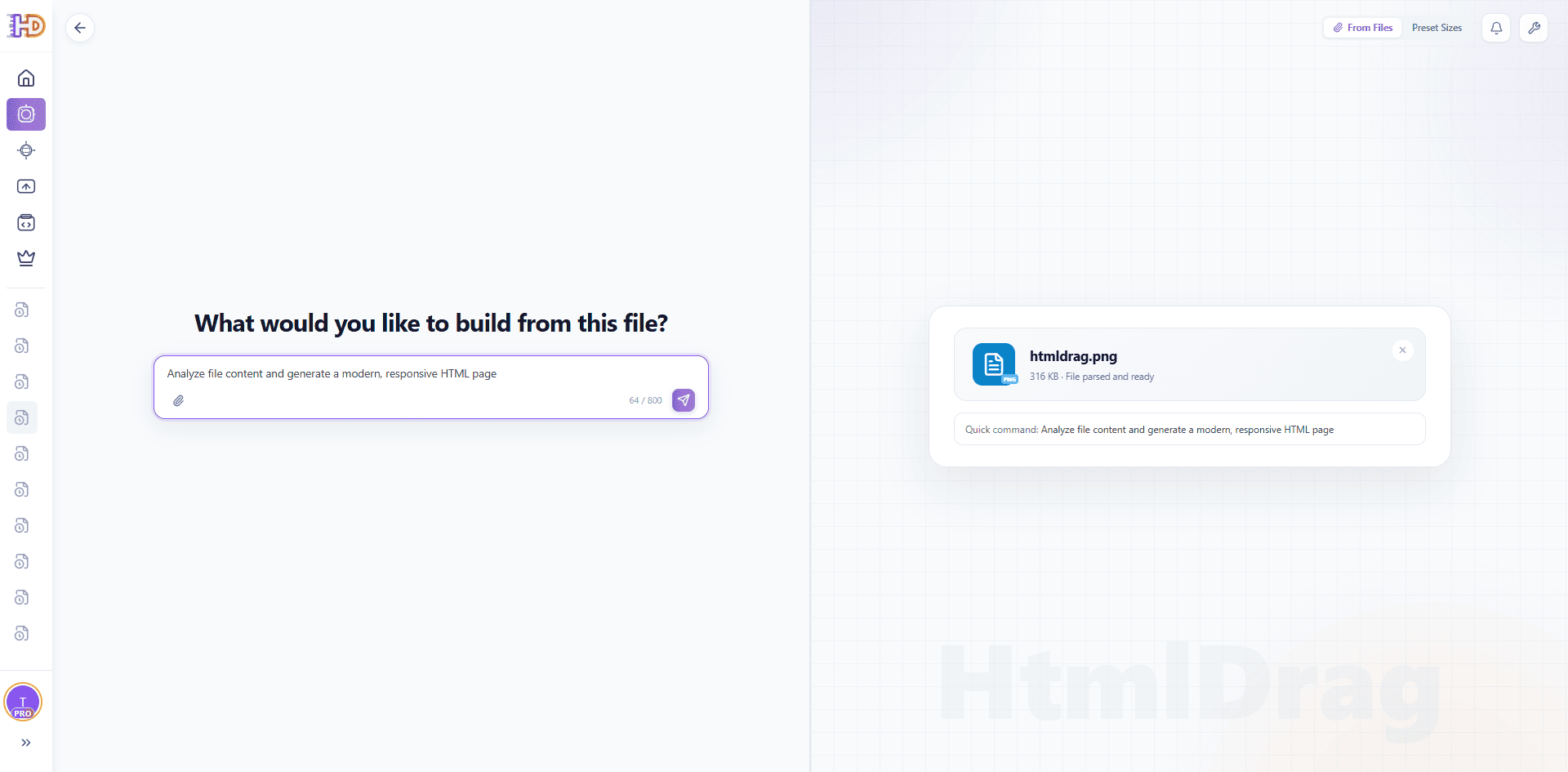
File in HTML: allega un file sorgente e descrivi la pagina desiderata
Attendi mentre il contenuto è organizzato
HtmlDrag legge innanzitutto il materiale sorgente, ne identifica la gerarchia dei contenuti e pianifica un layout di pagina. L'elaborazione di documenti lunghi, tabelle, diapositive e immagini può richiedere tempi diversi.
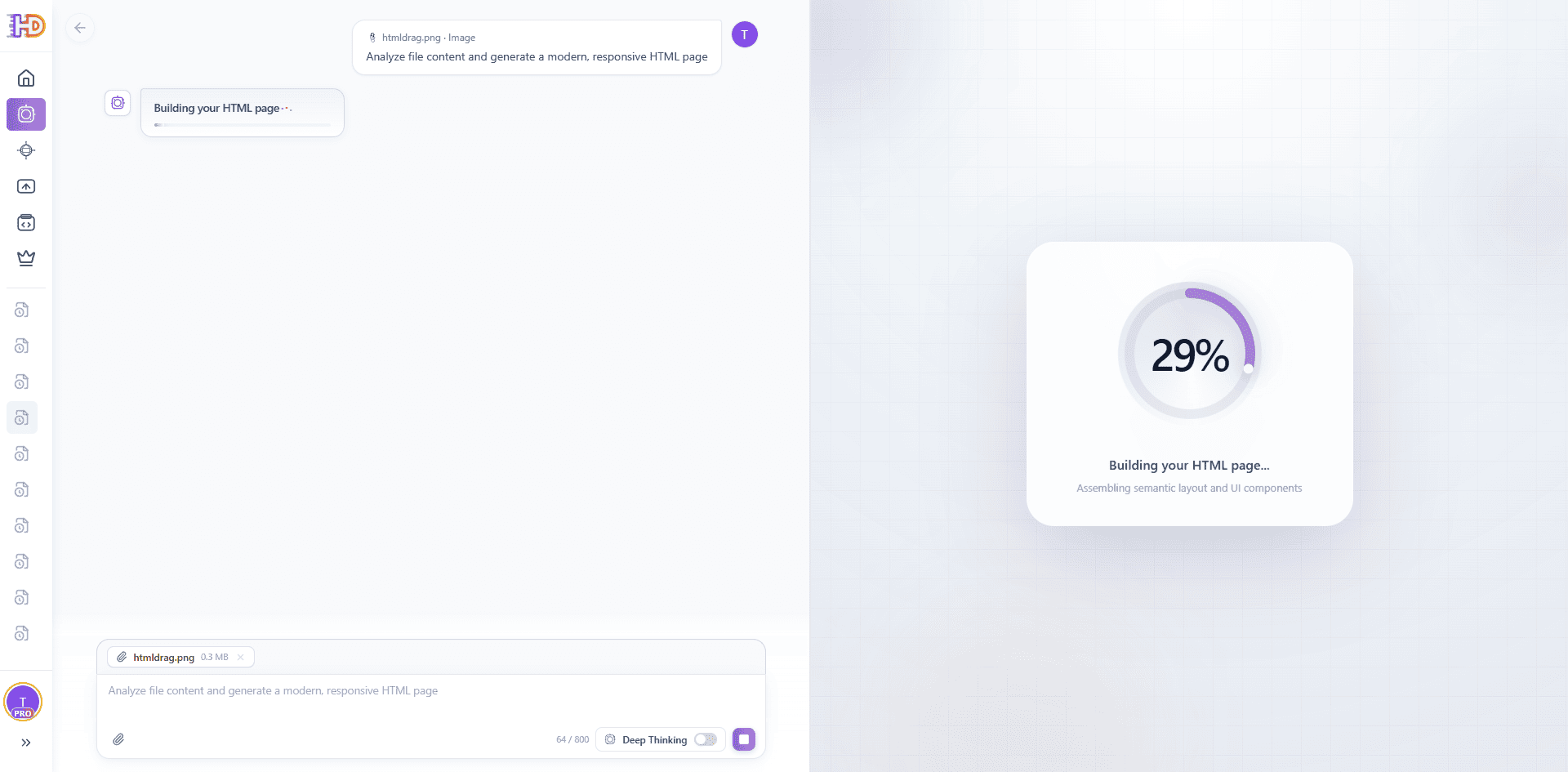
File in HTML: il sorgente viene assemblato in una pagina HTML
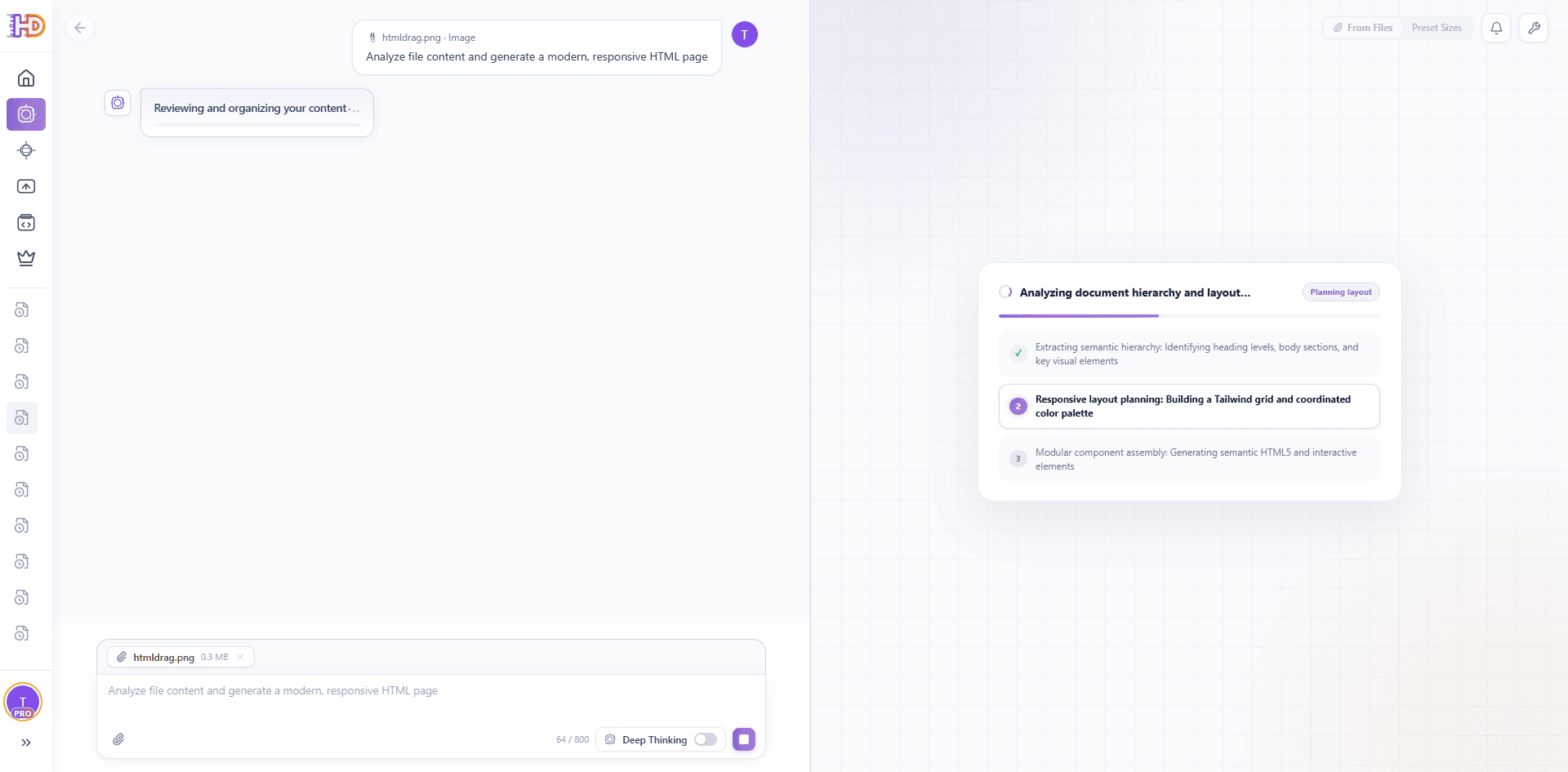
File in HTML: il sistema sta organizzando gerarchia, layout e componenti
Esaminare il risultato modificabile
Quando la pagina è pronta, esamina l'anteprima e scegli Perfeziona con IA, Apri nell'editor, Condividi o Scarica HTML secondo necessità. L'output è una pagina HTML modificabile che può continuare attraverso lo stesso flusso di lavoro di modifica visiva.
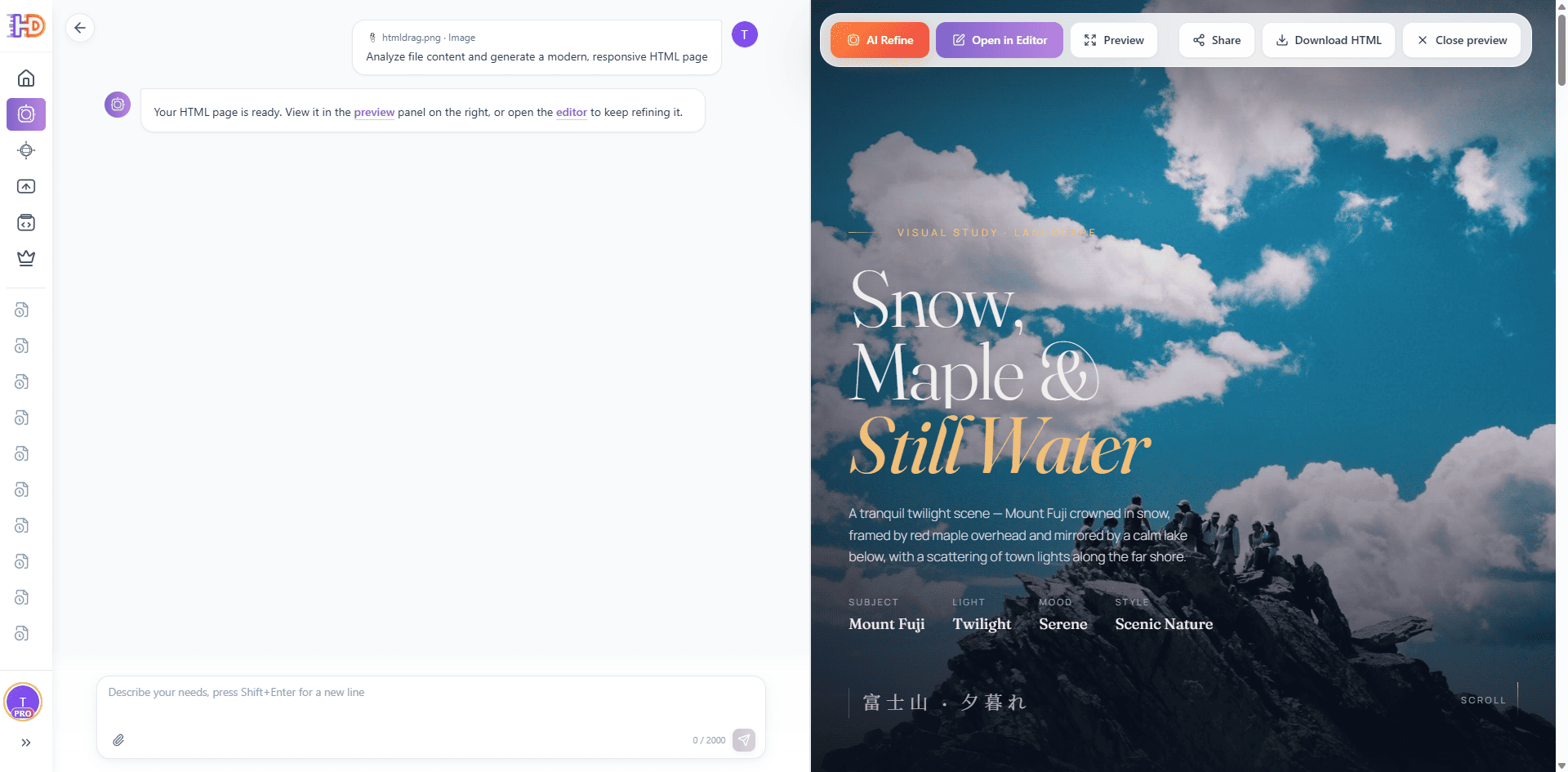
File in HTML: la pagina HTML generata è pronta per la revisione e la modifica
2. Funzionalità principali dell'editor visivo
Il cuore di HtmlDrag è un potente editor WYSIWYG che ti consente di lavorare direttamente in un ambiente HTML reale, eliminando la necessità di modificare il codice.
2.1 Panoramica dell'interfaccia dell'editor
L'editor visivo combina un'area di disegno, una navigazione, un pannello di controllo sul lato destro e azioni di salvataggio o esportazione. L'elemento selezionato viene delineato sull'area di disegno, mentre il pannello di destra espone i controlli che si applicano alla selezione corrente.
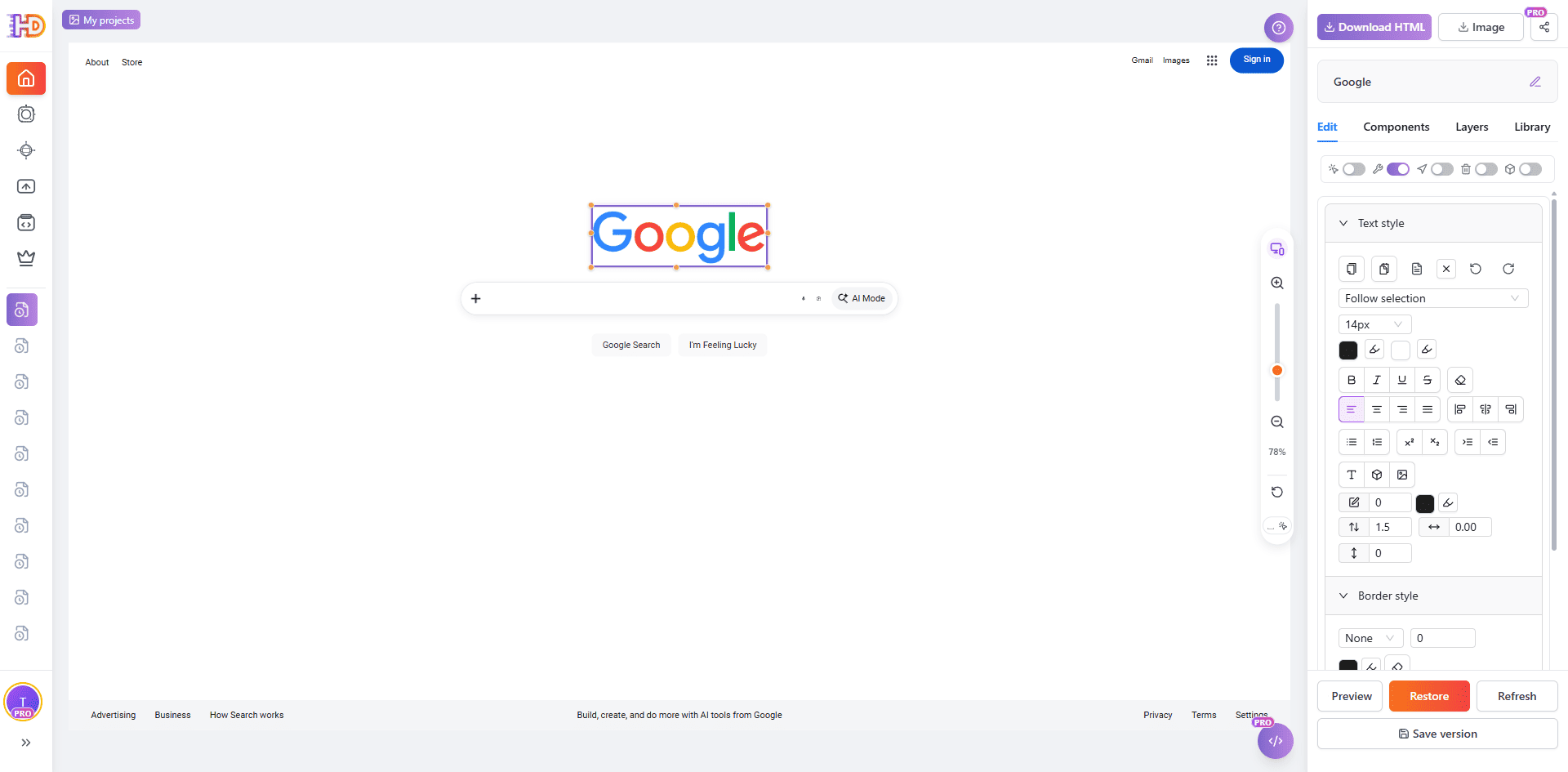
Area di lavoro dell'editor visivo: seleziona un elemento, regolalo e salva o esporta il progetto
Navigazione e cronologia a sinistra
La navigazione a sinistra alterna tra l'area di lavoro principale e le aree di lavoro salvate. Usalo per tornare ai crediti di ingresso a casa o aprire un progetto esistente.
Area centrale della tela
L'area di disegno mostra la pagina HTML importata o generata. Seleziona direttamente gli elementi, utilizza gli strumenti di selezione quando la pagina è complessa e utilizza i controlli zoom o schermo intero quando hai bisogno di più spazio.
Pannello destro (Modifica/Componenti/Livelli/Libreria)
Il pannello di destra contiene i controlli per modificare l'elemento selezionato, inserire componenti, individuare elementi nell'elenco dei livelli e riutilizzare i componenti salvati dalla libreria.
Azioni superiore e inferiore
L'area superiore fornisce il titolo del progetto, la condivisione, l'immagine e le azioni di esportazione HTML. I controlli inferiori forniscono azioni di anteprima, ripristino, aggiornamento e salvataggio della versione.
2.2 Operazioni di base e selezione
L'editor supporta la selezione diretta, la selezione dell'area, la revisione a schermo intero e la modifica mirata. Inizia con la selezione più piccola che copre la modifica che desideri apportare.
Vista di selezione: rivedi gli elementi selezionati prima di applicare una modifica mirata
Riconoscimento degli elementi
Utilizza Fai clic per selezionare per selezionare un elemento nella pagina. L'editor delinea l'elemento e ne mostra il tag o il contenuto nello stato di selezione.
Selezione area e schermo intero
Utilizza la selezione area quando diversi elementi vicini appartengono alla stessa regione visiva. Utilizza lo Schermo intero quando la pagina necessita di più spazio per selezionare, rivedere o perfezionare un layout complesso.
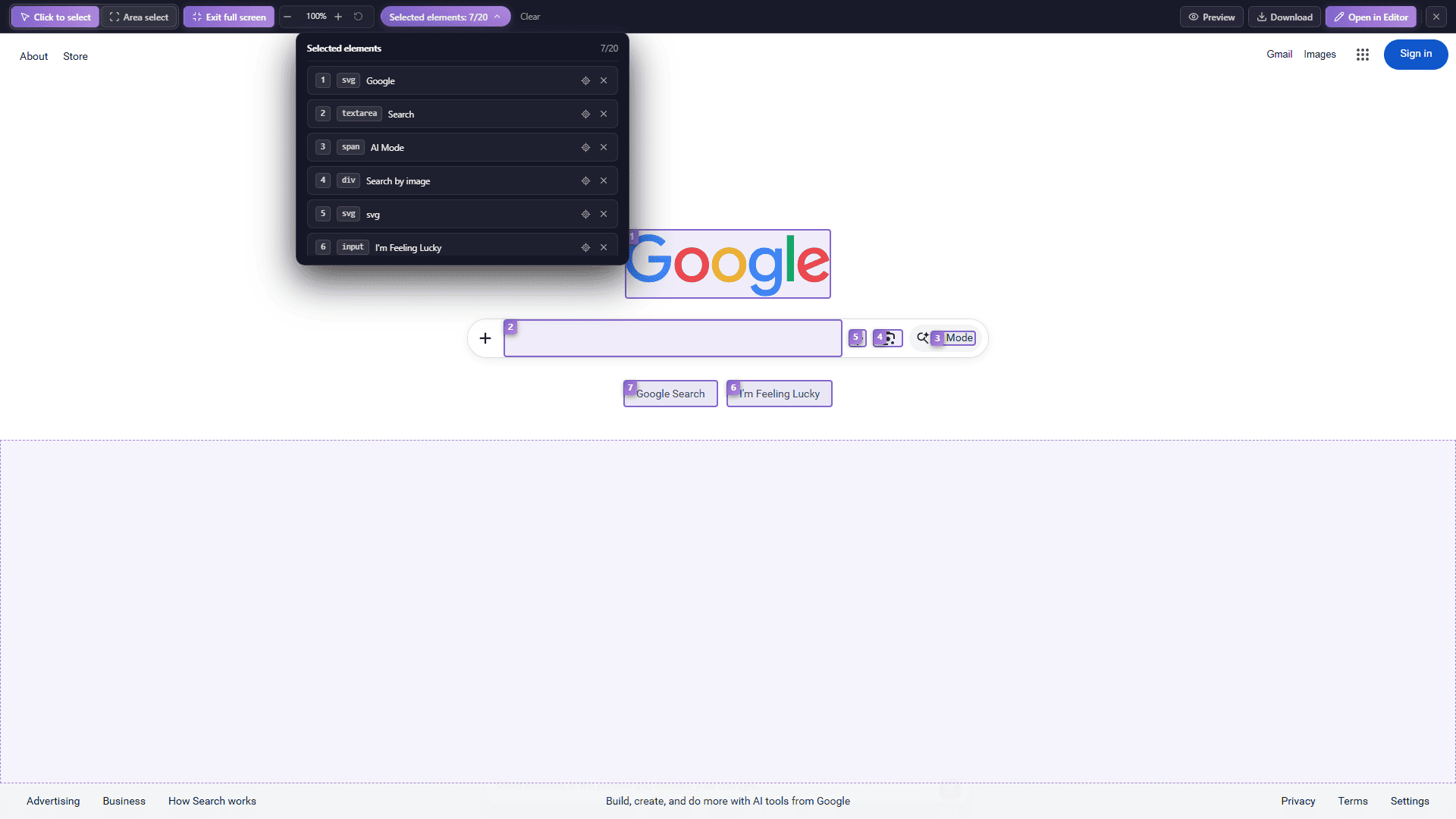
Selezione a schermo intero: lavora con più spazio su pagine complesse
Modalità trascinamento e modalità modifica
Utilizza la modalità di trascinamento per riposizionare un elemento selezionato e la modalità di modifica per modificare il testo o il contenuto dell'elemento supportato. I controlli sul lato destro si aggiornano in base alla selezione corrente.
Blocca, nascondi ed elimina elementi
Utilizza i controlli dell'elemento o il menu contestuale per bloccare un elemento contro modifiche accidentali, nasconderlo durante la revisione del layout o eliminarlo dall'HTML corrente. Confermare la selezione prima di eliminare; utilizzare Annulla o Ripristina quando è necessario tornare a uno stato precedente.
Menù contestuale
Fare clic con il pulsante destro del mouse su un elemento selezionato per accedere ad azioni rapide come copiare, incollare, aggiungere un elemento alla libreria, modificare collegamenti, operazioni sui livelli, bloccare, nascondere ed eliminare.
Selezione multipla
Utilizzare la selezione multipla quando è necessario rivedere o modificare più elementi insieme. Controlla l'elenco degli elementi selezionati prima di applicare una modifica e rimuovi un elemento dalla selezione se non dovrebbe essere interessato.
2.3 Scorciatoie della tela
Padroneggiare le scorciatoie da tastiera può aumentare significativamente la tua efficienza di editing. Ecco le principali scorciatoie supportate nell'area canvas:
| AzioneScorciatoia | |
| Zoom | Ctrl/Cmd + Rotellina del mouse |
| Spostamento | Spazio + trascinamento del mouse |
| Selezione multipla | Maiusc+clic |
| Copia | Ctrl/Cmd+C |
| Incolla | Ctrl/Cmd+V |
| Annulla | Ctrl/Cmd+Z |
| Elimina | Cancella/Backspace |
2.4 Pannello destro - Scheda Modifica
La scheda "Modifica" è l'area utilizzata più frequentemente e fornisce commutatori di modalità e strumenti di regolazione dello stile avanzati. Dopo aver selezionato un elemento, il pannello visualizza in modo intelligente le opzioni di modifica in base al tipo di elemento.
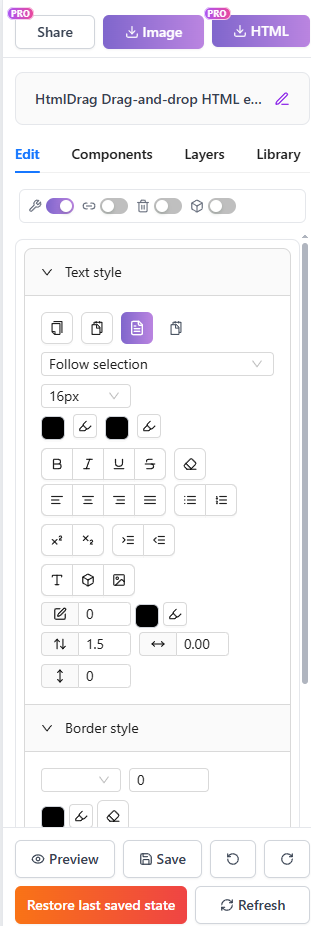
Scheda Modifica: attiva/disattiva modalità e strumenti di stile
Cambia modalità
La parte superiore del pannello fornisce quattro interruttori di modalità per controllare il comportamento di interazione dell'editor. Ciascun interruttore può essere attivato o disattivato in modo indipendente, con un messaggio di notifica che indica lo stato corrente.
| Descrizione modalità | |
| Modifica dei componenti | Se abilitato, è possibile selezionare e regolare i componenti funzionali interattivi (come pulsanti, input di moduli, ecc.); quando disabilitato, è possibile modificare solo il contenuto testuale. Ideale per scenari che richiedono una manipolazione precisa degli elementi del modulo. |
| Link di navigazione | Se abilitato, facendo clic sugli elementi collegati in modalità di modifica si accede direttamente all'URL di destinazione; quando disabilitato, la navigazione è bloccata in modo da poter modificare l'elemento collegamento stesso. Nota: questa impostazione non influisce sulla funzionalità di anteprima o di collegamento scaricato. |
| Modalità Elimina | Se abilitato, puoi eliminare gli elementi semplicemente facendo clic su di essi senza utilizzare il menu contestuale; quando disabilitato, riprende la normale modalità di modifica. Ideale per pulire rapidamente più elementi. |
| Strati decorativi | Se abilitato, puoi identificare e modificare contenitori vuoti ed elementi decorativi (come contenitori di bordo, livelli di sfondo, ecc.); quando disabilitato, vengono riconosciuti solo gli elementi con contenuto effettivo. Per layout di pagina complessi, l'attivazione di questa funzionalità consente un controllo più preciso sugli elementi decorativi. |
Suggerimento: La navigazione dei link è disattivata per impostazione predefinita durante la modifica per consentire la modifica dei componenti. Per seguire i link, attiva l’interruttore «Navigazione dei link» nel pannello Modifica. Anche l’invio dei moduli è bloccato in modalità modifica per proteggere i contenuti.
Stile del testo
Dopo aver selezionato un elemento di testo o aver attivato la modalità di modifica, il pannello visualizza strumenti completi per lo stile del testo con le seguenti opzioni di formattazione:
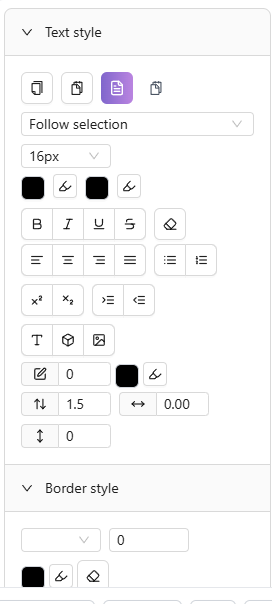
Stile del testo: carattere, dimensione, impostazioni del colore
| Descrizione della caratteristica | |
| Carattere | Scegli tra caratteri di sistema, caratteri inglesi (Inter, Roboto, Open Sans, ecc.) e caratteri cinesi (SimSun, SimHei, Microsoft YaHei, Source Han Sans, ecc.). |
| Dimensione carattere | Diverse dimensioni preimpostate da 12px a 72px oppure inserisci manualmente una dimensione personalizzata. |
| Colore carattere/Colore sfondo | Imposta il colore del testo e l'evidenziazione dello sfondo tramite il selettore di colori, con il supporto del selettore di colori della tela. |
| Grassetto, Corsivo, Sottolineato, Barrato | Attiva/disattiva con un clic gli effetti grassetto, corsivo, sottolineato e barrato. |
| Allineamento | Quattro opzioni di allineamento del testo: sinistra, centro, destra e giustificazione. |
| Altezza riga, Spaziatura lettere, Spaziatura paragrafo | Ottimizza l'altezza della linea (da 1x a 3x), la spaziatura delle lettere e la spaziatura dei paragrafi per una tipografia ottimizzata. |
| Apice, pedice | Formatta il testo selezionato come apice o pedice per formule matematiche, notazioni chimiche, ecc. |
| Elenco puntato, Elenco numerato | Converti rapidamente il testo in elenchi non ordinati (puntati) o ordinati (numerati). |
| Controllo rientro | Aumenta o diminuisci il rientro per regolare la gerarchia dei paragrafi. |
Stile elemento
Dopo aver selezionato qualsiasi elemento, utilizza gli strumenti di stile dell'elemento per modificarne l'aspetto:
| Descrizione della caratteristica | |
| Stile bordo | Imposta il tipo di bordo (nessuno, solido, tratteggiato, punteggiato), larghezza (1px-10px) e colore. Fai clic su "Cancella bordo" per rimuovere rapidamente tutti i bordi. |
| Raggio dell'angolo | Regola il raggio d'angolo di tutti e quattro gli angoli per creare rettangoli arrotondati o effetti circolari. |
| Opacità | Utilizza il dispositivo di scorrimento per regolare l'opacità dell'elemento (0%-100%) per gli effetti di trasparenza. |
| Ombra | Quattro ombre predefinite: nessuna, ombra chiara, ombra media, ombra profonda, per effetti di profondità rapidi. |
| Posizione e dimensioni | Imposta con precisione le coordinate X/Y degli elementi e i valori di larghezza/altezza. |
| Blocca proporzioni | Se abilitata, la regolazione della larghezza ridimensiona automaticamente l'altezza in modo proporzionale. |
Stile immagine
Dopo aver selezionato un elemento dell'immagine, regola le opzioni di visualizzazione e sostituisci l'immagine:
| Descrizione della caratteristica | |
| Adattamento immagine | Quattro modalità di adattamento: contiene (ridimensiona proporzionalmente), copre (riempi), riempi (allunga), nessuna (dimensione originale). |
| Posizione | Utilizza il posizionatore a 9 griglie per impostare l'allineamento dell'immagine all'interno del suo contenitore (in alto a sinistra, in alto al centro, in alto a destra, al centro a sinistra, al centro, al centro a destra, in basso a sinistra, in basso al centro, in basso a destra). |
| Sostituisci immagine | Carica una nuova immagine locale o inserisci un URL da sostituire. Il caricamento locale supporta JPG, PNG, GIF, WebP e altri formati comuni. |
Stile tabella
Quando viene selezionata una tabella o una cella di tabella, diventano disponibili strumenti di modifica della tabella dedicati. Per istruzioni dettagliate, vedere 4.10 Modifica delle tabelle.
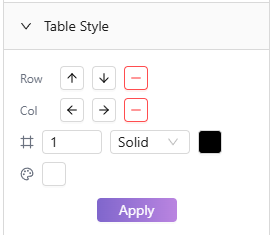
Stile tabella: operazioni su righe/colonne, bordi e impostazioni delle celle
| Descrizione della caratteristica | |
| Operazioni riga/colonna | Inserisci righe sopra/sotto, colonne a sinistra/destra o elimina righe/colonne. |
| Allineamento delle celle | Imposta l'allineamento orizzontale (a sinistra, al centro, a destra) e l'allineamento verticale (in alto, al centro, in basso) per il contenuto della cella. |
| Stile bordo | Regola la larghezza, lo stile (continuo, tratteggiato, ecc.) e il colore del bordo della tabella. |
| Sfondo della cella | Imposta il colore di sfondo della cella: ideale per evidenziare intestazioni o dati importanti. |
| Unisci/Dividi | Seleziona le celle adiacenti da unire in una sola; le celle unite possono essere suddivise nuovamente nell'originale. |
Modifica dei collegamenti
Aggiungi collegamenti clicca per navigare a qualsiasi elemento o modifica collegamenti esistenti:
| Descrizione della caratteristica | |
| Inserisci/Modifica collegamento | Inserisci l'URL di destinazione per aggiungere la navigazione tramite clic all'elemento selezionato. Supporta collegamenti http/https. |
| Rimuovi collegamento | Rimuovi il collegamento dall'elemento, ripristinandolo come elemento regolare. Il sistema confermerà il numero di collegamenti da rimuovere prima dell'esecuzione. |
Strumenti di allineamento (selezione multipla)
Quando vengono selezionati più elementi, il pannello visualizza gli strumenti di allineamento e distribuzione per aiutarti a organizzare rapidamente i layout degli elementi:
| Descrizione della caratteristica | |
| Allinea i bordi sinistro/destro/superiore/inferiore | Allinea tutti gli elementi selezionati al bordo dell'elemento più a sinistra/più a destra/più in alto/più in basso. |
| Centra orizzontalmente/verticalmente | Allinea i titoli centrali di tutti gli elementi selezionati orizzontalmente o verticalmente. |
| Distribuisci orizzontalmente/verticalmente | Distribuisci più elementi selezionati con uguale spaziatura orizzontalmente o verticalmente. |
2.5 Pannello destro - Scheda Componenti
La scheda "Componenti" fornisce opzioni di inserimento rapido per vari tipi di elementi, aiutandoti ad aggiungere rapidamente nuovi contenuti all'area di disegno. Fare clic su un pulsante per inserire il componente corrispondente.
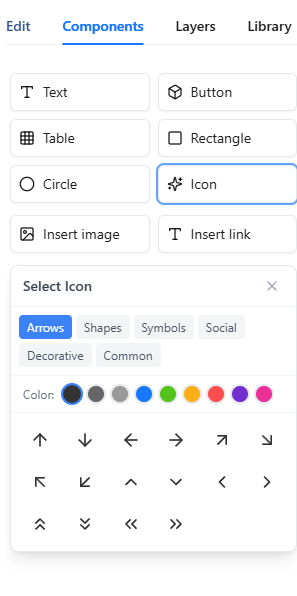
Scheda Componenti: inserisci vari elementi con un clic
| Descrizione componente | |
| Inserisci testo | Inserisci un blocco di testo modificabile nell'area di disegno. Fare doppio clic dopo l'inserimento per accedere alla modalità di modifica e modificare il contenuto. |
| Pulsante Inserisci | Inserisci un elemento pulsante con stile preimpostato. È possibile modificare il testo del pulsante e aggiungere un collegamento clic. |
| Inserisci immagine | Apre la finestra di dialogo di caricamento delle immagini che supporta il caricamento locale o l'immissione di URL. Si applicano limiti alle dimensioni di un singolo file e al caricamento in batch: per i dettagli consultare l'interfaccia di caricamento. |
| Inserisci icona | Apre il selettore di icone con sei categorie: Frecce, Forme, Simboli, Sociale, Decorativo e Comune. Imposta il colore e la dimensione dell'icona prima di inserirla. |
| Inserisci tabella | Apre il selettore delle dimensioni della tabella. Passa il mouse per scegliere righe e colonne (ad esempio, tabella 3×4), quindi fai clic per inserire. |
| Inserisci collegamento | Inserisci un elemento di testo collegato nell'area di disegno. Inserisci l'URL del collegamento e visualizza il testo. |
| Inserisci rettangolo/cerchio | Inserisci elementi di forma base. Utilizza gli strumenti di stile degli elementi per regolare il bordo, il colore dello sfondo, il raggio e altre proprietà per la decorazione o il layout. |
2.6 Pannello destro - Scheda Livelli (albero DOM)
La scheda "Livelli" fornisce una visualizzazione elenco di tutti gli elementi modificabili sull'area di disegno, supportando filtri, operazioni batch e posizionamento preciso: un potente strumento per la gestione di elementi complessi della pagina.
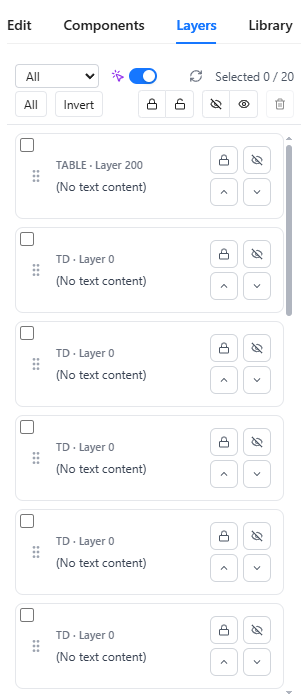
Scheda Livelli: gestione dei livelli e operazioni batch
Elenco delle carte elemento
Il pannello visualizza tutti gli elementi gestibili come schede. Ogni scheda mostra il tipo di tag dell'elemento (ad esempio, DIV, IMG, SPAN) e il livello del livello, con gli elementi di testo che mostrano un'anteprima del contenuto. Gli elementi del livello decorativo sono contrassegnati dal badge "Decorativo". Le icone di blocco/sblocco rapido e nascondi/mostra vengono visualizzate sul lato destro di ciascuna carta.
Opzioni filtro
Fare clic sul pulsante filtro per filtrare l'elenco in base allo stato dell'elemento, con le seguenti opzioni:
| Descrizione filtro | |
| Tutti | Mostra tutti gli elementi gestibili |
| Bloccato | Mostra solo gli elementi bloccati |
| Sbloccato | Mostra solo gli elementi sbloccati |
| Nascosto | Mostra solo gli elementi nascosti |
| Visibile | Mostra solo gli elementi visibili |
Operazioni batch
Dopo aver selezionato più elementi nell'elenco delle carte, utilizzare i pulsanti delle operazioni batch per l'elaborazione unificata:
| Descrizione dell'operazione | |
| Seleziona tutto/Inverti selezione | Seleziona rapidamente tutti gli elementi o inverti la selezione corrente |
| Blocca selezionato/Sblocca selezionato | Blocca o sblocca in batch gli elementi selezionati; gli elementi bloccati non possono essere modificati o spostati |
| Nascondi selezionato/Mostra selezionato | Nascondi o mostra in batch gli elementi selezionati; gli elementi nascosti sono invisibili sull'area di disegno ma rimangono nell'HTML |
| Elimina selezionati | Elimina in batch gli elementi selezionati con richiesta di conferma |
Commutatore di precisione
La scheda Livelli fornisce un interruttore di precisione per controllare la precisione del riconoscimento degli elementi:
| Descrizione dello stato | |
| Precisione attivata | Deduplica automatica, mostrando solo gli elementi host per ridurre le carte duplicate |
| Precisione disattivata | Mostra tutti gli elementi candidati (compresi i frammenti in linea), ideale per operazioni precise sugli elementi in linea |
Fare clic su Carta per individuare
Fai clic su qualsiasi scheda elemento per scorrere automaticamente l'area di disegno ed evidenziare l'elemento corrispondente, facilitando l'individuazione rapida di componenti specifici sulla pagina. Ciò è particolarmente utile quando si lavora con layout di pagina complessi o a più livelli.
2.7 Pannello destro - Scheda Libreria (Preferiti)
La scheda "Libreria" è la tua libreria di componenti personali in cui puoi salvare elementi o componenti utilizzati di frequente per riutilizzarli in diversi progetti, aumentando la tua efficienza creativa.
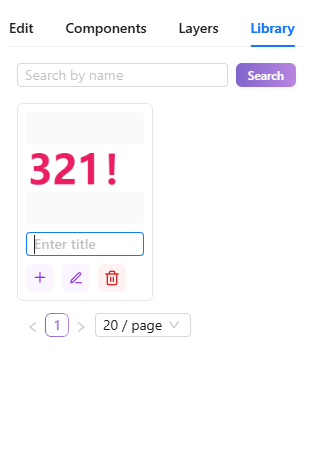
Scheda Libreria: Libreria dei componenti personali
Elenco dei componenti preferiti
Il pannello mostra tutti i componenti salvati come schede, ciascuna con una miniatura e un nome. Le miniature vengono generate automaticamente durante il salvataggio; i componenti senza nome vengono visualizzati come "Senza titolo".
Cerca preferiti
Utilizza la casella di ricerca per trovare rapidamente i componenti salvati in base al nome. L'elenco viene filtrato in tempo reale durante la digitazione.
Inserisci componente preferito
Fare clic sul pulsante "Inserisci" su una scheda della biblioteca per aggiungere quel componente all'area di disegno corrente. I componenti inseriti possono essere modificati e regolati normalmente.
Rinomina/Elimina Preferiti
Ogni tessera della biblioteca offre le opzioni "Rinomina" ed "Elimina". La ridenominazione rende i componenti più facili da trovare in seguito; l'eliminazione rimuove permanentemente il componente salvato: da utilizzare con cautela.
Come aggiungere alla libreria
Seleziona qualsiasi elemento sull'area di disegno, quindi scegli "Aggiungi alla libreria" dal menu contestuale per salvare quell'elemento e i suoi figli come componente. In caso di successo viene visualizzata la conferma "Aggiunto alla libreria".
2.8 Menù contestuale
Facendo clic con il pulsante destro del mouse su un elemento selezionato si apre il menu contestuale, che fornisce un rapido accesso alle azioni comuni. Il contenuto del menu si adatta dinamicamente in base al tipo di elemento selezionato.
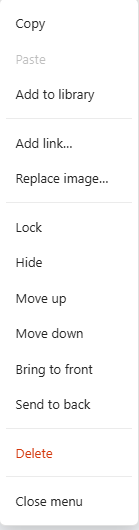
Menu contestuale: accesso rapido alle azioni comuni
| Voce di menuDescrizione | |
| Copia/Incolla | Copia l'elemento selezionato negli appunti o incolla il contenuto degli appunti sull'area di disegno. Supporta copia e incolla tra lavori diversi. |
| Aggiungi alla libreria | Salva l'elemento selezionato nella tua libreria personale per riutilizzarlo in altri progetti. |
| Aggiungi/Modifica/Rimuovi collegamento | Aggiungi un collegamento clicca per navigare all'elemento o modifica/rimuovi collegamenti esistenti. La rimozione richiede conferma. |
| Sostituisci immagine | Mostrato solo per gli elementi immagine; sostituiscilo rapidamente con un caricamento locale o un'immagine URL. |
| Sposta su/Sposta giù | Regola la posizione dell'elemento nell'ordine di sovrapposizione; salire lo porta avanti. |
| Porta in primo piano/Porta in secondo piano | Sposta l'elemento direttamente davanti o dietro a tutti gli elementi. |
| Blocca/Sblocca | Gli elementi bloccati non possono essere modificati o spostati, impedendo modifiche accidentali. Sblocca per ripristinare la modificabilità. |
| Nascondi/Mostra | Nascondi temporaneamente l'elemento dall'area di disegno mantenendolo nell'HTML. Mostra ripristina la visibilità. |
| Elimina | Elimina definitivamente l'elemento selezionato. Quando vengono selezionati più elementi, viene visualizzato il conteggio. |
Menu specifico per tabella
Quando si fa clic con il pulsante destro del mouse sulla cella di una tabella, il menu mostra ulteriori operazioni specifiche della tabella:
| Voce di menuDescrizione | |
| Elimina riga | Elimina l'intera riga contenente la cella corrente (non è possibile eliminare l'ultima riga) |
| Elimina colonna | Elimina l'intera colonna contenente la cella corrente (non è possibile eliminare l'ultima colonna) |
2.9 Modifica della tabella
Quando viene selezionata una tabella o una cella di tabella, il pannello di destra visualizza strumenti di modifica della tabella dedicati con funzionalità complete per lo stile della tabella e la regolazione della struttura.
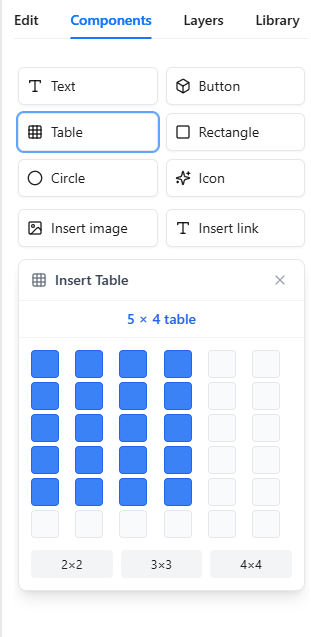
Modifica tabella: operazioni su righe/colonne e impostazioni di stile
Operazioni su righe e colonne
La sezione "Righe e colonne" del pannello dell'editor di tabelle fornisce:
| Descrizione dell'operazione | |
| Inserisci riga sopra/sotto | Inserisci una nuova riga sopra o sotto la riga corrente |
| Elimina riga | Elimina la riga attualmente selezionata (non è possibile eliminare l'ultima riga) |
| Inserisci colonna sinistra/destra | Inserisci una nuova colonna a sinistra o a destra della colonna corrente |
| Elimina colonna | Elimina la colonna attualmente selezionata (non è possibile eliminare l'ultima colonna) |
Unisci/dividi celle
Dopo aver selezionato più celle adiacenti, utilizza "Unisci celle" per combinarle in una sola. Per le celle unite, utilizzare "Dividi cella" per ripristinarle nelle celle multiple originali.
Allineamento delle celle
Imposta l'allineamento del contenuto della cella in due dimensioni:
| Opzioni dimensione | |
| Orizzontale | Sinistra, Centro, Destra |
| Verticale | Alto, Medio, Basso |
Stile del bordo
Personalizza l'aspetto del bordo della tabella includendo:
| Descrizione della proprietà | |
| Larghezza bordo | Imposta lo spessore del bordo |
| Stile bordo | Pieno, Tratteggiato, Punteggiato, Doppio, Nessuno |
| Colore bordo | Scegli il colore del bordo tramite il selettore colori |
Fare clic su "Applica" per salvare le modifiche.
Sfondo delle cellule
Imposta il colore di sfondo della cella utilizzando il selettore colori, ideale per evidenziare intestazioni o righe di dati importanti.
2.10 Controllo zoom e preimpostazioni della finestra
Il controller dello zoom nella parte inferiore dell'area di disegno fornisce la regolazione delle dimensioni dello zoom e della visualizzazione, aiutandoti a visualizzare in anteprima il tuo lavoro su dispositivi di diverse dimensioni.
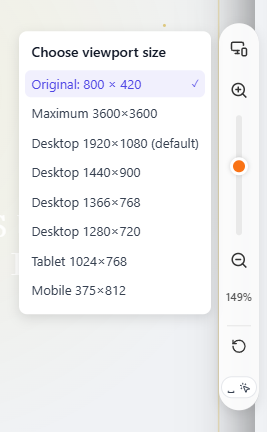
Controllo zoom: regola lo zoom della tela e le dimensioni della finestra
Zoom avanti/Zoom indietro/Reimposta
Utilizza i pulsanti "+" e "-" per ingrandire o ridurre la visualizzazione dell'area di disegno oppure tieni premuto Ctrl/Cmd + rotellina del mouse per eseguire lo zoom rapidamente. Fare clic sul numero percentuale per ripristinare lo zoom predefinito. Tieni premuto Spazio + trascina per eseguire la panoramica della tela.
Preimpostazioni delle dimensioni della vista
Fare clic sul selettore della vista per passare da una dimensione di anteprima all'altra, simulando la visualizzazione su diversi dispositivi:
| Descrizione dimensione vista | |
| Automatico | Corrisponde alla dimensione del contenuto, adatta alla maggior parte degli scenari |
| Desktop 1920×1080 (impostazione predefinita) | Monitor da tavolo Full HD |
| Desktop 1440×900 | Schermo comune del laptop |
| Desktop 1366×768 | Risoluzione popolare per laptop |
| Desktop 1280×720 | Risoluzione HD |
| Tablet 1024×768 | Dispositivo tablet standard |
| Mobile 375×812 | iPhone e dispositivi mobili simili |
Anteprima delle patch
Per le pagine HTML con strutture speciali sono disponibili tre patch di anteprima per ottimizzare la visualizzazione. L'abilitazione o la disabilitazione delle patch salverà automaticamente e aggiornerà l'anteprima:
| Descrizione della patch | |
| USP: stabilizza le pagine ultra-alte | Ottimizza tele ultra-alte o senza bordi, riducendo il jitter. Adatto per file statici complessi/senza confini |
| UFP: correggi la larghezza dell'area visibile | Limita la larghezza della finestra, ripristinando la corretta visualizzazione del layout complesso |
| SHP: ottimizza le dimensioni insolite | Ottimizza l'HTML insolitamente strutturato per una migliore compatibilità |
Suggerimento: Se le patch non producono un effetto evidente, prova prima «Ripristina l’HTML iniziale», quindi riattiva la patch.
2.11 Editor del sorgente HTML
L'editor HTML ti consente di visualizzare e modificare direttamente il codice sorgente HTML completo del tuo lavoro, ideale per utenti avanzati che necessitano di perfezionamenti o aggiunte di codice personalizzato. Questa funzionalità è solo Pro.
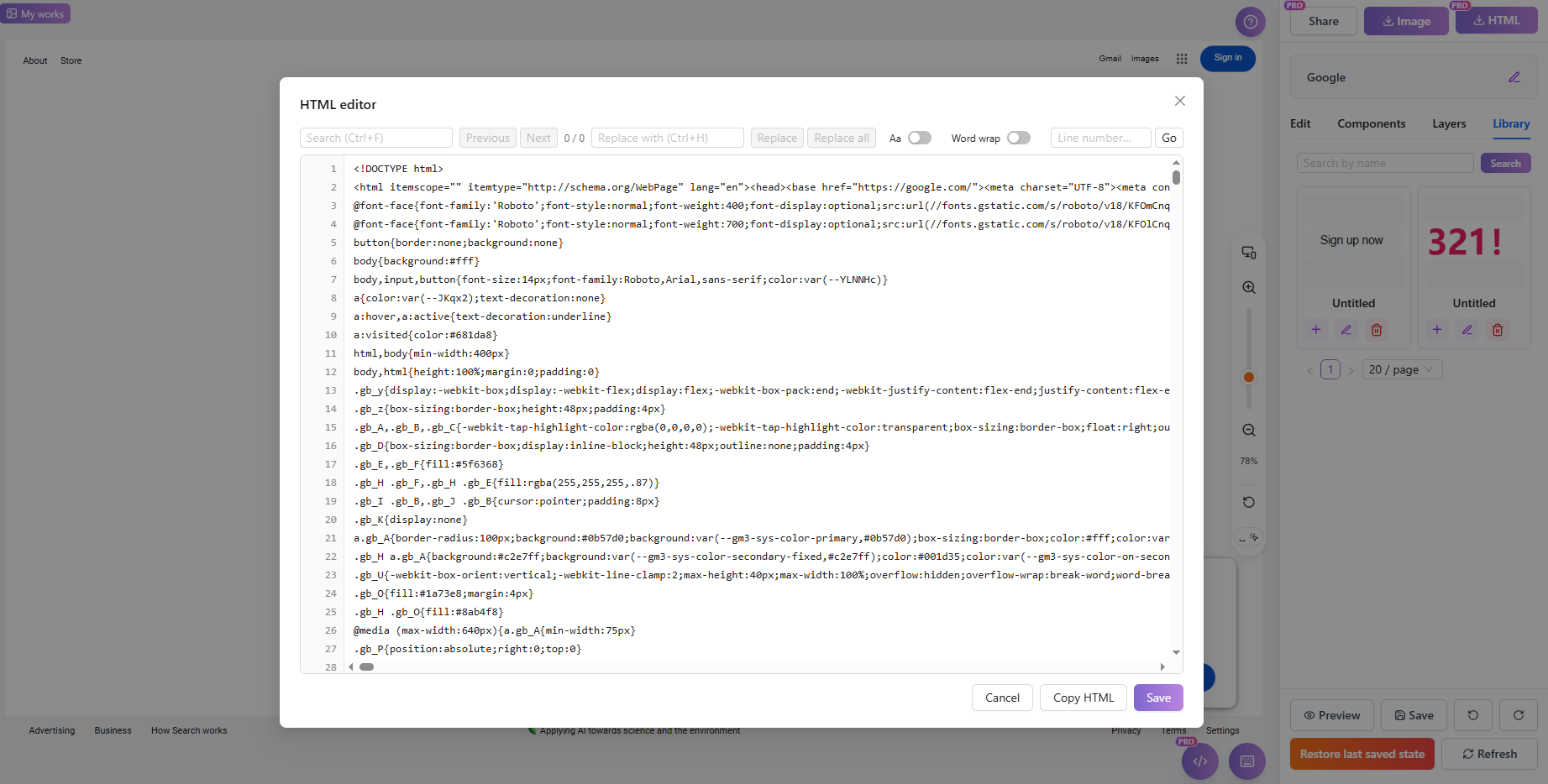
Editor HTML: modifica direttamente il codice sorgente (Pro)
Visualizza/modifica HTML completo
Quando si apre l'editor HTML, viene visualizzato il codice sorgente HTML completo (incluso <!DOCTYPE html>). Puoi modificare direttamente il codice; il salvataggio applica le modifiche.
Cerca e sostituisci
Utilizza Ctrl+F per aprire la ricerca, inserendo parole chiave per individuare rapidamente il codice. Utilizza Ctrl+H per aprire la sostituzione per la sostituzione batch del testo. La barra degli strumenti mostra il conteggio delle corrispondenze (ad esempio, "3/15"), con opzioni per singole o sostituisci tutte.
Vai a Linea
Utilizza Ctrl+G o la funzione di salto della barra degli strumenti per inserire un numero di riga e passare rapidamente a quella riga, utile per file HTML di grandi dimensioni.
Caso di corrispondenza
Abilita l'opzione "Maiuscole/minuscole" durante la ricerca per abbinare con precisione i contenuti con distinzione tra maiuscole e minuscole.
A capo automatico
Quando è abilitato il ritorno a capo automatico, le righe di codice lunghe vanno automaticamente a capo per la visualizzazione senza scorrimento orizzontale.
Copia/Salva
Fai clic su "Copia HTML" per copiare il codice sorgente completo negli appunti. Dopo la modifica, fare clic su Salva per applicare le modifiche. Se il contenuto è vuoto o contiene errori di sintassi, verranno visualizzati i messaggi appropriati.
Nota: Se il contenuto HTML supera i limiti di archiviazione, al salvataggio verrà visualizzato «Spazio di archiviazione insufficiente: impossibile salvare questa modifica». Elimina i contenuti non necessari o passa a un piano superiore per aumentare la capacità.
2.12 Barra degli strumenti inferiore
La barra degli strumenti inferiore fornisce i pulsanti di azione principali dell'editor, comprese le funzioni di anteprima, annulla/ripeti, ripristina e salva.
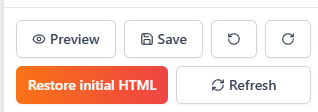
Area di lavoro dell'editor: controlli in basso per l'anteprima, il ripristino, l'aggiornamento e il salvataggio di una versione
Anteprima (si apre in una nuova finestra)
Fai clic sul pulsante di anteprima per aprire un'anteprima completa del tuo lavoro in una nuova finestra, mostrando il risultato di visualizzazione effettivo. La pagina di anteprima mostra un avviso di anteprima temporaneo che ricorda agli utenti che si tratta di un'anteprima in fase di modifica con un collegamento non riutilizzabile.
Annulla/Ripeti
Annulla ripristina l'ultima operazione; Redo ripristina un'operazione annullata. Supporta più passaggi di annullamento/ripetizione. Disponibile anche tramite Ctrl+Z (annulla) e Ctrl+Y (ripeti).
Aggiorna anteprima
Facendo clic su Aggiorna si ricarica l'area di anteprima. Il sistema salva prima il contenuto corrente, quindi aggiorna l'area di disegno per mostrare lo stato più recente. Utile dopo modifiche estese per sincronizzare il display.
Ripristina l'ultimo stato salvato
Ripristina il lavoro all'ultimo stato salvato manualmente. Tutte le modifiche non salvate andranno perse: utilizzale con cautela. Il sistema richiede conferma prima dell'esecuzione.
Ripristina l'HTML iniziale
Ripristina l'HTML dell'opera al suo stato originale al momento della creazione. Tutta la cronologia delle modifiche verrà cancellata. Questa azione è irreversibile: assicurati di aver eseguito il backup dei contenuti importanti.
Salva
Salva manualmente tutte le modifiche correnti. Il sistema supporta anche il salvataggio automatico, ma si consiglia il salvataggio manuale dopo modifiche importanti per garantire la sicurezza dei dati. Al termine viene visualizzato il messaggio "Salvataggio riuscito".
2.13 Barra degli strumenti superiore
La barra degli strumenti superiore visualizza le informazioni sul lavoro e i pulsanti di azione rapida, fornendo un accesso rapido alle funzionalità di condivisione e download.
Area di lavoro dell'editor: controlli principali per download HTML, esportazione di immagini e condivisione
Titolo del progetto (fare doppio clic per modificare)
La parte superiore mostra il titolo del progetto corrente; fare doppio clic sull'area del titolo per accedere alla modalità di modifica e modificare il nome. Il titolo non può essere vuoto; In caso di successo viene visualizzato "Titolo aggiornato con successo". I progetti senza nome vengono visualizzati come "Lavoro senza titolo".
Pulsante Condividi
Fare clic sul pulsante di condivisione per abilitare la condivisione del lavoro e generare un collegamento accessibile. Vedi 4.16 Funzionalità di condivisione per i dettagli. Questa funzionalità è solo Pro.
Scarica Pulsanti
Il lato destro fornisce i pulsanti "Scarica come immagine" e "Scarica come HTML". Vedi 4.15 Esporta e scarica HTML per i dettagli.
3. Gestione del progetto, condivisione ed esportazione
Dopo la modifica, esporta file HTML puliti, genera collegamenti di anteprima sicuri con password o gestisci le versioni del progetto nell'area di lavoro del progetto.
3.1 Esporta e scarica HTML
Utilizza Scarica HTML nella barra degli strumenti in alto a destra per esportare la versione che hai esaminato nell'editor. La finestra di dialogo di esportazione separa la pagina modificata dall'origine originale e fornisce anche opzioni di copia e trasferimento AI.
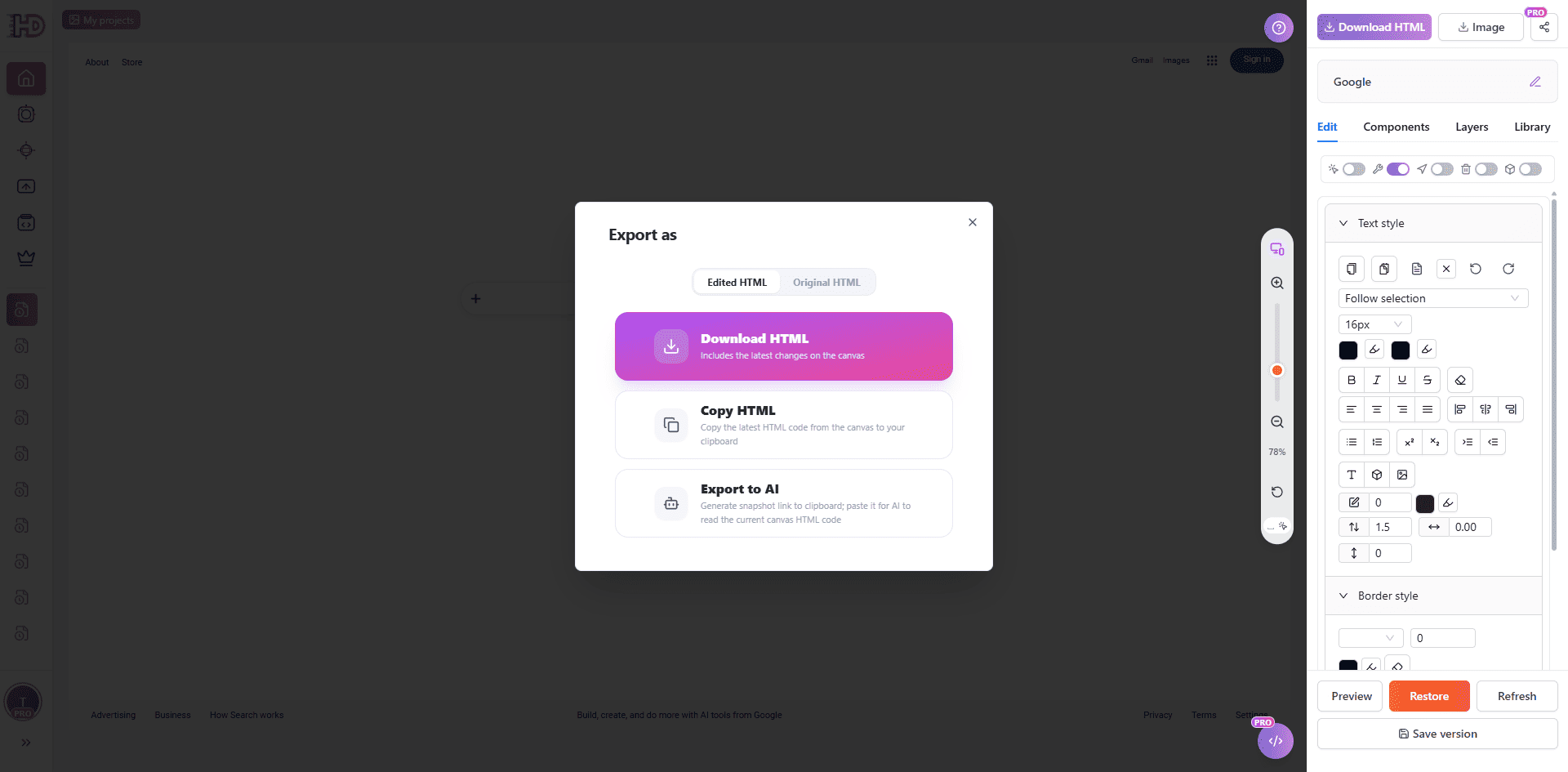
Esporta HTML: scegli la fonte modificata o originale, copia HTML o invialo ad AI
HTML modificato
La scheda HTML modificato esporta la versione corrente, comprese le modifiche apportate sull'area di disegno.
HTML originale
La scheda HTML originale mantiene disponibile la fonte importata iniziale quando è necessario confrontare o ripristinare la versione iniziale.
Copia HTML ed esporta in AI
Copia HTML copia la fonte corrente negli appunti. Esporta in AI crea un collegamento di trasferimento in modo che un altro flusso di lavoro AI possa leggere l'HTML corrente e continuare dal risultato modificato.
3.2 Condividi funzionalità e anteprime pubbliche
La funzione Condividi crea un collegamento pubblico per il lavoro corrente in modo che altre persone possano visualizzarlo senza accedere all'editor. Lo screenshot seguente mostra le impostazioni di condivisione disponibili prima di pubblicare il collegamento. Questa funzionalità è disponibile per gli utenti Pro.
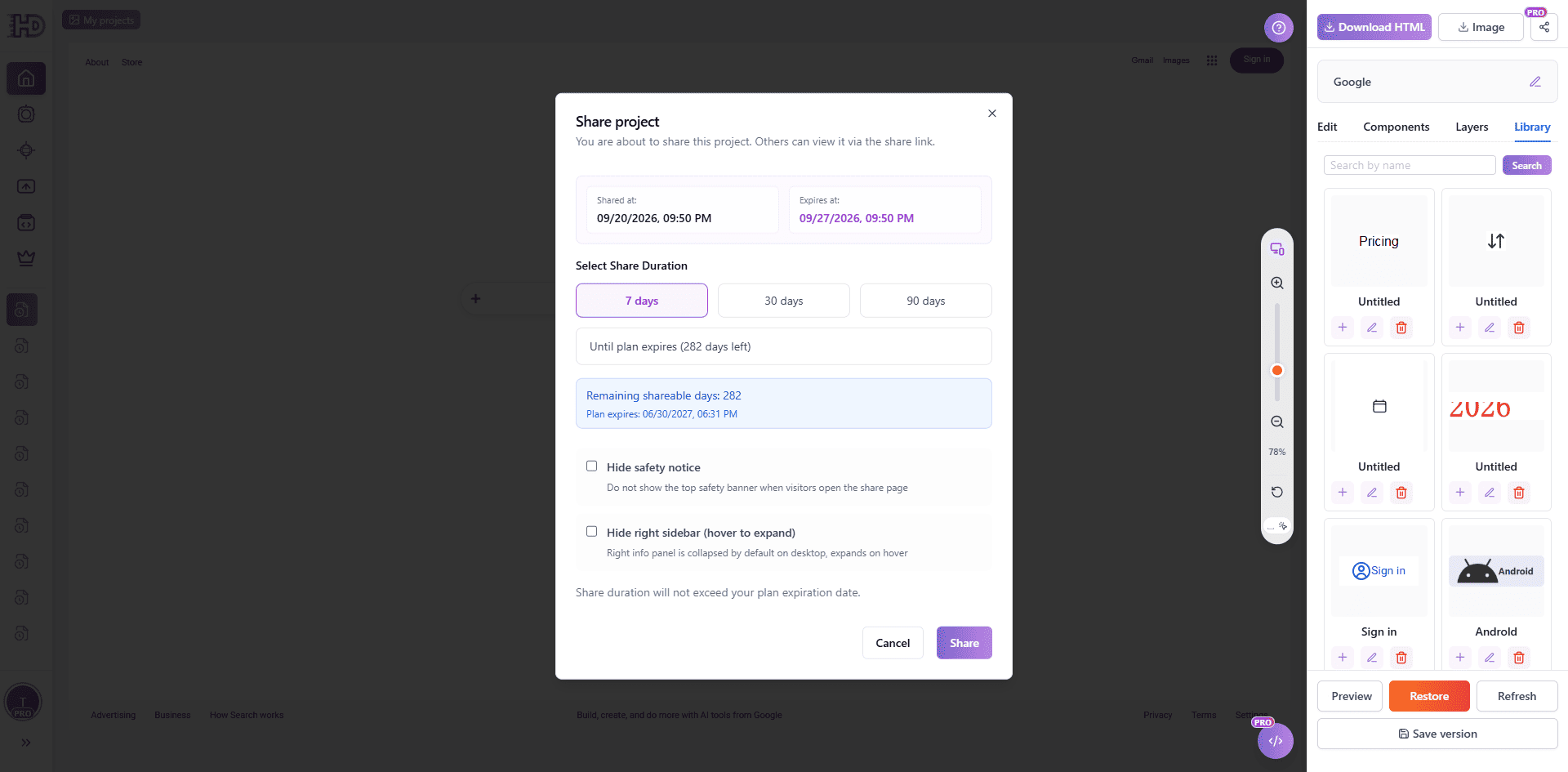
Condividi progetto: scegli la durata del collegamento e decidi quali avvisi o barre laterali mostrare
Scegli Impostazioni di condivisione
Fai clic su Condividi e scegli una durata disponibile, ad esempio 7 giorni, 30 giorni, 90 giorni o il periodo rimanente del tuo piano. Il collegamento di condivisione non può sopravvivere alla data di scadenza del piano.
Opzioni di visualizzazione
Puoi scegliere se nascondere l'avviso di sicurezza e se nascondere la barra laterale destra nella pagina condivisa. Queste opzioni influiscono sulla visualizzazione del visitatore, non sull'origine modificabile nel tuo progetto.
Condividi la pagina e accedi
Dopo la condivisione, copia il collegamento generato e invialo ai revisori o ai clienti. Puoi tornare ai controlli di condivisione per aggiornare il collegamento o interrompere la condivisione quando la pagina non dovrebbe più essere pubblica.
3.3 Barra dei collegamenti I miei progetti
La barra di scelta rapida "I miei progetti" sulla sinistra ti consente di espandere/comprimere l'elenco dei progetti e passare rapidamente da un progetto all'altro, facilitando transizioni fluide tra più creazioni.
Espandi e comprimi
Fai clic sul pulsante "I miei progetti" in alto a sinistra per espandere l'elenco di lavoro della barra laterale. Fare di nuovo clic oppure fare clic all'esterno della barra laterale per comprimerla. Una volta espanso, puoi sfogliare visivamente le miniature e i titoli dei tuoi progetti di cronologia.
Cambia progetto
Fai clic su qualsiasi scheda di progetto nell'elenco per caricarne immediatamente il contenuto nell'editor. Ciò ti consente di confrontare e modificare rapidamente diverse bozze di design senza tornare alla home page o al profilo.
3.4 Istantanee della cronologia delle versioni
Nella barra laterale di sinistra, "I miei progetti" (Cronologia) fornisce un accesso rapido alle tue creazioni passate. Elenca tutti i record di modifica in ordine cronologico.
Selezione e modifica rapida
Fai clic su qualsiasi record nell'elenco per caricarlo rapidamente nell'editor e continuare da dove eri rimasto, senza reimportare.
Dettagli della finestra di anteprima
Passa il mouse sopra un record della cronologia per visualizzarne la finestra di anteprima. Nella finestra di anteprima è possibile:
- Modifica direttamente il titolo: fai clic sul testo del titolo per modificare immediatamente il nome del progetto.
- Visualizza stato di condivisione: le icone indicano se il lavoro è attualmente condiviso.
- Azioni rapide: accedi a modifica, eliminazione e ad altre scorciatoie.
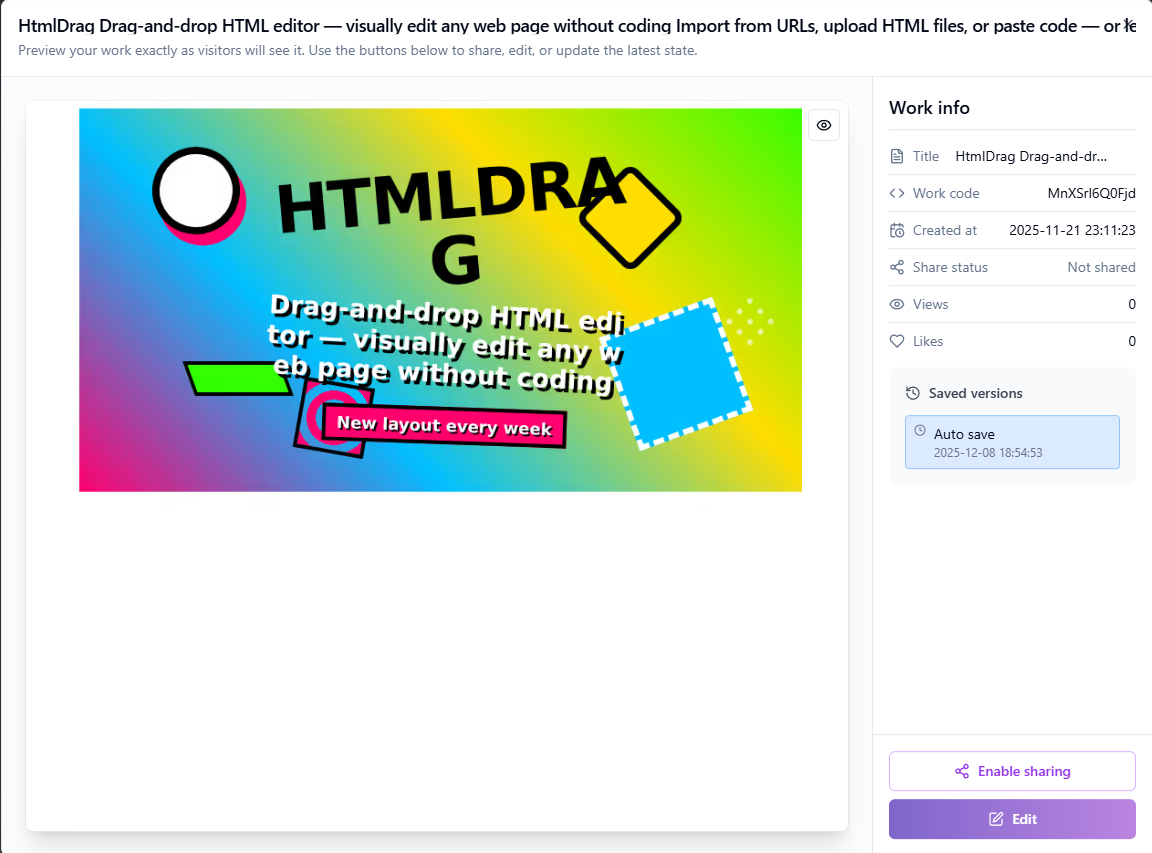
Cronologia: anteprima rapida e gestione dei progetti passati
3.5 Gestione e organizzazione del progetto
Il modulo Gestione progetti mostra tutti i progetti che hai creato, supportando le operazioni di visualizzazione, modifica, condivisione ed eliminazione.
Elenco di lavoro e filtri
I progetti vengono visualizzati come schede o in un elenco. Puoi filtrarli utilizzando:
- Cerca: inserisci il codice lavoro o il titolo per eseguire la ricerca
- Filtro tipo: filtra per generatore AI, caricamento file, clona pagina Web, incolla codice, ecc.
- Intervallo di date: seleziona le date di inizio e fine per filtrare i progetti da un periodo specifico
- Ordina per: ordina per primo il più recente, prima il più vecchio, conteggio dei Mi piace o conteggio delle visualizzazioni
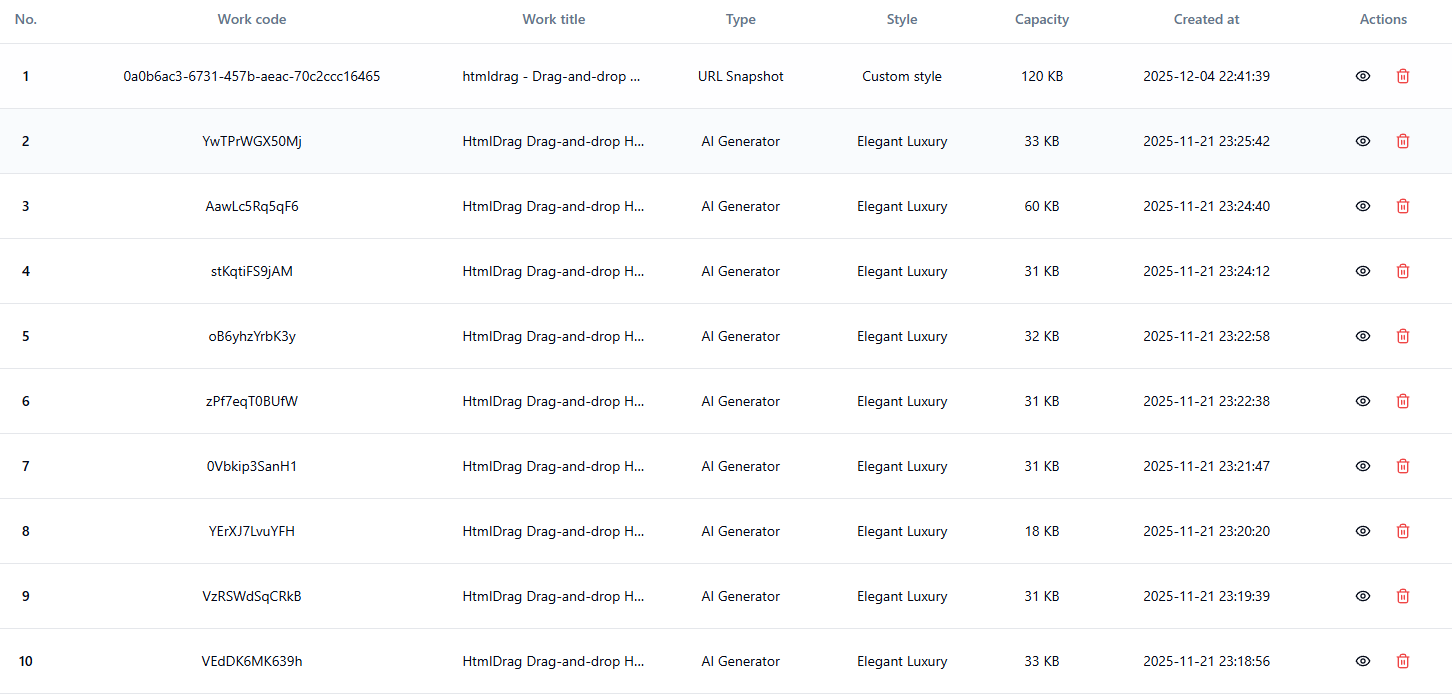
gestione dei progetti: visualizza, filtra e gestisci tutti i progetti
Visualizza e modifica progetti
Fare clic sul pulsante "Visualizza" sulla scheda di un progetto per visualizzarne l'anteprima. Nell'interfaccia di anteprima puoi:
- Modifica il titolo del progetto (fai doppio clic sul titolo per modificarlo)
- Fai clic su "Modifica" per accedere all'editor visivo e continuare a modificare
- Visualizza la cronologia di salvataggio del lavoro e ripristina una versione specifica
Condividi la gestione dello stato
Gli utenti Pro possono condividere progetti, consentendo ad altri di visualizzarli tramite collegamento:
- Abilita condivisione: fai clic sul pulsante "Condividi" per generare un collegamento di condivisione valido per 7 giorni
- Condivisione aggiornamento: i collegamenti dei progetti già condivisi possono essere aggiornati, aggiornando il periodo di validità
- Interrompi condivisione: fai clic su "Interrompi condivisione" per invalidare immediatamente il collegamento
Elimina progetti
Fare clic sul pulsante "Elimina" su una scheda progetto per eliminarla. Il sistema mostrerà due finestre di dialogo di conferma per impedire la cancellazione accidentale:
- Prima conferma: chiede se desideri eliminare questo lavoro
- Seconda conferma: ricorda che l'eliminazione è irreversibile
Suggerimento: Puoi eliminare fino a 3 record alla volta. Dopo aver eliminato un progetto, lo spazio di archiviazione occupato verrà liberato.
La pagina Progetti è il tuo spazio dedicato per visualizzare e gestire tutte le tue creazioni. Accedi rapidamente dalla barra laterale o dal menu utente.
Visualizzazione del lavoro
La pagina mostra tutti i tuoi progetti come schede, ciascuna contenente:
- Anteprima in miniatura: anteprima visiva del lavoro per una rapida identificazione
- titolo del progetto: mostra il nome del progetto, fai clic per modificare
- Ora di creazione: registra quando è stata creata l'opera
- Stato di condivisione: mostra se il lavoro è attualmente condiviso
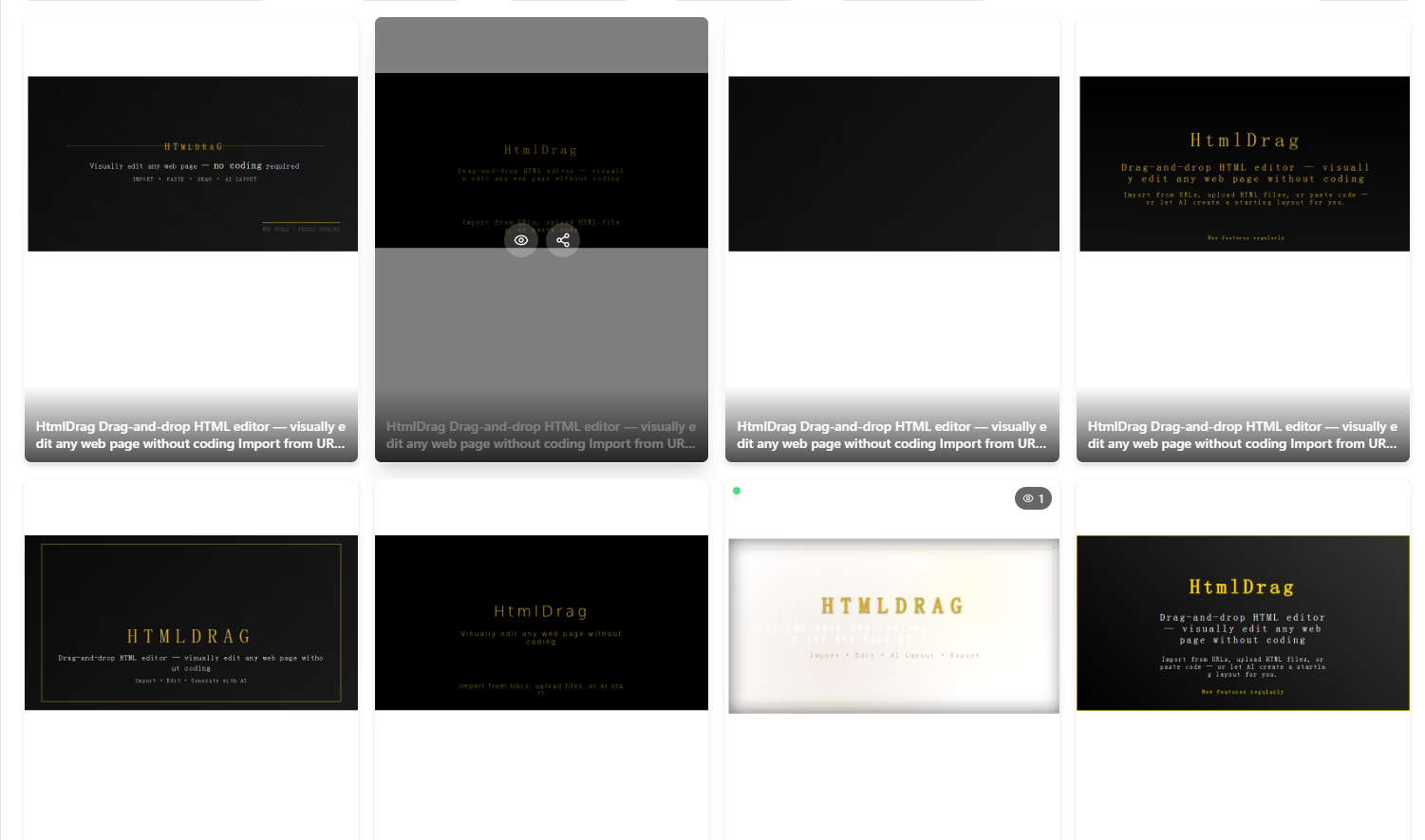
Progetti: visualizza e gestisci tutte le tue creazioni in un unico posto
Azioni rapide
Ogni scheda progetto fornisce comodi pulsanti di azione:
- Modifica: accedi all'editor visivo per continuare a creare
- Condividi: genera o gestisci collegamenti di condivisione (solo Pro)
4. Suggerimenti e risoluzione dei problemi di sistema
Durante l'utilizzo potresti riscontrare avvisi o limiti di sistema. Di seguito sono riportate spiegazioni e suggerimenti per suggerimenti di sistema comuni.
4.1 Rilevamento HTML e avvisi sui collegamenti
Per garantire la qualità dell'importazione e la stabilità dell'editor, il sistema esegue automaticamente la scansione di URL e file, avvisandoti di potenziali problemi.
Rilevamento delle risorse locali
Se una pagina contiene percorsi locali (ad esempio, file:// o C:), le risorse non verranno caricate. Suggerimento: assicurati che tutte le risorse utilizzino collegamenti HTTP/HTTPS pubblici.
Protezione collegamento immagine
Alcuni siti bloccano l'accesso esterno alle immagini. Suggerimento: utilizza "Sostituisci immagine" per caricare file locali o ospitarli su un servizio pubblico.
Pagine di rendering dinamico (SPA)
Le pagine che si basano interamente su JavaScript (SPA) potrebbero essere importate come vuote o incomplete perché il DOM dinamico non viene acquisito direttamente. Suggerimento: utilizza "Incolla codice" copiando l'HTML visualizzato dal tuo browser.
Caratteri esterni/Librerie di icone
I caratteri o le icone con intestazioni CORS mancanti potrebbero essere visualizzati in modo errato. Suggerimento: sostituiscili con caratteri di sistema o icone di libreria nell'editor.
Contenuto incorporato (iframe)
Per motivi di sicurezza, alcuni contenuti iframe potrebbero essere bloccati o non interattivi. Il sistema conserva i segnaposto ove possibile.
4.2 Limiti di archiviazione e utilizzo
HtmlDrag applica le quote delle risorse in base al tuo piano. Potrebbero essere visualizzati gli avvisi "Limite di spazio di archiviazione raggiunto" o "Limite di lavoro raggiunto".
Limite di archiviazione raggiunto
Non è possibile salvare modifiche o caricare file quando lo spazio è esaurito. Soluzione:
- Elimina i vecchi elementi in "Progetti" per liberare spazio.
- Fai clic su "Aggiorna ora" nella finestra di dialogo per ottenere più capacità con un Pro.
Limite del conteggio dei progetti
Gli utenti gratuiti hanno un limite al numero di progetti salvati. Elimina vecchi progetti o esegui l'upgrade per aumentare questo limite.
Limiti di caricamento delle immagini
Il sistema controlla la dimensione del singolo file e i limiti batch. Se vedi "La dimensione del file supera il limite" o "La dimensione del batch superata", comprimi le immagini o caricale in batch più piccoli. Gli utenti Pro godono di limiti più elevati.
4.3 Sandbox di sicurezza e sanificazione
La scansione di sicurezza integrata valuta automaticamente il rischio dei contenuti durante l'importazione di URL, il caricamento di file o l'incollamento di codice per proteggere il tuo account.
Livello di rischio
In base a minacce come XSS, script dannosi o tag pericolosi, i rischi sono classificati come:
- Basso rischio: avvertenze minori; solitamente è sicuro procedere.
- Rischio medio: potenziali problemi; procedere con cautela.
- Rischio elevato: rischi gravi; procedere solo se la fonte è attendibile.
- Rischio critico: contiene malware o contenuti di phishing; bloccato immediatamente.
Modalità provvisoria
Per i file che presentano qualche rischio, il sistema offre "misure di sicurezza" come Auto Sanitize. Puoi scegliere "Continua in modalità provvisoria", in cui il sistema rimuove il codice pericoloso preservando layout e modificabilità.
4.4 Notifiche e messaggi di sistema
Il modulo Messaggi riceve importanti notifiche di sistema, inclusi lo stato dell'account, promemoria di pagamento, avvisi di scadenza dell'abbonamento e aggiornamenti delle funzionalità.
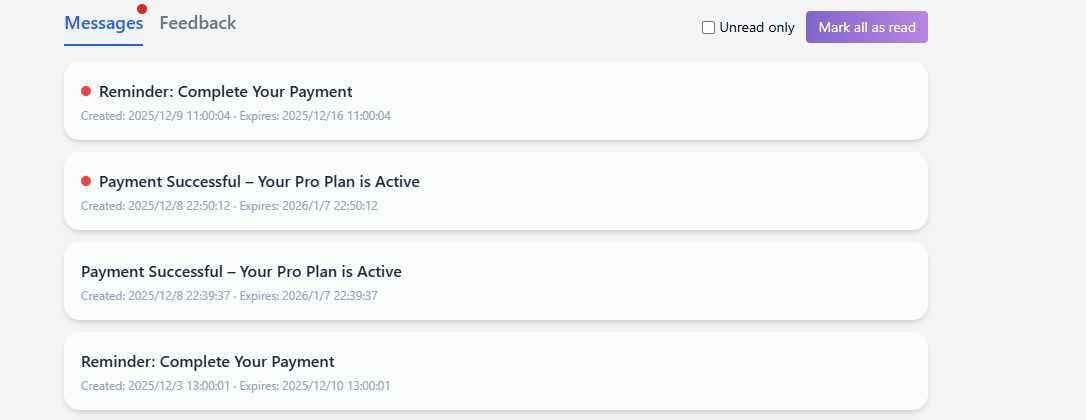
Messaggi: ricevi notifiche e avvisi di sistema
Elenco dei messaggi di sistema
L'elenco dei messaggi è ordinato cronologicamente e mostra titolo, riepilogo, ora di creazione e ora di scadenza. Fare clic su un messaggio per visualizzare i dettagli o eseguire azioni (ad esempio, "Continua pagamento", "Rinnova ora").
Filtro non letto
Seleziona la casella "Solo non letti" in alto a destra per filtrare rapidamente i messaggi non letti, aiutandoti a concentrarti sulle notifiche importanti.
Segna tutto come letto
Fai clic sul pulsante "Segna tutto come letto" per contrassegnare immediatamente tutti i messaggi nell'elenco corrente come letti, cancellando gli indicatori del punto rosso.
Dettagli del messaggio
Fare clic su una scheda messaggio per visualizzare il contenuto completo della notifica. Per i messaggi di ordine o abbonamento, i dettagli spesso includono pulsanti di azione rapida per tua comodità.
4.5 Feedback e supporto
Se riscontri problemi o hai suggerimenti, inviali tramite il modulo Feedback. Puoi caricare immagini per descrivere meglio il tuo problema.
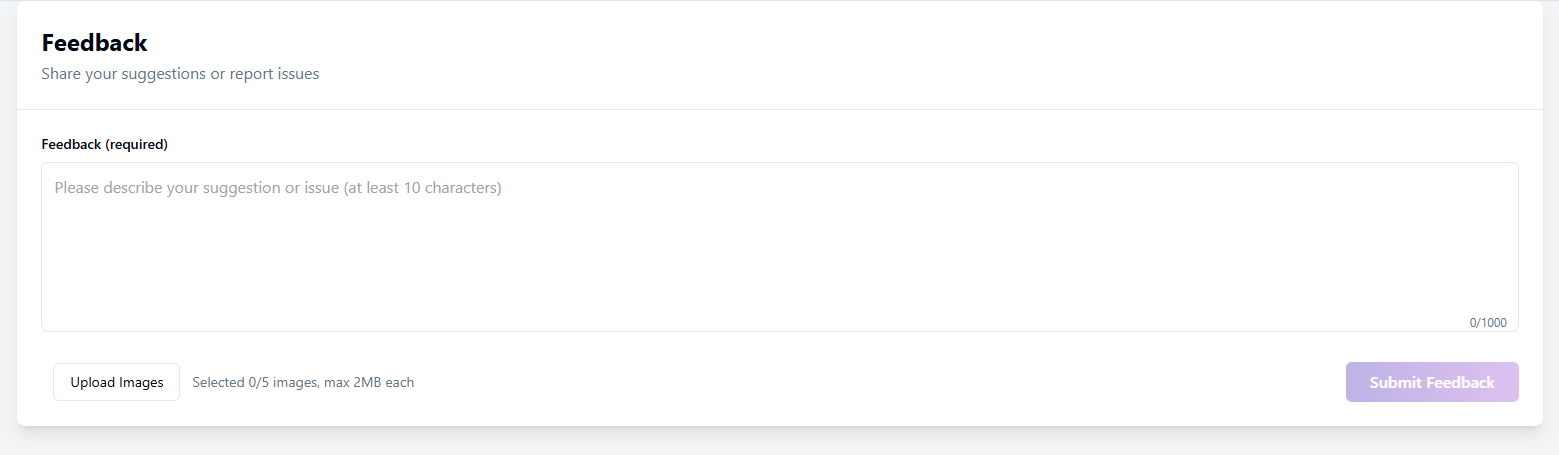
Feedback: invia problemi o suggerimenti
Elenco e stato dei feedback
L'elenco mostra la cronologia degli invii e lo stato attuale:
- In corso: feedback inviato, in attesa di revisione da parte dell'amministratore.
- Risposto: l'amministratore ha risposto; fare clic per visualizzare.
- Chiuso: feedback archiviato o risolto; non sono ammesse ulteriori risposte.
Invia nuovo feedback
Fai clic su "Nuovo feedback", inserisci il tuo contenuto (richiesto, minimo 10 caratteri). Puoi "Caricare immagini" (max 2 MB ciascuna) per fornire screenshot. Al termine, fai clic su "Invia feedback".
Dettagli e conversazione sul feedback
Fai clic su un elemento dell'elenco per visualizzare la cronologia completa delle conversazioni, inclusi i messaggi e le risposte dell'amministratore. La parte superiore mostra l'ID feedback e gli allegati.
Continua Rispondi
Per il feedback "In corso" o "Con risposta", utilizza la casella di input in basso per fornire ulteriori informazioni o rispondere all'amministratore fino alla risoluzione.
Quando invii un feedback, puoi aggiungere schermate o file pertinenti per aiutarci a comprendere meglio la tua richiesta. Nei dettagli del feedback puoi anche consultare le risposte dell’amministratore e la cronologia della conversazione per seguirne l’avanzamento.
Prendiamo in considerazione ogni feedback e faremo il possibile per gestirlo rapidamente. Grazie per la partecipazione e il supporto!
5. Conto, crediti e abbonamento (Appendice)
Gestisci le impostazioni del tuo account, la sicurezza dell'accesso, i saldi del credito e i piani di abbonamento.
5.1 Iscriviti
HtmlDrag utilizza la registrazione tramite posta elettronica. Inserisci semplicemente alcuni dettagli di base per creare il tuo account. Dopo aver effettuato con successo la registrazione, verrai automaticamente registrato e reindirizzato alla home page.
Registrazione via e-mail
Nella pagina di registrazione, completa i seguenti passaggi per creare il tuo account:
- Inserisci l'e-mail: fornisci il tuo indirizzo e-mail utilizzato di frequente. Questo servirà come credenziale di accesso e canale di notifica. Assicurati che il formato dell'email sia corretto, ad esempio
[email protetta]. - Imposta password: la password deve contenere sia lettere che numeri, con una lunghezza compresa tra 8 e 32 caratteri. Ti consigliamo di utilizzare una password complessa per proteggere il tuo account.
- Conferma password: inserisci nuovamente la password per assicurarti che entrambe le voci corrispondano.
- Imposta nickname (facoltativo): puoi personalizzare il tuo nickname. Se lasciato vuoto, il sistema genererà automaticamente un nickname predefinito per te.
- Accetta i Termini: seleziona "Ho letto e accetto i Termini di servizio e l'Informativa sulla privacy", quindi fai clic sul pulsante "Iscriviti" per completare la registrazione.
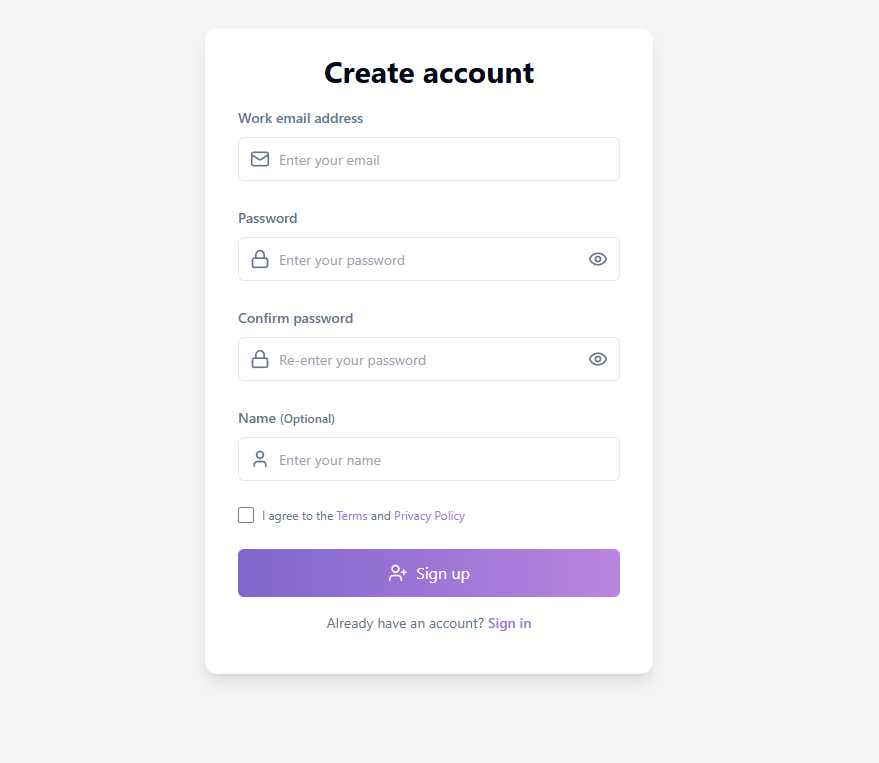
Pagina di registrazione: inserisci l'e-mail e le informazioni di base per creare un account
Verifica e-mail e ricompensa del credito
Dopo aver effettuato con successo la registrazione, il sistema invierà un'e-mail di verifica alla tua casella di posta. Dopo aver completato la verifica dell'e-mail, riceverai crediti bonus che possono essere utilizzati per le funzionalità Generatore IA e Duplica pagina. Se non ricevi l'e-mail, controlla la cartella spam; puoi fare clic su "Rinvia" per richiedere un'altra email di verifica dopo 3 minuti.
Suggerimento: Completare la verifica dell’e-mail non solo ti assegna crediti bonus, ma sblocca anche l’esperienza completa e migliora la sicurezza del tuo account.
5.2 Accedi
HtmlDrag supporta più metodi di accesso. Scegli l'opzione più conveniente in base alle tue preferenze.
E-mail e password Accedi
Accedi utilizzando l'e-mail e la password con cui ti sei registrato:
- Inserisci il tuo indirizzo email nella pagina di accesso
- Inserisci la tua password (fai clic sull'icona a forma di occhio per attivare/disattivare la visibilità della password)
- Fai clic sul pulsante "Continua" per completare l'accesso
Dopo aver effettuato correttamente l'accesso, verrai reindirizzato automaticamente alla home page dove potrai iniziare a creare.
Accesso di terze parti (Google/GitHub)
Per un accesso più rapido, puoi accedere utilizzando il tuo account Google o GitHub:
- Accedi con Google: fai clic sul pulsante "Accedi con Google". Nel popup di autorizzazione di Google, seleziona il tuo account e conferma l'autorizzazione.
- Accedi con GitHub: fai clic sul pulsante "Accedi con GitHub". Verrai reindirizzato alla pagina di autorizzazione di GitHub. Dopo aver confermato, verrai automaticamente riportato a HtmlDrag.
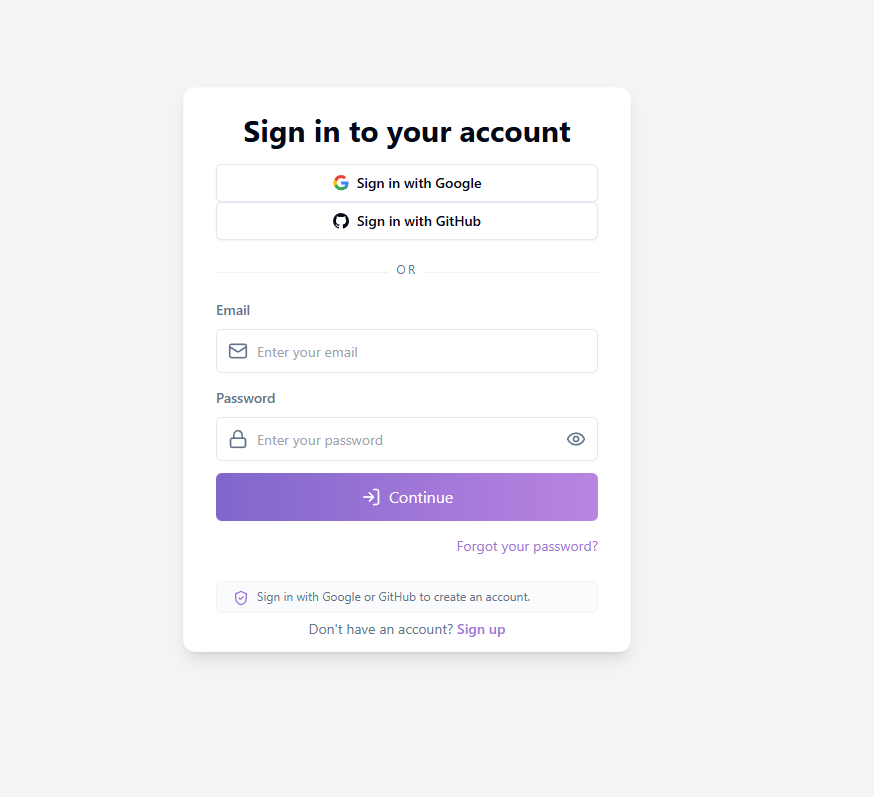
Pagina di accesso: supporta account email/password e di terze parti
Suggerimento: L’accesso con Google o GitHub crea automaticamente un account: non è necessaria una registrazione separata. Al primo accesso tramite un servizio di terze parti, il sistema creerà automaticamente un account collegato.
Collegamento password dimenticata
Se hai dimenticato la password, fai clic su "Password dimenticata?" in basso a destra nella pagina di accesso per accedere al processo di reimpostazione della password (vedere Sezione 1.3).
5.3 Password dimenticata e reimpostata
Se hai dimenticato la password, puoi reimpostarla utilizzando un codice di verifica via email. L'intero processo viene completato su un'unica pagina senza reindirizzamenti.
Procedura di reimpostazione della password
Segui questi passaggi per reimpostare la password:
- Inserisci l'e-mail: fornisci l'indirizzo e-mail che hai utilizzato durante la registrazione
- Ottieni il codice di verifica: fai clic sul pulsante "Invia codice". Il sistema invierà un'e-mail contenente un codice di verifica di 6 cifre
- Inserisci il codice di verifica: inserisci il codice di 6 cifre che hai ricevuto nel campo del codice di verifica
- Imposta nuova password: inserisci la nuova password (deve contenere lettere e numeri, lunga 8-32 caratteri)
- Conferma nuova password: inserisci nuovamente la nuova password per assicurarti che corrisponda
- Fai clic su "Reimposta password": completa la reimpostazione della password. Dopo aver visualizzato il messaggio di successo, verrai reindirizzato automaticamente alla pagina di accesso
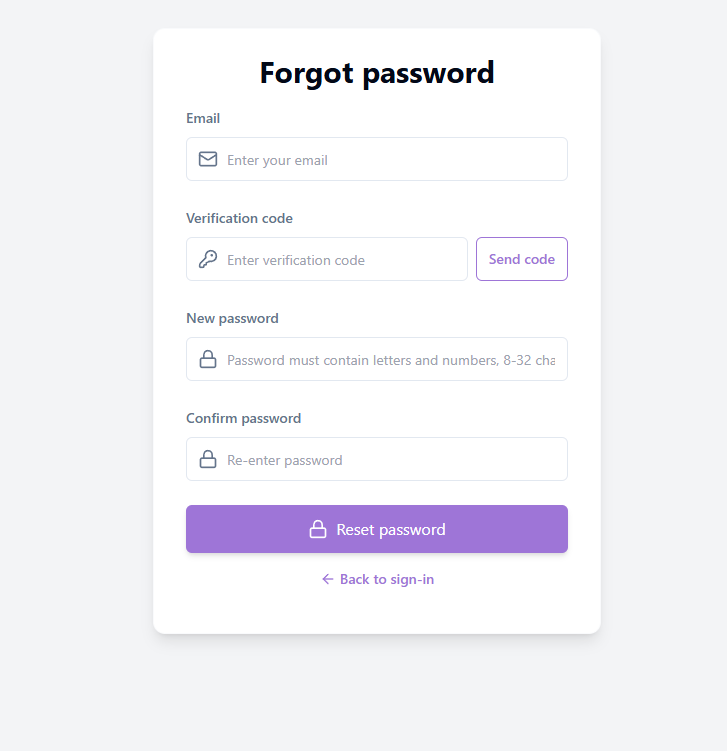
Password dimenticata: reimpostala tramite codice di verifica via email
Validità del codice di verifica
Il codice di verifica ha un periodo di validità limitato: utilizzalo subito dopo aver ricevuto l'e-mail. Se il codice è scaduto, puoi fare clic sul pulsante "Invia nuovamente" per richiedere un nuovo codice (dovrai attendere il termine del conto alla rovescia prima di inviarlo nuovamente).
Nota: Se la tua e-mail non è registrata nel sistema, non sarà possibile inviare il codice di verifica. Assicurati di inserire l’indirizzo e-mail usato durante la registrazione.
5.4 Impostazioni del profilo
Il modulo Impostazioni profilo ti consente di gestire le informazioni di base del tuo account, comprese le impostazioni di avatar, nickname, email, biografia e password.
Cambia avatar
Fai clic sul pulsante "Cambia avatar" nell'area avatar e seleziona un file immagine locale da caricare. Il sistema ritaglierà e salverà automaticamente il tuo nuovo avatar.
Cambia soprannome
Fai clic sul pulsante Modifica accanto al tuo nickname, inserisci un nuovo nome e fai clic su "Salva". Il tuo nickname verrà visualizzato su tutti i tuoi progetti e commenti.
Gestione della posta elettronica
La sezione email mostra il tuo indirizzo email attuale e lo stato di verifica:
- Verificato: il tuo indirizzo email è stato verificato e tutte le funzionalità sono disponibili
- Non verificato: fai clic su "Invia email di verifica" per completare la verifica e guadagnare crediti bonus
- Cambia email: devi prima verificare la tua email attuale, quindi inserire un nuovo indirizzo email per completare la modifica
Bio
Inserisci la tua autopresentazione nell'area bio (consigliato: non più di 200 caratteri), quindi fai clic su "Salva" per aggiornare.
Cambia password/Imposta password
Fare clic sul pulsante "Cambia password" per aprire la finestra di dialogo delle impostazioni della password:
- Utenti con una password esistente: inserisci la password attuale, quindi imposta una nuova password (8-32 caratteri, inclusi lettere e numeri)
- Utenti senza password: imposta direttamente una nuova password. Dopo l'impostazione, puoi accedere con email e password
Elimina account
Per eliminare il tuo account, fai clic sul pulsante "Elimina account" nella parte inferiore della pagina. Per motivi di sicurezza, dovrai verificare la tua identità tramite il codice di verifica via email.
Nota: Dopo aver inviato la richiesta di eliminazione, il tuo account entrerà in un periodo di conservazione (in genere 30 giorni) durante il quale non potrai accedere. Al termine, il sistema eliminerà definitivamente progetti, crediti e cronologia.
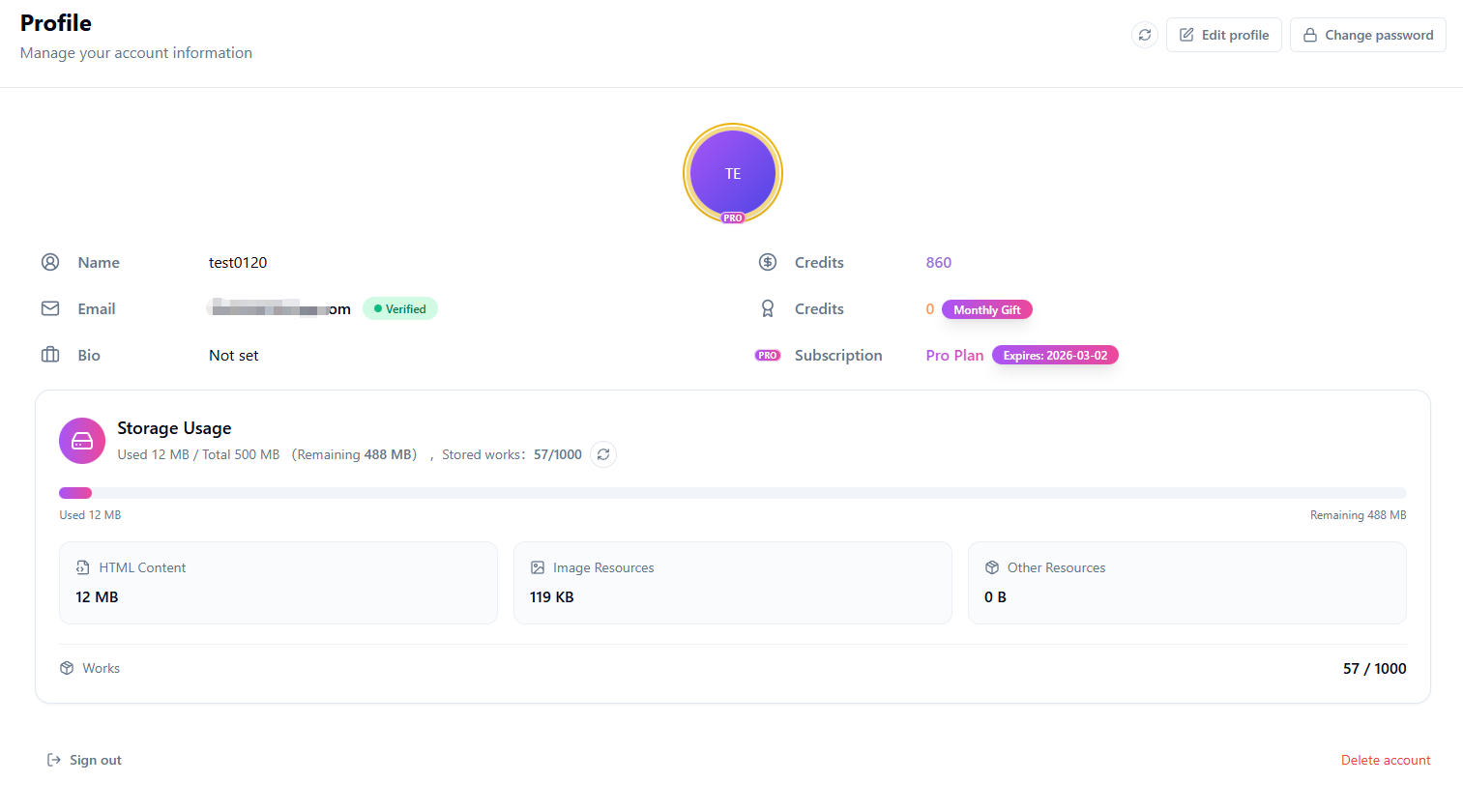
Profilo: gestisci avatar, nickname, email e password
5.5 Utilizzo dello spazio di archiviazione
Il modulo Utilizzo spazio di archiviazione mostra il consumo di spazio di archiviazione del tuo account, aiutandoti a comprendere lo spazio rimanente e a pianificare le tue creazioni di conseguenza.
Panoramica sull'archiviazione
La sezione superiore mostra l'utilizzo complessivo, tra cui:
- Utilizzato: lo spazio di archiviazione attualmente in uso
- Totale: limite di spazio di archiviazione del tuo account (gli utenti Pro usufruiscono di una capacità maggiore)
- Restante: spazio disponibile per la creazione di nuovi progetti
- Progetti archiviati: numero attuale di progetti salvati e limite
Ripartizione dello spazio di archiviazione
Il sistema classifica lo storage in tre tipologie:
- Contenuto HTML: spazio utilizzato dal codice della pagina web dei tuoi progetti
- Risorse immagine: spazio utilizzato dai file immagine caricati
- Altre risorse: spazio utilizzato da altri allegati
Limite del conteggio dei progetti
Gli utenti Free e Pro hanno limiti di conteggio lavoro diversi. Quando raggiungi il limite, dovrai eliminare alcuni progetti o aggiornare il tuo piano prima di crearne di nuovi.
Aggiornamento e upgrade dello spazio di archiviazione
Fare clic sul pulsante Aggiorna per aggiornare le informazioni di archiviazione. Per avere più spazio di archiviazione, fai clic su "Aggiorna spazio di archiviazione" per visitare la pagina dei prezzi e scegliere un piano adatto.
Suggerimento: Se lo spazio di archiviazione dell’account è esaurito o raggiungi il limite di progetti, il sistema bloccherà la creazione di nuovi progetti. Elimina alcuni progetti o passa a un piano superiore per ripristinare i permessi di caricamento.
5.6 Crediti e cronologia di utilizzo
Il modulo Cronologia crediti mostra la cronologia delle transazioni di credito del tuo account, inclusi i record di consumo e guadagno.
Cronologia delle transazioni di credito
I record dei crediti vengono visualizzati in una tabella contenente le seguenti informazioni:
- Data: quando si è verificata la modifica del credito
- Tipo: il tipo di operazione di modifica del credito
- Modifica crediti: crediti aggiunti (positivi) o detratti (negativi)
- Descrizione: spiegazione dettagliata della modifica
Puoi utilizzare i filtri dell'intervallo di date per visualizzare i record di un periodo di tempo specifico.
Tipi di credito
- Generatore AI: crediti consumati quando si utilizza la funzione Generatore AI
- Duplica pagina: crediti consumati quando si utilizza la funzione Duplica pagina
- Premio di registrazione: crediti assegnati ai nuovi utenti dopo la registrazione e la verifica dell'e-mail
- Bonus della piattaforma: crediti regalati dalla piattaforma
- Regalo mensile: credito mensile per gli utenti Pro
- Ricarica crediti: crediti ottenuti tramite acquisti di crediti
- Regolazione amministrativa: crediti modificati manualmente dagli amministratori

Cronologia crediti: visualizza i dettagli della transazione di credito
Suggerimento: Gli utenti Pro ricevono crediti aggiuntivi ogni mese. I crediti possono essere usati per funzioni a pagamento come Generatore IA e Duplica pagina.
5.7 Cronologia ordini e fatturazione
Il modulo Cronologia ordini visualizza la cronologia degli acquisti e i record dei pagamenti, semplificando l'interrogazione e la gestione degli ordini.
Gestione degli ordini
L'elenco degli ordini mostra i record degli acquisti. Puoi:
- Visualizza lo stato e i dettagli dell'ordine
- Utilizza i filtri per trovare rapidamente ordini specifici
- Continua il pagamento per gli ordini in sospeso
- Chiudi o elimina gli ordini che non ti servono più
Suggerimento: In caso di problemi di pagamento, puoi chiudere l’ordine corrente e crearne uno nuovo.
5.8 Prezzi e piani di abbonamento
La pagina Prezzi è dove gestisci il tuo abbonamento e le ricariche di credito. Scegli il piano più adatto a te e sblocca ulteriori possibilità creative.
Piani di abbonamento
HtmlDrag offre piani di abbonamento Pro e Pro Max. Dopo l'abbonamento, puoi utilizzare i vantaggi inclusi durante il periodo di abbonamento attivo:
Pro: per i creatori abituali che necessitano del flusso di lavoro completo di modifica HTML, generazione AI, condivisione ed esportazione.
Pro Max: per creazioni IA più impegnative, progetti più grandi e limiti di utilizzo più elevati.
Gli abbonamenti si rinnovano in base al ciclo di fatturazione indicato al momento del pagamento. Puoi gestire o annullare il rinnovo dal tuo account o dal fornitore di servizi di pagamento.
Prezzo: scegli il piano più adatto a te
Crediti di ricarica
Se hai bisogno solo di un uso temporaneo delle funzionalità di generazione AI o di clonazione della pagina Web, puoi scegliere di ricaricare i crediti. I crediti acquistati non scadono mai e puoi ricaricarli in qualsiasi momento quando stanno per esaurirsi, senza alcuna attesa.
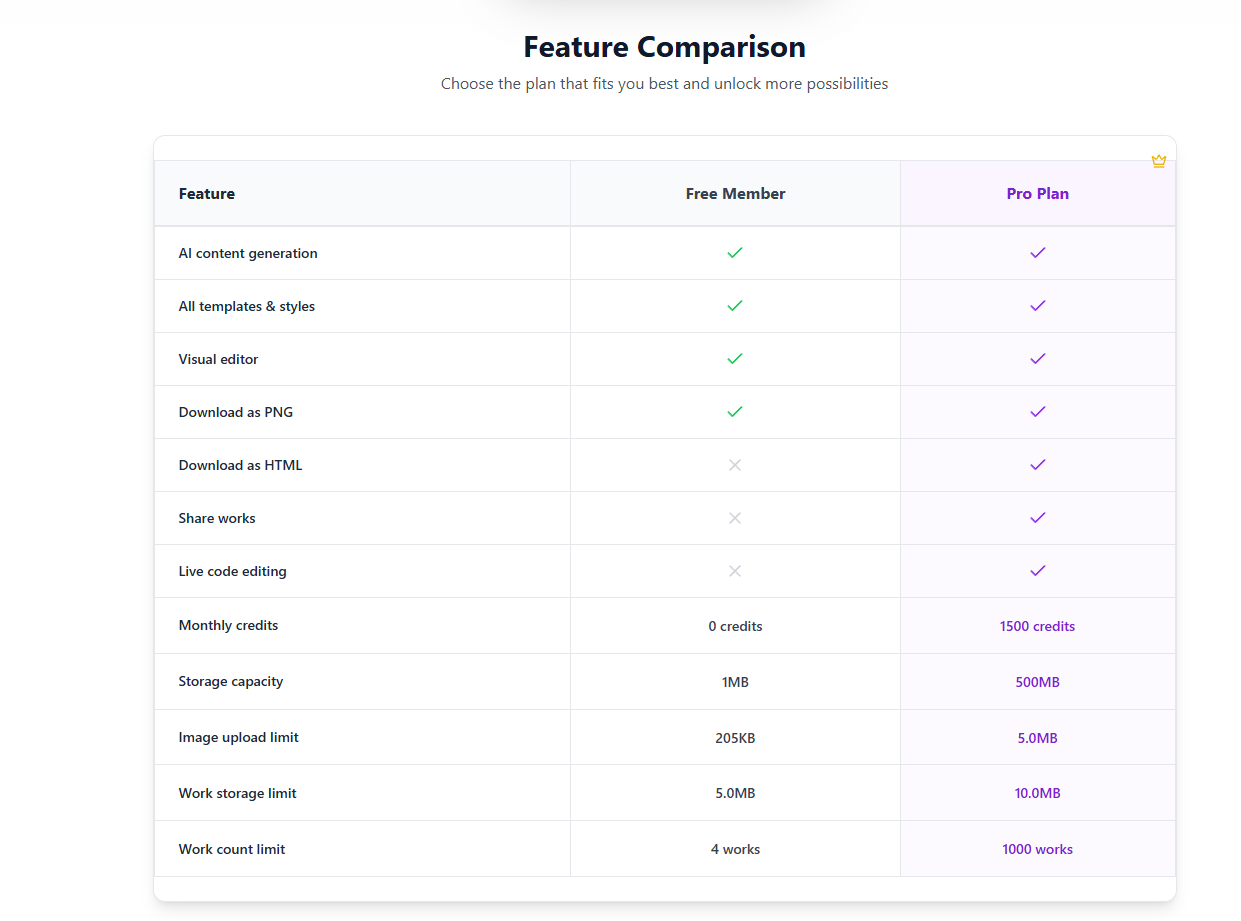
Confronto delle funzionalità
Le principali differenze tra Free e Pro sono le seguenti:
| Funzionalità Free/Pro | ||
| Generazione di contenuti AI | ✓ | ✓ |
| Tutti i modelli e gli stili | ✓ | ✓ |
| Editor visivo | ✓ | ✓ |
| Scarica come PNG | ✓ | ✓ |
| Scarica come HTML | ✗ | ✓ |
| Condividi progetti | ✗ | ✓ |
| Modifica del codice in tempo reale | ✗ | ✓ |
| Crediti mensili | Quota di base | Quota premio |
| Capacità di archiviazione | Capacità di base | Capacità maggiore |
Guida all'utilizzo del credito
Ogni generazione di IA consuma una quantità fissa di crediti. Gli utenti gratuiti ricevono crediti bonus mensili di base, mentre gli utenti Pro ne ricevono di più. I crediti acquistati non scadono mai e puoi ricaricarli in qualsiasi momento quando stanno per esaurirsi, senza dover attendere il recupero della quota.
Inizia con HtmlDrag
Inizia con una pagina HTML esistente, un URL pubblico, una richiesta di perfezionamento AI o un file supportato. HtmlDrag ti aiuta a passare dal materiale sorgente a una modifica visiva, un'anteprima condivisibile o un'esportazione HTML pulita.
Questa guida tratta caricamento HTML, incolla codice, clona pagina Web, perfezionamento AI, file in HTML, modifica di testo e immagini, tabelle, componenti, livelli, collegamenti, blocco ed eliminazione di elementi, salvataggio, condivisione ed esportazione HTML.