
AI can produce a surprisingly complete HTML page in one response. A prompt can give you a landing page with a hero, cards, a pricing section, a call to action, and enough CSS to make the first version feel close. The difficult part often arrives after that first result: the page needs a sharper headline, a real image, a calmer visual hierarchy, a more credible CTA, or one local layout correction. None of those requests necessarily justify asking the model to regenerate the entire page.
When you edit AI-generated HTML visually, you keep the useful structure and make the final decision on the rendered page. Instead of finding the right tag in a long response, changing a CSS value, pasting it back into chat, and hoping the next generation does not alter three unrelated sections, you can start with the HTML you already have. The work becomes a focused finishing pass: inspect the page, select the visible element that needs attention, make a deliberate change, preview the complete result, and export the version you reviewed.
This guide explains how to edit AI-generated HTML without re-prompting the AI for every detail. The primary path is Paste Code: bring HTML from ChatGPT, Claude, v0, a coding assistant, or another approved source into HtmlDrag, render it as an editable working page, refine supported visible elements, then hand off the edited HTML through your normal publishing workflow.
Why AI-generated HTML still needs a visual finishing pass
AI generation is valuable because it removes the blank-page problem. It can turn a rough brief into a credible first direction quickly. But it cannot fully replace the visual judgement that happens when a real page is viewed as a whole: whether a headline breaks at the right point, whether an image competes with the CTA, whether a supporting card gets too much emphasis, or whether the page feels like one brand rather than a set of generated sections.
That does not mean the AI output failed. It means the first generation is a source, not automatically the final artifact. A useful workflow separates the two jobs:
- use AI to create or accelerate the first HTML draft;
- use a visual HTML editor to make the last visible decisions in context;
- use normal code review, QA, and deployment for behavior that depends on production systems.
This separation is especially useful for marketers, founders, designers, and product teams who can recognize that a page is almost right but do not want every small revision to become another long prompt conversation. The aim is not to replace engineering. It is to make the visible layer easier to finish before engineering or a publishing workflow takes over.
What does it mean to edit AI-generated HTML visually?
Editing AI-generated HTML visually means working from the rendered page instead of using the source code as your only interface. The HTML remains the starting point, but you evaluate the parts visitors see: copy, image treatment, hierarchy, spacing, color, emphasis, and the relationship between one section and the next.
For supported visible elements, a visual HTML editing workflow can help you:
- revise a headline or supporting paragraph in its actual reading context;
- adjust text styling, color, alignment, spacing, or visual emphasis;
- move or resize an element when a small composition change makes the page clearer;
- replace a supported image while keeping the rest of the section intact;
- review lower-page cards and CTAs instead of fixing only the first screen;
- preview the complete working copy before exporting edited HTML.
A visual pass is not the same as pasting a page into a generic rich-text editor. The goal is to keep the existing HTML page visible as a page, so a change can be judged against the surrounding content and design direction. That matters when the original code came from AI: generated pages often look coherent at a glance, but their priority, spacing, and message can still need a human decision.
When is Paste Code better than another AI prompt?
Return to the AI when you need a new page concept, a different information architecture, a new interaction model, or a broad rewrite of content and code. Use Paste Code when the existing output is structurally useful and the remaining task is local and visual.
- Use Paste Code when you have raw HTML copied from an AI tool, a teammate, a repository, or a code review.
- Use Upload HTML when the page is already saved as a local
.htmlor.htmfile. - Use URL Import when an accessible webpage is the authorized source and the original file is not available nearby.
- Return to the generating tool when a small visual change would be the wrong solution for a structural or functional problem.
For example, re-prompting may be unnecessary when you want to replace a stale hero image, correct one line of positioning, reduce an overly dominant feature card, or make the next action more apparent. It is often safer to preserve the parts that already work and refine the one decision that does not.
How to edit AI-generated HTML without coding
The practical path is:
Copy the AI-generated HTML → paste it into a working page → inspect the rendered result → make focused visual changes → preview the full page → export the edited HTML
1. Start with a complete HTML result you are allowed to use
Copy the HTML you generated or received from an approved source. A complete page is usually the clearest starting point because you can assess its hierarchy from the hero through the final CTA. If the AI response includes explanatory prose around the code, copy only the HTML intended for the page rather than the chat instructions.
Keep your source reference. The safest habit is to treat the pasted page as a working copy: the AI output or repository version remains your reference, while the visual editor gives you a place to test the revision you intend to review.
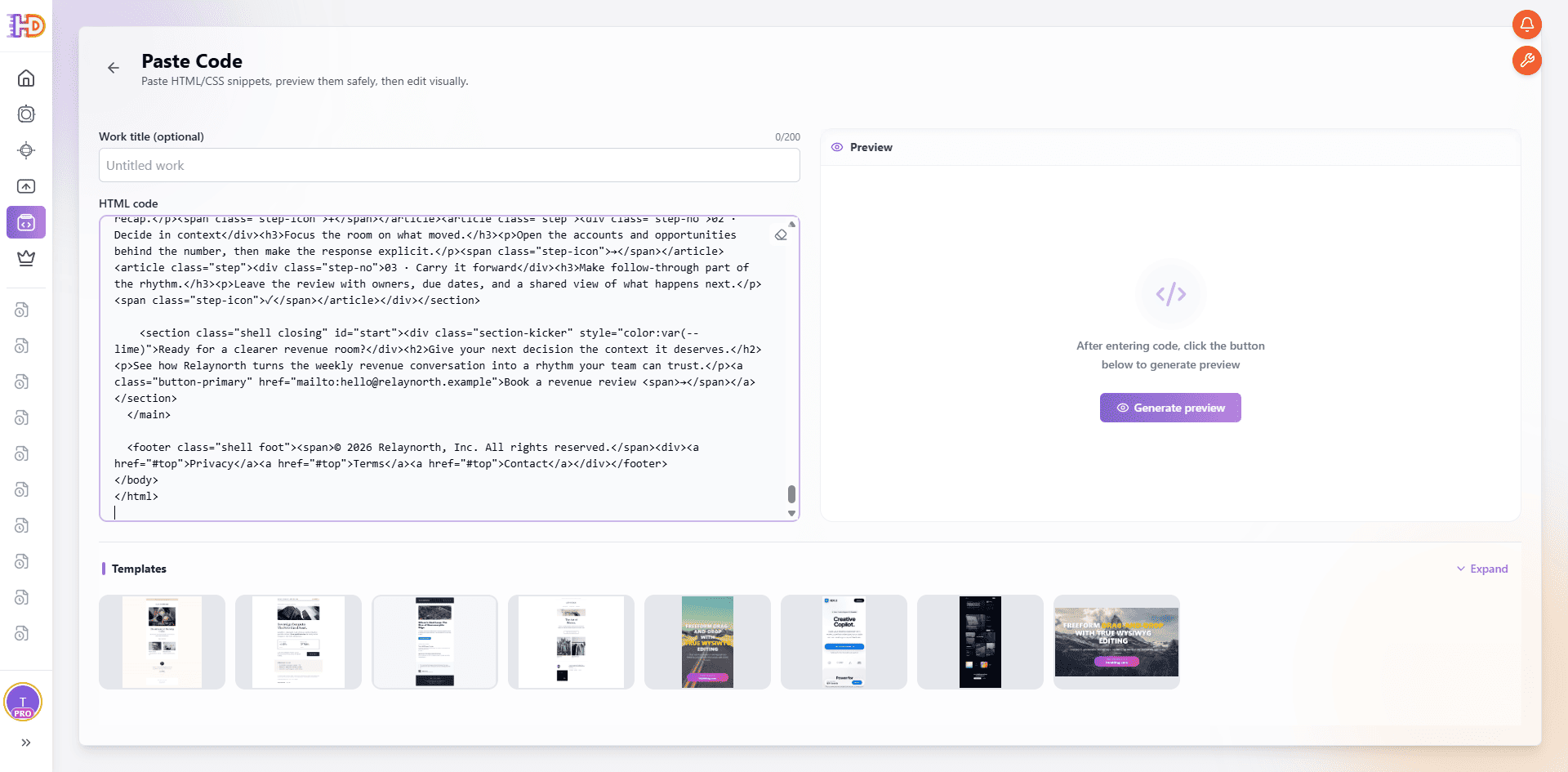 Paste Code starts with the actual HTML source, ready to become a visual working page rather than another AI prompt.
2. Paste the HTML and let it become a visual working page
Open Paste Code, give the work a meaningful name, and paste the HTML into the code area. This is not a request to regenerate the page. It is a request to render the source you already have as an editable visual page.
Once the page opens, the right first action is usually observation. Read the hero, look at the first image, scan the hierarchy of the cards, and follow the content path to the CTA. Generated markup can have a reasonable structure while still needing a better visual decision in one or two places.
3. Review the whole page before touching the first element
Do not start by changing the first awkward phrase you see. First establish a baseline. Which sections are already doing their job? Where does the page lose focus? Does the primary message arrive before the decorative elements? Does the CTA feel connected to the promise above it?
This page-level pass helps prevent a common AI-editing mistake: making several locally reasonable changes that weaken the overall composition. The best visual revisions preserve what is useful in the generated structure and improve only the relationship that is currently unclear.
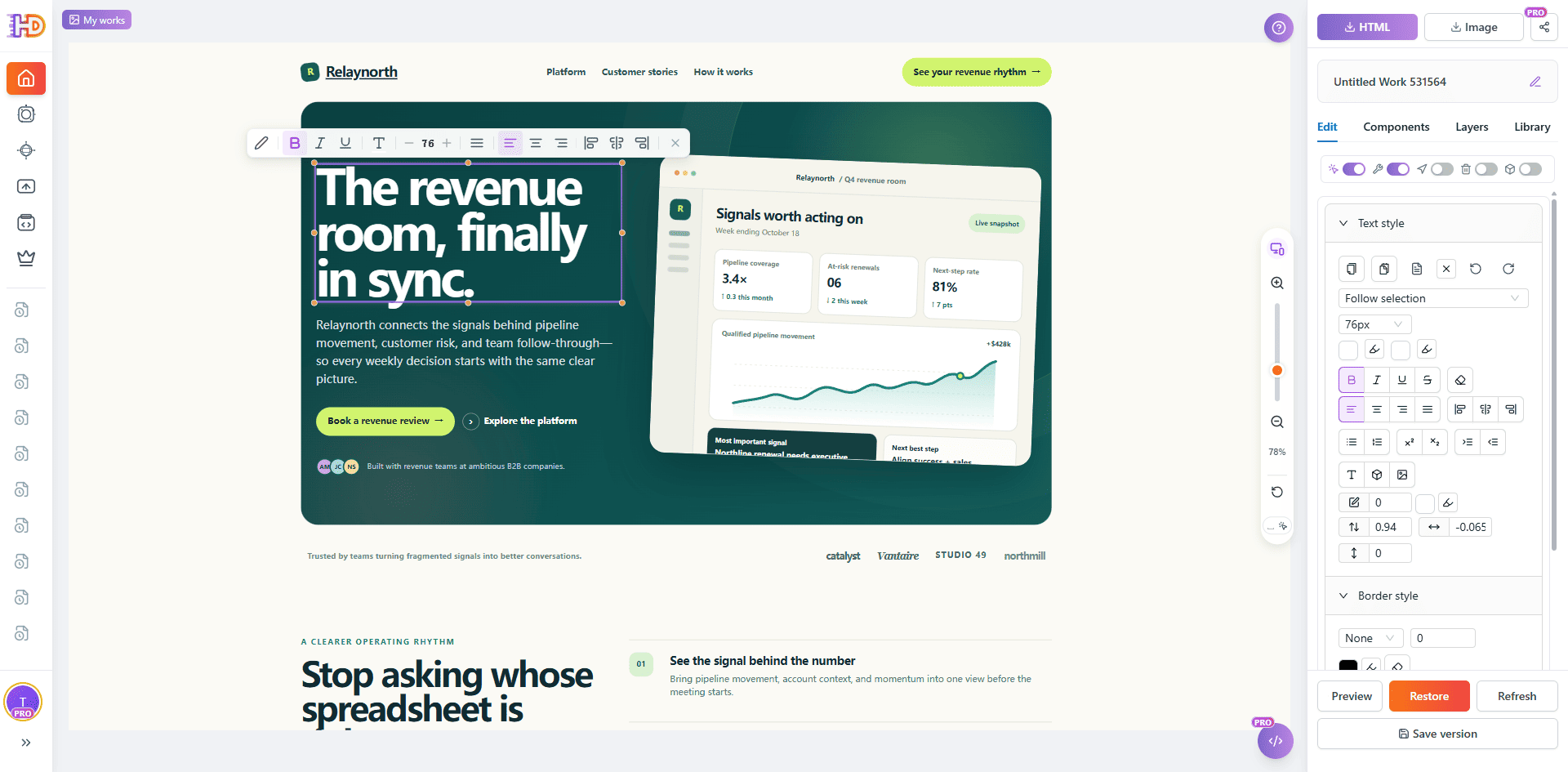 The pasted HTML is rendered as a real page canvas, so its hierarchy can be assessed before the first revision.
Make visual decisions where visitors see them
The advantage of a visual HTML editor is not that every change becomes automatic. It is that you can test a decision in the place where a visitor will encounter it. Start with the element that affects the reader’s next action, then check whether the page still reads naturally around it.
4. Improve the hero message without rewriting the page
AI-generated hero sections often contain the right ingredients but the wrong balance. The headline may be too long, the contrast may be weak, or the supporting text may compete with the action. Select the visible hero element and review its wording, scale, color, alignment, background, or spacing in context.
The goal is not to add a dramatic effect simply because the editor makes it possible. The goal is to make the promise easier to understand at a glance. A better line break, a quieter background, or a clearer hierarchy can be more valuable than another generated rewrite.
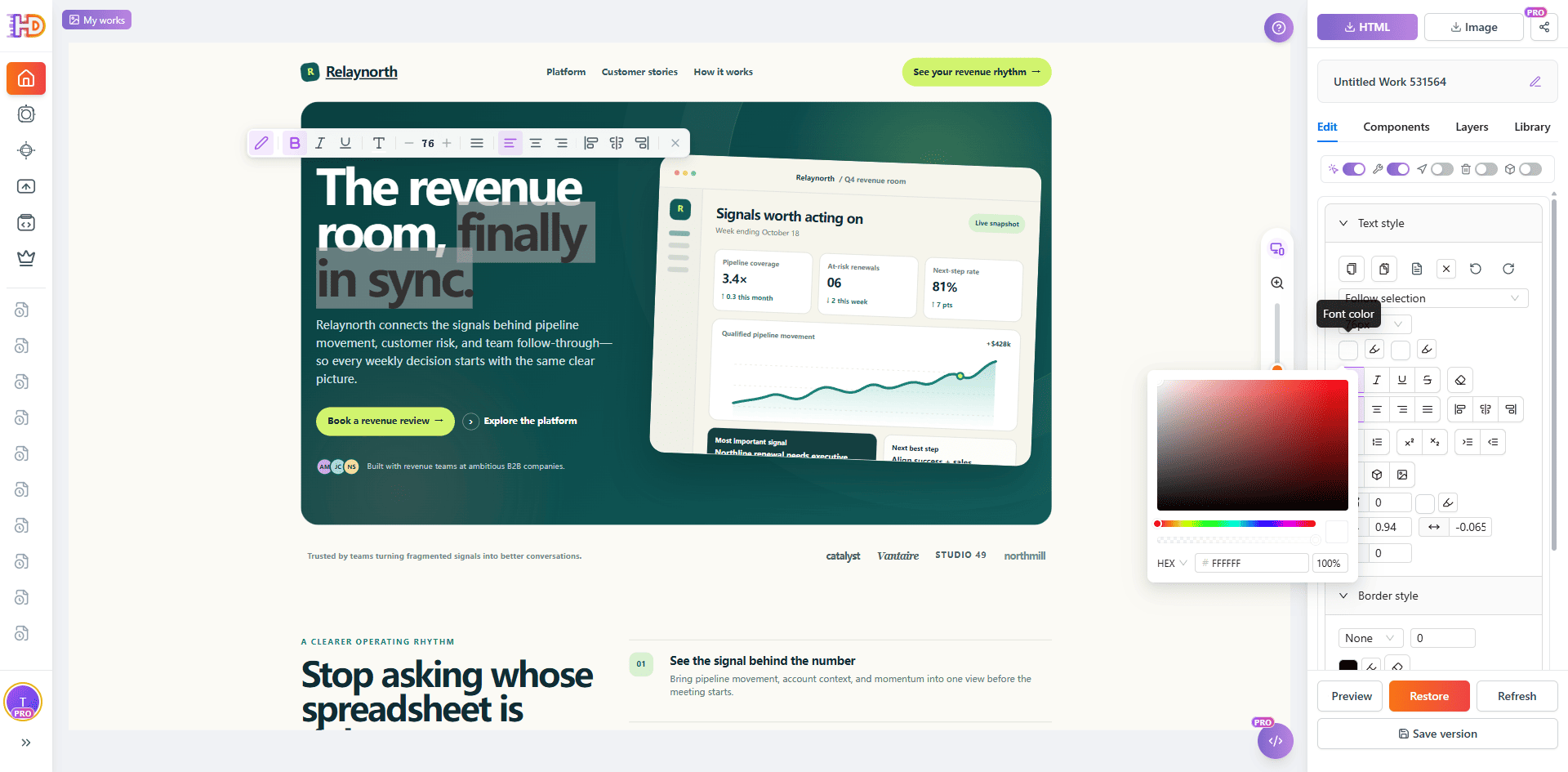 A local hero-text adjustment can be evaluated in the page composition instead of by regenerating the whole page.
5. Refine the CTA and nearby layout as one decision
A CTA can be technically present and still feel disconnected from the message it is supposed to complete. Review its wording, contrast, scale, and placement relative to the headline, supporting copy, and primary image. If a small position change makes the action easier to find, judge it against the real page rather than against a number in a CSS rule.
This is also a useful place to be selective. The purpose of visual editing is not to turn every AI page into a freeform redesign. Make the smallest adjustment that clarifies the reading path, then review the relationship again before moving on.
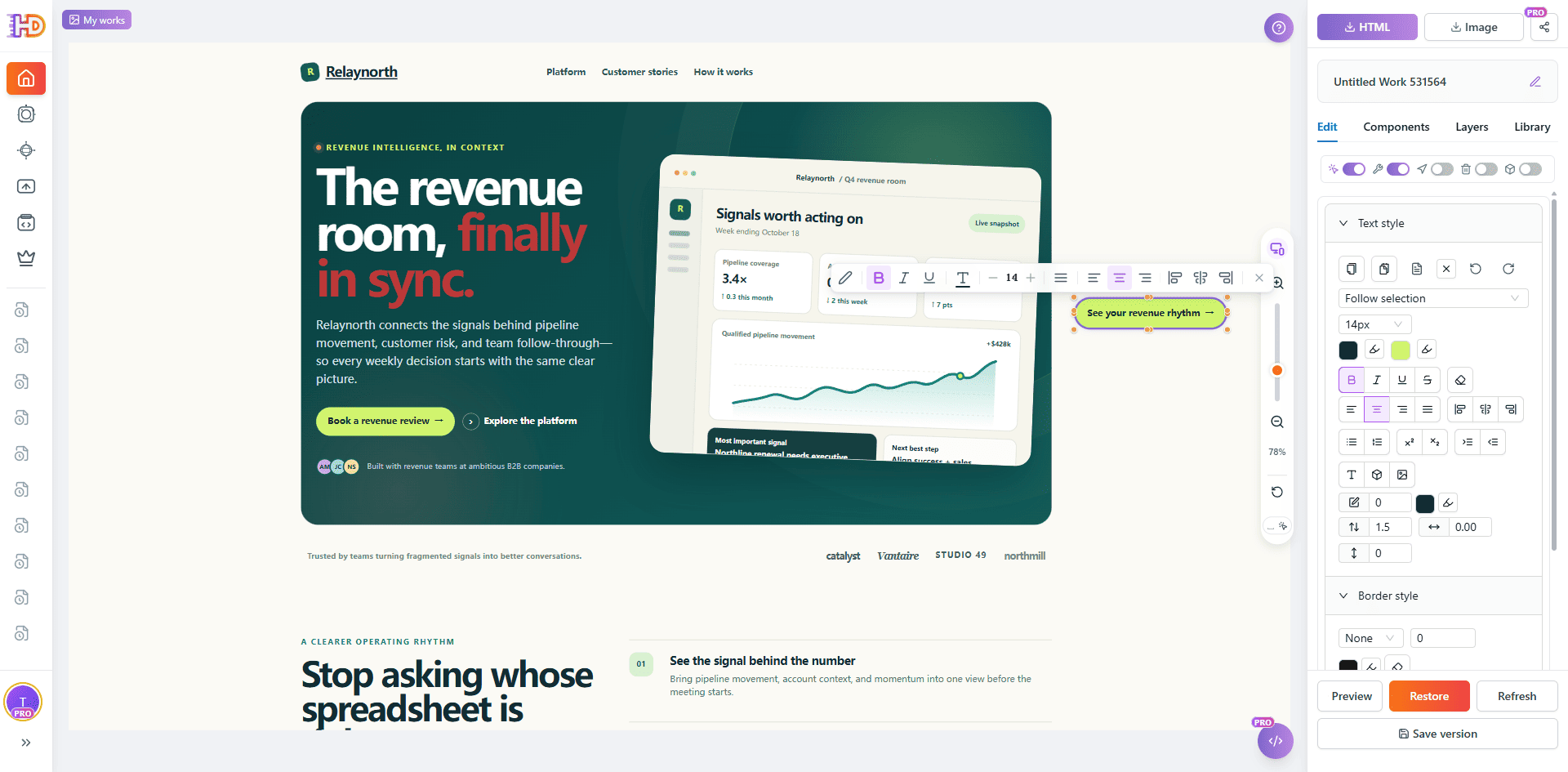 The CTA can be reviewed as part of the message and surrounding layout rather than as an isolated button.
6. Continue past the first screen
AI-generated pages can put most of their energy into the hero and leave the lower sections repetitive or poorly weighted. Scroll through the supporting cards, proof points, testimonials, and final CTA. Select one heading, card, or description at a time when it needs attention, while keeping the rest of the section visible as context.
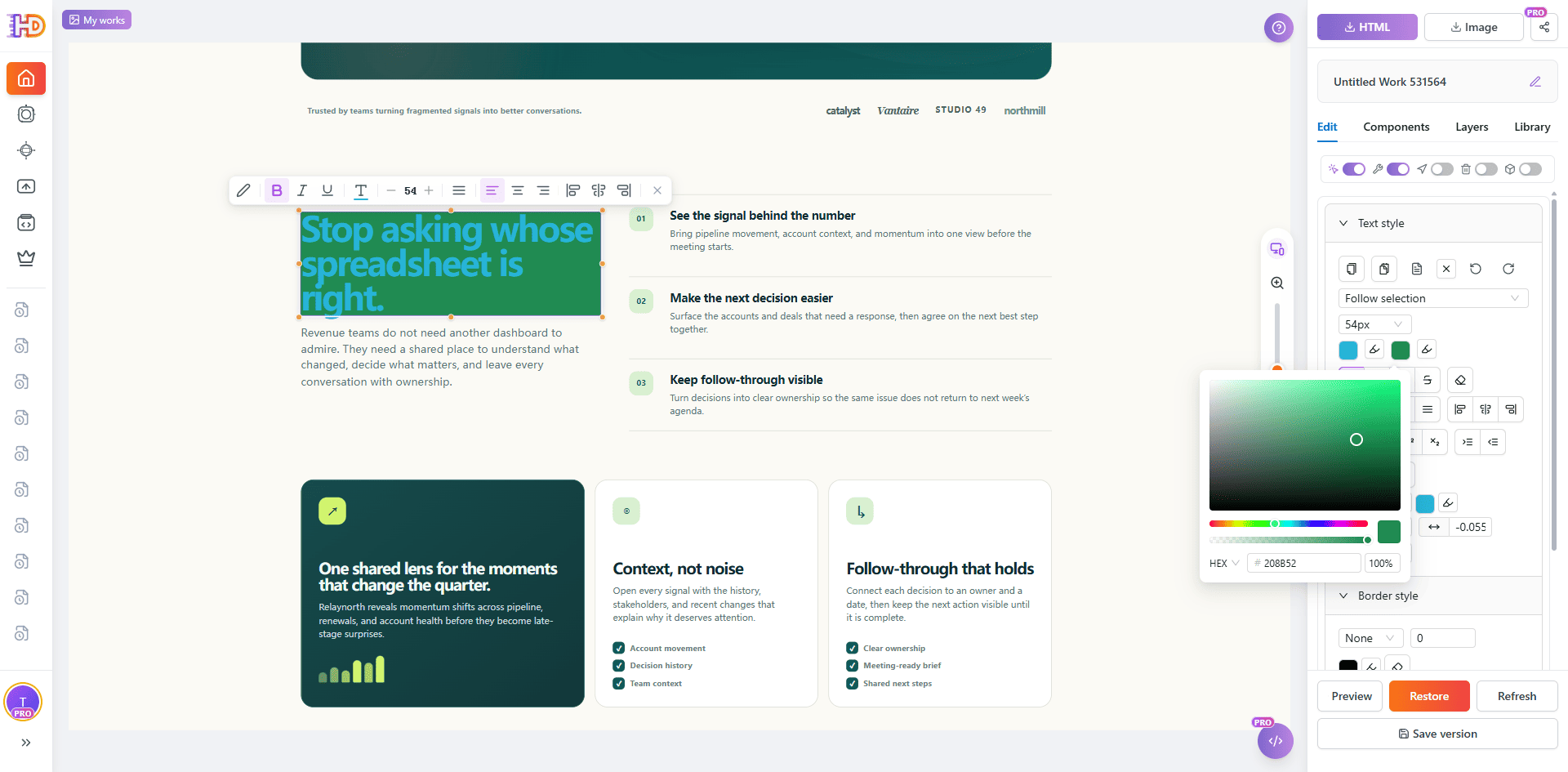 A lower-page heading is adjusted in the context of the cards and supporting content around it.
This is where a visual finishing pass becomes different from a single prompt revision. You can keep the parts of the generated page that already communicate well while correcting a lower-page heading, reducing an unnecessary emphasis, or bringing a final call to action back into the content flow.
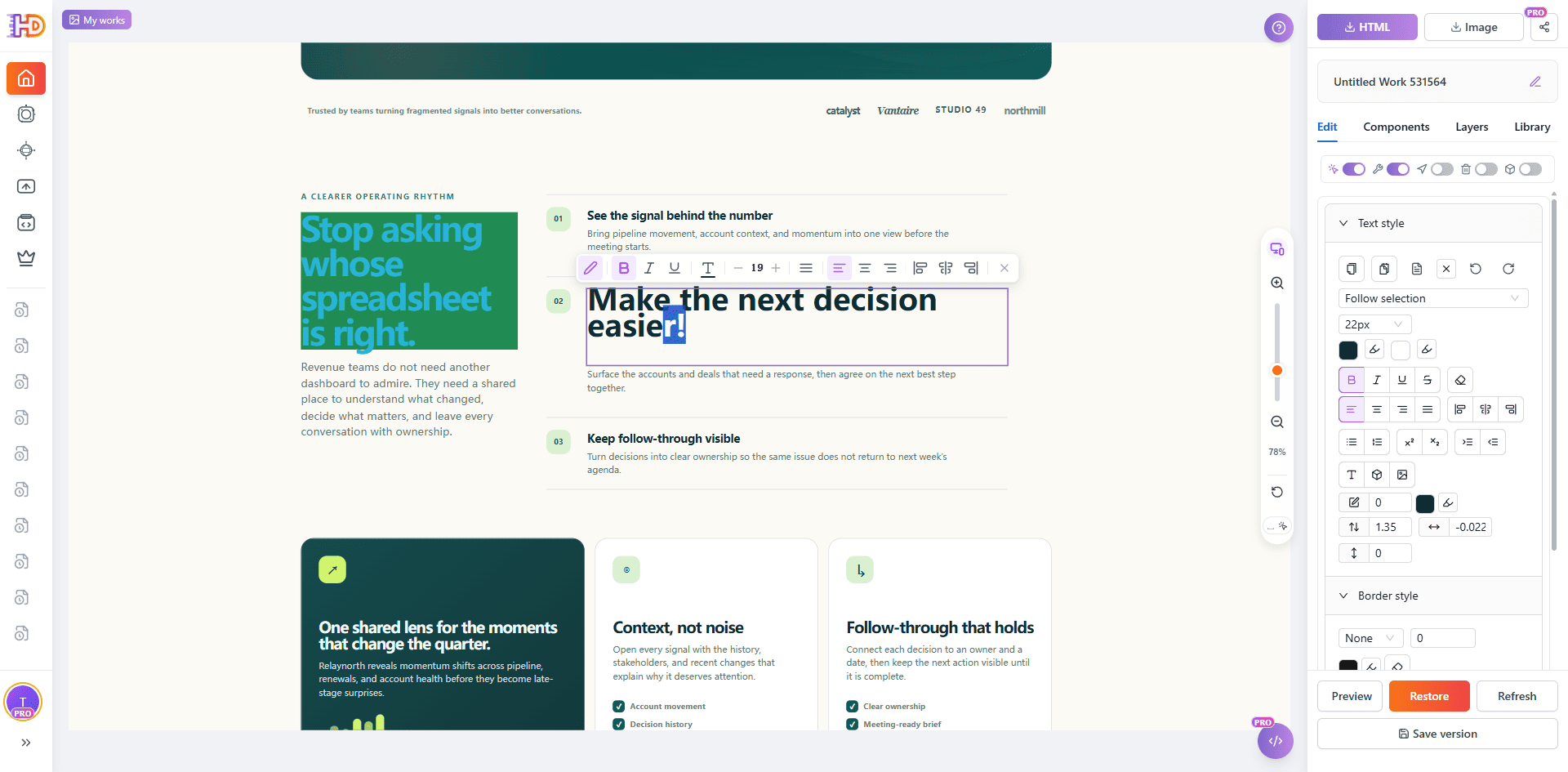 Supporting copy and headings can be refined one element at a time without losing their relationship to the full section.
7. Replace a supported image in its real section
Generated pages often use placeholder imagery or an image that is broadly attractive but wrong for the product. When the image element is supported, use the replacement action and assess the new asset where it will actually live. Keep the surrounding section intact so you can judge crop, proportions, contrast, visual weight, and its relationship to the copy.
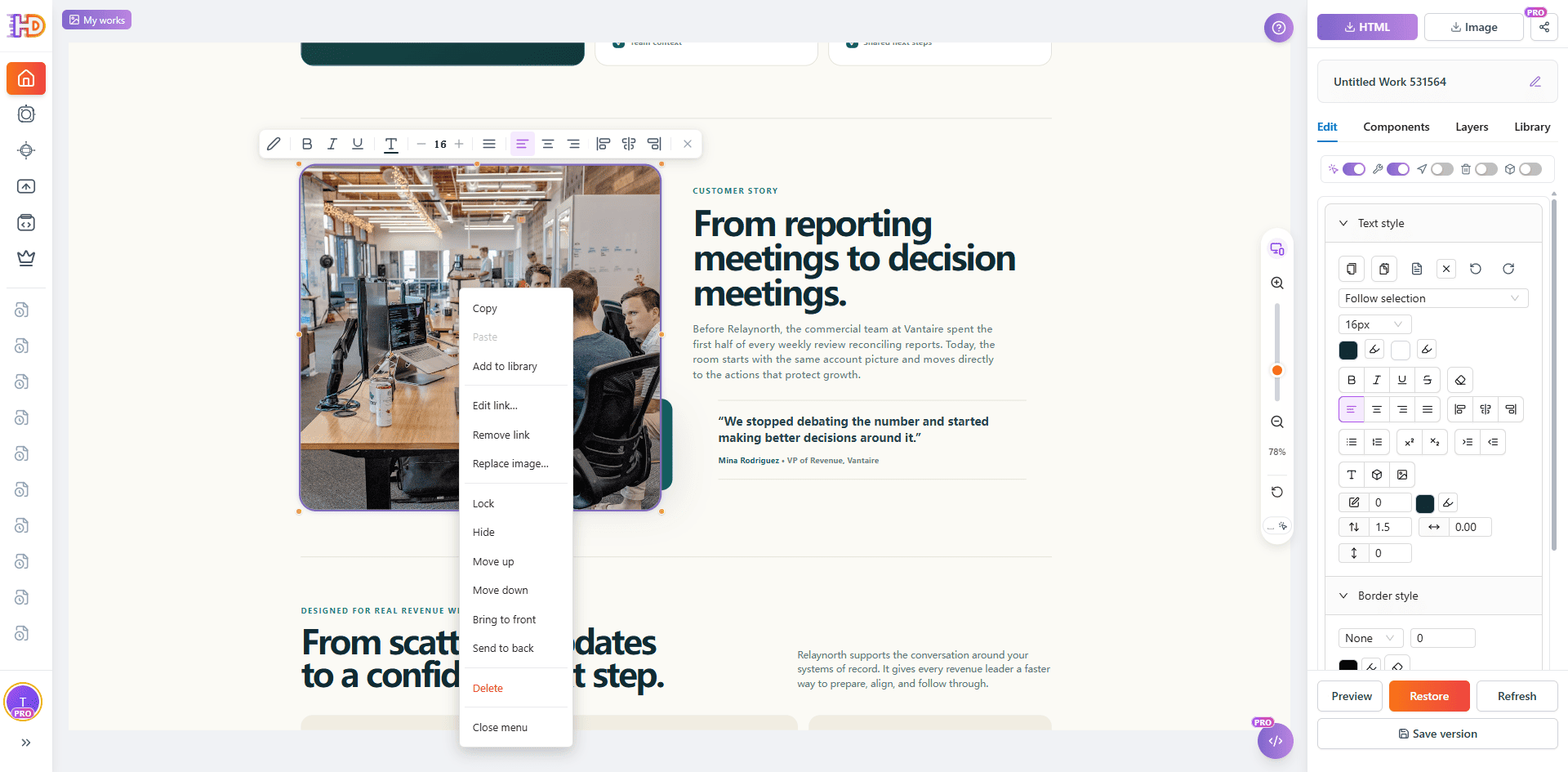 The selected image menu exposes real editing options; use only the action the page needs and keep the surrounding section intact.
A successful replacement is not only a technical success message. Check whether the new subject competes with the headline, whether it shifts the visual balance too far to one side, and whether it supports the promise the page is making.
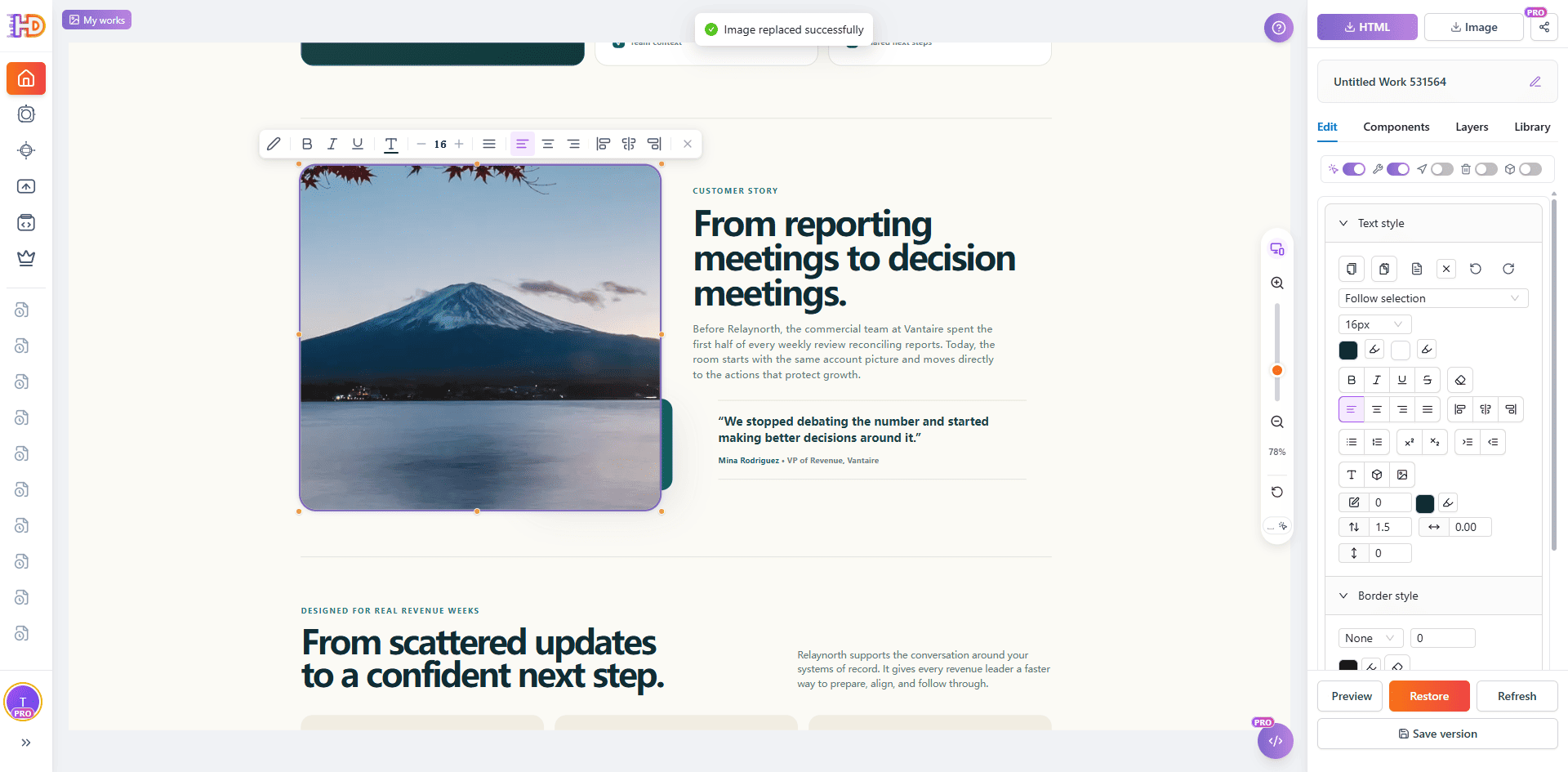 The replacement completes in the working copy, ready to be judged with the surrounding headline and customer-story content.
8. Add, protect, or remove the element the page actually needs
A finishing pass is not limited to moving what the AI already produced. When the page has a genuine content gap, insert the element that closes it instead of asking the model to rebuild the entire section. For example, you can add a new supporting element, add a hyperlink to the action or resource the reader needs, or insert a comparison table when a pricing, plan, feature, or timeline decision is easier to understand in rows and columns.
Tables deserve the same editorial care as the rest of the page. After inserting one, edit the relevant rows, columns, cells, alignment, borders, and cell backgrounds so the table clarifies a decision rather than becoming a dense block of generated information. A page may also need less, not more: remove a duplicated card, unnecessary decorative element, or AI-generated filler that distracts from the main message.
When an important background, brand mark, or completed composition should no longer move during later adjustments, lock that element before continuing. The useful sequence is deliberate: insert only what the page needs, add links that lead to a meaningful destination, edit a table as a real content component, remove what weakens the hierarchy, and lock the parts that are finished. These are complementary visual-editing controls—not substitutes for functional QA or a reason to make every page more complicated.
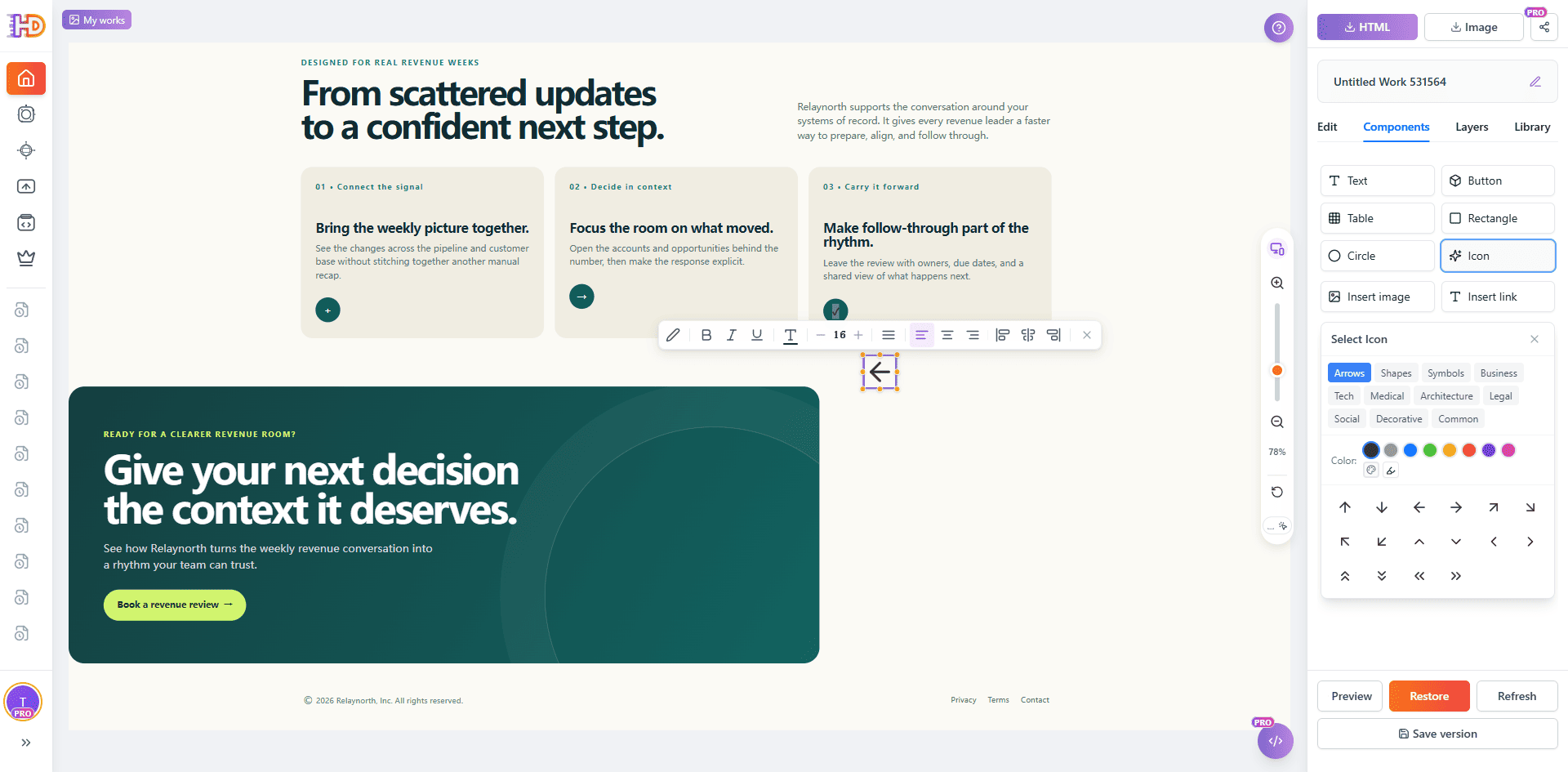 The Components panel provides page-building elements such as text, buttons, tables, images, icons, and links for a genuine content gap.
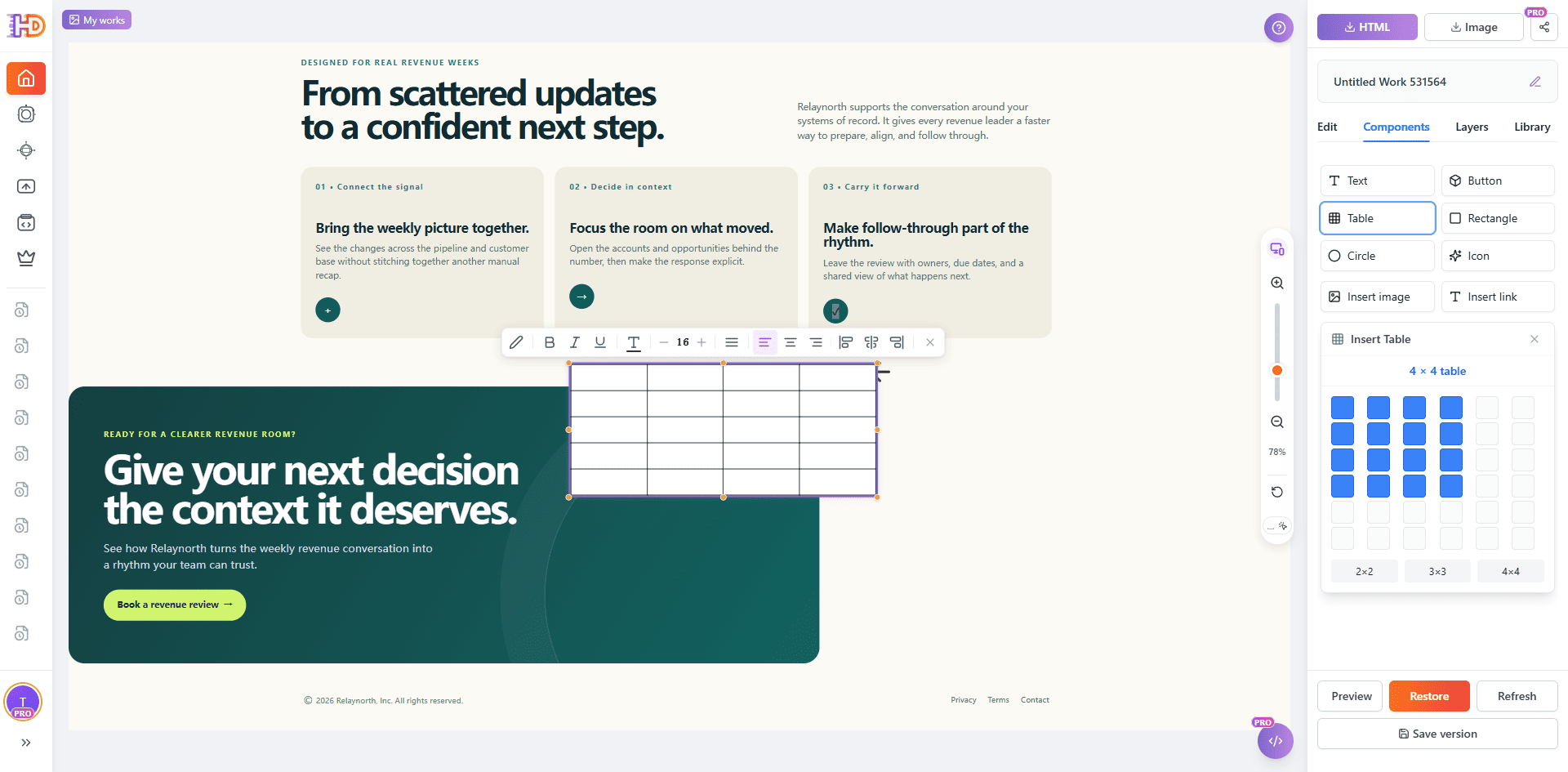 A table can be inserted as a real content component when rows and columns communicate the decision more clearly than generated prose.
Preview the edited AI page before export
Editing is not complete when the selected element looks better. Leave the editing state and inspect the entire page as a visitor would. Check the reading order, line breaks, image treatment, section transitions, CTA hierarchy, and the responsive behavior that matters for the page you plan to deliver.
The important question is not only “Did the property change?” It is “Does the page now communicate the right thing without damaging the useful structure the AI created?” A full-page preview makes that question much easier to answer before a handoff.
When you are ready to hand the page off, choose the edited version deliberately. HtmlDrag’s export workflow distinguishes Edited HTML from Original HTML and provides actions to download or copy the current HTML for the next stage.
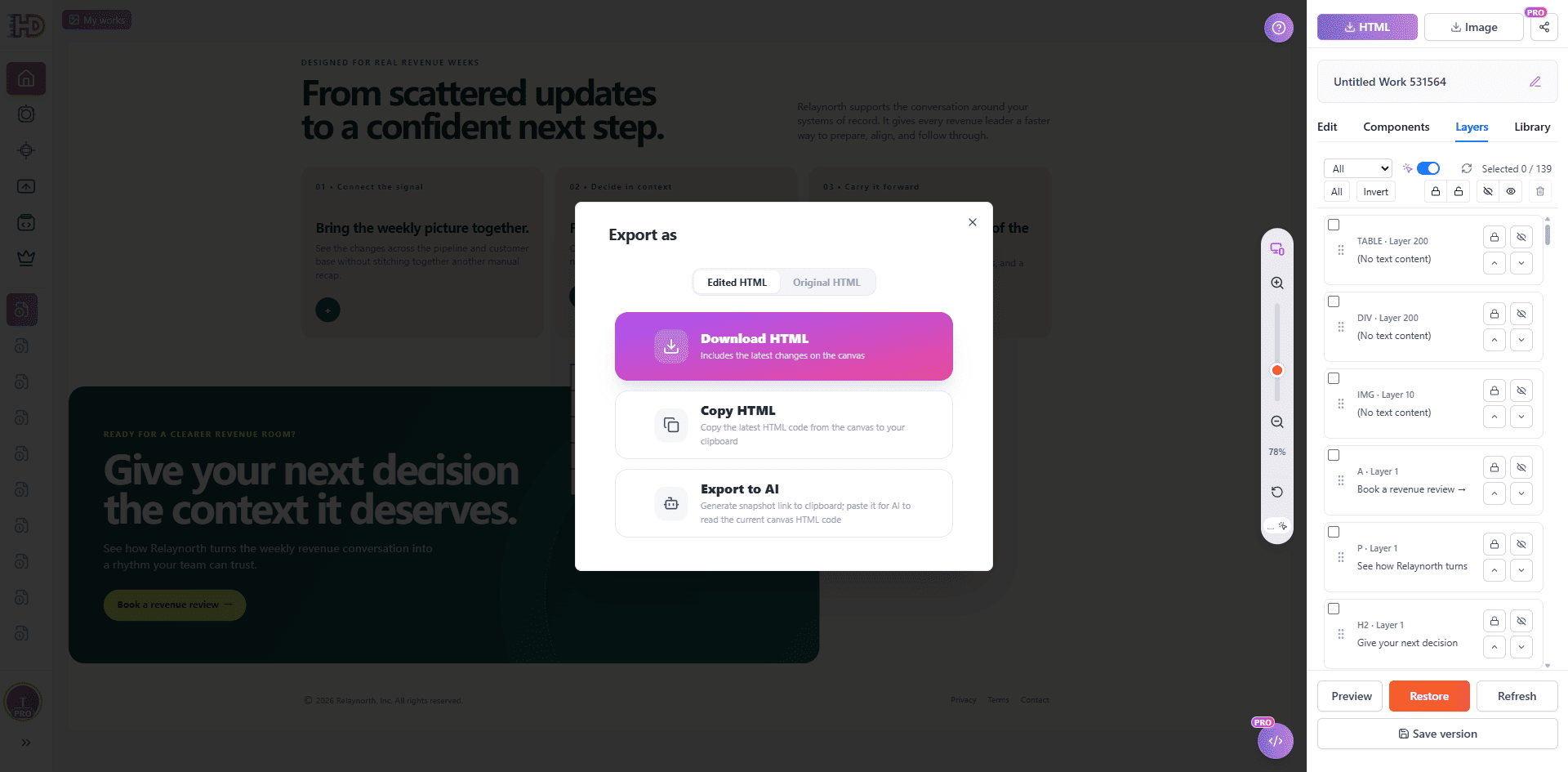 The export dialog makes the handoff choice explicit: select the edited HTML version after the visual review is complete.
What visual editing can—and cannot—replace
Visual editing is a strong fit for the visible finishing layer of an AI-generated HTML page. It can help you refine copy, imagery, styling, spacing, hierarchy, and positioning without rebuilding the page from zero. It is most useful when the structure is already close and the remaining work is easier to assess on the rendered page than in raw markup.
It does not remove the need for normal production checks. Forms, authentication, payments, analytics, redirects, server-side behavior, dynamic data, third-party integrations, complex JavaScript, scripts, iframes, Canvas content, and deployment still need to be tested in the environment where the page will run. If the issue is functional or structural, return to the source code or the appropriate engineering workflow instead of forcing a visual workaround.
The practical boundary is simple: use visual editing for the decisions you can verify on the rendered page, then use your normal technical process for behavior that depends on code, services, or production infrastructure.
Does visual editing replace ChatGPT, Claude, or a code editor?
No. These tools do different jobs. AI is useful for creating a first draft, exploring an idea, or producing a larger rewrite. A code editor is the right surface when you need to work directly on code, structure, logic, or technical integration. A visual HTML editor is the useful middle layer when the page exists and the next decision is primarily visual.
That middle layer prevents a small request from bouncing unnecessarily between tools. You do not need to ask a model to regenerate a whole landing page because one paragraph is too long, and you do not need to search a large generated stylesheet when the decision is easier to make by looking at the page.
Frequently asked questions
Can I edit ChatGPT-generated HTML without coding?
Yes, for supported visible elements. Copy the HTML output, paste it into a visual HTML editor, open the rendered page, select the element that needs attention, and make the revision through the available visual controls. Review the result and test functional behavior before publishing.
Can I edit Claude-generated HTML visually?
Yes. If Claude or another AI tool gives you raw HTML, Paste Code can turn that source into a working visual page. The same principle applies: preserve useful structure, make the focused visible adjustment, preview the result, and export the version you reviewed.
Do I need to regenerate the page after every change?
Not when the needed change is a supported visible detail such as copy, emphasis, styling, image treatment, spacing, or element positioning. Return to the AI when you need a new concept, a broad structural change, or code-level behavior that visual editing cannot safely replace.
Can I paste HTML from an AI website builder?
If you have the raw HTML and are authorized to use it, Paste Code is the appropriate starting point. For a saved page file, use Upload HTML instead. For an accessible webpage where the original file is not nearby, URL Import may be the better source path.
Will visual editing update the live website automatically?
No. Treat the pasted page as a working copy. Preview and export the edited HTML, then use your normal deployment, handoff, and QA process to update a live environment.
Conclusion
AI-generated HTML does not have to be a disposable answer that you regenerate every time one visual detail changes. When the page already has a useful structure, keep that structure, work from the rendered result, and make the small decisions that help the page feel deliberate and ready.
HtmlDrag makes that final step practical: paste the AI-generated HTML you already have, refine visible content and layout without coding, preview the whole page, and export the edited HTML when it is ready for the next stage.