
You finish an HTML campaign, send a test to Gmail, and discover that part of the message has disappeared behind a “View entire message” link. That is not only a visual inconvenience. Clipping can hide footer content, unsubscribe information, or tracking elements, while the same file may also contain dark-mode, Outlook, image, font, and accessibility problems that are difficult to spot by looking at the source once.
HtmlDrag Email Compatibility Fixer provides a browser-local preflight workflow for this situation. You can upload an `.html` file or paste its source, preview the email, scan it for compatibility risks, choose which fixes to apply, and then download the repaired HTML or continue editing it visually.
In this walkthrough, the sample email intentionally contains:
- Enough redundant HTML to trigger a Gmail clipping warning around the 102KB threshold.
- An image without an ALT attribute.
- A custom font without a generic fallback.
- Dark text and light containers that may behave poorly in dark mode.
- A rounded CTA and table details that need extra consideration in Outlook.
- Mobile, link, contrast, and semantic accessibility risks.
The goal is not to redesign the campaign automatically. It is to remove avoidable delivery risks while preserving the email's visible structure, then give you a clean path into the visual editor when the copy or styling still needs human adjustment.
What Gmail Clipping Means for an HTML Email
Gmail may clip a large HTML message and place the remaining content behind a link. The commonly discussed threshold is roughly 102KB of message HTML, although the exact result can depend on the final content delivered to the inbox. Repeated inline styles, builder metadata, duplicated blocks, excessive whitespace, and comments can all increase the source size without adding visible value.
Reducing the file below the warning threshold is useful, but size is only one part of email QA. A campaign that is small enough for Gmail can still have unreadable dark-mode text, missing image descriptions, fragile fonts, or buttons that render differently in Outlook. That is why this workflow starts with one broader compatibility scan instead of treating clipping as an isolated problem.
The Workflow: Detect, Fix, Preview, and Continue Editing
Step 1: Upload the HTML Email or Paste Its Code
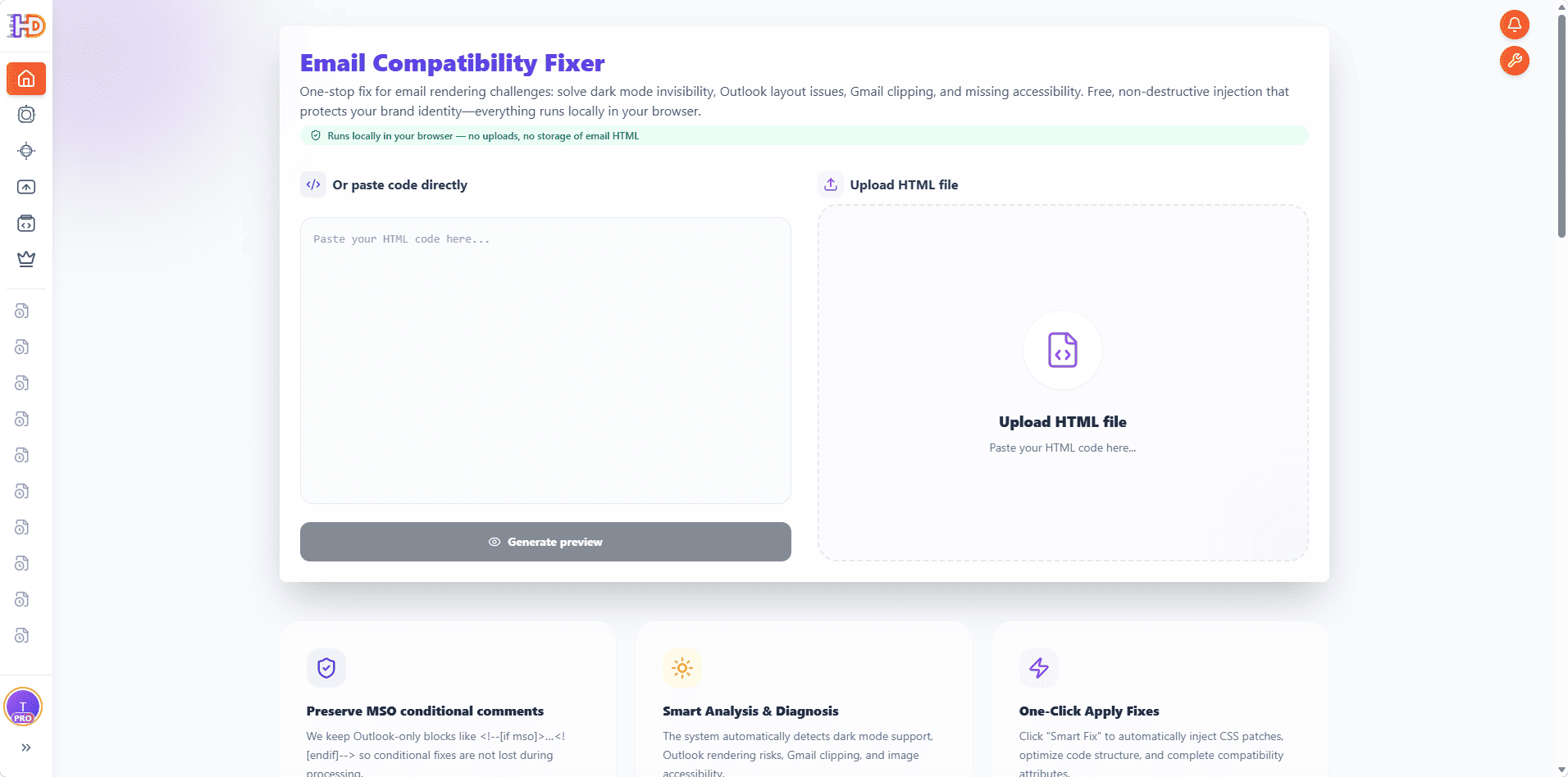
Open the Email Compatibility Fixer. The left side accepts pasted HTML, while the right side accepts an `.html` or `.htm` file. For this example, we upload an intentionally oversized campaign file. The compatibility analysis and selected fixes run locally in the browser at this stage, so the email HTML is not uploaded or stored by the fixer.
If the campaign came from another email builder or an older template library, uploading the file is usually the simplest option. If you are already working with a code snippet, pasting it directly avoids creating an intermediate file.
 Step 2: Preview the Original Email Before Changing Anything
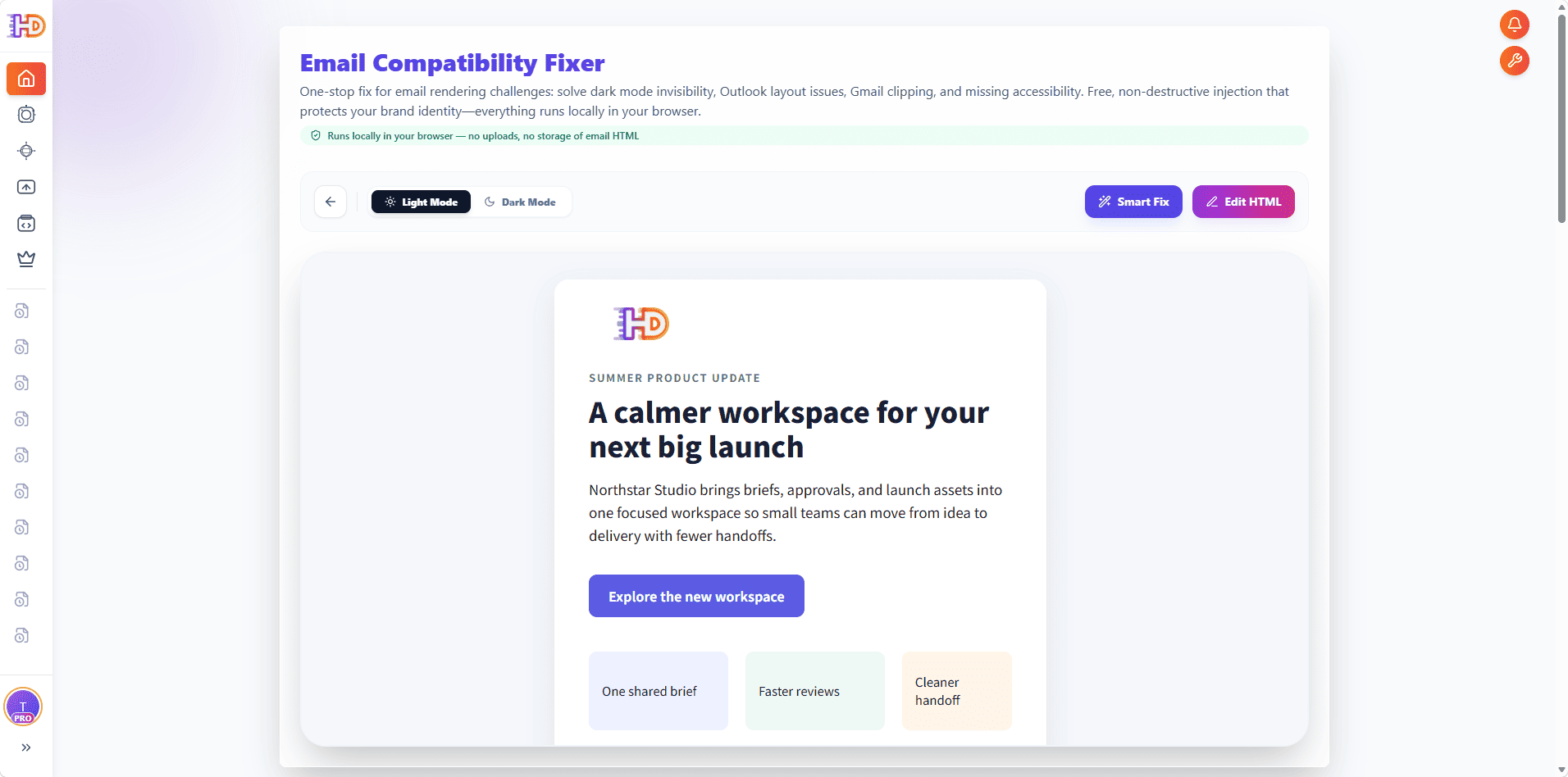
After the file is accepted, HtmlDrag renders the email in the preview area. This gives you a visual checkpoint before any automated repair is applied. You can inspect the main hierarchy, CTA, content cards, and footer, and switch between light and dark previews to expose obvious contrast problems.
The preview also keeps the next actions visible: run Smart Fix for a compatibility scan, or open the HTML in the visual editor if you only need manual changes. In this walkthrough, we scan first because the source is deliberately large and includes several non-visual risks.
 Step 3: Review the Detected Risks Instead of Applying a Blind Rewrite
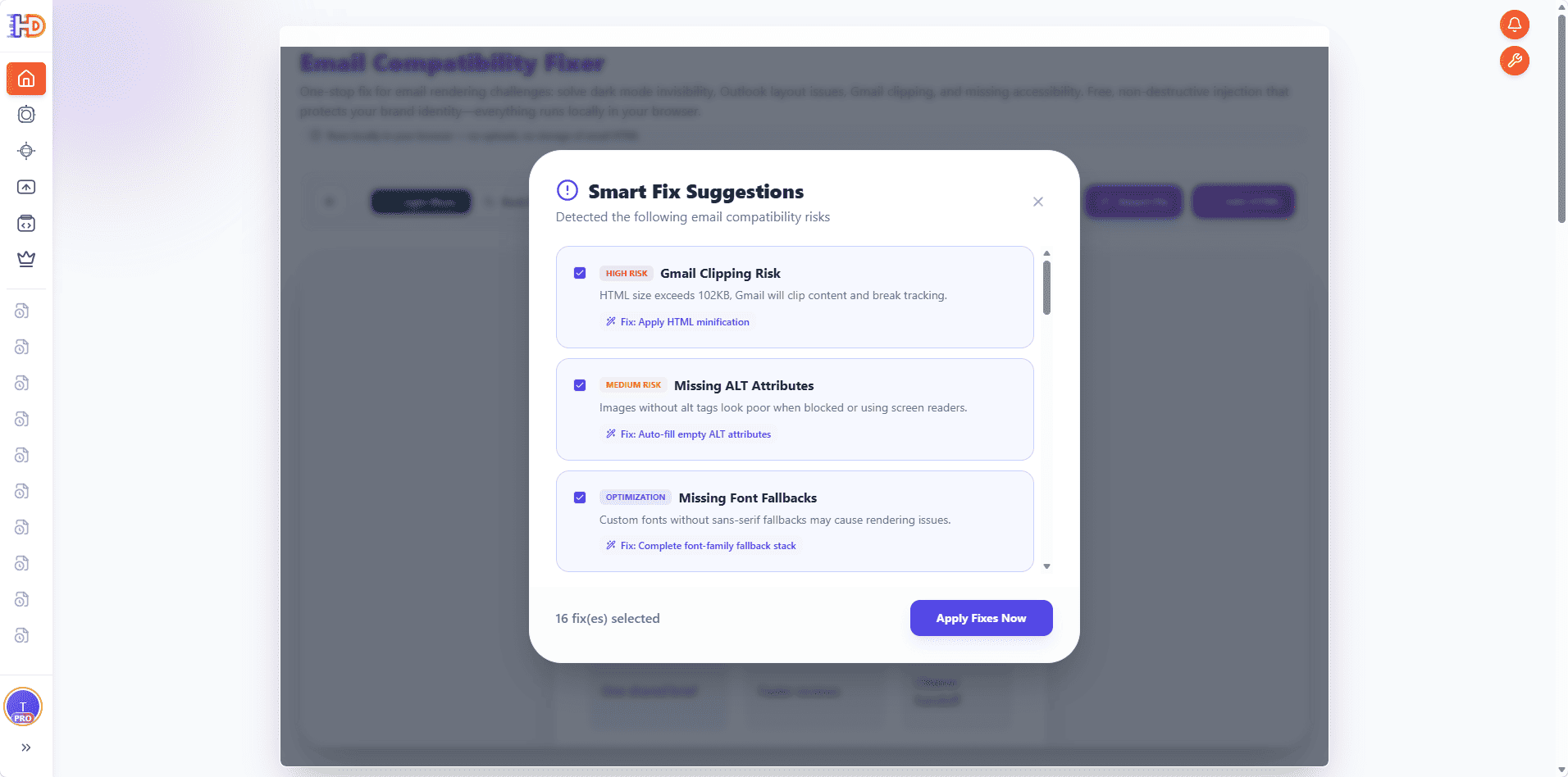
Select Smart Fix to analyze the current HTML. The result is a checklist rather than an all-or-nothing rewrite. In the screenshot, the scan identifies 16 potential fixes. The most prominent findings include a high-risk Gmail clipping warning, a missing ALT attribute, and missing font fallbacks.
Each item explains the risk and the proposed action. Gmail clipping is handled by HTML minification; missing ALT attributes receive safe fallback values; and incomplete font stacks gain a generic fallback. Additional findings can cover Outlook behavior, viewport metadata, dark-mode support, automatic link styling, semantic headings, and contrast.
 Step 4: Apply Only the Fixes You Want
Leave the relevant items selected and choose Apply Fixes Now. HtmlDrag parses the document, injects the selected compatibility patches, updates supported attributes, and minifies the HTML when the Gmail clipping fix is selected. A progress dialog keeps the operation visible while the document tree is rebuilt.
This selective approach matters for production email. You can review the list before changing the file, exclude an item that conflicts with an intentional design choice, and keep the original file outside the tool as a rollback source.
 Step 5: Confirm the Compatibility Pass Completed
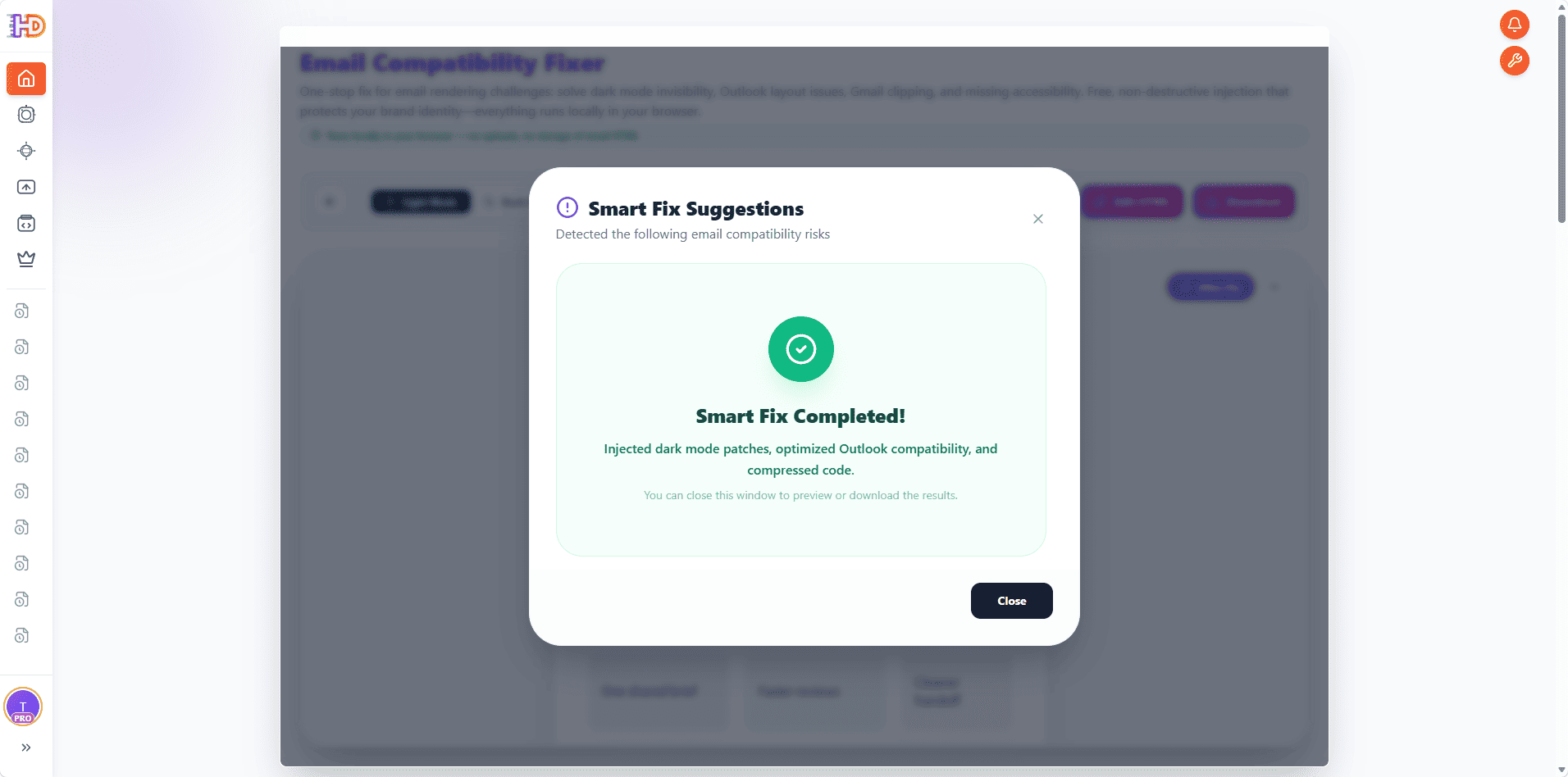
When processing finishes, the success panel confirms that the selected dark-mode patches, Outlook compatibility improvements, and code compression have been applied. This is a processing confirmation, not a guarantee that every email client will render identically. A final test send across the clients important to your audience is still good practice.
 Step 6: Preview the Repaired Email and Download the HTML
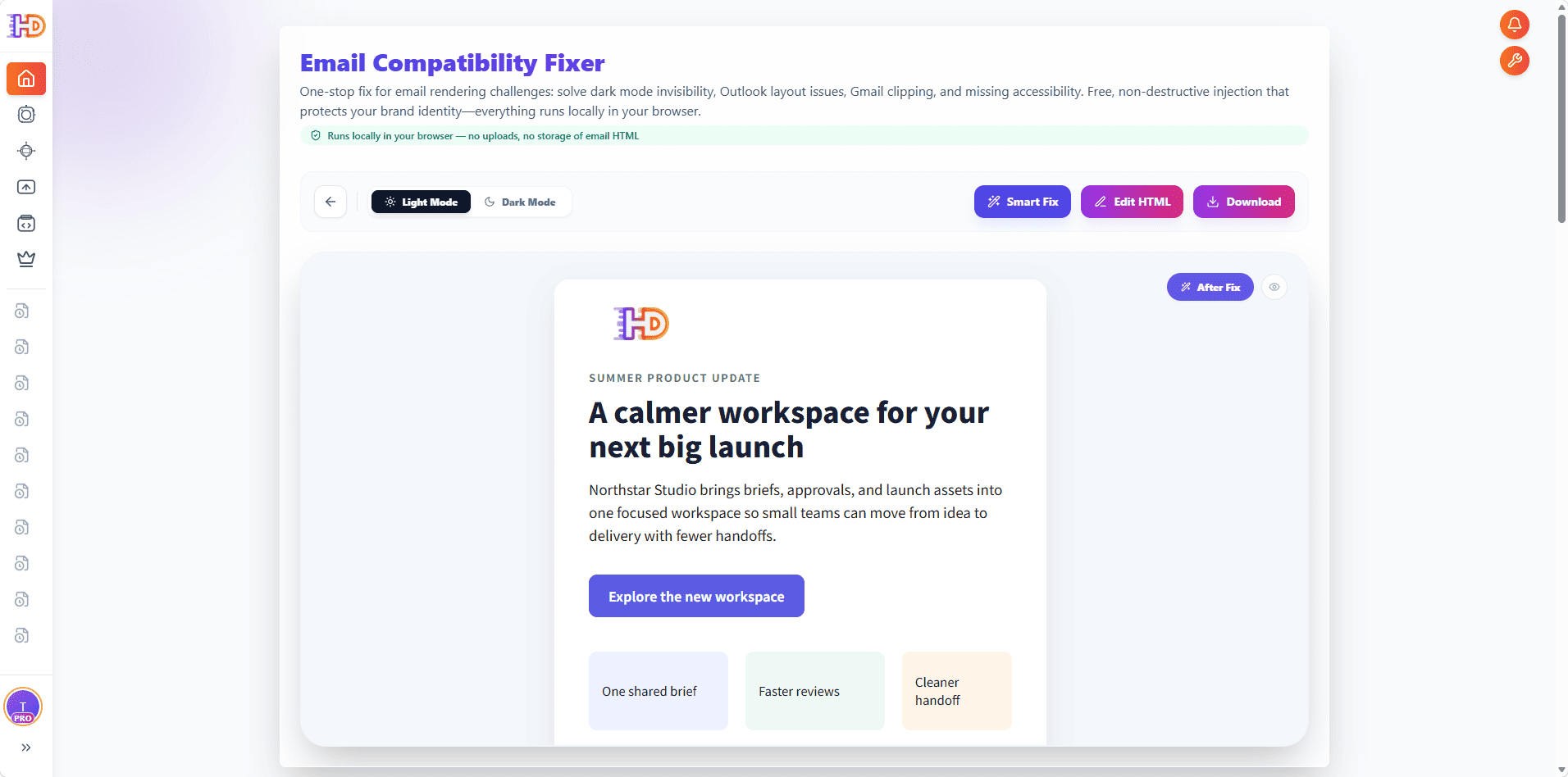
Close the result dialog to return to the repaired preview. The interface now exposes a download action alongside Smart Fix and Edit HTML. Review the visible campaign again, switch between light and dark modes, and compare the result with the original state before downloading.
For the sample used here, most of the excess size came from redundant non-visible content. Minification removes that waste while preserving the visible layout. Real campaigns will vary, so check the resulting file size rather than assuming every oversized email can be reduced by the same amount.
 Step 7: Continue in the Visual HTML Editor
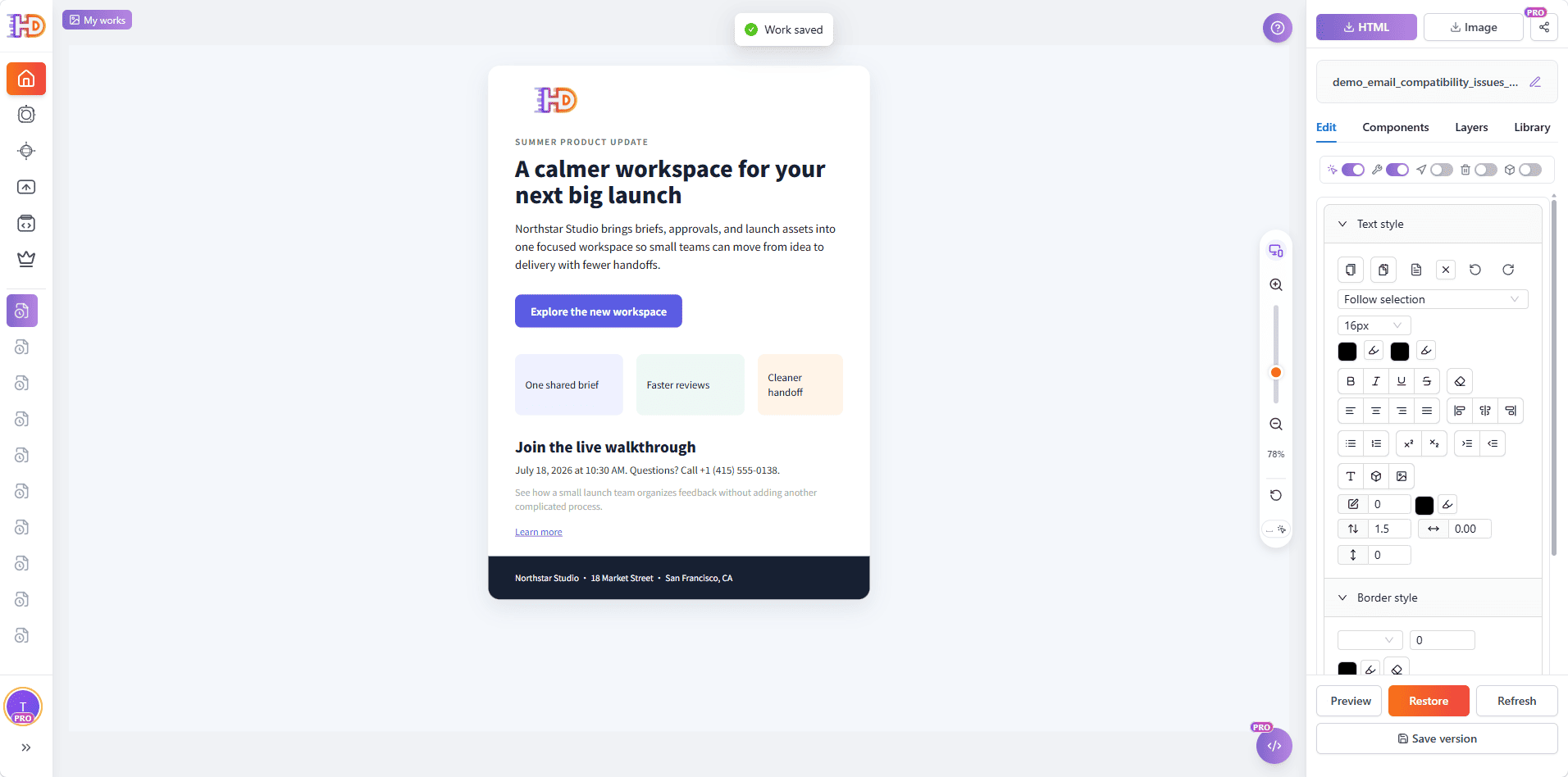
Compatibility repair and content editing are different jobs. Once the technical pass is complete, choose Edit HTML to open the repaired email in HtmlDrag's visual editor. The canvas preserves the campaign as an editable HTML document, while the right panel exposes text, components, layers, and style controls.
This is useful when the scan reveals a section that is technically valid but still needs a clearer CTA, shorter copy, stronger contrast, or a better content hierarchy. You do not need to return to raw source code for those last-mile changes.
 Step 8: Make Final Visual Adjustments Before Delivery
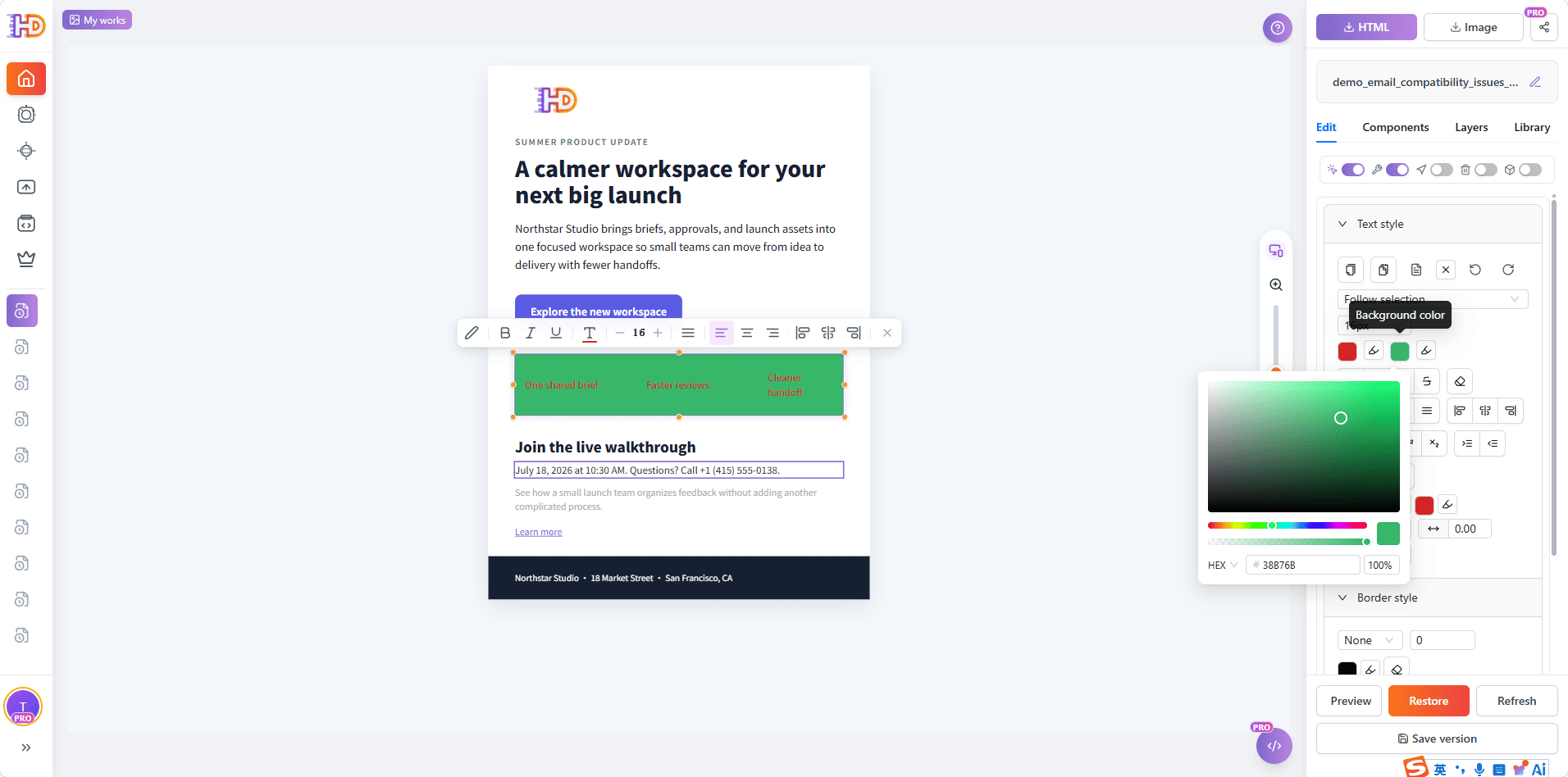
In the final screenshot, a three-column benefits row is selected and its foreground and background colors are adjusted visually. This demonstrates the handoff between automated compatibility repair and human design control: Smart Fix handles repetitive technical patches, while the editor remains the place for deliberate brand and layout decisions.
After the final edits, you can save a version or export the HTML according to your normal HtmlDrag workflow. If you move from the local fixer into saving, sharing, or other account features, those later actions follow the normal product flow and are separate from the browser-local compatibility analysis.
 What the Compatibility Pass Can Address
| Risk | Why it matters | Typical response |
| Gmail clipping | Large HTML can be hidden behind “View entire message” | Minify HTML and remove redundant source weight |
| Missing ALT attributes | Blocked images and screen readers lose context | Add safe ALT fallbacks, then write meaningful text where needed |
| Dark-mode contrast | Hard-coded colors can become unreadable after inversion | Inject supported color-scheme and contrast patches |
| Outlook rendering | Rounded buttons, backgrounds, and table spacing may differ | Apply Outlook-aware fallbacks and table patches |
| Accessibility and mobile metadata | Weak semantics or missing viewport data hurts usability | Add supported attributes and review copy in the editor |
A Practical Pre-Send Checklist
- Check the final HTML size after all campaign content and tracking code are present.
- Preview both light and dark appearances.
- Review every detected fix instead of accepting changes blindly.
- Replace empty ALT fallbacks with meaningful descriptions for informative images.
- Open the repaired file in the visual editor for final copy and brand adjustments.
- Send real tests to the Gmail and Outlook versions that matter to your audience.
Frequently Asked Questions
Does Gmail always clip an email at exactly 102KB?
The commonly referenced limit is around 102KB of delivered HTML, but the final message received by Gmail may differ from your source file after an email platform adds tracking or rewrites links. Treat the warning as a pre-send risk signal and verify the final campaign with a real inbox test.
Does Smart Fix redesign my email?
No. The compatibility pass focuses on selected technical risks such as minification, metadata, fallbacks, dark-mode support, and accessibility attributes. Use the visual editor afterward when you intentionally want to change copy, colors, spacing, or layout.
Is the email uploaded while I run the compatibility check?
The compatibility analysis and fixes shown in this workflow run locally in the browser, without uploading or storing the email HTML for fixing. If you later choose account-based saving, sharing, or other workflows, those actions follow their normal product behavior.
Should I still send test emails after applying the fixes?
Yes. Email clients use different rendering engines, and campaign platforms may modify the source during delivery. Use the fixer as a preflight step, then test the final delivered message in the clients and devices important to your audience.
Final Thoughts
A clipped Gmail campaign is often the first visible sign that an HTML email needs a better preflight process. The same scan that identifies excess source weight can also surface missing ALT text, weak font stacks, Outlook risks, dark-mode contrast problems, and mobile or accessibility gaps.
HtmlDrag connects those technical checks to the rest of the workflow: upload or paste the email, review the detected risks, apply selected fixes locally, preview the repaired result, download it, or continue with deliberate visual edits before delivery.