
In 2026, tools like Lovable, Bolt.new, and v0 have made it incredibly easy to generate landing pages, product sites, and quick MVP fronts. But once the first draft is generated, a more practical problem shows up: how do you keep editing the page without dropping back into code?
That is the real "last mile" for AI-generated websites. Usually, the page already exists. You do not want to rebuild it from scratch. You just want to:
- import the live page from a URL
- remove distracting popups or overlays
- change text and visual emphasis
- swap images and reposition them
- move selected elements in batches
- adjust input-area copy or prompt-box text
To make this tutorial concrete, we'll use lovable.dev as a public example page. The goal is not to copy its content, but to demonstrate the exact visual workflow you can apply to other AI-generated landing pages as well.
Why This Workflow Matters Right Now
Search intent in 2026 is shifting from "Which AI builder should I use?" to "I already generated the page — now how do I actually finish it?" That finishing work usually means small but high-impact edits:
- copy polish for clearer positioning and better keyword focus
- popup cleanup so banners and overlays stop getting in the way
- image replacement so the page looks brand-ready instead of placeholder-heavy
- layout adjustment so the final page feels intentional, not merely generated
That makes visual editing one of the most useful post-generation workflows for marketers, indie founders, and small teams shipping fast.
Why Use lovable.dev as the Live Demo
For this walkthrough, lovable.dev works well because it is public, visually rich, and includes the kinds of elements people often need to edit after AI generation:
- a clear hero section with editable text
- image areas that can be replaced and repositioned
- real-world cookie notices and overlays that may need cleanup
- input-style prompt areas where microcopy matters
Step-by-Step: Edit a Live AI-Style Website Visually
Step 1: Import the Live URL
Open HtmlDrag, choose URL Import, and paste the live page URL. In this example, we use:
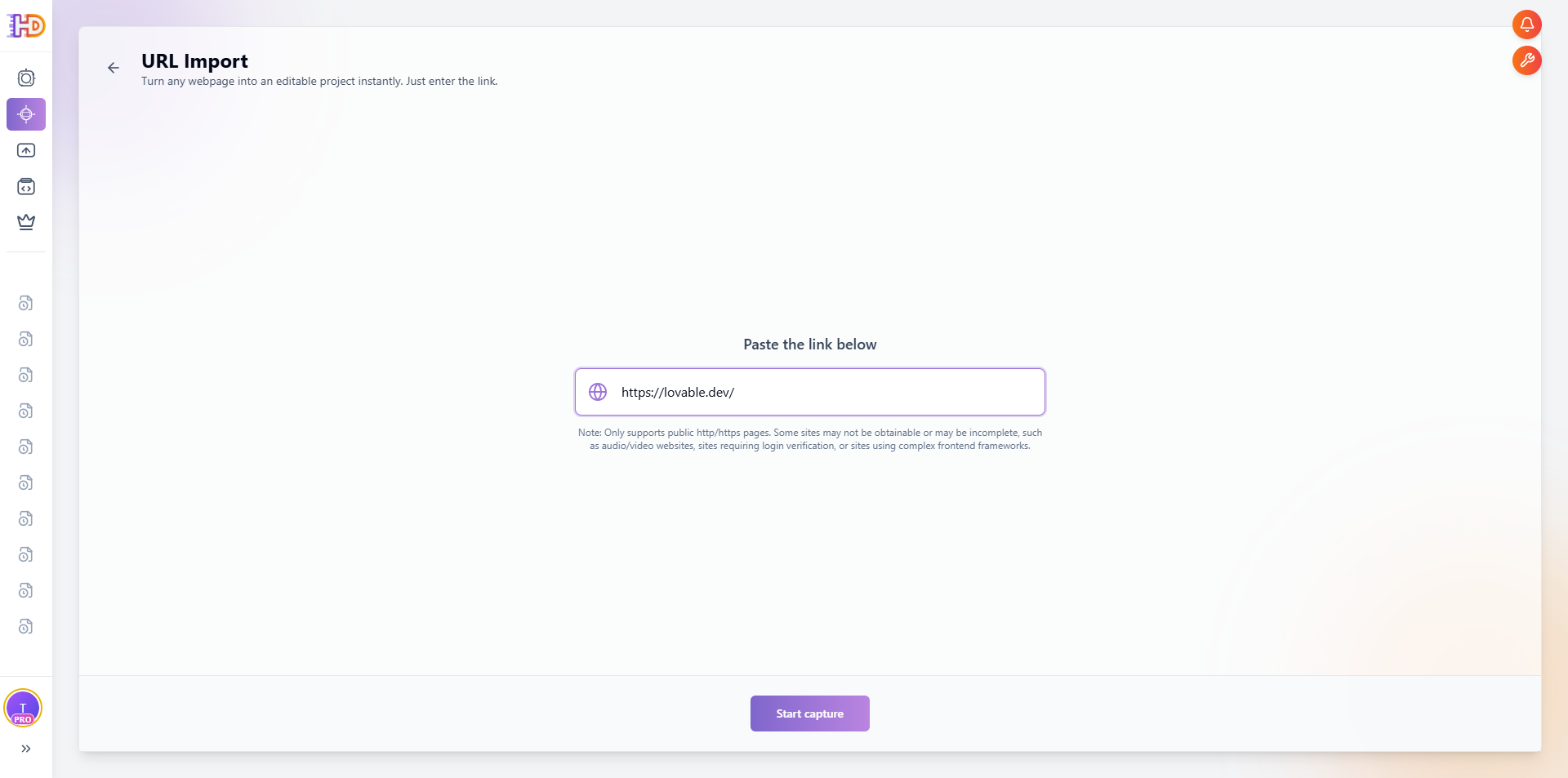
After capture, the live page is loaded into the editor as an editable canvas. You can inspect the page visually instead of tracing through generated code or reopening the builder.
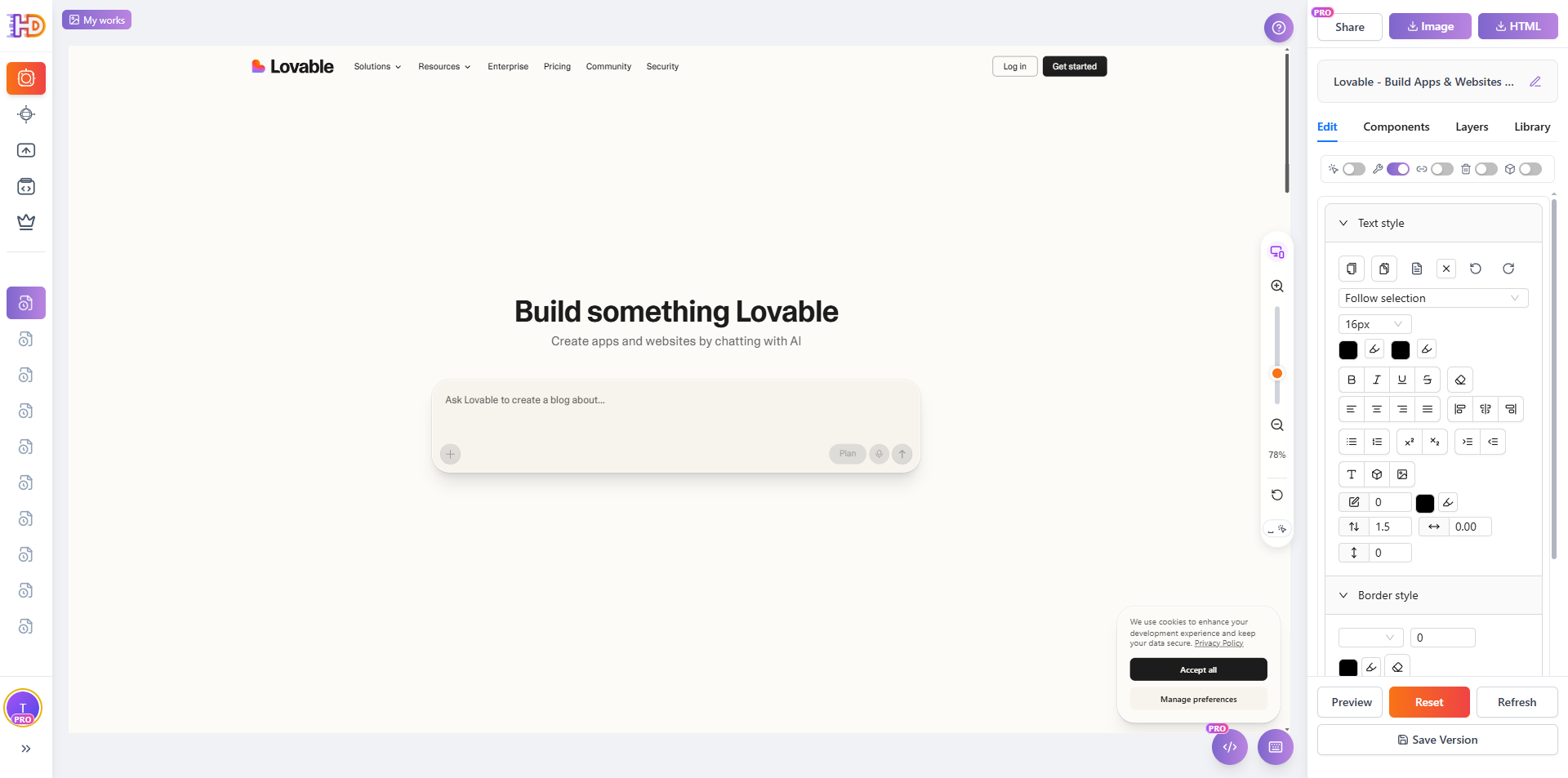
Step 2: Clear Popups and Overlays First
Many live pages include cookie notices, floating banners, or support widgets. These are useful in production, but annoying when you're trying to edit the underlying design. Instead of manually closing everything one by one, use the built-in cleanup action.
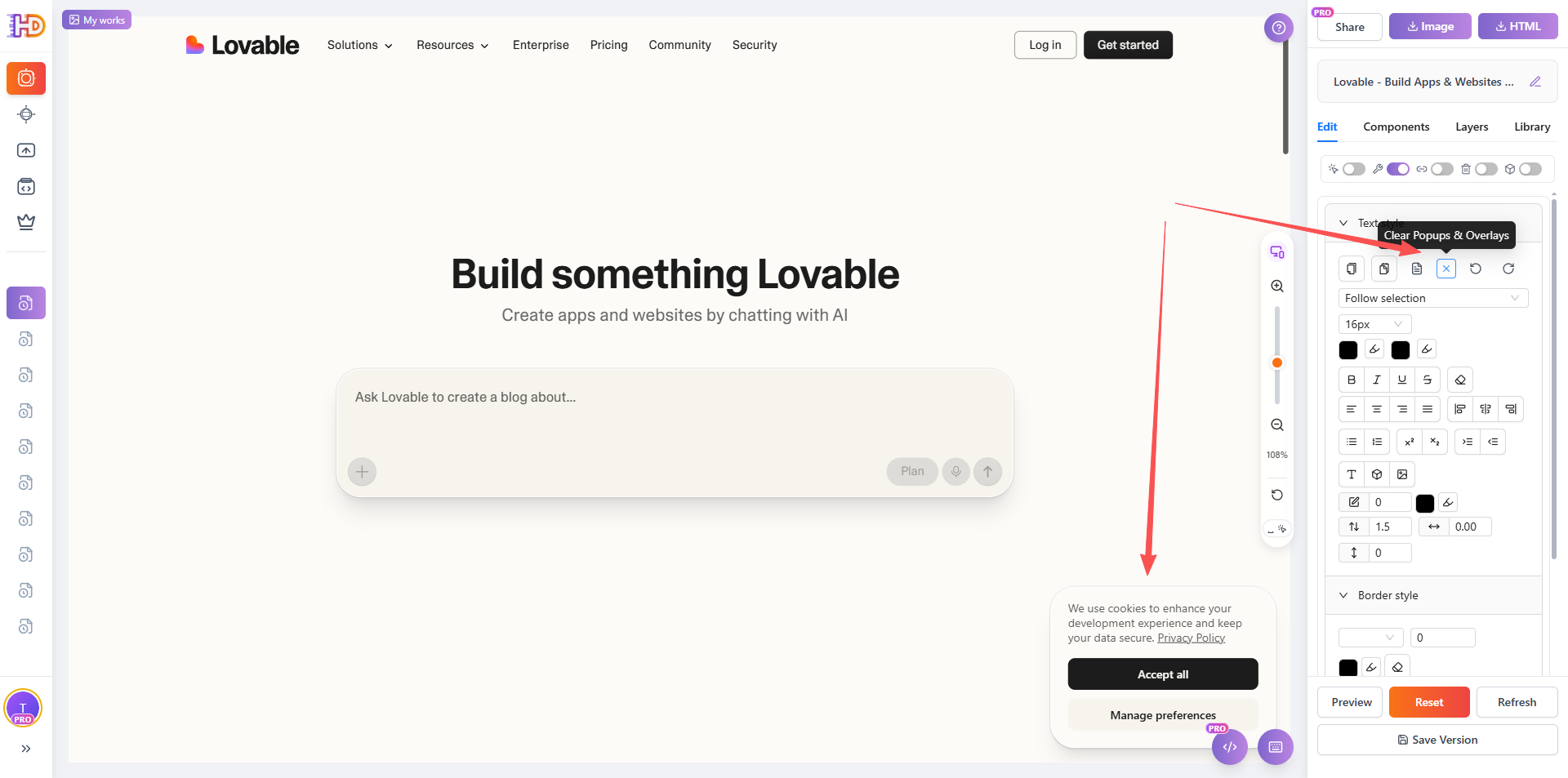
The result is immediate: the visual clutter disappears, and the page becomes much easier to work with.
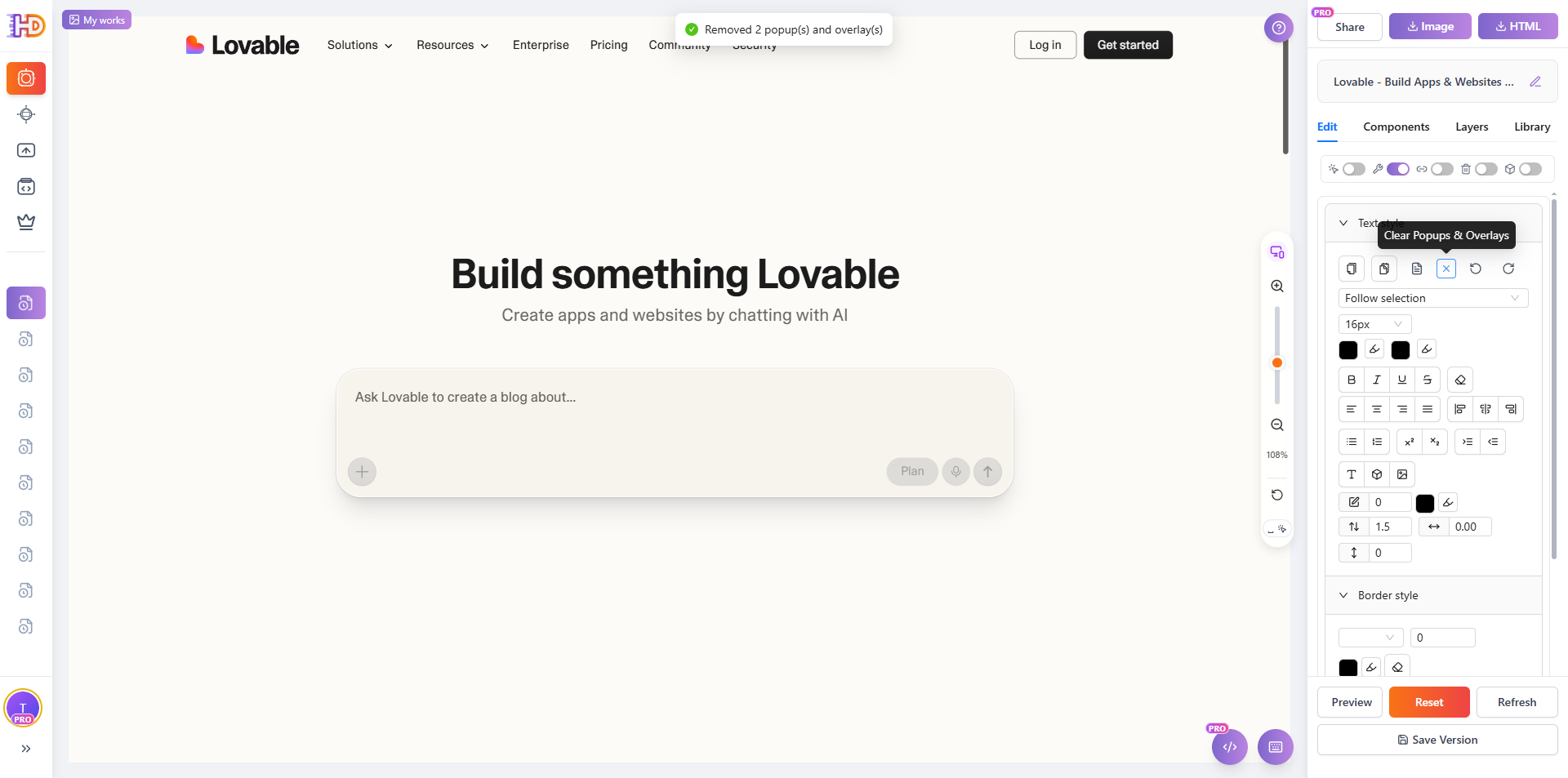
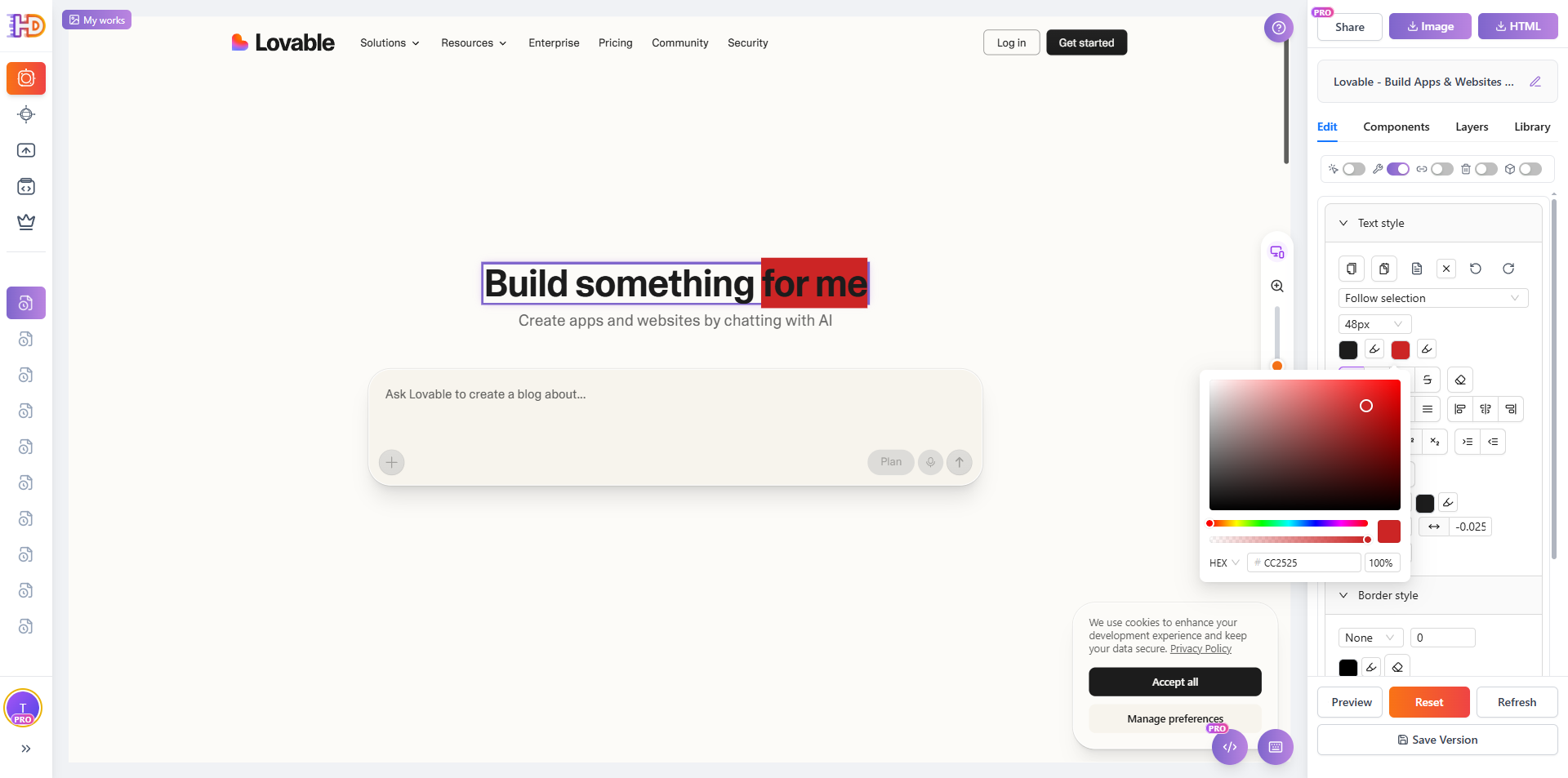
Step 3: Edit Text and Adjust Text Background Color
Once the page is clean, start with the highest-impact element: the hero copy. Click the headline to select it, then edit the wording and adjust emphasis visually. In this example, the text background color is also changed to make part of the message stand out more clearly.
This is a practical reminder that AI-generated pages often need human judgment not only for wording, but also for visual emphasis and hierarchy.
Step 4: Upload a New Image and Reposition It
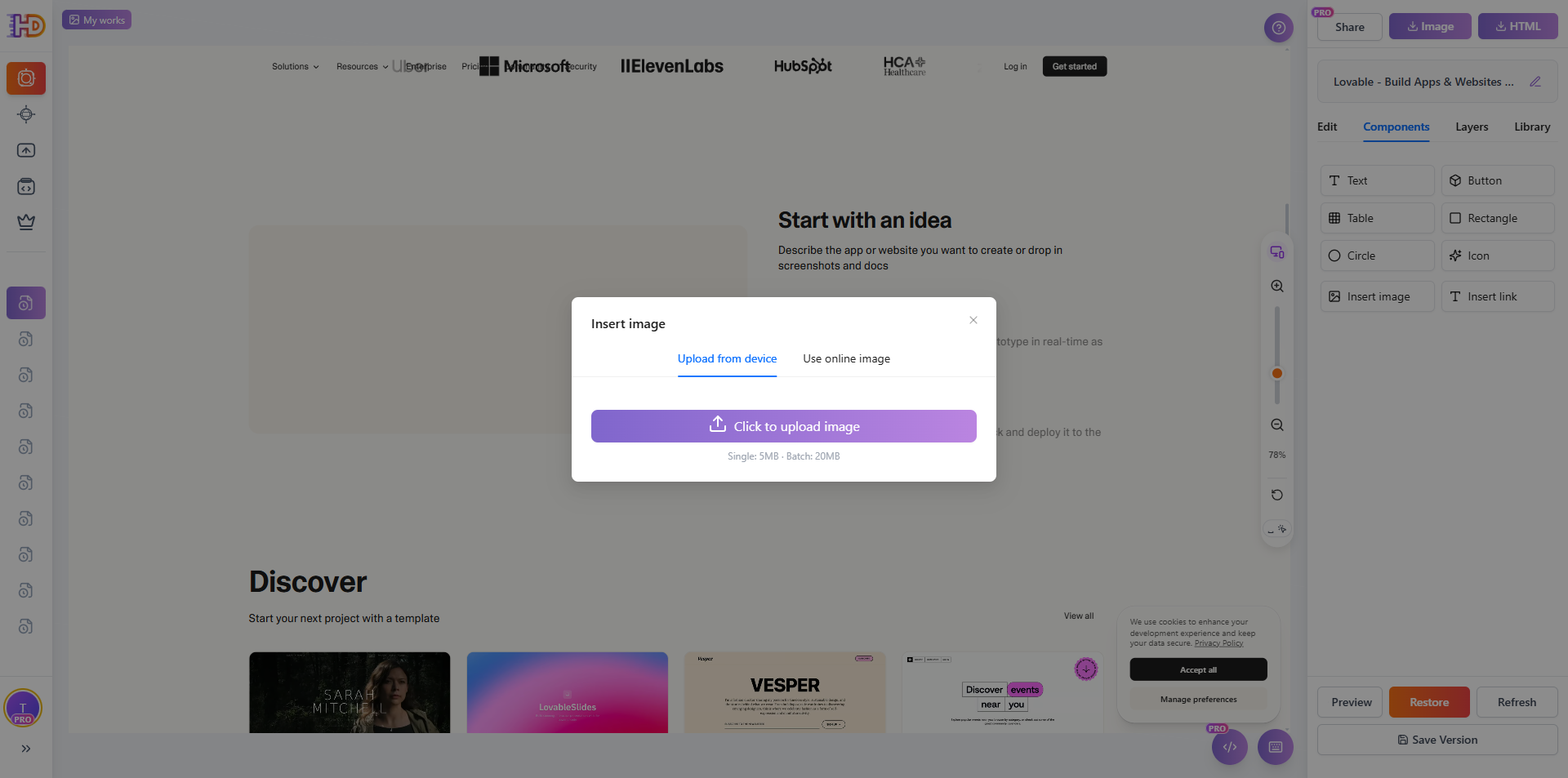
Text alone is rarely enough. If the original page has a weak visual, or you want to insert a more relevant product image, open the image insertion flow and upload a new asset.
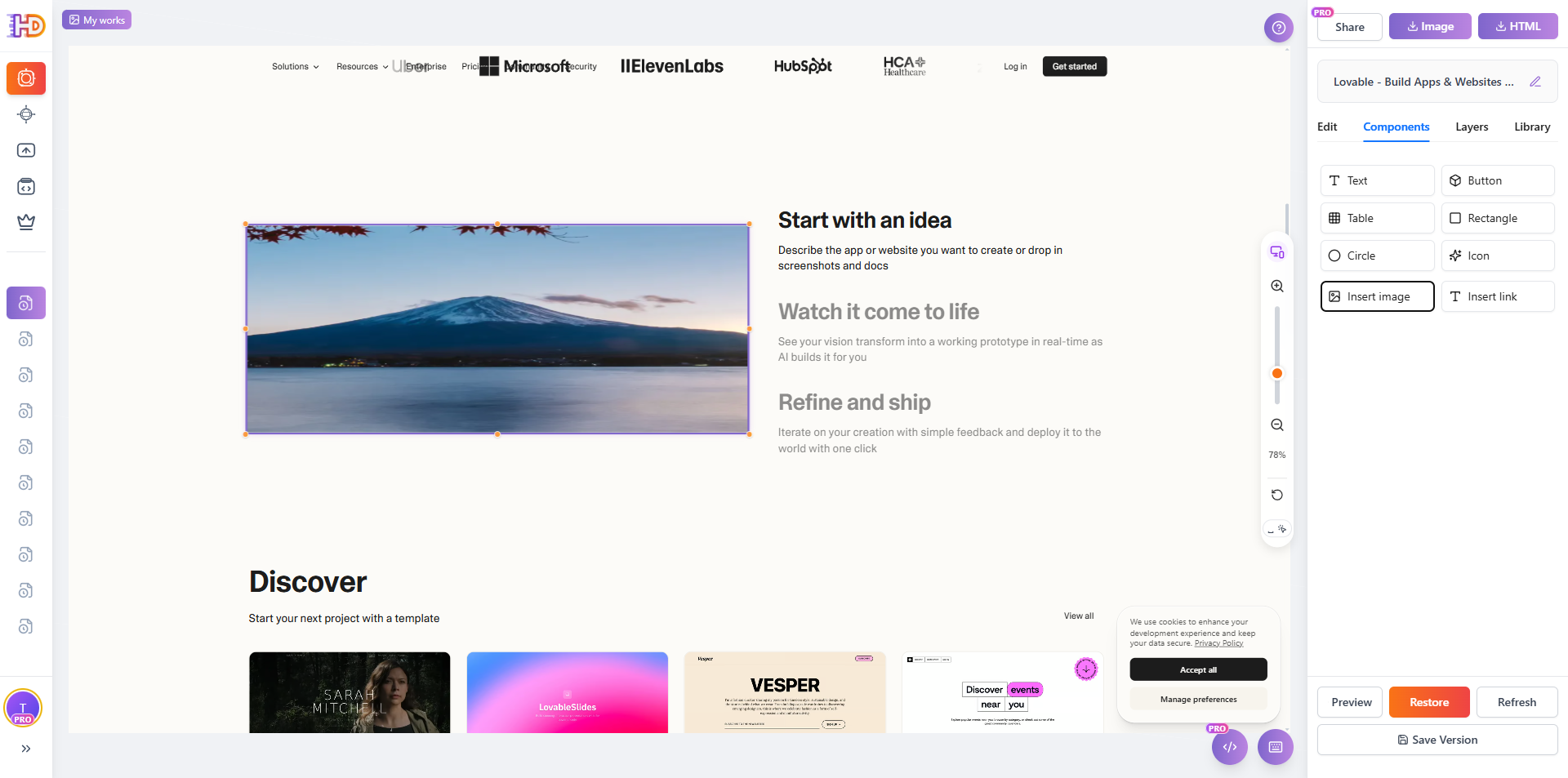
After insertion, adjust the image position visually until it sits where you want in the layout. This is much faster than editing paths, CSS, or container alignment in code.
Step 5: Batch Move Selected Elements and Images
Sometimes the problem is not a single item, but a cluster of elements that should move together. Instead of adjusting each card or image separately, you can work on selected groups and shift them in one visual operation.
This is especially useful when refining sections like galleries, feature blocks, or content clusters generated by an AI builder.

Step 6: Update Input-Area Copy
Microcopy inside input-style areas matters more than most teams think. Prompt-box text, helper text, and short interaction labels often shape the first impression of the product. In the example below, the prompt area is selected first, then the wording is simplified.
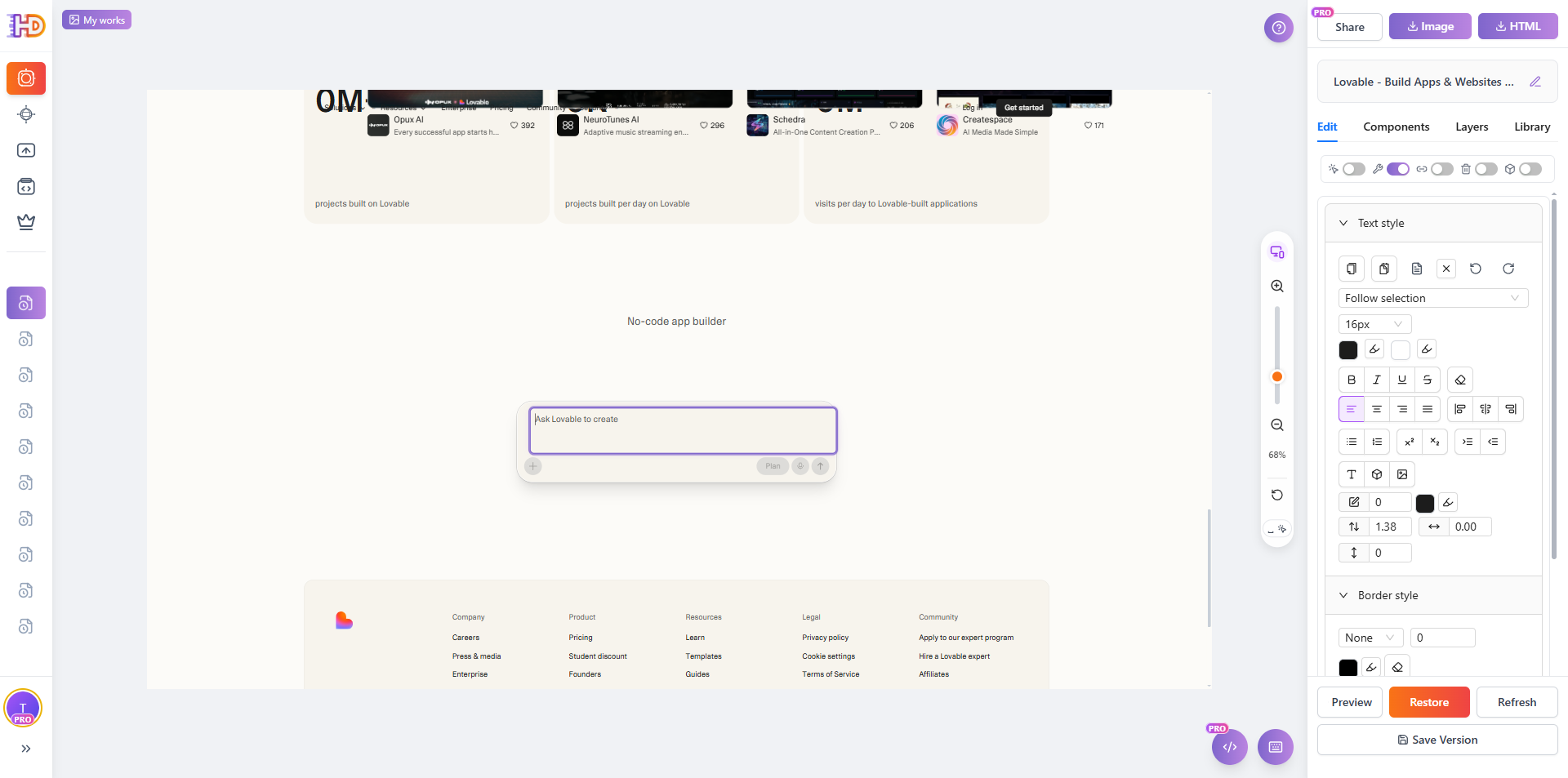
Even a tiny text change can make the UI feel clearer and less generic.

Manual Editing vs Visual Editing
| Task | Manual Code Route | Visual Editing Route |
| Import a live website | Open source files or inspect deployed code | Paste the URL and capture the page directly |
| Remove popups and overlays | Close or delete blockers manually, one by one | Use one cleanup action and keep editing |
| Polish text emphasis | Edit copy in code and tune styles separately | Select text and adjust content plus styling in place |
| Replace and move images | Update assets, paths, layout rules, and spacing | Upload visually and reposition immediately |
| Adjust grouped content | Refactor multiple blocks and recheck the layout | Move selected elements together on the page |
| Edit prompt-box or input-area copy | Locate the exact node or component in the project | Click, edit, and review the wording instantly |
Who This Workflow Helps Most
- Indie founders polishing a generated landing page before launch
- Marketers who care about copy, layout, and CTA clarity more than code details
- Freelancers and small agencies making fast client-side adjustments
- Non-technical teams that received an AI-built page but still need final control
FAQ
Does this only work on lovable.dev?
No. lovable.dev is just the public example used in this article. The same approach works for other live websites, exported HTML pages, and many Lovable / Bolt / v0 generated landing pages.
Should I use a live URL or upload HTML?
If the page is already published, using the live URL is usually the fastest route. If you have a clean exported HTML entry file, uploading it also works well.
Why remove popups before editing?
Because overlays, cookie banners, and floating widgets block selection and make layout work slower. Cleaning them first gives you a clearer editing surface.
Can I only edit headlines and images?
No. As shown above, you can also work on input-area copy, grouped elements, and other visible content that needs final polish.
Final Take
AI builders are excellent at producing a first draft fast. But launch-ready pages are rarely just first drafts. They need cleanup, visual emphasis, asset replacement, and microcopy tuning.
If you already have a live AI-generated page and only need the last round of refinement, editing it visually at htmldrag.com is often much faster than reopening the full code workflow.