
Many marketing ideas start as documents, not finished designs. A product launch plan, a campaign brief, a promotion outline, or a leadership review note may already contain the message, audience, offer, and structure. What the team needs next is often simple but urgent: turn this document into a landing page preview that can be shown, discussed, and refined quickly.
That is where the usual workflow becomes expensive. If you use a traditional AI coding tool, you may get a block of generated code, but every small change still becomes another prompt: adjust the hero, rewrite the CTA, move the offer card, replace an image, change spacing, make the layout more presentation-ready. For non-technical teams, the page is technically generated but not truly easy to control.
With HtmlDrag AI Creator, File Mode is designed for this exact situation. Upload a campaign brief, let AI Creator understand the file content and generate an editable HTML page, then use the visual editor to manually refine text, images, layout, and section order without writing code.
Why This Topic Matters
Search demand around AI website builders is moving beyond simple prompt-to-page generation. Many users are asking more specific long-tail questions:
- how to generate HTML from a document
- how to turn a marketing brief into a landing page
- how to create a landing page from a DOCX file without coding
- how to preview a campaign page before design resources are ready
- how to edit an AI-generated landing page visually after generation
Those searches usually come from a practical business scenario. The user is not trying to learn front-end development. They have a document and a deadline. They need something that looks like a real page quickly enough for a leadership meeting, client discussion, product review, or campaign planning session.
The Scenario: A Campaign Brief Needs to Become a Presentable Page
Imagine a marketing owner preparing a spring launch campaign for a lightweight productivity app. The team already has a Markdown or DOCX brief with audience notes, campaign goals, hero copy, feature bullets, a promotion offer, and CTA ideas. The next meeting is tomorrow, and leadership wants to see how the campaign might look as an actual landing page.
The traditional path is slow:
- ask a designer to turn the brief into a mockup
- ask a developer to turn the mockup into HTML
- use an AI coding assistant and keep prompting it for every adjustment
- copy code into another editor just to make small visual changes
For an internal review or campaign preview, that is too much overhead. The better starting point is to use the brief itself as the source file and generate a working, editable HTML draft directly.
Step-by-Step: Generate a Landing Page From a Campaign Document
Step 1: Prepare the Campaign Brief as a Markdown or DOCX File
Start by organizing the document with clear headings. The file does not need to be perfect, but it should include the page goal, target audience, core message, hero copy, key sections, offer, CTA, and visual direction. A structured brief gives AI Creator enough information to build a page that feels intentional instead of generic.
A well-structured campaign brief works especially well here because it already contains the ingredients of a strong document-to-HTML landing page workflow: hero messaging, user pain points, solution bullets, an offer, proof, CTA, and visual direction.
Step 2: Open AI Creator and Choose File Mode
Open HtmlDrag and enter AI Creator. Choose File Mode because the source material is already inside a document. File Mode supports visual files such as JPG, JPEG, PNG, and WEBP, and text files such as DOCX, MD, and TXT. For this workflow, a Markdown or DOCX campaign brief is the best input.
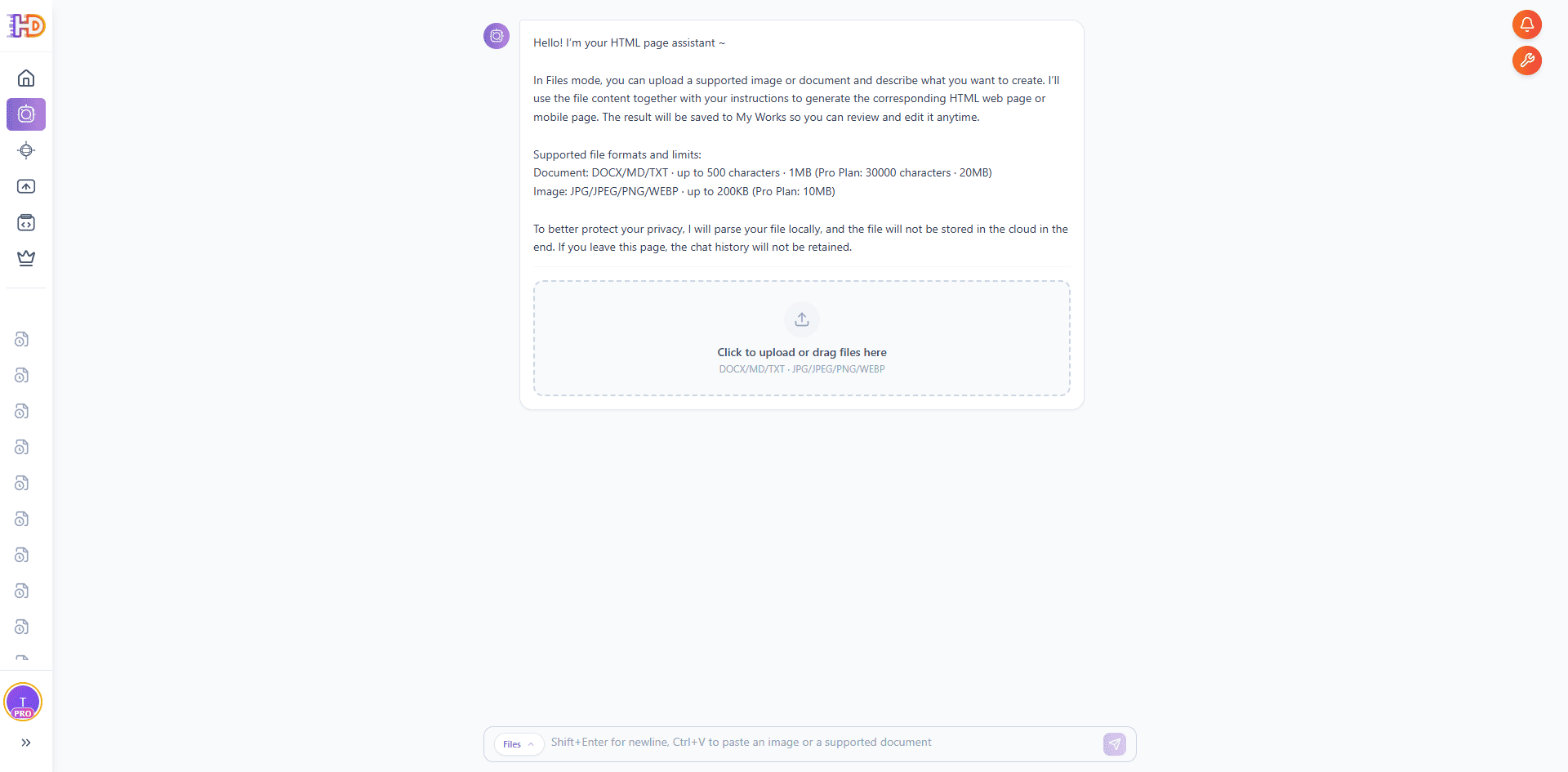
Step 3: Upload the Campaign Brief, Add a Short Intent, and Turn On Thinking When Needed
Upload a campaign brief in Markdown or DOCX format, then add a short intent note in the input box so the system understands the goal of the page. This is where a plain document starts becoming a no-code HTML landing page workflow rather than staying as static copy. If the brief is long or dense, turn on Thinking so AI Creator spends more effort understanding the hierarchy before building the page.
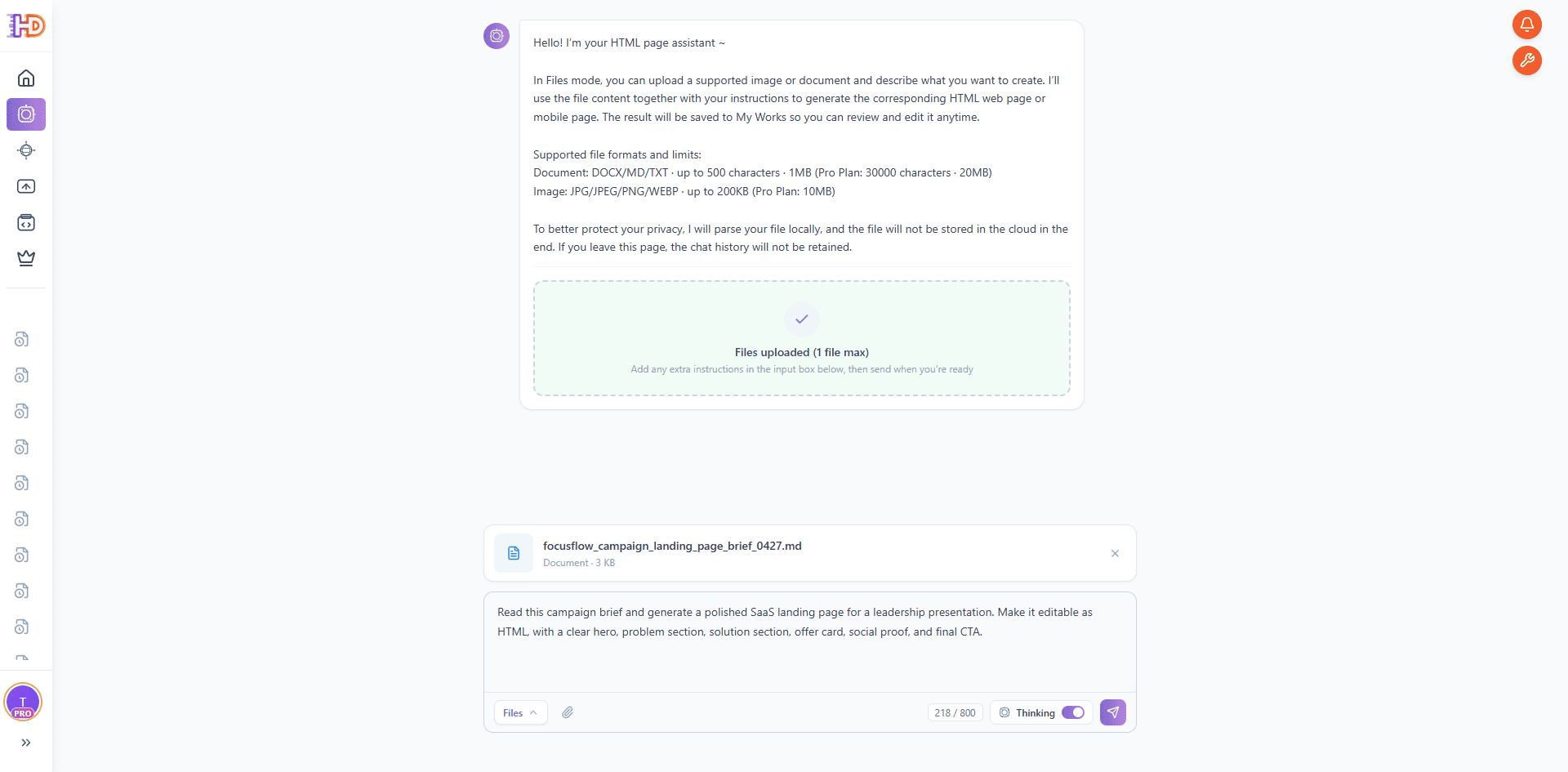
Step 4: Let AI Creator Review and Organize the Document
After sending, AI Creator starts by reviewing the uploaded file and organizing the content. In the reasoning panel you can see it prepare the file locally, structure sections and heading levels, extract the main document highlights, and recheck priorities before it assembles the page. This matters because the system is not simply rewriting paragraphs. It is mapping the brief into a landing page structure.
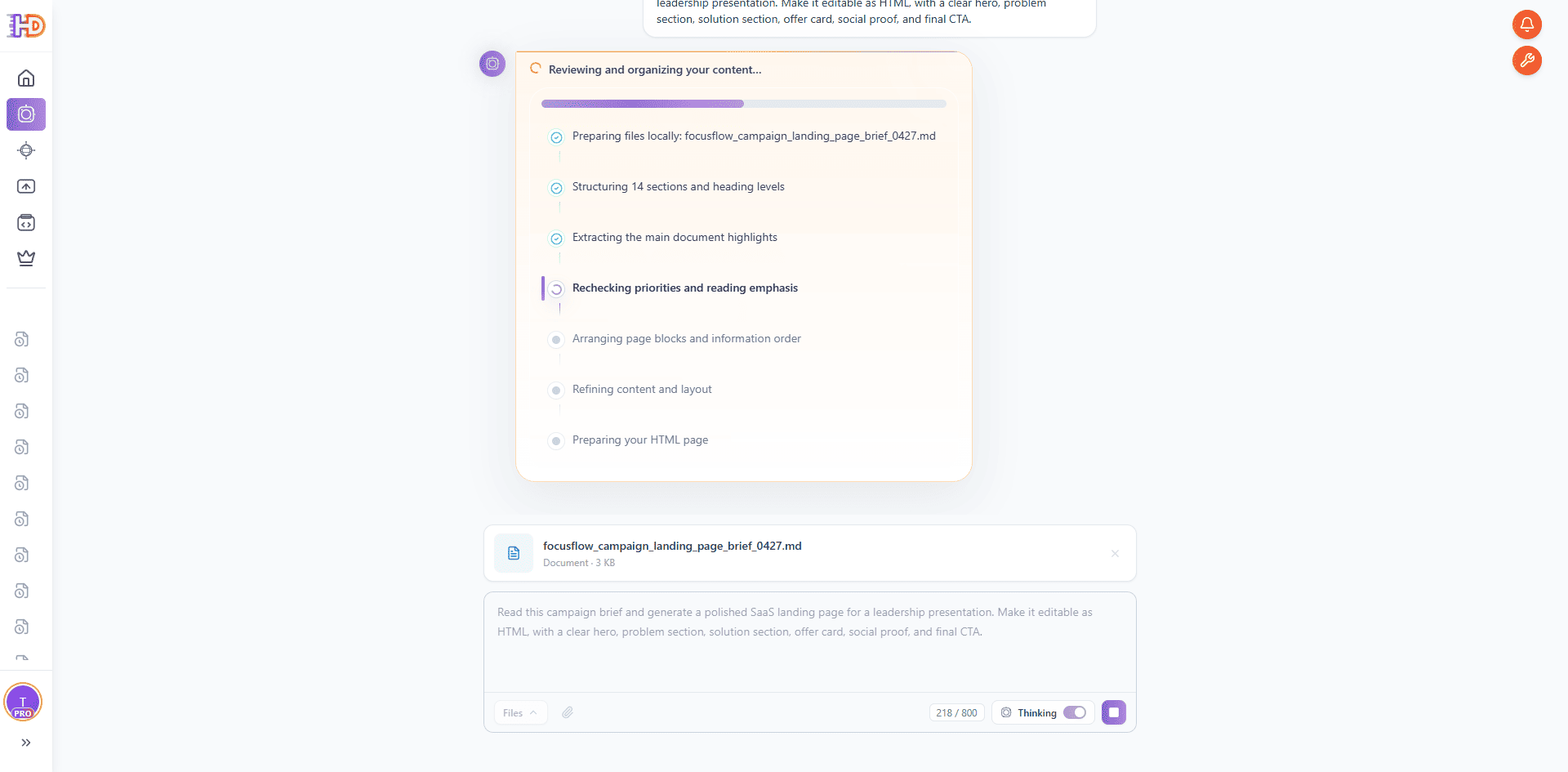
Step 5: Watch AI Creator Build the HTML Page
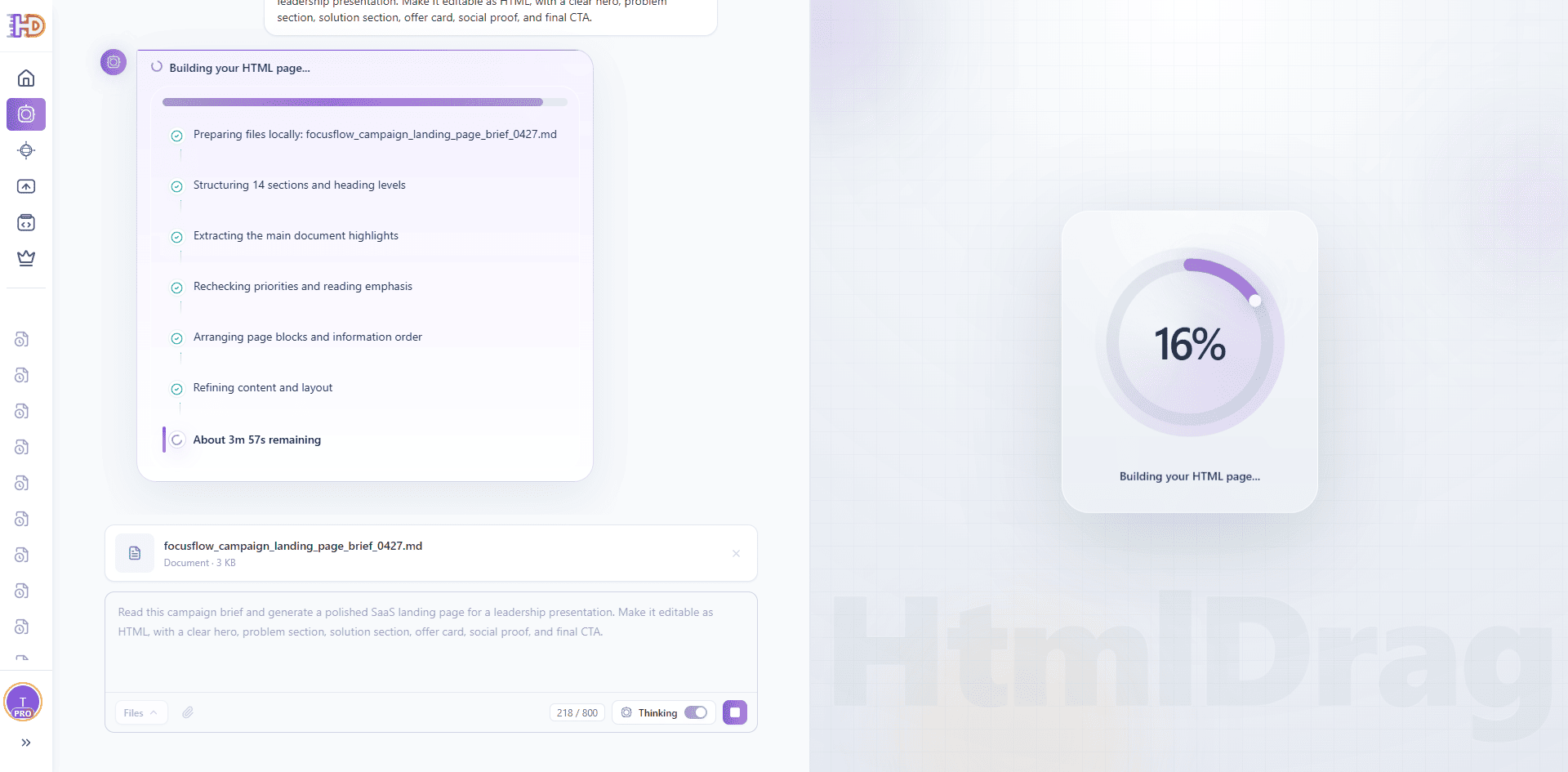
Once the document structure is clear, AI Creator moves into HTML generation. The progress view makes the transition visible: the brief is no longer just a file, and it is becoming a real landing page draft. For teams preparing a presentation on a short timeline, this is the point where a planning document starts turning into something leadership can actually review.
Step 6: Preview the Generated Landing Page
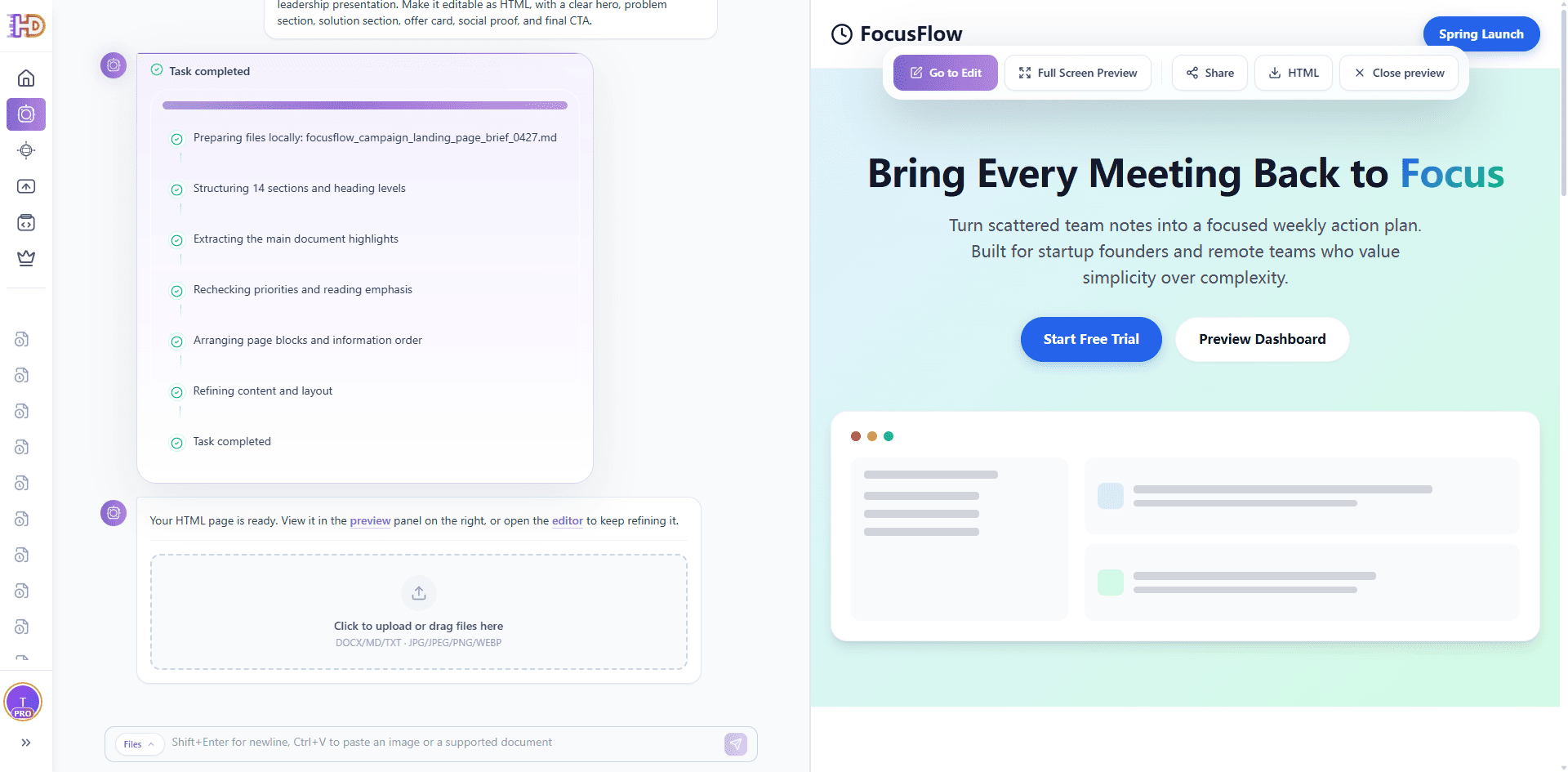
When the task finishes, preview the generated page. The result already looks like a presentable SaaS landing page: a hero section, CTA buttons, a clean visual direction, and lower sections that can support internal review or campaign discussion. The preview bar also shows practical next steps such as Go to Edit, Full Screen Preview, Share, and HTML export.
Step 7: Open the Editor and Refine Copy and Style Visually
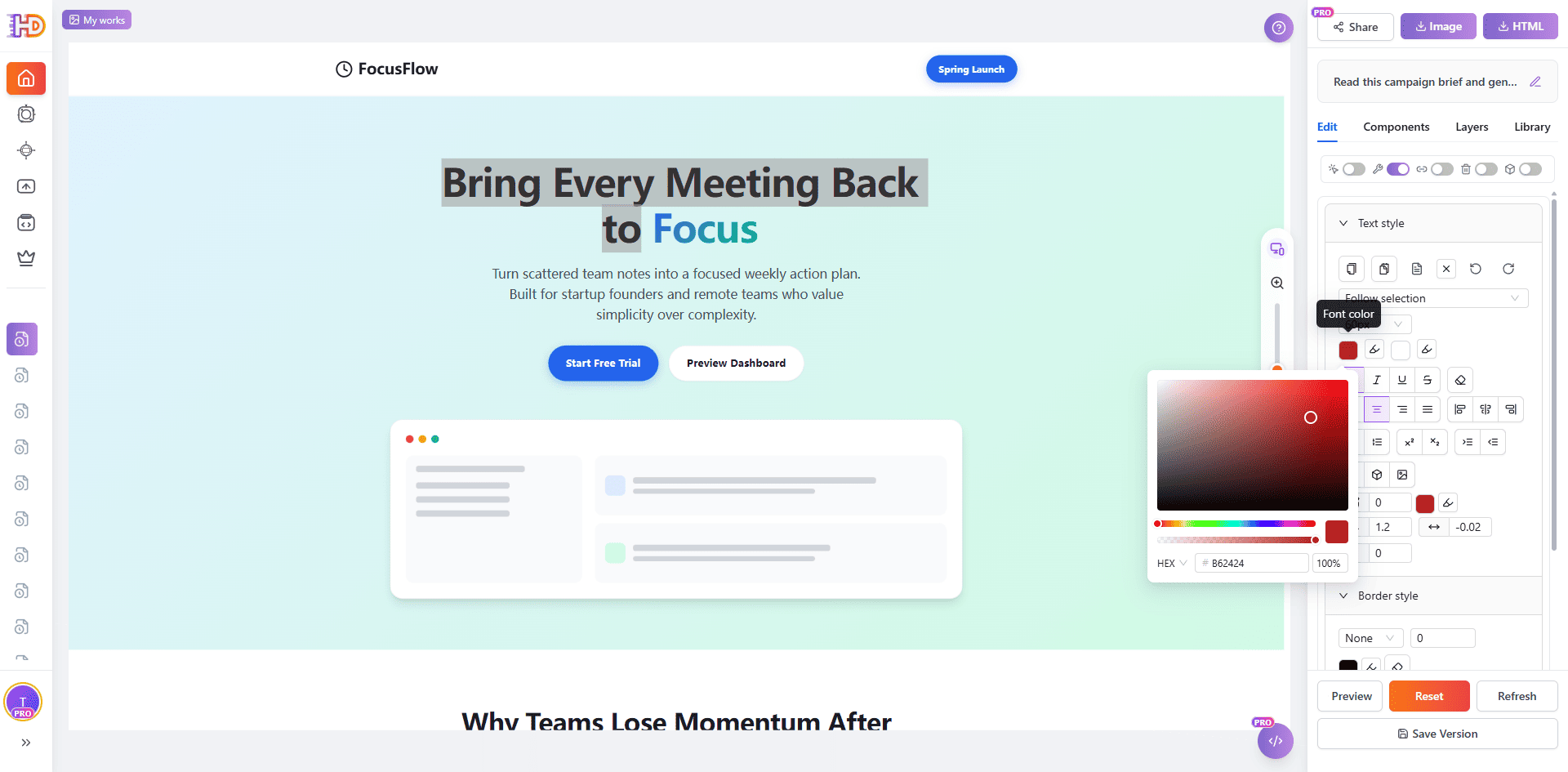
This is the biggest difference from traditional AI coding tools. Once you open the page in the HtmlDrag editor, you can click the headline directly, change emphasis, adjust text color, and refine other style settings from the right-side panel. Small visual improvements no longer require another round of prompting or code edits.
Instead of asking AI to regenerate the page again and again, you can make practical final-mile adjustments yourself:
- edit hero and CTA copy
- adjust text color, font emphasis, and spacing
- reorder feature cards
- fine-tune borders, radius, and section hierarchy
- continue polishing the page for a presentation or campaign handoff
Step 8: Insert or Replace Images Manually After Generation
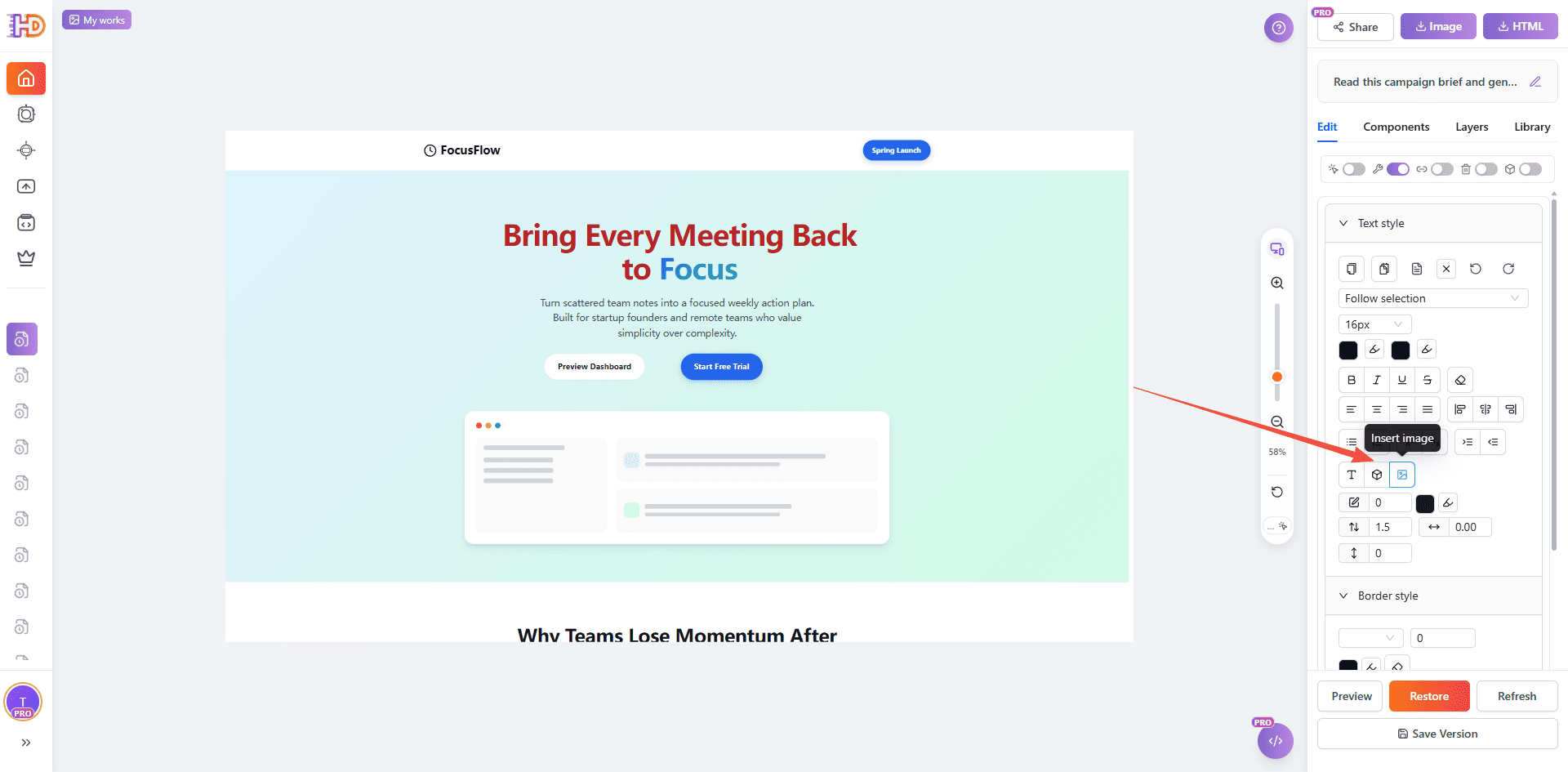
The same visual workflow also applies to images. If a placeholder block should become a product screenshot, a campaign visual, or a supporting poster image, you can use the image insertion control directly inside the editor instead of going back to prompts or HTML code. The workflow stays manual, visual, and fast.
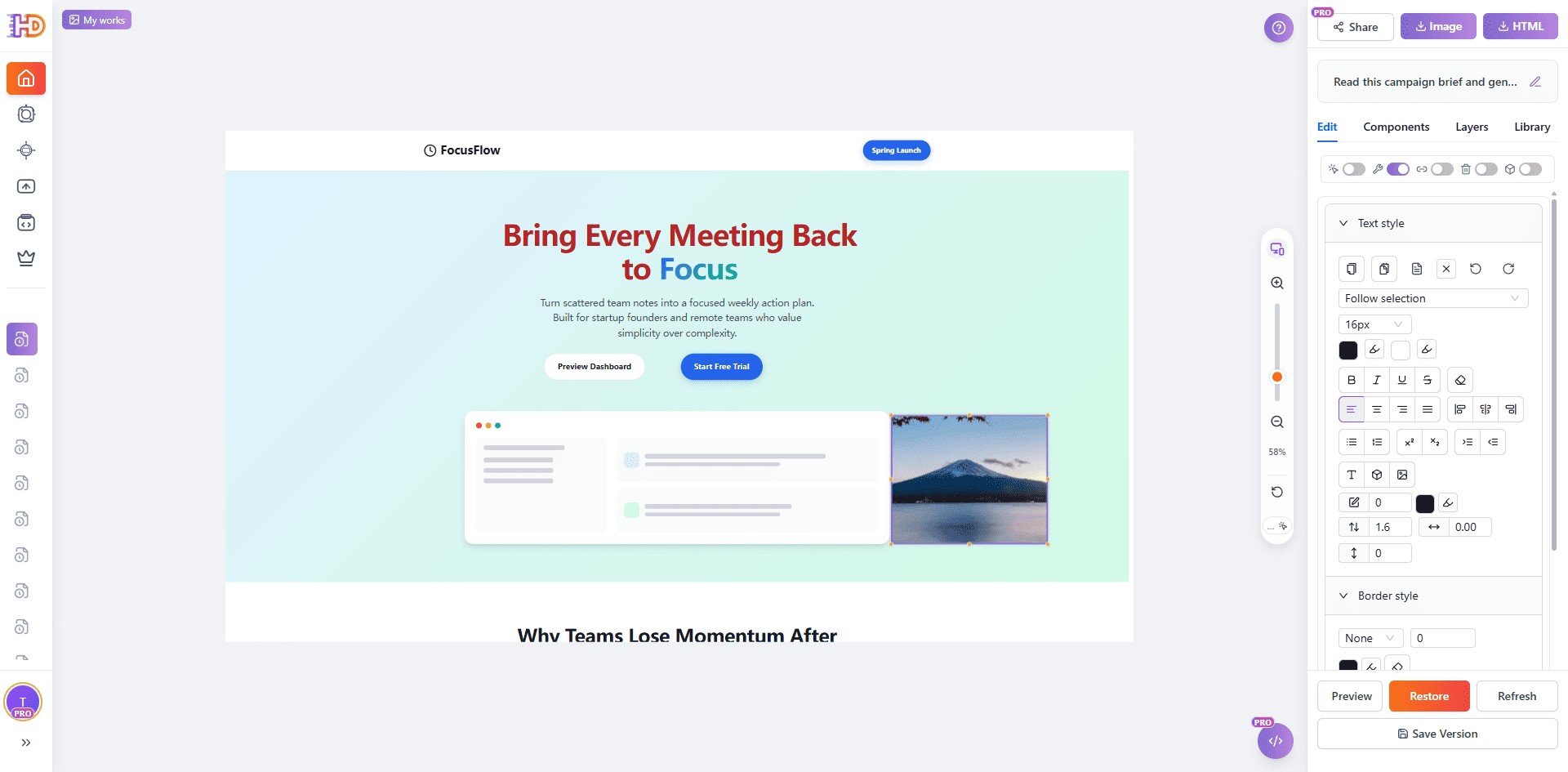
After inserting the image, the new visual appears immediately inside the selected area of the layout. That makes it easy to turn a text-first AI draft into something closer to presentation-ready campaign material, without waiting for another generation cycle.
AI Coding Tool vs AI Creator File Mode
| Need | Traditional AI Coding Tool | HtmlDrag AI Creator |
| Start from a campaign document | Requires prompt writing and often manual code cleanup | Upload MD, DOCX, or TXT directly in File Mode |
| Show a quick page preview | May require running code or deploying a preview | Generated page can be previewed immediately |
| Make small visual changes | Often requires more prompts or code edits | Edit, drag, replace, and refine visually |
| Hand off for a meeting | The output may be code-first | The output is a presentable HTML page and an editable canvas |
Best Documents to Use With This Workflow
- Campaign briefs with audience, offer, message, and CTA
- Product launch plans that need a landing page preview
- Promotion proposals prepared for leadership or client review
- Event announcements that need a simple registration page
- Internal marketing notes that need to become external-facing material
FAQ
Can AI Creator generate a landing page from a document only?
Yes. File Mode supports document inputs such as DOCX, MD, and TXT. If the document includes enough structure and messaging, it can be used as the main source for generating an HTML landing page.
Is this only for campaign pages?
No. Campaign briefs are a strong example because they usually include audience, offer, benefits, and CTA. The same workflow can also be used for product pages, event pages, waitlist pages, and client proposal previews.
Why not just use an AI coding tool?
AI coding tools are useful when you want code and know how to work with it. But for marketing users who need to present, tweak, and polish a page quickly, a visual editor is usually faster because small changes do not require another round of prompting or code edits.
Can I edit the generated page manually?
Yes. The generated result opens as an editable HTML page. You can change text, upload images, adjust layout, drag sections, and refine the design visually without understanding HTML or CSS.
What if the first generated page is not perfect?
That is expected. Treat the first result as a strong draft. The value of AI Creator is that generation and visual editing are connected, so you can quickly move from document to draft to polished presentation material.
Final Take
A campaign brief should not stay trapped in a document when the team needs to see the page direction. With AI Creator File Mode, a Markdown or DOCX plan can become an editable HTML landing page that is ready for review, discussion, and refinement.
For teams preparing leadership presentations, campaign previews, or promotional landing page material, this workflow is faster than waiting for a full design cycle and more controllable than relying only on AI coding prompts. Upload the file, generate the draft, then refine the parts that matter by hand.
If you need a faster way to generate an HTML landing page from a document without coding, AI Creator File Mode gives you both the first draft and the visual control needed to finish it.