
Resumes and portfolio PDFs are easy to send, but they are not always the best way to introduce yourself online. A static document can hide the strongest parts of your profile: your headline, skills, selected work, experience, and contact path. This guide shows how to turn a resume or portfolio PDF into an editable personal website with HtmlDrag AI Creator, then continue refining the generated page visually without writing code.
At a glance:
- Start with a resume or portfolio PDF that contains real profile details, work history, skills, projects, achievements, or contact information.
- Upload the PDF to AI Creator file mode and provide a short goal, such as turning the document into a modern personal website.
- Let AI Creator read the PDF structure, extract profile sections, identify strengths, projects, experience, and contact details, then generate a web-native page.
- Preview the result as a real personal homepage instead of a static PDF embed, then open it in the HtmlDrag visual editor for final copy, layout, image, and CTA refinement.
- Save a version, share a preview link, export clean HTML, or download an image for review — all without rebuilding the resume or portfolio manually in code.
The important distinction is that this workflow is not about placing a PDF viewer on a page. It is about using the PDF as structured source material and turning the professional story inside it into an editable HTML experience. A document built for emailing or applying can become a browser-friendly homepage that is easier to share, review, update, and publish.
Why PDF to HTML Is More Than a File Conversion
Many people search for PDF to HTML, resume PDF to website, portfolio PDF to website, or convert PDF to personal homepage. The real intent behind these searches is often practical: someone already has a finished document, but they need something easier to preview, share, edit, and publish online.
Traditional PDF converters usually preserve layout, but the output often behaves like a document pasted into a page. That may be useful for archiving, but it does not solve the personal website problem. A strong personal homepage needs a clear hero section, short bio, skills, experience, selected projects, proof, and contact areas that work naturally in a browser.
HtmlDrag AI Creator file mode is an AI document-to-HTML generator that treats a PDF as a source document, reads its structure, identifies the main profile message, separates resume or portfolio sections, and rebuilds the content into editable HTML blocks. The result is not just a static copy of the PDF; it is a first draft you can keep editing in HtmlDrag.
The Example: A Visual Portfolio PDF
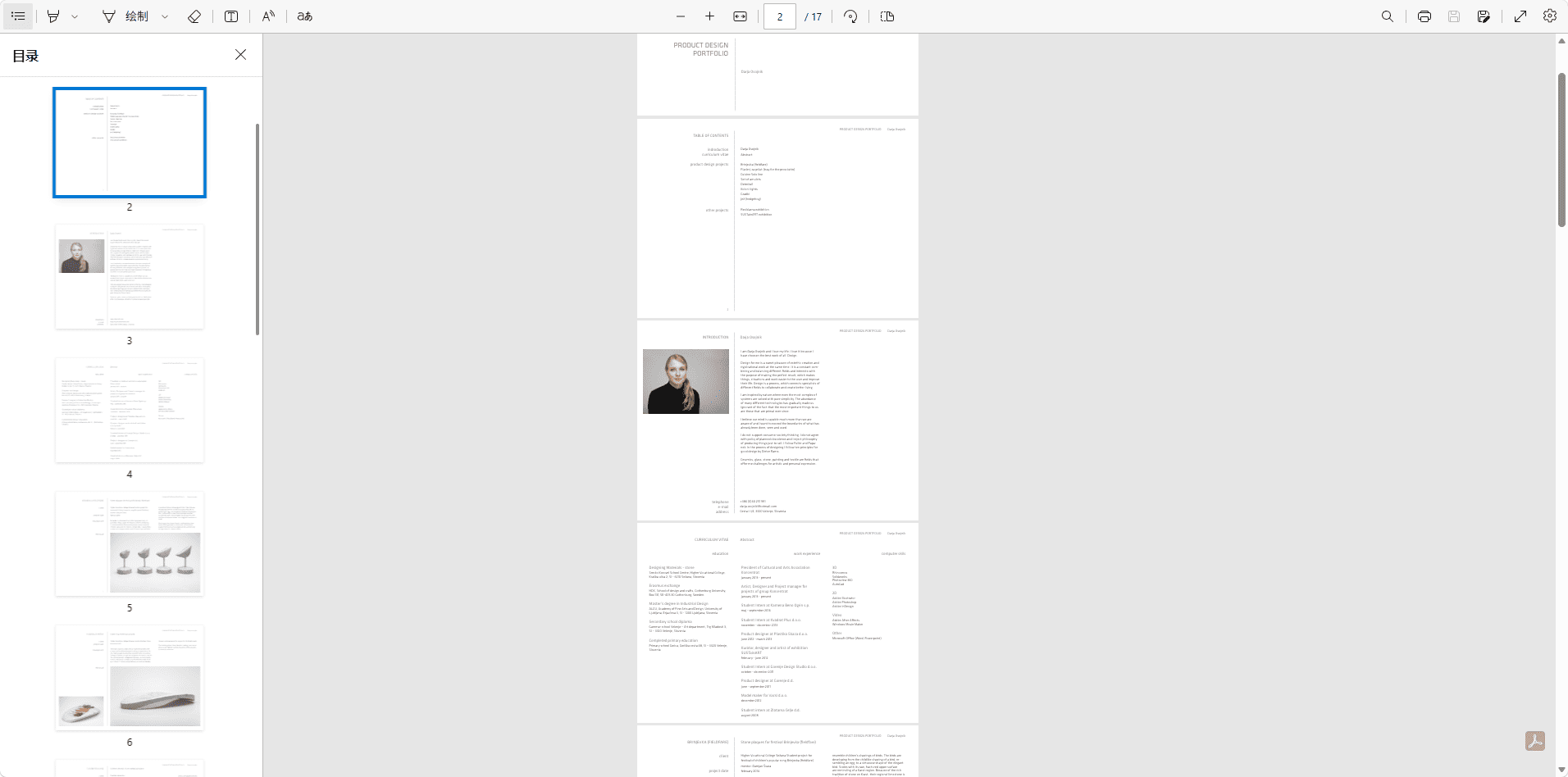
For this walkthrough, the source material is a visual portfolio PDF with real profile and project content. This is a strong PDF-to-HTML example because the document already has the ingredients of a personal website: a name, role, short introduction, creative direction, selected work, achievements, publications, and a way to get in touch.
For a better result, use a PDF with meaningful sample content instead of an empty placeholder. A blank template with labels such as name, position, and phone number gives AI Creator very little to work with. A filled resume or portfolio gives the system enough context to create stronger sections, better copy, and a more complete first draft.
You can use your own resume, a portfolio exported as PDF, or any short profile document that has readable text and clear structure. The goal is not to preserve every pixel from the original PDF. The goal is to transform the professional content into a website that feels native to the browser.
Text-based PDFs usually produce better section understanding and easier downstream editing. A highly visual portfolio can still work well, but you should review the generated copy, replace images if needed, and make sure the final page reflects your personal brand accurately.
 Step-by-Step: Generate a Personal Website From a PDF
Step 1: Open AI Creator and Choose File Mode
Open AI Creator on htmldrag.com and switch to file mode. If you want the complete overview of supported file types, privacy notes, and where file-to-HTML workflows fit, read the HtmlDrag AI Creator guide. File mode supports documents and visual files such as PDF, PPT/PPTX, Excel/XLSX, CSV, Word, Markdown, TXT, and JPG/PNG.
For this workflow, the key input is a resume or portfolio PDF. It can be a one-page resume, a designer portfolio, a developer profile, a student CV, a freelance service portfolio, or a short career document. The cleaner the document structure, the easier it is for AI Creator to turn the PDF into a useful personal homepage.
 Step 2: Upload the PDF and Add a Short Page Goal
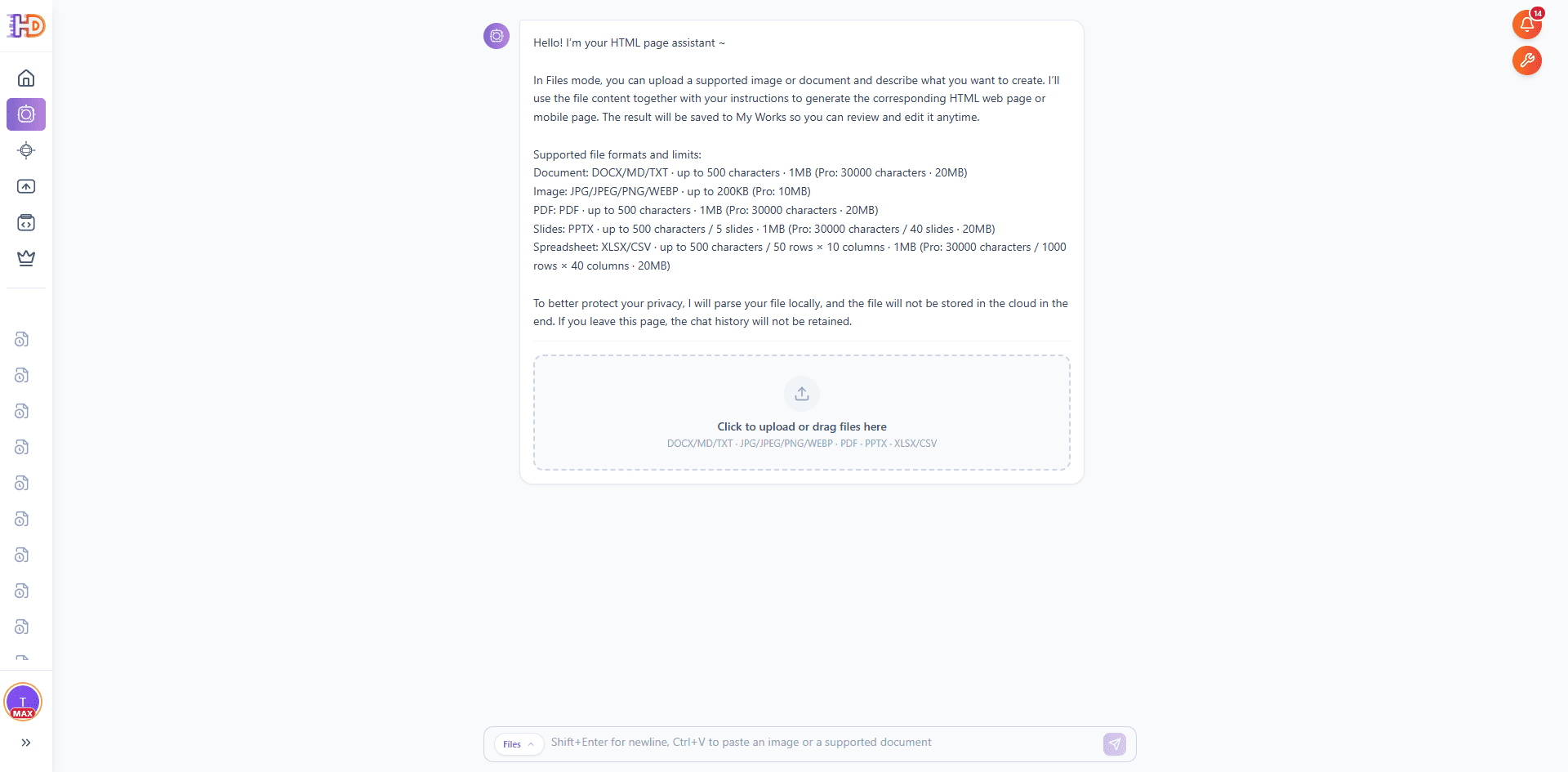
Upload the PDF into the file mode upload area. Once the file is ready, add a short instruction that describes the target page. You do not need a long prompt if the PDF already has a clear structure. A simple goal works well:
"Review this portfolio PDF, apply a suitable mainstream design style, and generate a corresponding editable HTML personal website."
This prompt is intentionally short. The PDF provides the source content, while the instruction tells AI Creator what kind of output to build. If the document is a portfolio, you can ask for stronger project sections. If it is a resume, you can ask for a clearer personal brand, skills, experience, and contact flow.
 Step 3: Let AI Creator Read and Organize the PDF
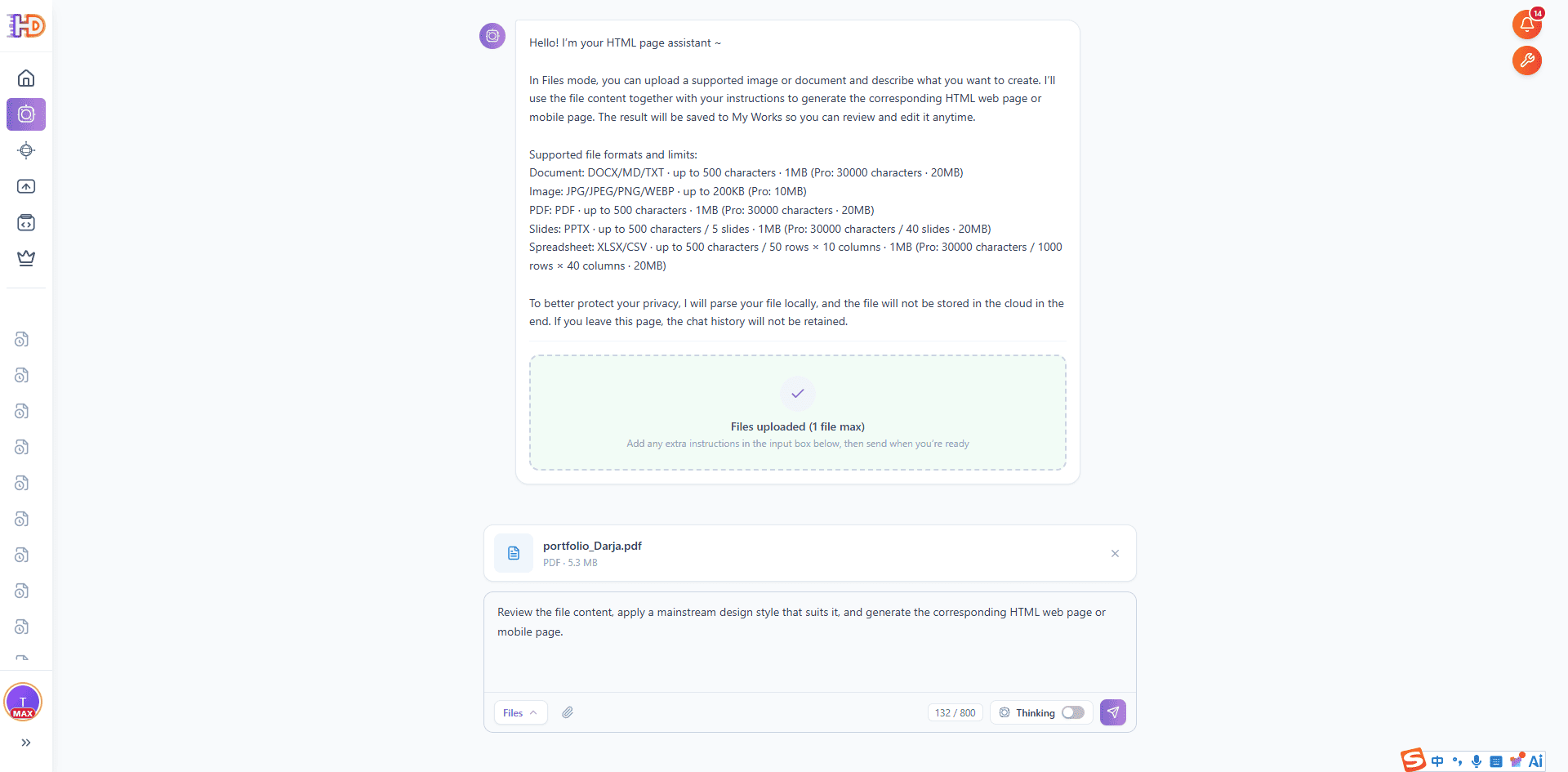
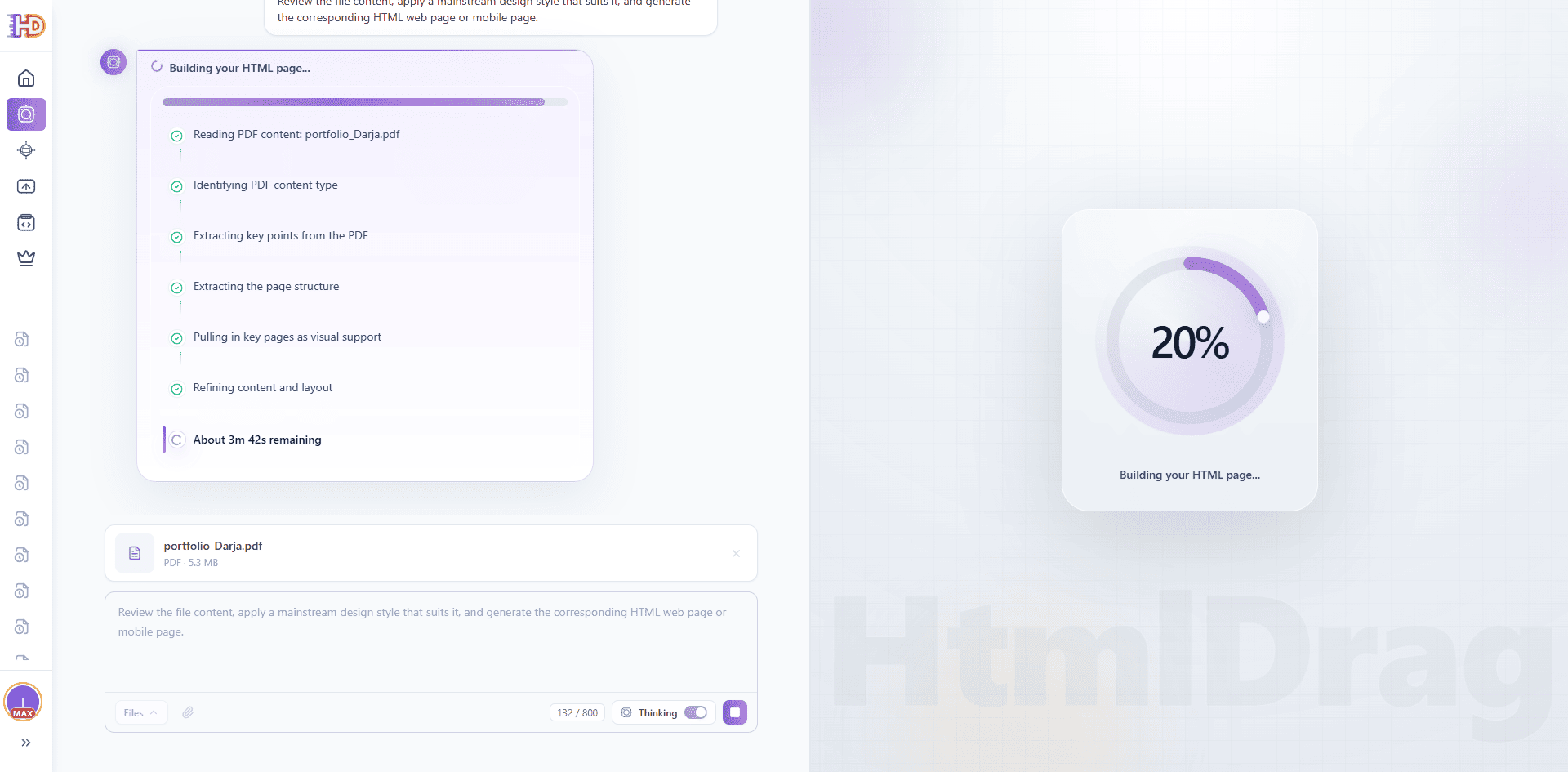
After sending the request, AI Creator starts reviewing the uploaded document. The reasoning panel should show the system reading PDF content, extracting document sections, identifying the profile goal, separating introduction, skills, experience, projects, education, achievements, and contact content, then preparing a page structure.
This is the part that separates a PDF-to-HTML website workflow from a basic PDF embed. AI Creator is not trying to show the PDF as a fixed sheet. It is mapping the profile into web page sections that a visitor can read more naturally: hero, about, skills, experience, projects, testimonials or highlights, and contact CTA.
 Step 4: Watch AI Creator Build the HTML Page
Once the document structure is clear, AI Creator moves into HTML generation. The progress view makes the transformation visible: the PDF is no longer just a file, and its profile content is becoming a browser-based page draft with sections, spacing, typography, and CTA areas.
For job seekers, designers, developers, freelancers, students, and creators, this is the high-value moment. Instead of manually copying PDF text into a website builder, rewriting page sections from scratch, or asking a developer to rebuild the profile in HTML, the first page draft is generated directly from the PDF.
 Step 5: Review the Generated Personal Website
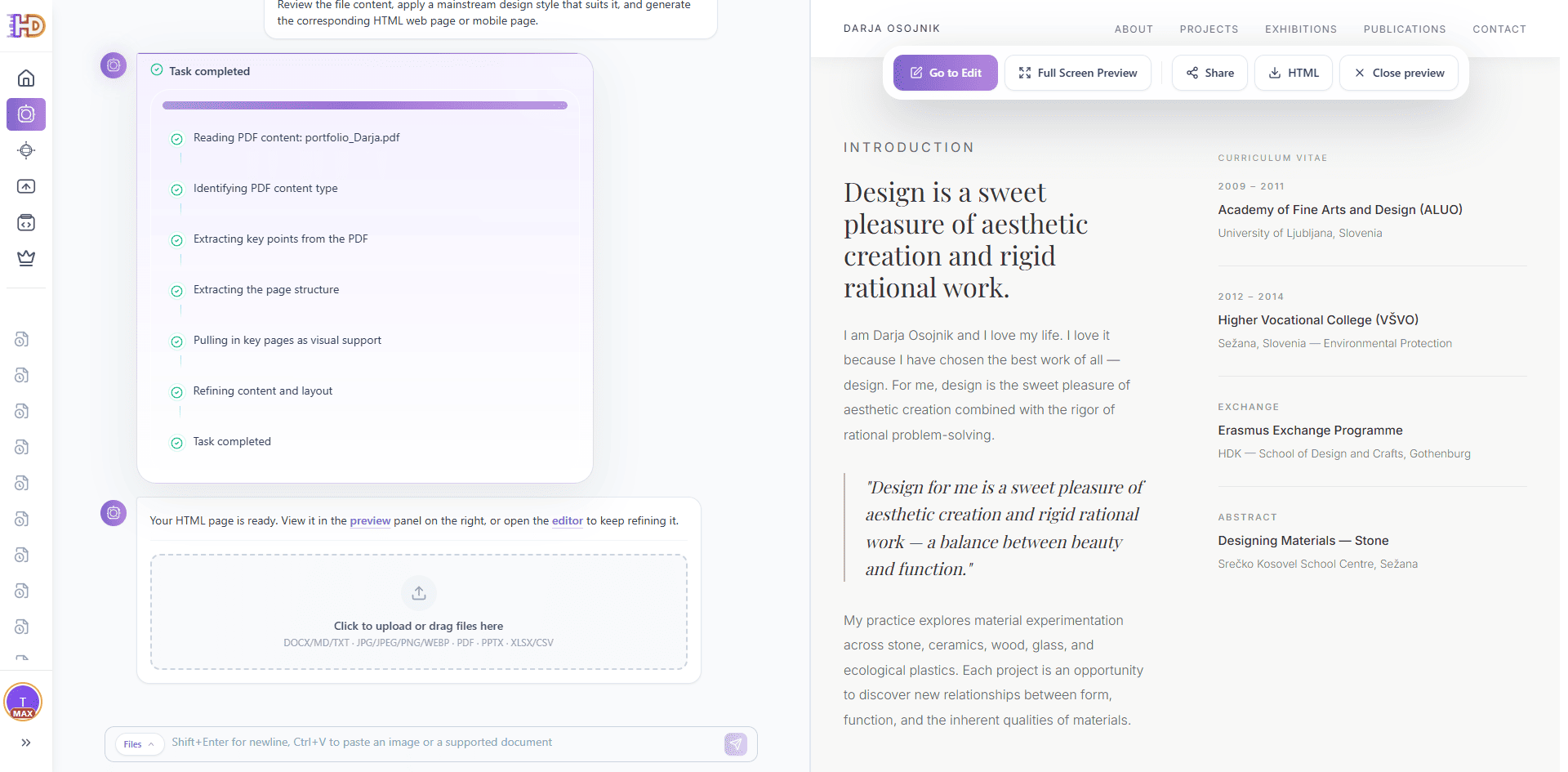
When generation is complete, the preview appears on the right side. The result should no longer feel like a PDF page. It should read like a personal website: a hero message at the top, a short bio, skill groups, experience highlights, selected projects, credibility signals, and a clear next step.
The preview toolbar gives you practical next actions such as opening the editor, viewing the page full screen, sharing a preview, exporting HTML, or downloading an image. This matters because the workflow does not stop at generation. The result can move directly into review, editing, delivery, or hosting.
 Step 6: Open Full-Screen Preview for Stakeholder Review
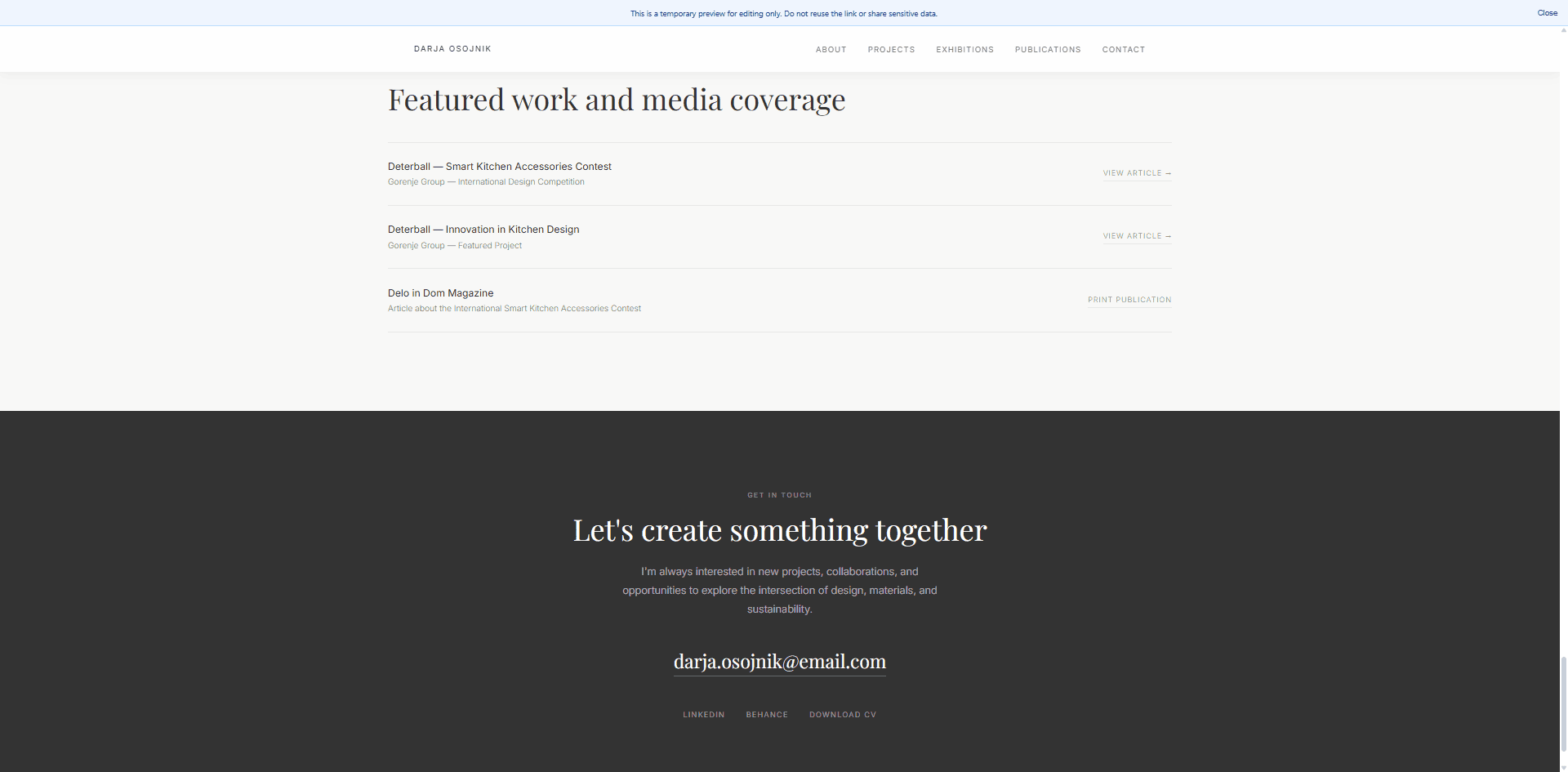
Full-screen preview is useful when you need to check whether the generated page works as a standalone web experience. A PDF resume or portfolio is often written for recruiters, clients, or application workflows, but a personal website needs a stronger scroll rhythm and clearer hierarchy. The full-screen view lets you inspect the page exactly as a visitor would see it.
This is especially helpful before investing time in final design. A job seeker, freelancer, designer, developer, student, or creator can quickly see whether the profile now works as a shareable online presence.
 Step 7: Continue Editing the Generated Page Visually
The final step is where HtmlDrag becomes more practical than a simple PDF converter or one-shot AI code generator. After AI Creator generates the page, open it in the HtmlDrag visual editor and keep refining the result without touching HTML or CSS.
You can adjust the generated personal website like a real design canvas:
- rewrite the hero title and supporting text
- change CTA button copy and links
- replace PDF-derived visuals with a portrait, project images, or brand graphics
- reorder resume or portfolio sections for a stronger storytelling flow
- fine-tune spacing, typography, borders, colors, and layout
- save a version, share a preview, export HTML, or download an image
This closes the full workflow: resume or portfolio PDF → AI-generated personal website → visual editing → preview, share, save, or export.
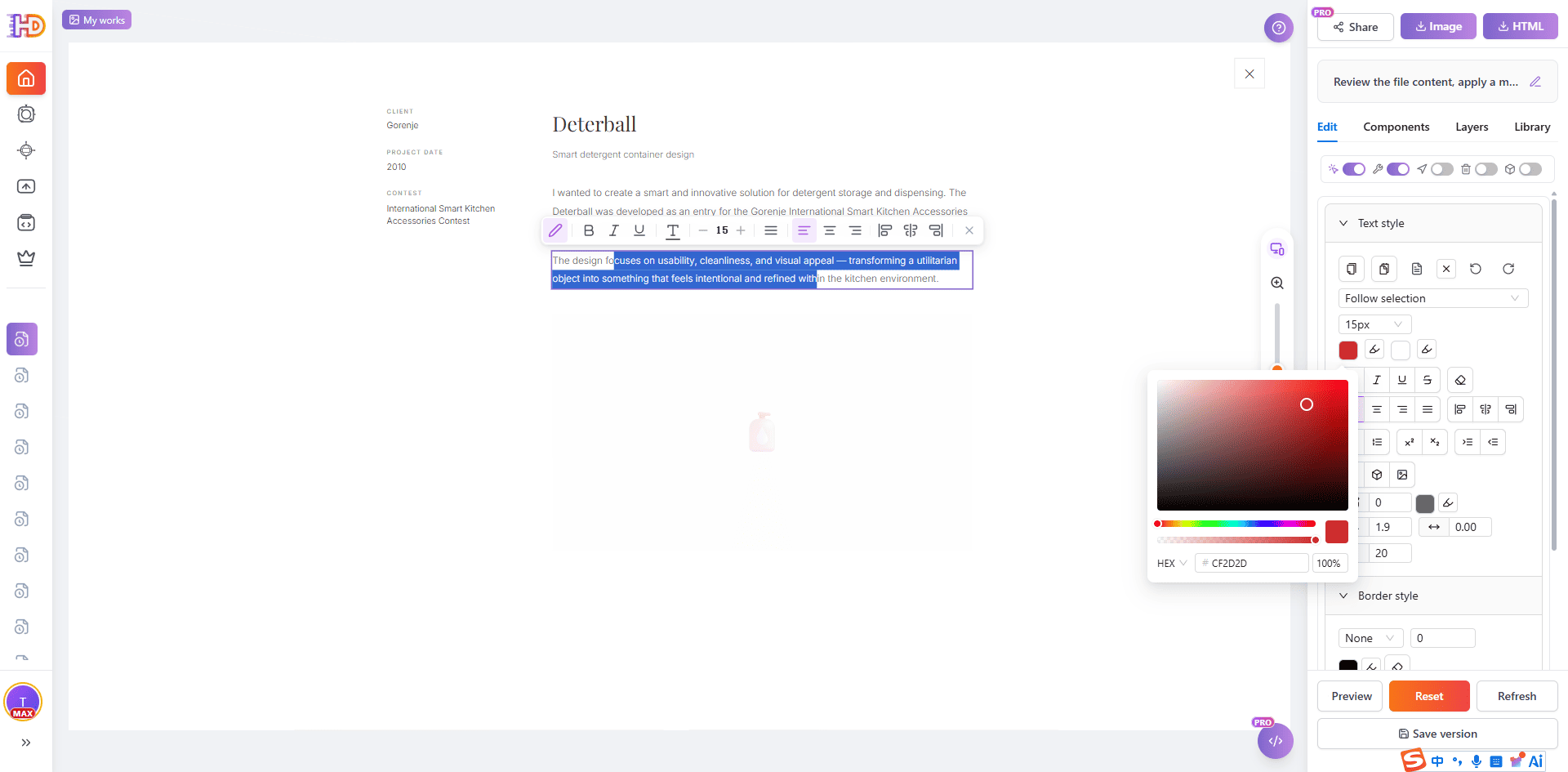
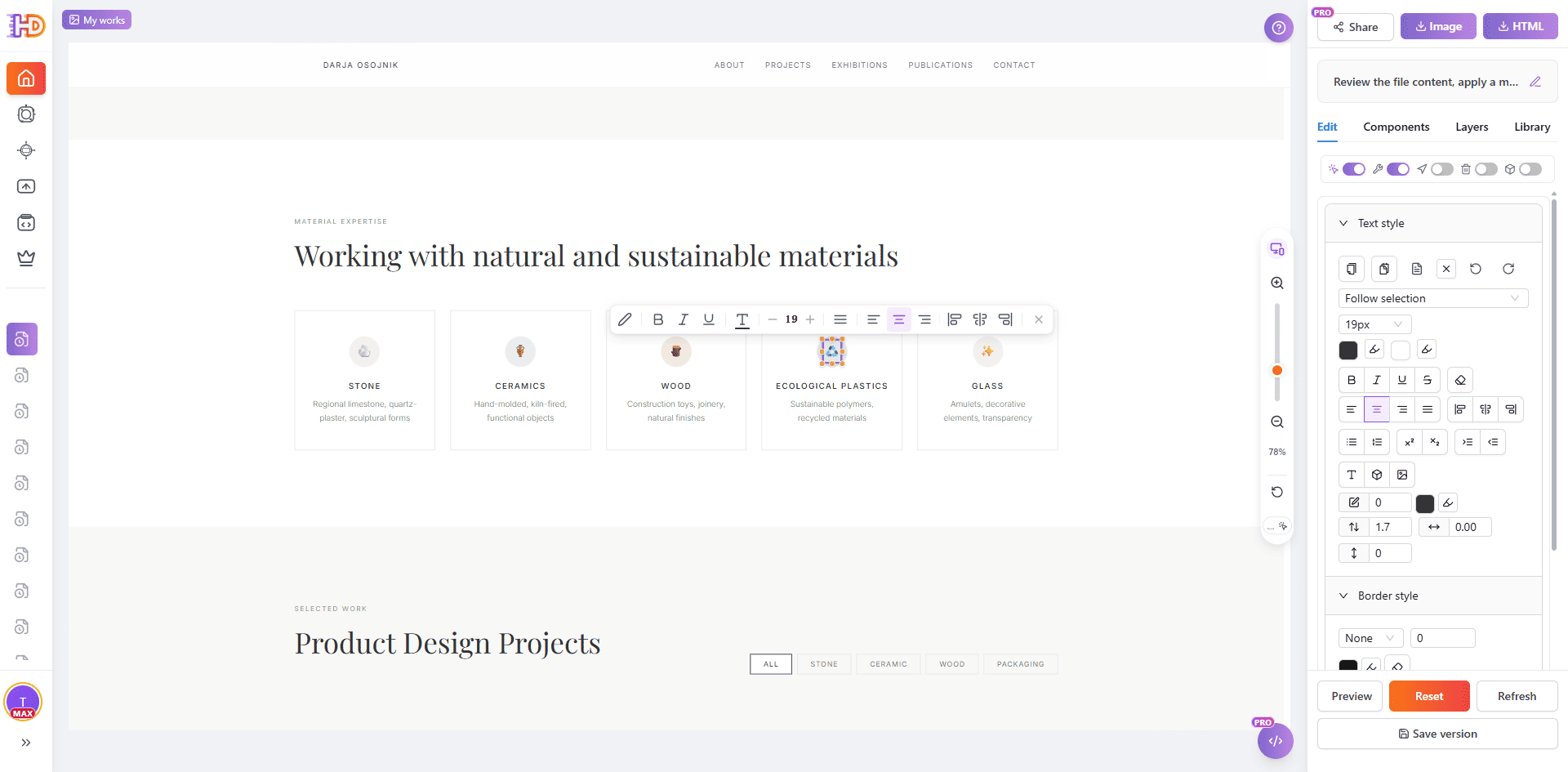 The same editor workspace also supports more granular styling. You can select generated text, adjust typography or color, refine spacing, save a version, and export the final HTML when the page is ready.
 Traditional PDF Conversion vs AI Creator File Mode
| Task | Traditional PDF converter or embed | HtmlDrag AI Creator |
| Start from a resume or portfolio PDF | Often preserves a static document or embeds a PDF viewer | Reads the PDF as profile material and rebuilds it as page sections |
| Create a web-native page | The result may still feel like a document inside a browser | Generates a personal-website-style HTML layout with hero, sections, and CTA |
| Make small changes | Usually requires editing the PDF or rebuilding the website manually | Supports visual editing, drag-and-drop refinement, and copy updates |
| Prepare for review or delivery | Sharing may be limited to sending the PDF again | The page can be previewed, shared, saved, exported as HTML, or downloaded as an image |
Best PDF Documents for This Workflow
This workflow works best when the PDF has real structure and real content. AI Creator can do more when the source document has headings, sections, short paragraphs, project descriptions, skill groups, or clear visual hierarchy.
- Resume PDFs with a headline, summary, skills, work history, education, and contact details
- Portfolio PDFs with selected projects, visual examples, captions, roles, outcomes, and contact paths
- Freelance profiles with services, case studies, testimonials, process, and booking CTA
- Student portfolios with coursework, projects, internships, awards, and learning focus
- Creator media kits with bio, audience, work samples, collaboration options, and social links
A short, well-structured PDF usually produces a better personal website than a blank template or a long, dense, multi-column document. If the PDF is mostly scanned images, you may need extra review and manual cleanup after generation. That is still easier than rebuilding the page from scratch, but it should not be treated as a perfect one-click conversion.
FAQ
Can AI Creator generate an HTML page from a PDF?
Yes. In this workflow, AI Creator file mode accepts a PDF as source material, reads its document structure, and generates an editable HTML personal website that can be opened in the HtmlDrag visual editor.
Is this the same as embedding a PDF on a web page?
No. Embedding a PDF usually places a document viewer inside the page. This workflow uses the PDF content to generate a new editable HTML page with sections, layout, and CTA blocks.
What kind of PDF works best?
Text-based PDFs with clear headings, profile summaries, skills, experience, project descriptions, outcomes, and contact information work best. Blank templates and scanned image-only PDFs may require more manual cleanup.
Can I edit the generated page after AI creates it?
Yes. After generation, you can open the page in HtmlDrag and visually adjust text, images, layout, spacing, colors, buttons, and section order without writing code.
Can I export the final result as HTML?
Yes. After editing, you can save the page, share a preview, export clean HTML for hosting, or download the page as an image for review.
Final Thoughts
A resume or portfolio PDF should not be trapped as a static attachment when you need a page that can be reviewed, shared, edited, and reused. If the PDF already contains your story, skills, projects, and contact details, it can become the starting point for an editable personal website.
With HtmlDrag AI Creator, the workflow is simple: upload the PDF, let AI Creator read and organize the profile, generate an HTML page, preview the result, and open it in the visual editor for final drag-and-drop refinement.
If you need a faster way to turn a resume or portfolio PDF into an editable personal website without coding, AI Creator file mode gives you both the first draft and the visual control needed to finish the page.