
You found a gorgeous free HTML template on HTML5 UP, TemplateMo, or Bootstrap Made. You downloaded the ZIP, unzipped it, opened the .html file — and now you're staring at hundreds of lines of code with no idea where to start.
Sound familiar? You're not alone. Millions of people download free HTML templates every month, but most of them hit the same wall: the template looks perfect, but editing it requires coding knowledge they don't have.
In this guide, I'll show you how to edit any downloaded HTML template — change text, swap images, adjust colors, rearrange sections — using a visual drag-and-drop editor. No VS Code. No HTML knowledge. No frustration.
The Problem: Beautiful Templates, Painful Editing
Free HTML templates are everywhere. Sites like HTML5 UP, Start Bootstrap, and Colorlib offer thousands of professionally designed templates. But there's a catch that nobody talks about:
- To change a headline, you need to find it buried inside nested
<div>tags - To swap an image, you need to understand file paths and
<img>attributes - To adjust spacing, you need to hunt through CSS files for the right class name
- To rearrange sections, you risk breaking the entire layout if you cut the wrong closing tag
For developers, this is trivial. For everyone else — freelancers, small business owners, marketers, students — it's a dealbreaker. Many end up paying $50–$200 on Fiverr just to change some text and images on a free template.
The Solution: Visual Editing with Drag-and-Drop
What if you could open your HTML file in a visual editor, click on any element, and edit it directly — just like editing a Google Doc? That's exactly what HtmlDrag does.
Here's how it works in 5 simple steps:
Step 1: Upload Your HTML Template
Go to htmldrag.com and upload your HTML file. The editor loads your template exactly as it looks in a browser — fonts, images, layout, everything.
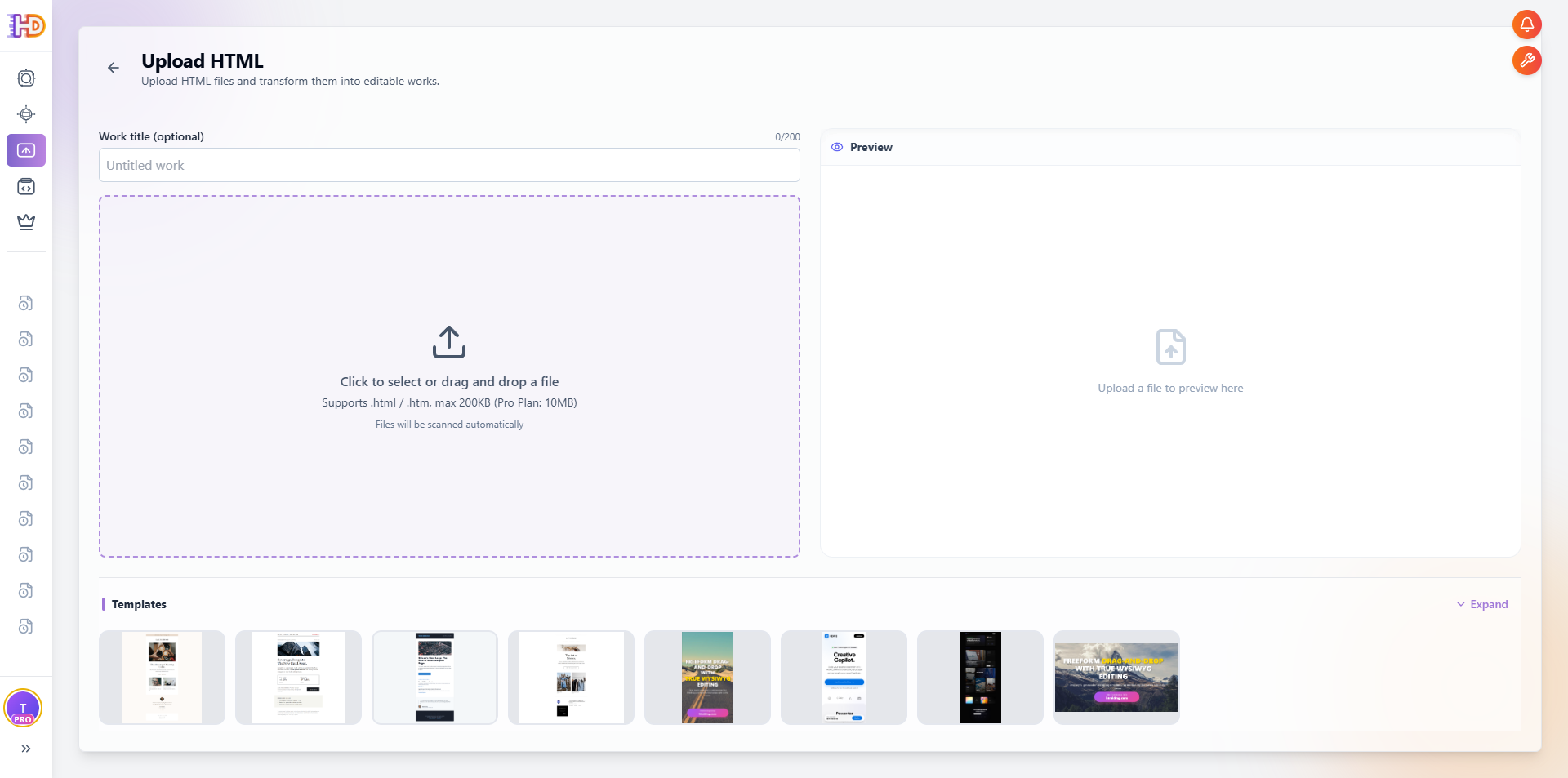
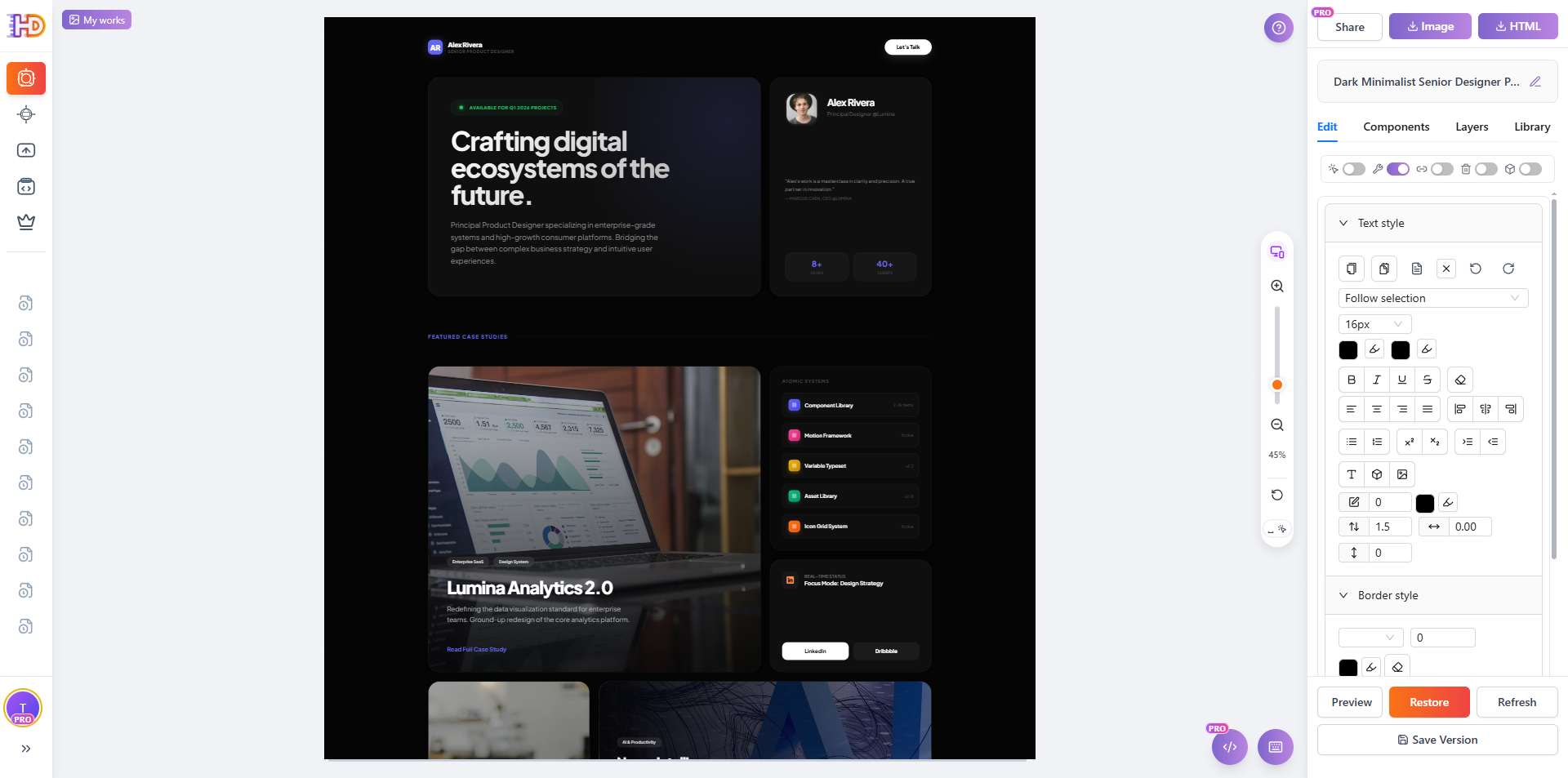
Tip: Most HTML templates come as a ZIP file. Unzip it first, then upload the main index.html file.
Step 2: Click to Edit Text
Simply click on any text element to select it, then double-click to enter editing mode. Type your content directly on the page — headlines, buttons, navigation items, anything.

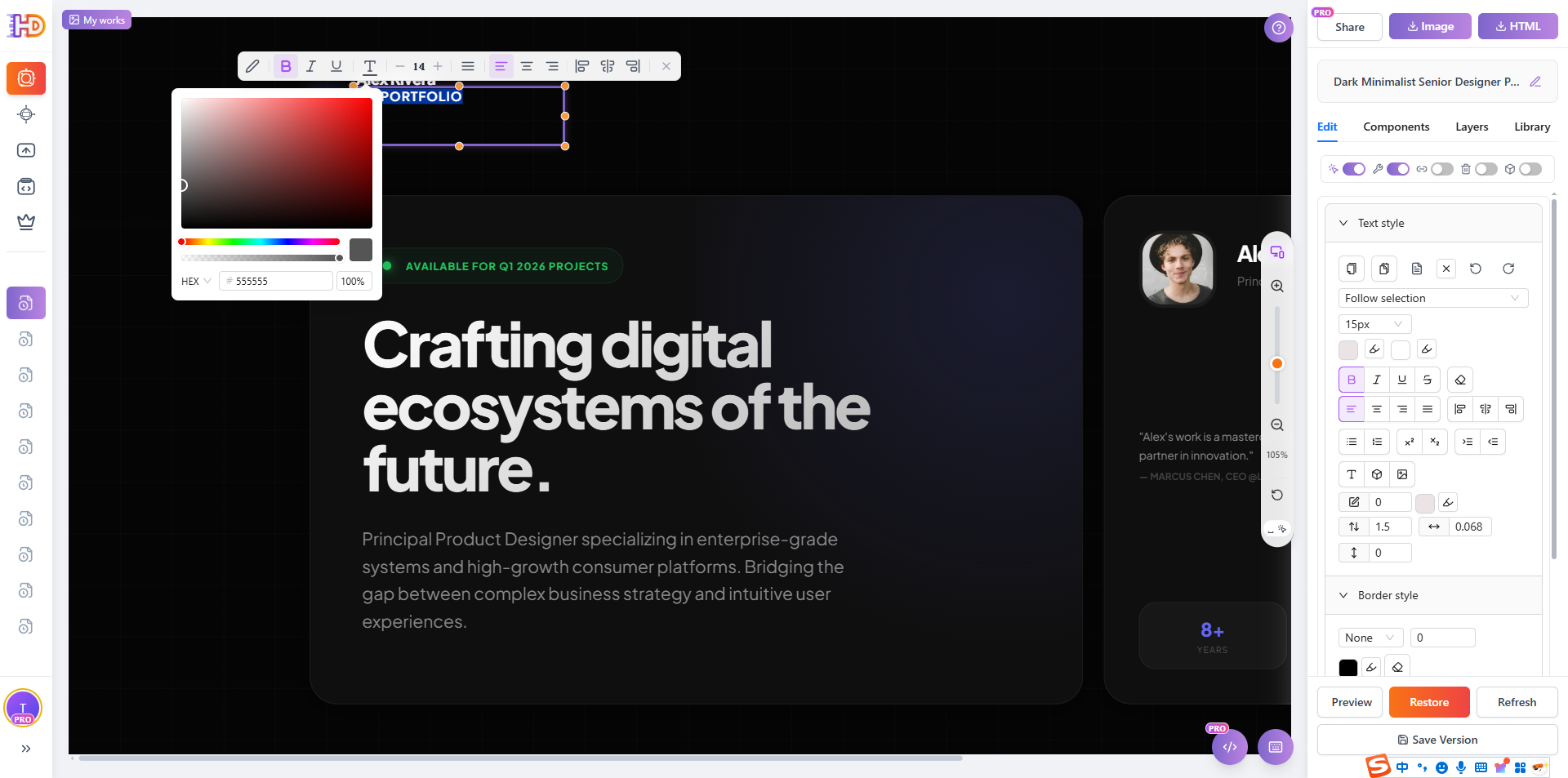
You can edit:
- Headlines and body text
- Button labels and link text
- Navigation menu items
- Footer content and copyright notices
Step 3: Replace Images
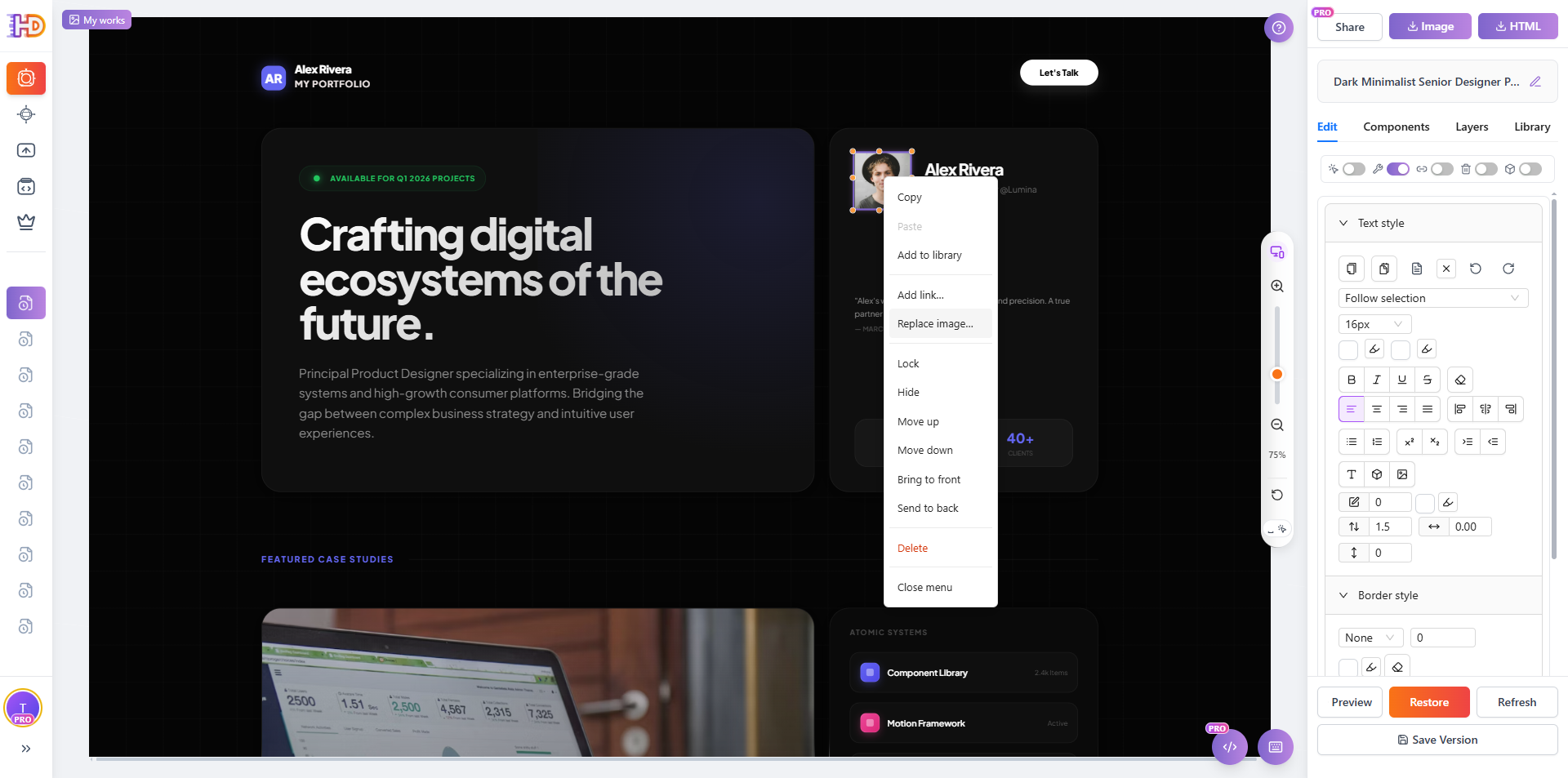
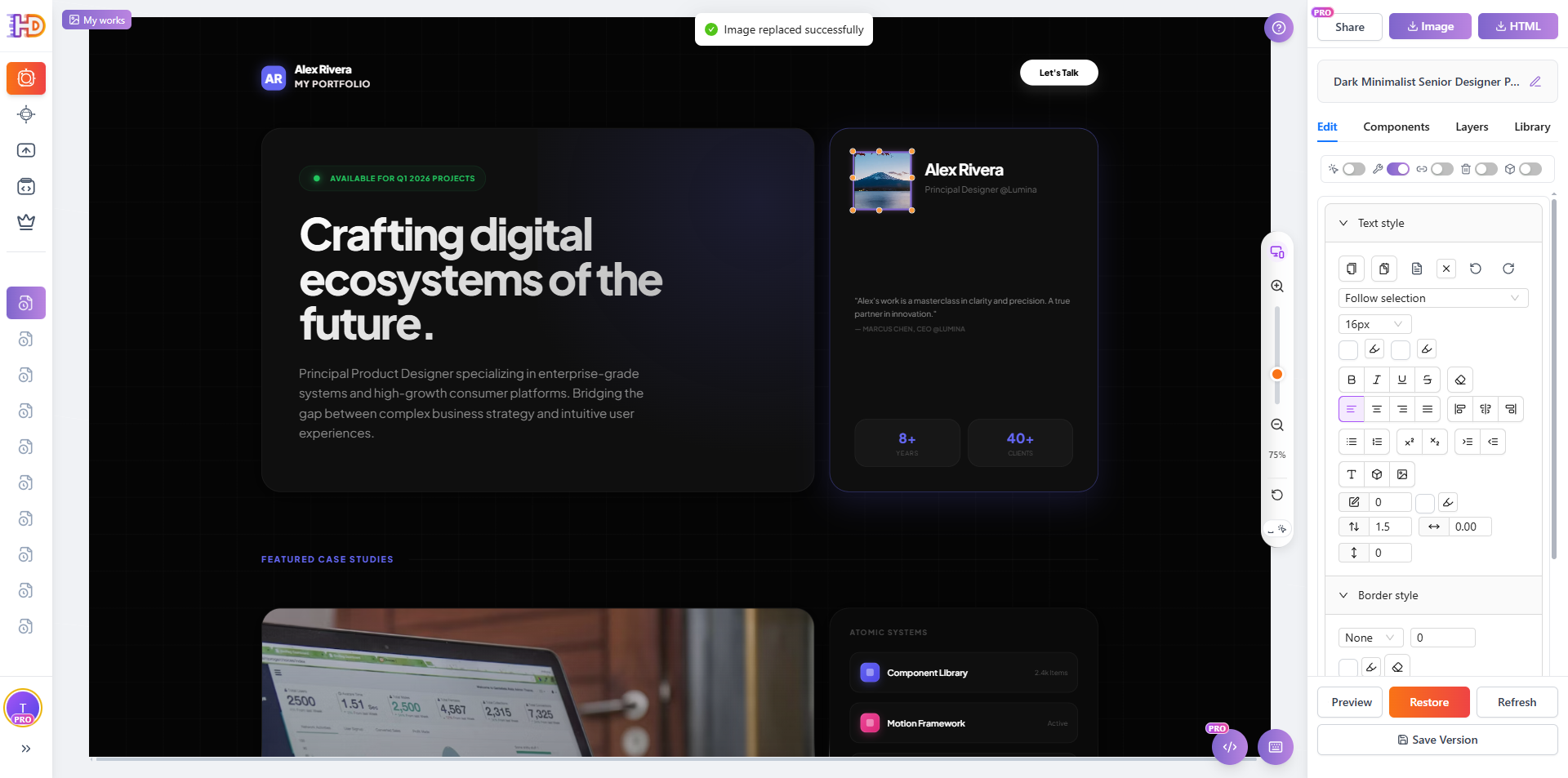
Click on any image to select it, then upload a new file to replace it. The editor handles the file path update automatically — no need to dig through <img> tags or worry about relative paths.
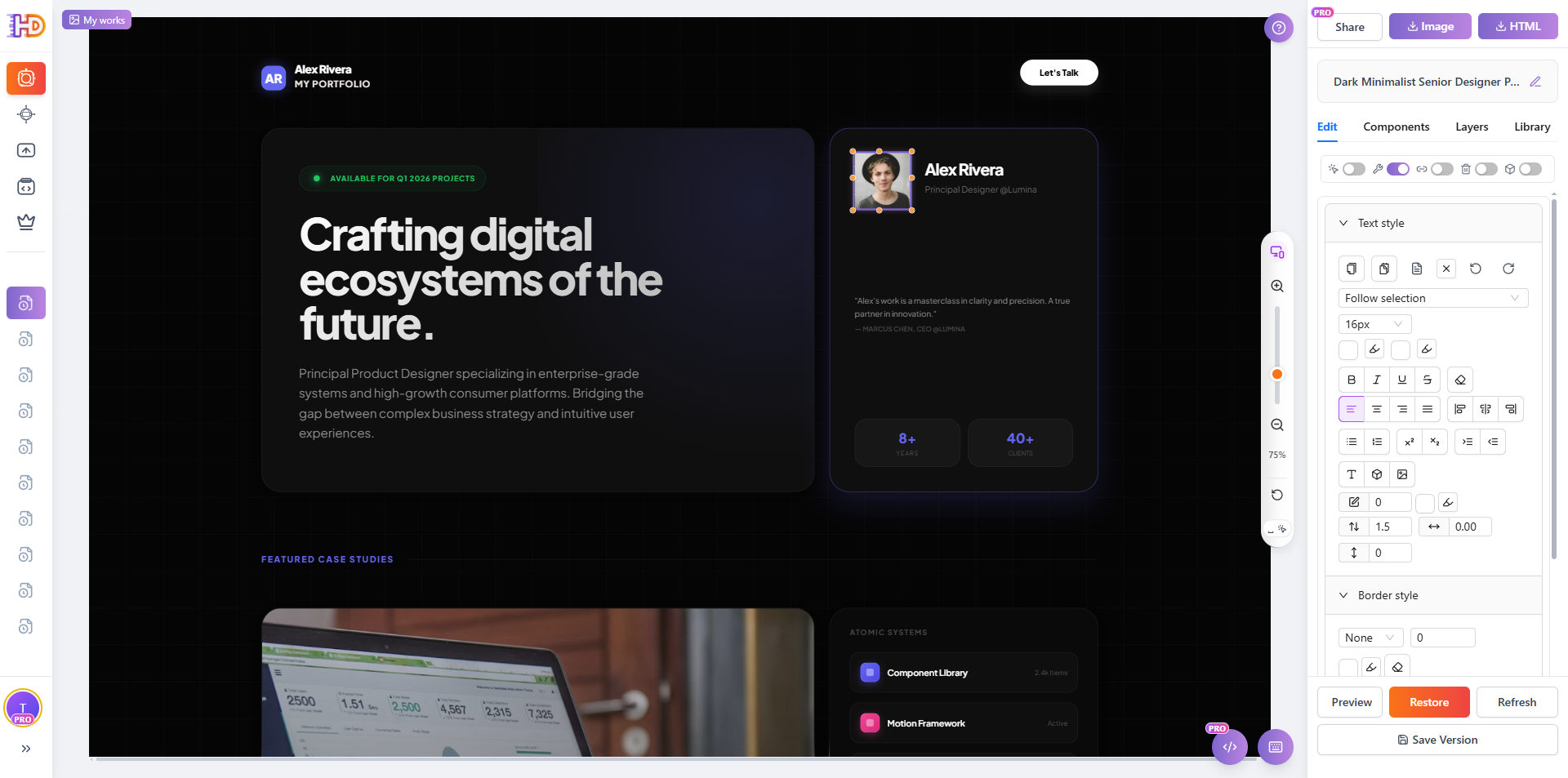
Step 4: Drag to Rearrange Layout
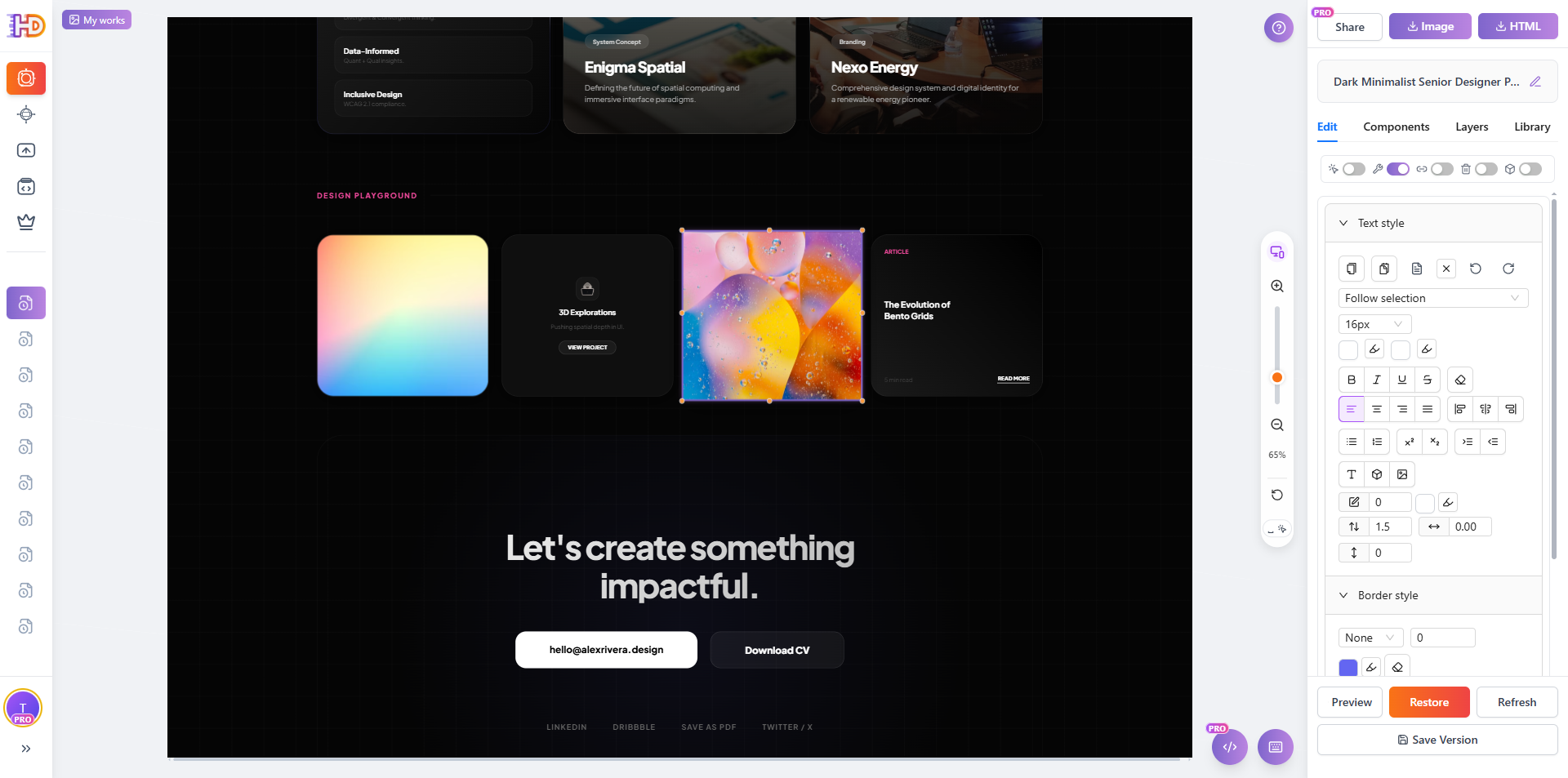
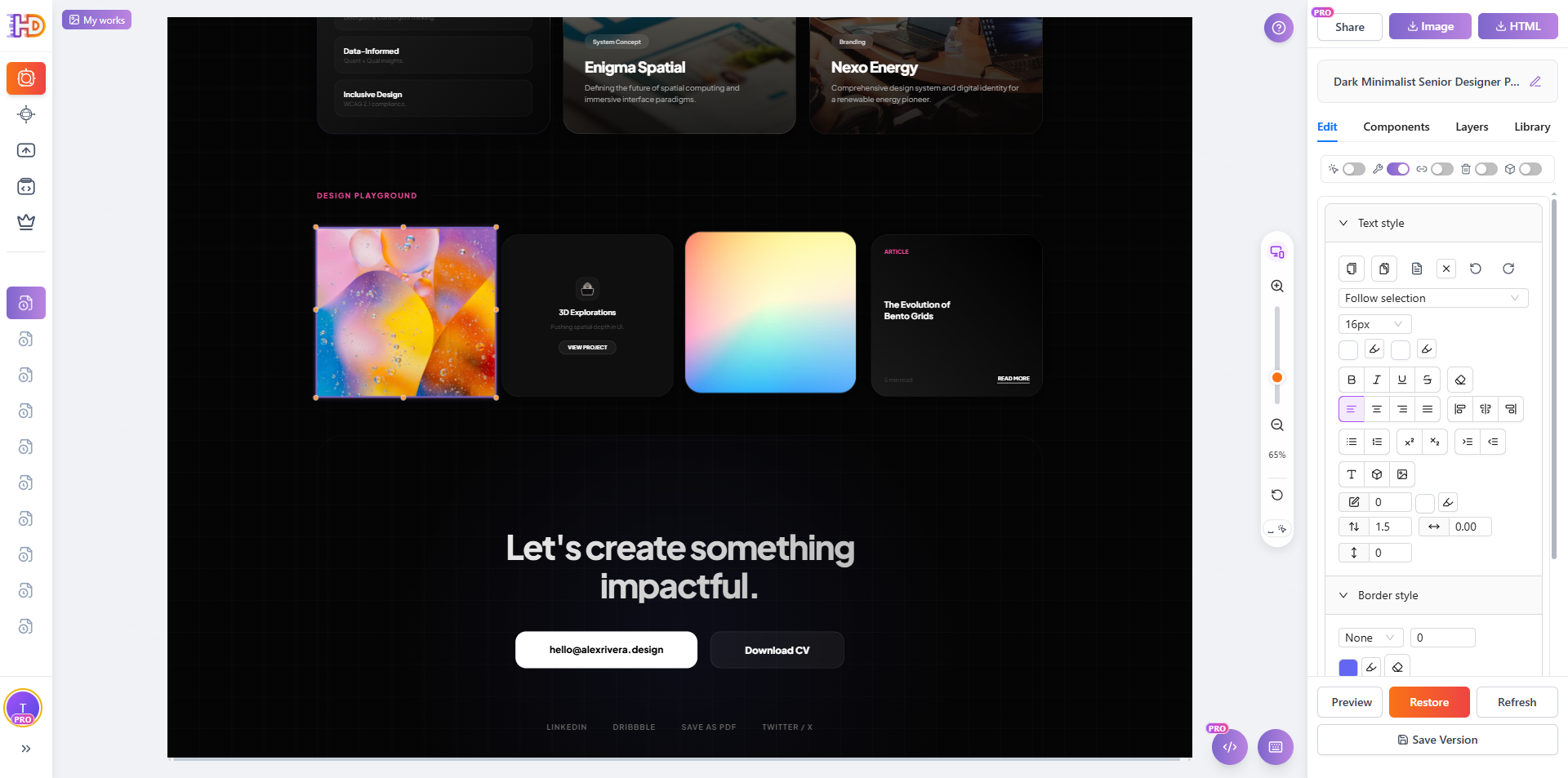
Want to move a section or reposition an element? Drag it. The editor treats your HTML like a visual canvas — grab any element and drop it where you want. No code manipulation needed.
This is where HtmlDrag differs from tools like WordPress or Wix — it works with your existing HTML file, not a proprietary format. Your template stays as a standard .html file throughout.
Step 5: Download Your Edited Template
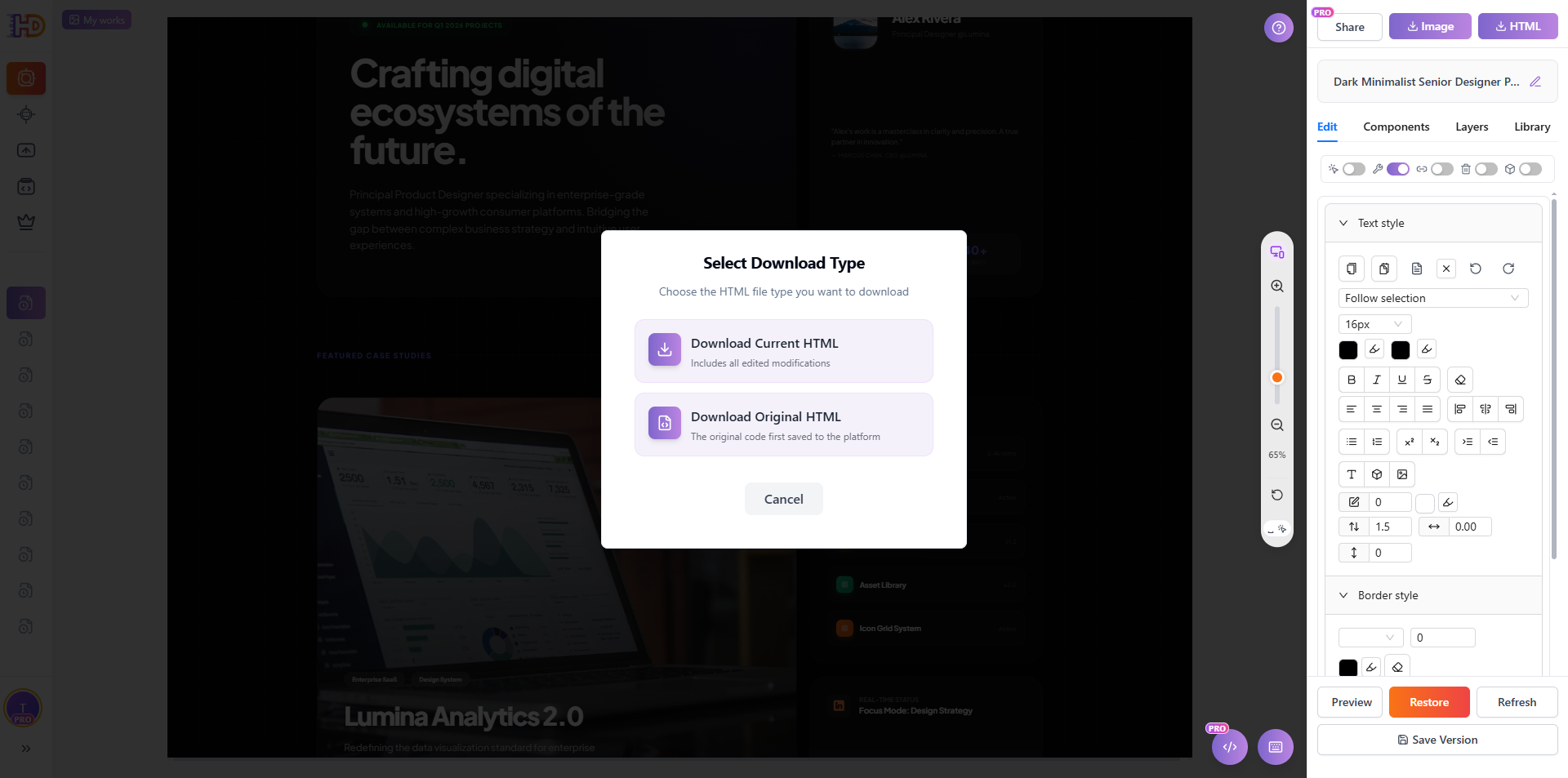
When you're happy with the changes, click Download in the top-right corner. You get a clean HTML file ready to deploy — upload it to your hosting, send it as an email, or hand it off to your developer for final touches.
Real-World Use Cases
Here are the most common scenarios where visual HTML editing saves hours:
| Scenario | Without Visual Editor | With HtmlDrag |
| Customize a portfolio template | Edit HTML/CSS in VS Code, 2-4 hours | Click, type, drag — 15 minutes |
| Update a landing page | Find and replace text in code, risk breaking layout | Click headline, type new text, done |
| Rebrand a Bootstrap template | Change colors across multiple CSS files | Select element, adjust style visually |
| Edit an HTML email before sending | Decode table-based email layout in code | Upload, edit visually, download fixed HTML |
Which Templates Work?
HtmlDrag works with any standard HTML file. Here are some popular template sources that users commonly edit:
- HTML5 UP — Beautiful, responsive templates (CC-licensed)
- Start Bootstrap — Bootstrap-based templates and themes
- TemplateMo — Free CSS/HTML templates
- Colorlib — Modern HTML templates
- AI-generated HTML — Pages created by ChatGPT, Claude, or other AI tools
- Exported HTML — Files exported from Figma, Canva, or design tools
FAQ
Does it change my original file?
No. HtmlDrag works on a copy. Your original HTML file stays untouched. You download a new version with your edits applied.
Do I need to create an account?
Basic editing works without an account. Creating a free account lets you save drafts and access more features.
Can I edit CSS styles too?
Yes. The component editing panel lets you adjust common styles like colors, fonts, spacing, and borders — all visually. For advanced CSS changes, you can switch to the built-in code editor at any time.
What about images?
You can replace images by clicking on them and uploading a new file. The editor handles the file path update automatically.
Stop Fighting Code — Start Creating
HTML templates are meant to save you time, not create new headaches. If you've been avoiding template customization because of the coding barrier, give visual editing a try.
Upload your HTML template at htmldrag.com and see your changes instantly — no coding, no frustration, no Fiverr invoice.